Campaigns
The Campaigns page is your main dashboard for managing all age verification popups. Here you can create, edit, duplicate, and toggle campaigns on or off.
Campaigns page
On this page you'll see:
- Campaign list — All your created campaigns (e.g., Age Verification #1, Age Verification #2)
- Status — Each campaign is either Active (running on your storefront) or Inactive (disabled and hidden from customers)
- Actions — Edit, duplicate, or delete any campaign
- Create campaign button — Start building a new popup
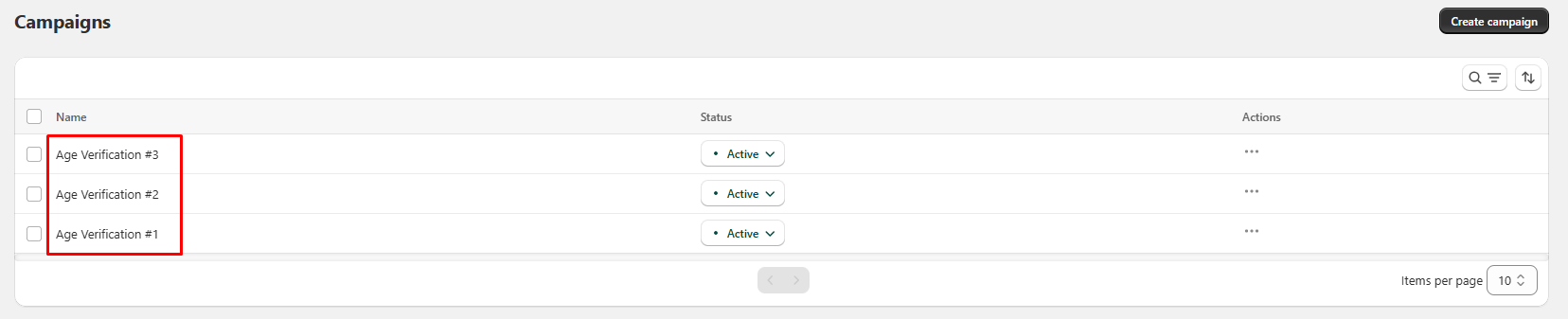
You can quickly toggle campaigns between Active and Inactive to enable or disable them without deleting anything.
Create a campaign
Click Create campaign to get started. You'll be directed to the template selection page.
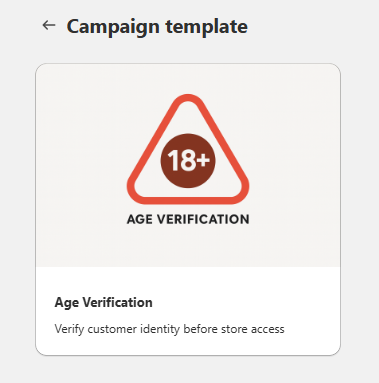
Select the Age Verification template — designed for stores selling age-restricted products like alcohol, tobacco, or adult content.
General tab
The General tab establishes the core verification logic for your popup.
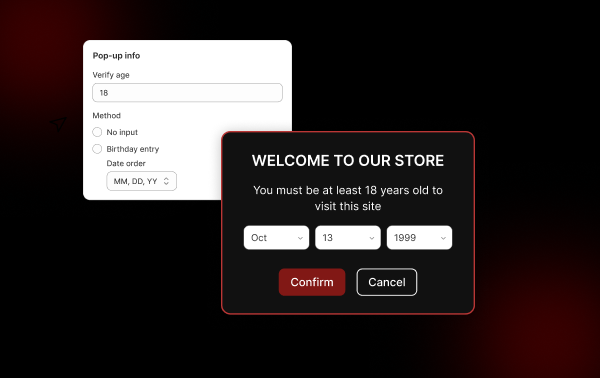
Pop-up info
Verify age
Enter the minimum required age (e.g., 18 or 21). This value is reusable as the {verify_age} variable throughout your popup content.
Method Choose how customers confirm their age:
- No input — Customers click a button to confirm. This is the fastest option with the least friction.
- Birthday entry — Customers enter their date of birth. Stricter validation for higher compliance needs.
Preview panel
The right side shows a live desktop preview of your popup. Any changes you make are reflected immediately.
Style tab
The Style tab gives you full control over the popup's visual appearance.
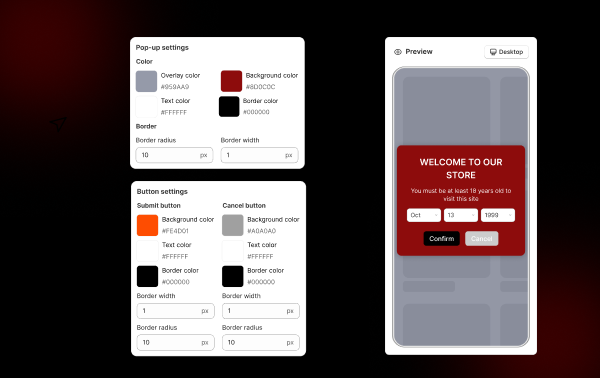
Pop-up settings
Colors
| Setting | Description |
|---|---|
| Overlay color | Background layer behind the popup |
| Background color | Main popup container |
| Text color | Headings and body text |
| Border color | Popup border |
| Error message color | Validation/error messages |
Border
| Setting | Description |
|---|---|
| Border radius | Corner roundness (in pixels) |
| Border width | Border thickness (in pixels) |
Button settings
Both the Submit (Confirm) and Cancel buttons can be styled independently:
- Background color
- Text color
- Border color
- Border width
- Border radius
Preview panel
Updates in real time as you customize. Supports both desktop and mobile responsive previews.
Content tab
The Content tab manages all the text displayed in your popup.
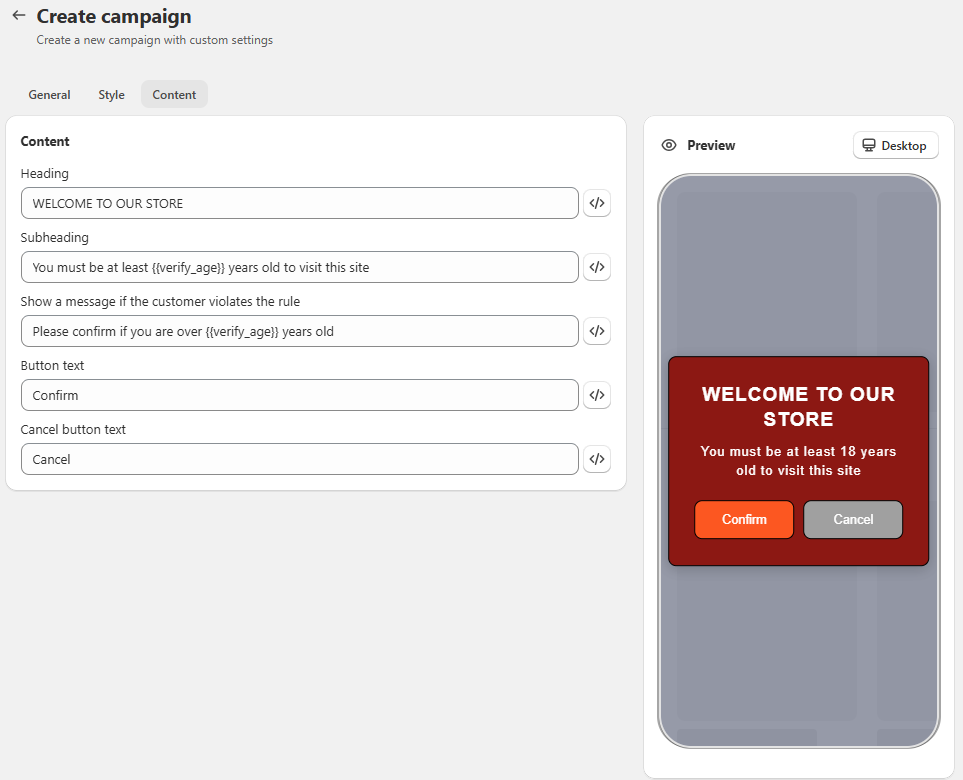
Content fields
| Field | Description | Example |
|---|---|---|
| Heading | Main popup title | "WELCOME TO OUR STORE" |
| Subheading | Supporting message | "You must be at least {verify_age} years old to visit this site" |
| Violation message | Shown on failed verification | "Please confirm if you are over {verify_age} years old" |
| Button text | Confirm button label | "Confirm" |
| Cancel button text | Cancel option label | "Cancel" |
The {verify_age} dynamic variable automatically pulls the age value from the General tab — keeping your content consistent without manual updates.
Preview panel
All content changes are reflected instantly in the preview, so you can make sure your messaging looks great across devices.
Best practices
- Use clear, compliant language to meet legal requirements
- Choose No input for better conversion rates, or Birthday entry for stricter compliance
- Match popup colors with your store branding for a seamless look
- Always preview and test before activating a campaign
Remember to open your store in an incognito window after activating a campaign to verify everything works as expected!