Blocko AI
Who can use this feature?
This feature is currently in beta and requires activation for your store. Contact our team to get started.
What is Blocko AI?
Blocko AI is your personal AI-powered section builder. Instead of browsing the Library for a pre-made section, you can simply describe what you need and the AI will generate a fully functional Shopify section for you.
Blocko AI works through:
- A chat interface where you describe what you want in plain language
- Real-time section generation — watch your section being built as the AI works
- Live preview — see exactly how your section looks before publishing
- Iterative editing — refine your section through follow-up messages
- Direct publishing to any theme in your store
Why use Blocko AI?
- Create unique, custom sections without any coding or design skills
- Get exactly what you need by describing it in your own words
- Attach reference images to guide the AI's design
- Edit and refine until the section matches your vision
- Publish directly to your theme — no manual setup required
- Keep a full history of all generated sections for reuse
Try it in action
Blocko AI is accessible from two places:
1. Dashboard
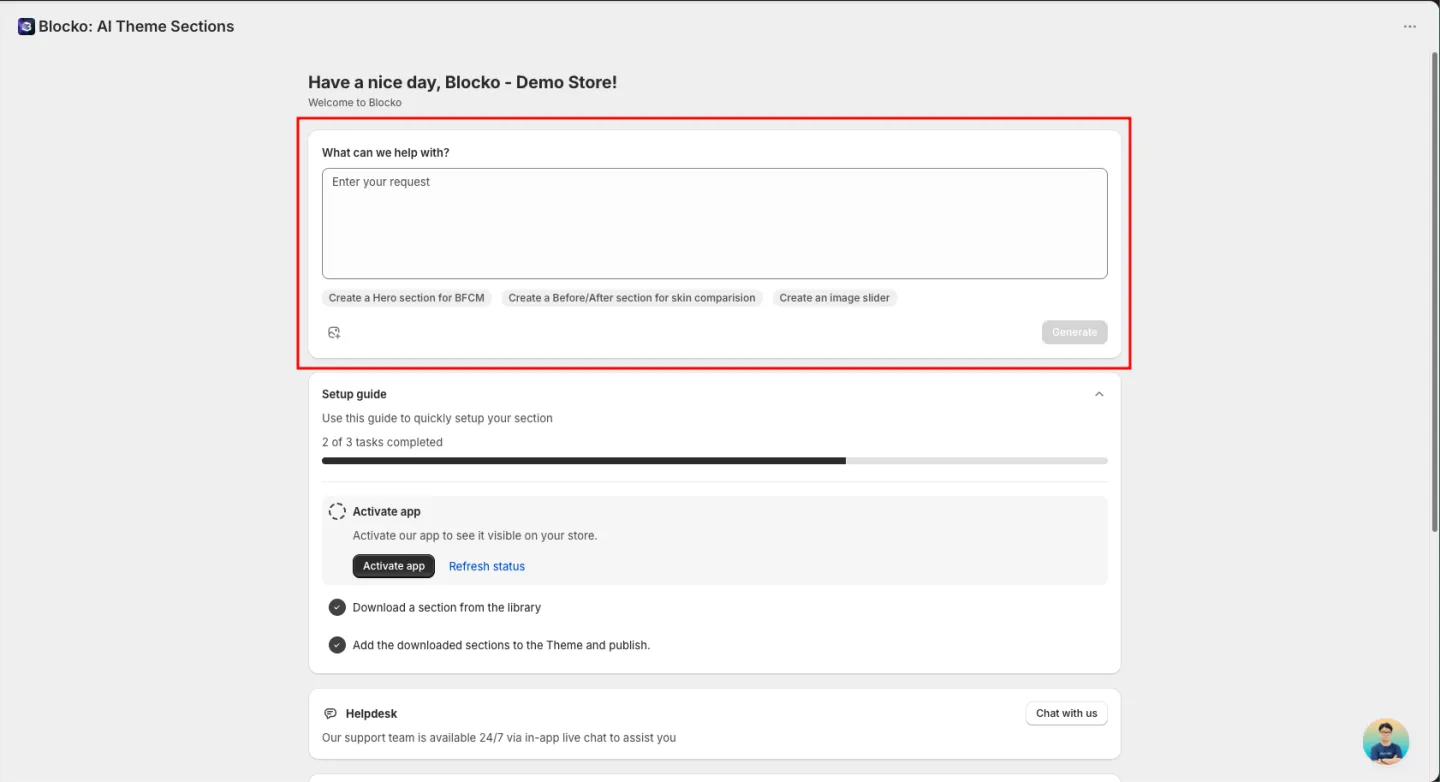
Quick chat field right on your home page
2. Blocko AI
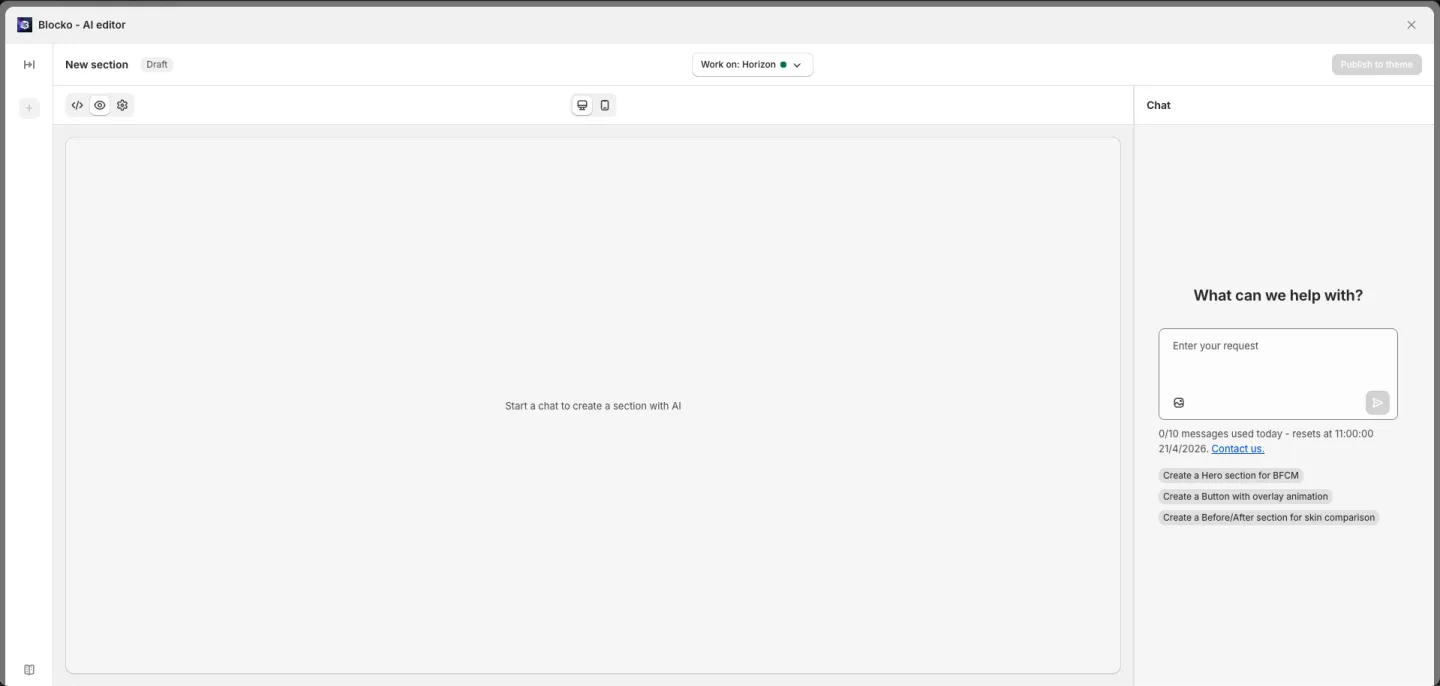
In the navigation sidebar — the full AI editor experience
How to Use Blocko AI
Start a conversation
:point_right: From the Dashboard:
- Open the Blocko app — you'll see the "What can we help with?" section
- Type your request in the text field (e.g., "Create a Hero section for BFCM")
- Optionally attach reference images by clicking the image icon
- Click Generate
:point_right: From the sidebar:
- Click Blocko AI in the navigation menu
- Type your request in the chat input and press Enter
- Optionally attach reference images by clicking the image icon
- Click Generate
Select a theme
Choose the theme you want to use for Blocko AI to create the section:
- Look at the header bar in the AI editor
- Click the theme selector dropdown (labeled "Work on: [theme name]")
- Select your target theme from the list
Publish to your theme
When you're happy with the result:
- Click Publish to theme in the top-right corner
- If prompted, choose your font preference and click Save
- The section is added to your selected theme
- The Theme Editor opens automatically so you can position your new section
After publishing, the button changes to Update — click it anytime to push new changes to the same theme.
Managing Conversations
All your AI conversations are saved automatically. You can access them anytime from the sidebar in the AI editor.
View conversation history
- Click Blocko AI in the navigation to see all past conversations in the left sidebar
- On the Dashboard, the "AI-generated history" section shows your 3 most recent sections
- Click Show all history to view the full list
Rename a conversation
- Hover over a conversation in the sidebar
- Click the edit icon
- Enter a new title (up to 100 characters)
- Confirm to save
Duplicate a conversation
- Hover over a conversation in the sidebar
- Click the duplicate icon
- A copy is created with "(Copy)" added to the title
Delete a conversation
- Hover over a conversation in the sidebar
- Click the delete icon
- Confirm the deletion
Deleting a conversation also removes the linked section from your collection. Sections already published to a theme are not affected.
Restore a previous version
If you've made multiple edits and want to go back to an earlier version:
- Find the message where the section looked right
- Click the restore icon next to that message
- The section reverts to that version
Custom AI Instructions
You can personalize how the AI responds by setting custom instructions:
- In the AI editor, click the book icon in the sidebar
- Enter your preferences (up to 5,000 characters), for example:
- "Always use my brand colors: #1A1A2E and #E94560"
- "Write all text in French"
- "Use a minimalist design style"
- "Include mobile-friendly layouts"
- Click Update instructions to save
Your instructions apply to all future conversations. You can update them anytime.
Notes
Describe your section
Write a clear description of what you want. The more detail you provide, the better the result. You can include:
- Section type — Hero banner, FAQ, testimonials, image slider, etc.
- Content details — headings, descriptions, button text
- Style preferences — colors, layout, spacing
- Reference images — attach screenshots or design mockups
Attaching images:
- Click the image icon next to the text input, or paste an image directly (Ctrl+V / Cmd+V)
- Supported formats: JPG, PNG, GIF, WebP
- Maximum file size: 2 MB per image
- You can attach multiple images at once