Markdown Alternate Pages
Markdown Alternate Pages generate a clean .md version of every page on your store — products, collections, blog articles, and custom pages — and automatically tell AI crawlers where to find them.
Instead of forcing ChatGPT, Claude, Perplexity, Gemini, or DeepSeek to parse heavy HTML, your store now serves a lightweight Markdown file alongside each page. AI assistants read the .md version — faster, cleaner, and with less room for misinterpretation.
How it works
-
The app generates a
.mdfile for each published page on your store. -
A small theme block adds a single line to your page HTML:
<link rel="alternate" type="text/markdown" href="https://yourstore.com/apps/aeo/ai/md/default/products/1234567890.md" /> -
AI crawlers detect this link tag and fetch the
.mdversion instead of the HTML page.
Markdown Alternate vs LLMs.txt
Both features help AI understand your store — but they serve different purposes.
| LLMs.txt | Markdown Alternate Pages | |
|---|---|---|
| Role | A single index file | One Markdown file per page |
| Content | Titles + URLs (catalog map) | Full page content (descriptions, variants, reviews, FAQs) |
| How AI finds it | Discovery at /llms.txt | <link rel="alternate"> on every page |
| Best for | Giving AI a map of your store | Giving AI clean readable content to quote from |
They work together — LLMs.txt tells AI what exists, Markdown Alternate tells AI what each page actually says.
Who is it for?
- Store owners who want their product content quoted accurately by AI assistants
- Merchants optimizing for AEO (AI Experience Optimization) alongside traditional SEO
- Stores with rich product content (detailed descriptions, many variants, customer reviews) where HTML parsing loses nuance
Key benefits
- Higher-quality AI answers — assistants read structured Markdown instead of guessing from HTML soup
- Automatic discovery — no manual submission to AI platforms
- Safe for SEO —
rel="alternate"is a standard HTML pattern (same as RSS feeds use) and does not compete with your canonical URL - Works per page — every product, collection, article, and page gets its own
.md - Multi-language ready — generates locale-specific Markdown for stores using Shopify Markets
- Rich content extraction — product FAQs and reviews are pulled from your JSON-LD structured data automatically
Turn on Markdown pages
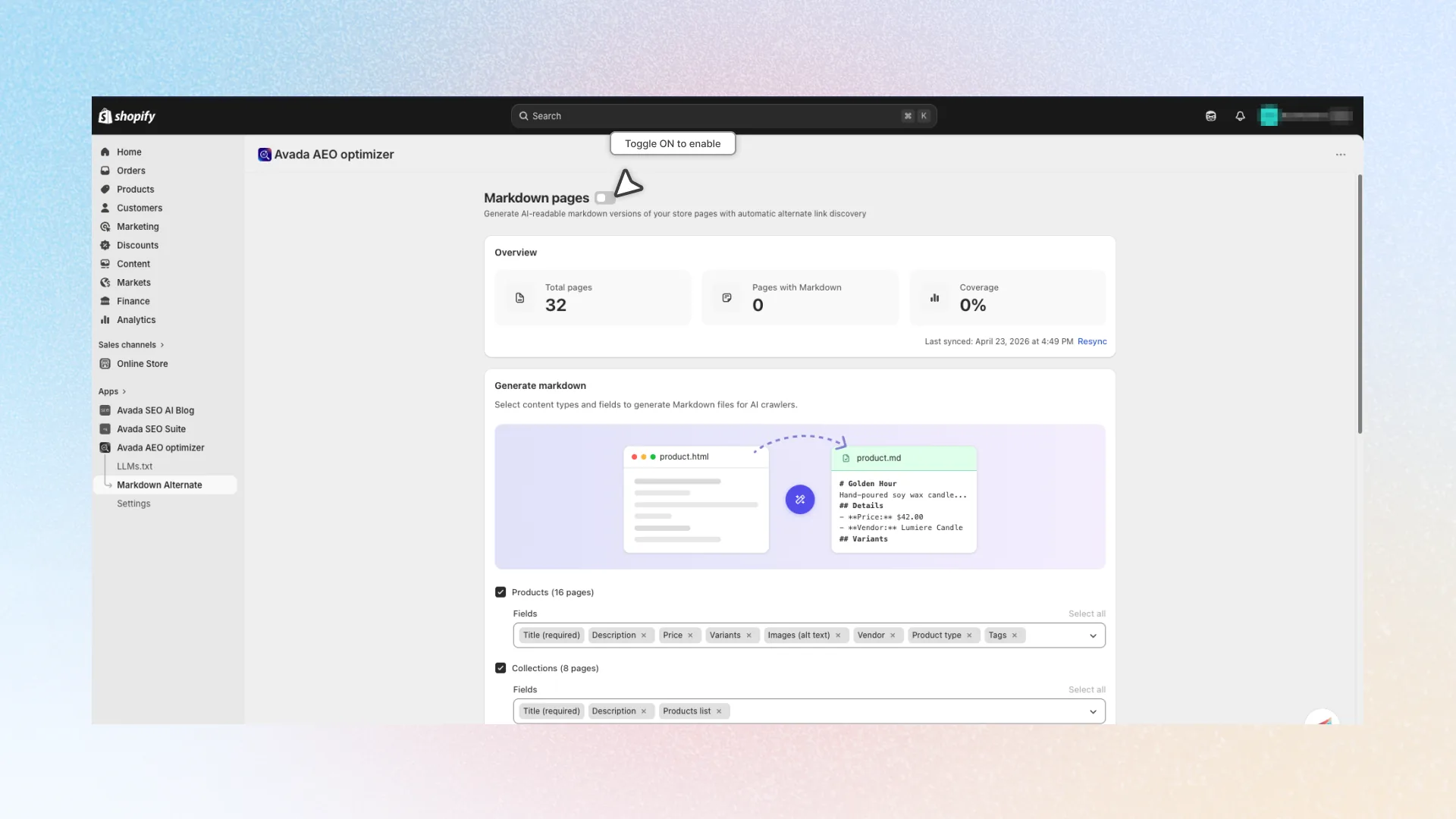
- Open Avada AEO Optimizer and go to Markdown Alternate in the sidebar.
- Toggle the master switch next to the Markdown pages title.
With the master toggle on, the app begins syncing your store and preparing to generate Markdown files.
Overview card
Once enabled, the Overview card shows three metrics at the top of the page:
- Total pages — all eligible products, collections, articles, and pages in your store
- Pages with Markdown — how many already have a
.mdversion generated - Coverage — the percentage of pages currently covered by Markdown
Below the metrics, the Last synced timestamp shows when the app last pulled data from Shopify. Click Resync any time to refresh — useful after bulk product changes, imports, or catalog updates.
Choose content types and fields
In the Generate Markdown card, select which types of pages should produce a Markdown file:
| Content type | What it covers |
|---|---|
| Products | Individual product pages with details, variants, and images |
| Collections | Collection pages with product listings |
| Articles | Blog articles with content and metadata |
| Pages | Custom store pages (About, Contact, FAQ, etc.) |
The count next to each toggle — e.g. Products (16 pages) — tells you how many items exist in your store today. Uncheck any type you do not want AI crawlers to read.
Expand any content type to adjust which fields are written into its Markdown file. Click fields in the combobox to add them, or use Select all to include every field at once.
Product fields
| Field | What it adds |
|---|---|
| Title (required) | # Product name heading |
| Description | Main product description, converted from HTML to Markdown |
| Price | Price range (e.g. $25.00 - $42.00 USD) |
| Variants | Variant table with title, price, and stock status |
| Images (alt text) | List of image alt text (useful for accessibility and AI context) |
| Vendor | Brand / manufacturer name |
| Product type | Product type classification |
| Tags | Comma-separated tag list |
Collection fields
| Field | What it adds |
|---|---|
| Title (required) | # Collection name heading |
| Description | Collection description |
| Products list | List of products inside the collection (title + handle) |
Article fields
| Field | What it adds |
|---|---|
| Title (required) | # Article title heading |
| Content | Full article body, converted from HTML to Markdown |
| Author | Article author name |
| Published date | ISO publish date |
| Tags | Article tag list |
Page fields
| Field | What it adds |
|---|---|
| Title (required) | # Page title heading |
| Content | Full page body, converted from HTML to Markdown |
What a generated Markdown file looks like
For a product, the Markdown follows this structure:
# Lumiere Candle - Golden Hour

Hand-poured soy wax candle with notes of bergamot and amber.

## Details

- **Price:** 42.00 USD
- **Vendor:** Lumiere Candle
- **Type:** Home fragrance
- **Tags:** candle, soy, handmade

## Variants

| Variant | Price | Available |
|---------|-------|-----------|
| 8 oz    | 42.00 USD | In stock  |
| 12 oz   | 58.00 USD | In stock  |

## Images

- Golden Hour candle on wooden table
- Close-up of burning candle flame

## Frequently Asked Questions

**Q: How long does the candle burn?**
A: Approximately 40 hours on a clean wick.

## Customer Reviews

**Rating:** 4.8/5 (127 reviews)

> ★★★★★ **Sarah M.** - 2026-03-12
> Beautiful scent, burns evenly. Will buy again.

---

> Source: [My Store](https://mystore.com/products/golden-hour)
> Updated: 2026-04-22
Structured data bonus
If your product pages contain JSON-LD schema (FAQPage, Review, AggregateRating), the app automatically extracts that data and appends it to the Markdown file. AI assistants can quote your FAQs and customer reviews directly — even when they live in your theme or a third-party app's HTML.
Manage Markdown files
Use the Markdown files card to review, search, edit, and publish every .md file generated for your store.
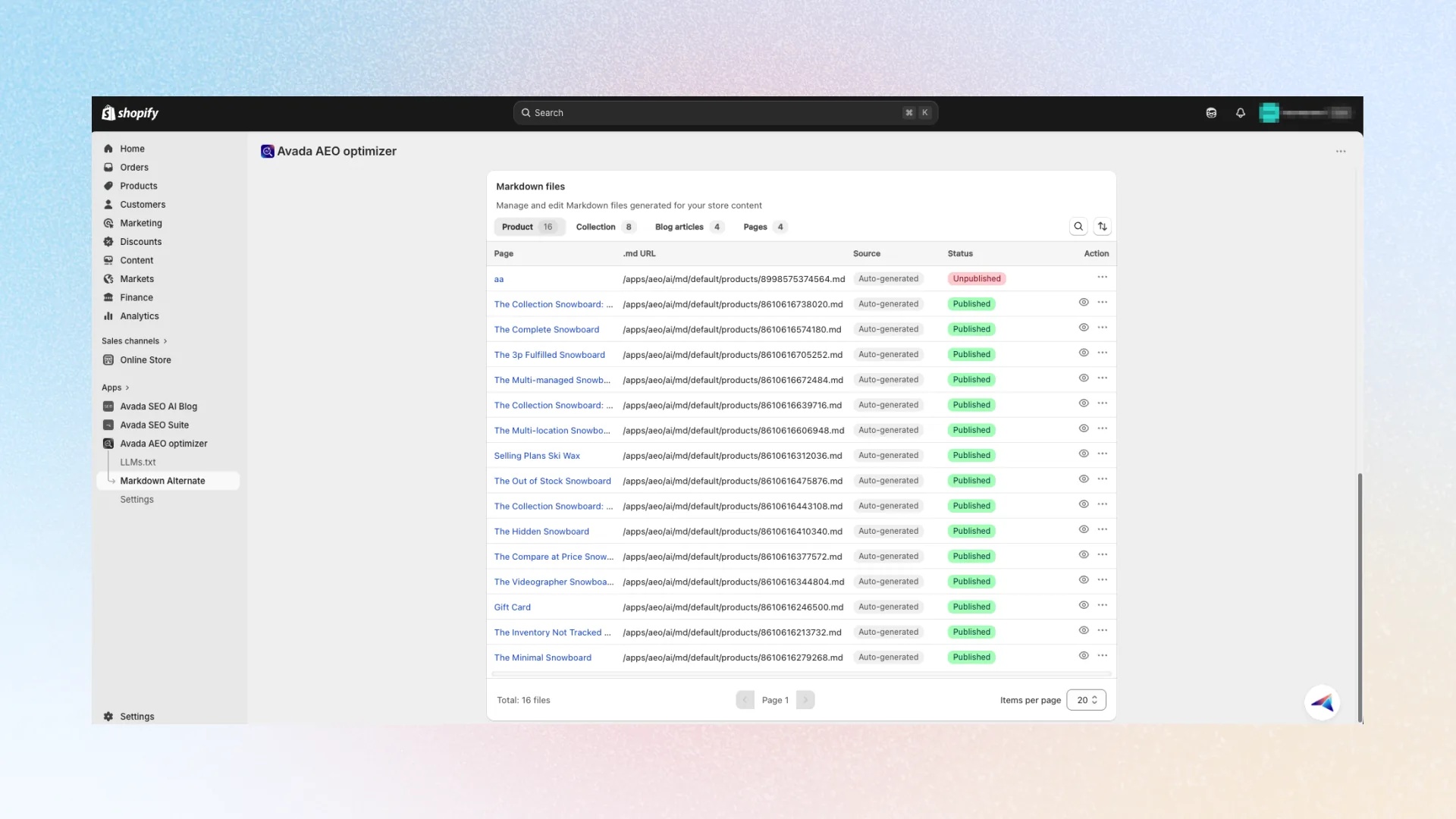
Browse by content type
Four tabs split the table by type:
- Product — product
.mdfiles - Collection — collection
.mdfiles - Blog articles — article
.mdfiles - Pages — custom page
.mdfiles
Each tab shows a count of generated files. Click a tab to filter the table. Use the Search icon to search by page title within the current tab.
Table columns
| Column | What it shows |
|---|---|
| Page | The page title |
| .md URL | The full public URL where AI crawlers fetch the Markdown |
| Source | Whether the file is Auto-generated or Custom edit (edited by you) |
| Status | Published (live for AI crawlers) or Unpublished (hidden) |
| Action | View button (eye icon) and action menu (three-dot icon) |
Edit a Markdown file
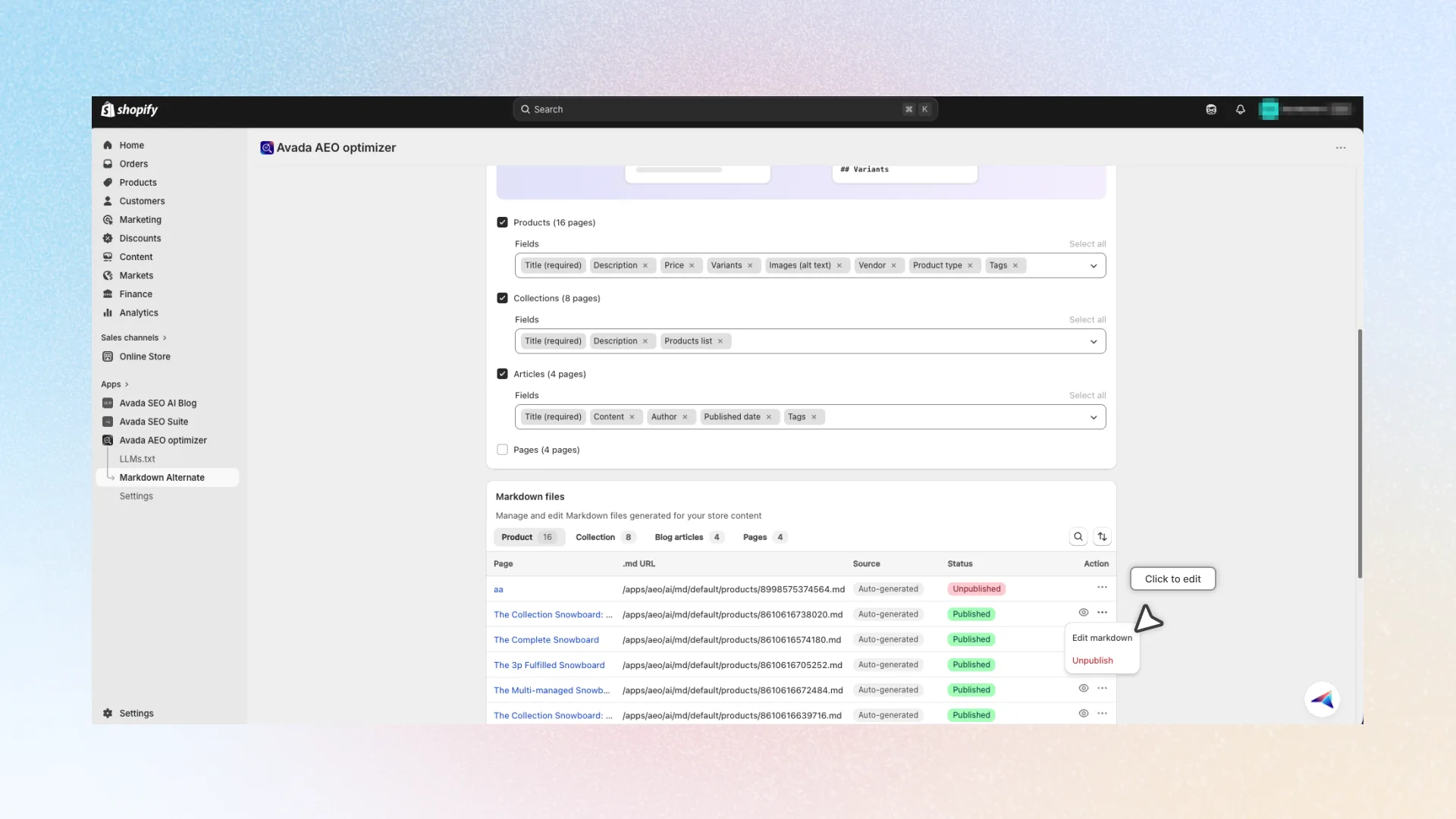
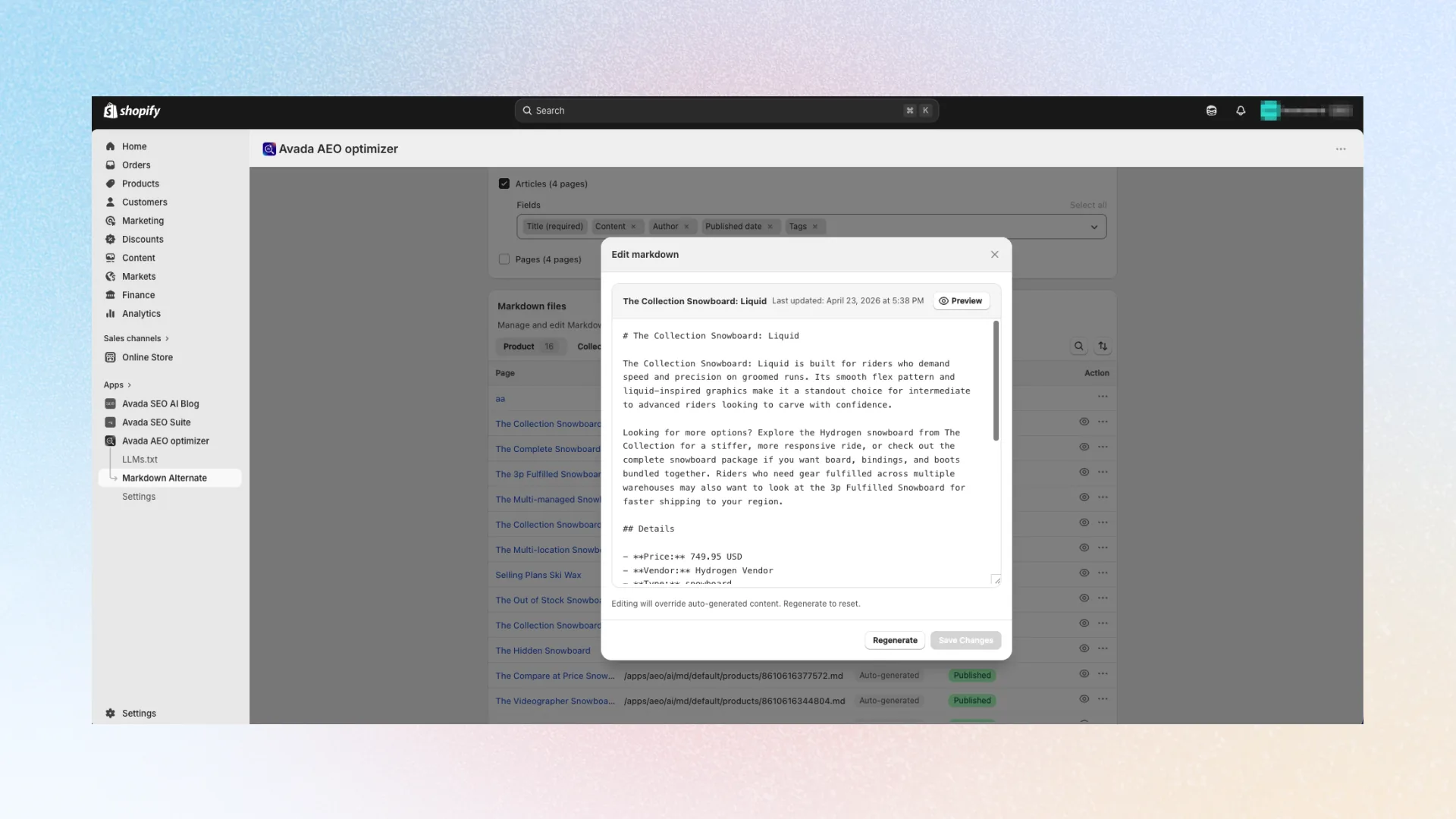
- Click a page title, or open the action menu (three-dot icon) and choose Edit markdown.
- The Edit markdown modal opens with the current content on the left and a live preview on the right.
- Edit the Markdown directly. Use standard Markdown syntax — headings, bullets, tables, links.
- Click Save Changes.
After you save an edit, the file's Source column switches to Custom edit. The app no longer overwrites this file during automatic resyncs, so your manual edits are preserved.
Reset to auto-generated content
Inside the edit modal, click Regenerate to discard your edits and rebuild the file from current Shopify data. The file's Source returns to Auto-generated.
Use this when:
- You want to start over with your custom edits
- The underlying product or page has been updated in Shopify and you want the Markdown to catch up
- You accidentally saved something you did not mean to
View the live .md file
Click the eye icon in the Action column to open the public .md URL in a new tab. This shows exactly what AI crawlers see when they fetch the file.
Publish and unpublish
To hide a Markdown file from AI crawlers without deleting it:
- Open the action menu (three-dot icon).
- Click Unpublish.
- Confirm in the dialog — AI crawlers will no longer discover this page, but you can republish any time.
When a file is unpublished:
- The
<link rel="alternate">tag is not injected into that page's HTML - The
.mdURL still exists but AI crawlers have no way to find it - The Status column shows Unpublished in red
To bring it back: open the action menu and click Publish.
Enable the alternate link tag (theme setup)
For AI crawlers to find your Markdown files, every HTML page on your storefront needs one small tag in its <head>:
<link rel="alternate" type="text/markdown" href="https://yourstore.com/apps/aeo/ai/md/default/products/1234567890.md" />The app adds this tag automatically through a Shopify theme app block — no manual theme code editing required.
Enable the theme block
When you first open the Markdown Alternate page, a warning banner appears at the top: "Markdown pages app embed requires theme setup". This means AI crawlers cannot yet discover your Markdown files. Click Add Markdown pages in the banner to jump straight into the theme editor, or follow the steps below manually.
- In your Shopify admin, go to Online Store → Themes.
- On your active theme, click Customize.
- In the theme editor, open App embeds (puzzle icon in the left sidebar).
- Find Markdown Alternate Link in the list.
- Toggle it on.
- Click Save at the top-right of the theme editor.
- Return to the Markdown Alternate page and click Refresh on the banner.
Once activated, the banner turns green and confirms "Markdown pages app embed is active" — AI crawlers can now discover the Markdown versions of your store pages.
SEO and canonicals
rel="alternate" does not replace your canonical URL. It is a supplementary hint — the same pattern RSS feeds have used for decades:
<link rel="canonical" href="https://yourstore.com/products/golden-hour" />
<link rel="alternate" type="text/markdown" href="https://yourstore.com/apps/aeo/ai/md/default/products/1234.md" />
<link rel="alternate" type="application/rss+xml" href="https://yourstore.com/blog.atom" />
Search engines continue to index your HTML pages as canonical. AI crawlers that support type="text/markdown" pick up the lightweight alternate. Both work in parallel.