Add a Terms & Conditions Checkbox
The Terms & Conditions campaign adds an "I agree to the Terms & Conditions" checkbox to your store. Customers must tick it before they can check out - a simple way to collect explicit agreement to your store policies.
Requires: Free plan
Prerequisites
- The app is installed and the app embed is enabled. See the Quick start guide if you haven't done this yet.
Set up your Terms of Service
The checkbox links to your store's Terms of Service, so add it first. In Shopify admin, go to Settings > Policies, fill in your Terms of service, and save.
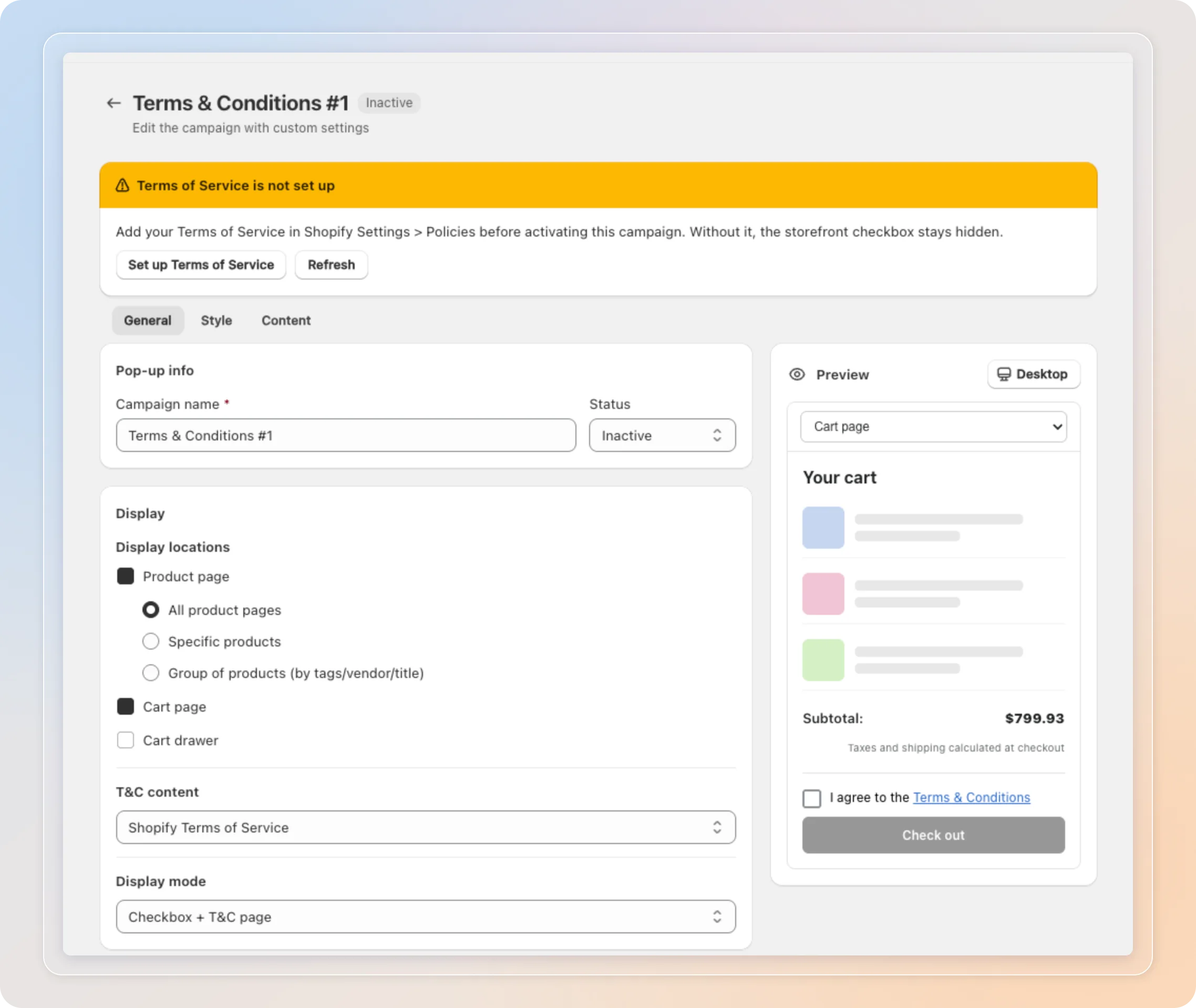
Without this policy, the storefront checkbox stays hidden. If it's missing, the campaign editor shows a Terms of Service is not set up banner with a Set up Terms of Service shortcut - click Refresh after you add it.
Create the campaign
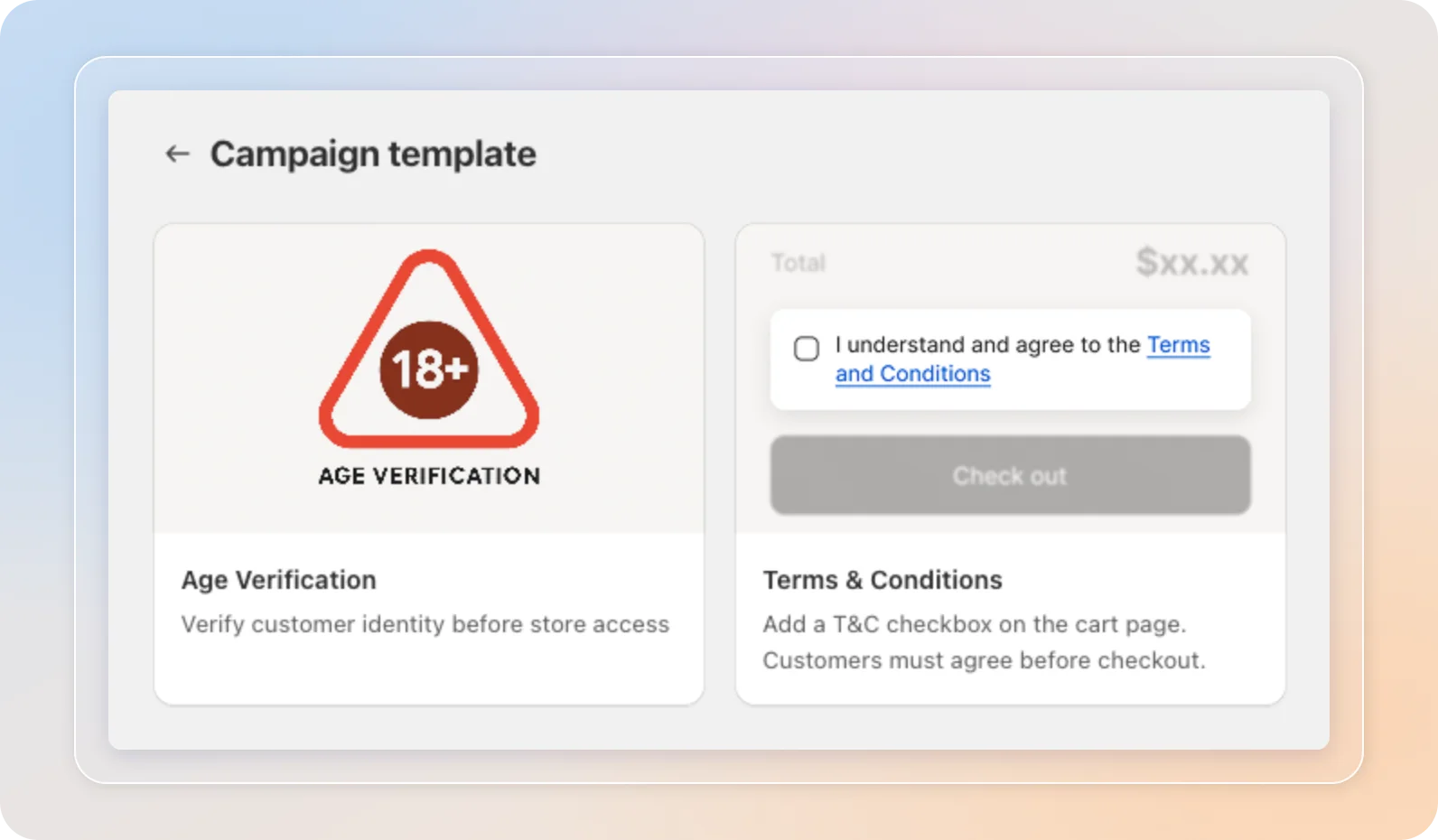
On the Campaigns page, click Create campaign, then select the Terms & Conditions template.
Choose where the checkbox appears
On the General tab, name the campaign and tick the Display locations: Product page, Cart page, and/or Cart drawer.
For the product page, you can narrow it down further:
| Option | The checkbox shows on |
|---|---|
| All product pages | Every product |
| Specific products | Only the products you pick |
| Group of products | Products matched by tags, vendor, or title |
Choose what the checkbox links to
Still on the General tab, set two options:
- T&C content - Link to your Shopify Terms of Service, or a Custom link to any URL.
- Display mode - Checkbox + T&C page opens your policy page; Checkbox + T&C popup shows it in a popup.
If you see a "Popup mode is not yet available" notice, that mode hasn't been enabled for your store yet - keep Checkbox + T&C page for now.
Style the checkbox
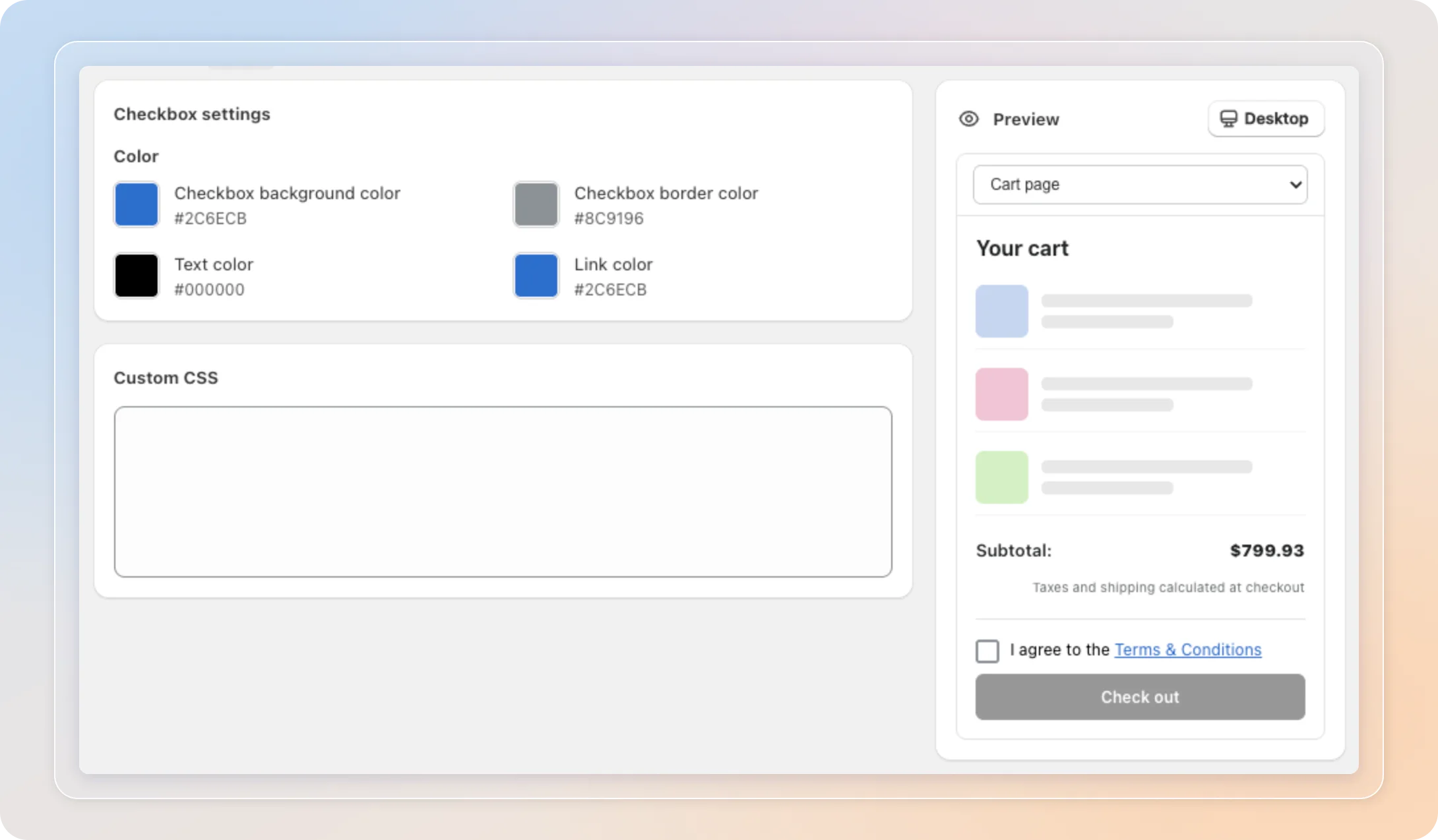
Open the Style tab to match the checkbox with your theme.
- Checkbox background and border color
- Text and link color
- Custom CSS for advanced tweaks
Translate the label
On the Content tab, customize the checkbox label per language.
- Detect language by - Customer's browser (recommended), IP address, or store language.
- Translate language - Edit the label for each language. The policy text itself follows your Shopify Terms of Service translations.
Save and test
- Click Save and make sure the campaign is Active.
- Open your store in an incognito window, add a product to the cart, and confirm the checkbox appears before the checkout button - customers cannot check out until they tick it.
Tips
- Run Terms & Conditions campaigns alongside age verification campaigns - manage both from the same Campaigns page, filtered by the type tabs.
- If the checkbox doesn't appear, check two things first: the campaign is Active, and your Terms of Service policy exists in Shopify Settings > Policies.
Related Articles
And there you have it! You've successfully added a Terms & Conditions checkbox to your store. Every customer now explicitly agrees to your policies before checking out.
If you have any questions or run into any issues, don't hesitate to reach out. We're here to help!