Understand your dashboard
Two usage KPIs, a Theme store app embed indicator, a Quick guide checklist, and a Helpdesk card — everything you need to confirm your limits are running.
Anatomy of the Dashboard
The Dashboard stacks the following blocks from top to bottom:
| Block | What it shows |
|---|---|
| Welcome banner | "Hi [admin name]!" + "Welcome to Avada Order Limit" |
| Theme store app embed indicator + App embed settings button | At-a-glance status of whether the app is embedded in your live theme |
| Overview card | Two KPIs — Impressions and Contacts — for your store this period |
| Quick guide widget | A 4-task setup checklist with a progress bar |
| Helpdesk card | Chat with us + Read guide buttons |
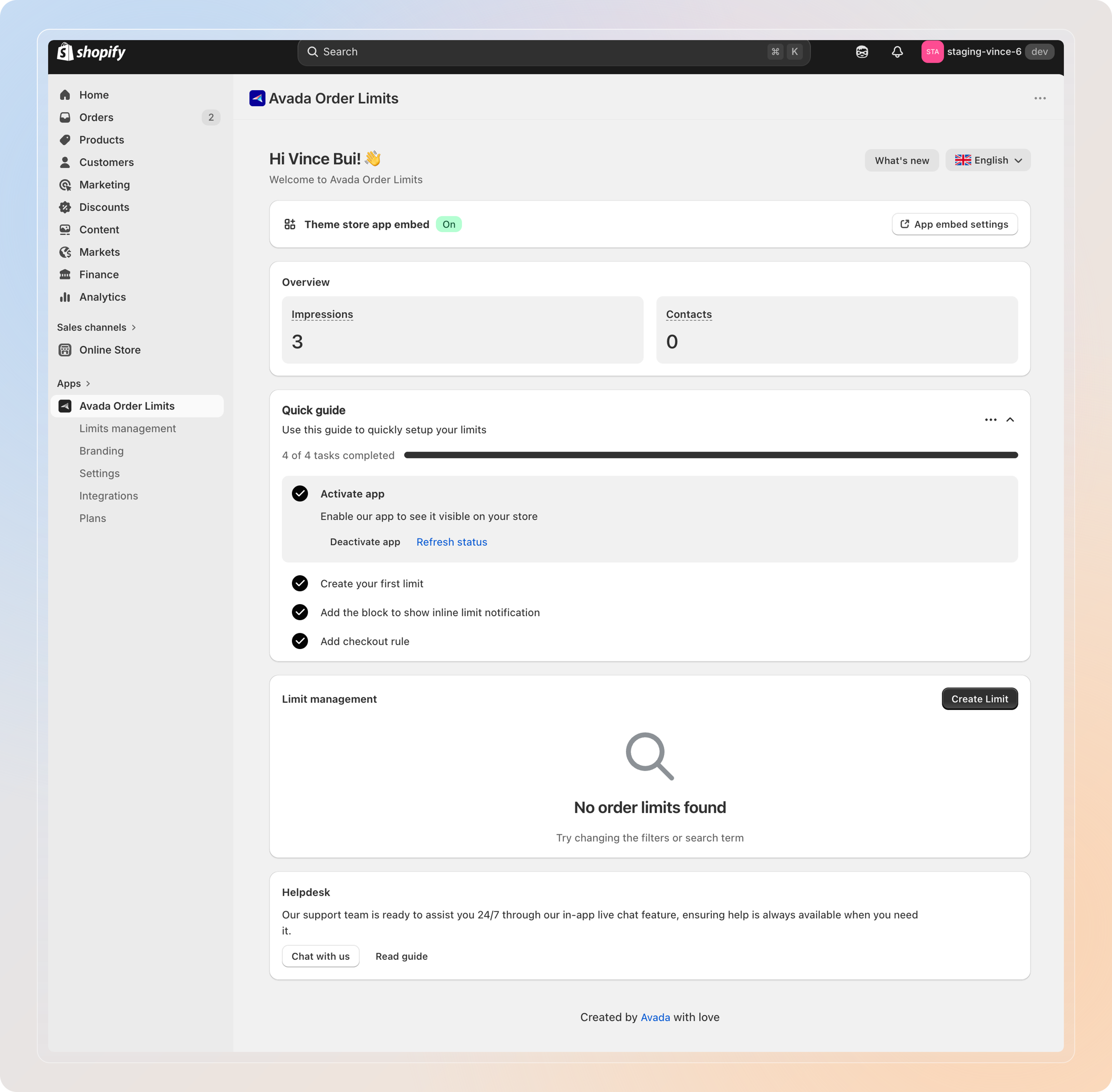
Block 1: Theme store app embed
A horizontal status bar between the welcome banner and the Overview card.
- Off (grey) — the app isn't embedded on your active theme. No limit will run on the storefront.
- On (green) — embed is active. Limits will fire when visitors trigger a rule.
Click App embed settings at the right of the bar to jump straight to the Shopify theme editor with the Avada Order Limit embed pre-selected.
Important: If this shows Off after install, finish step 1 of the Quick guide below before anything else. Without the embed, none of your limit rules will be enforced on the storefront.

Block 2: Overview
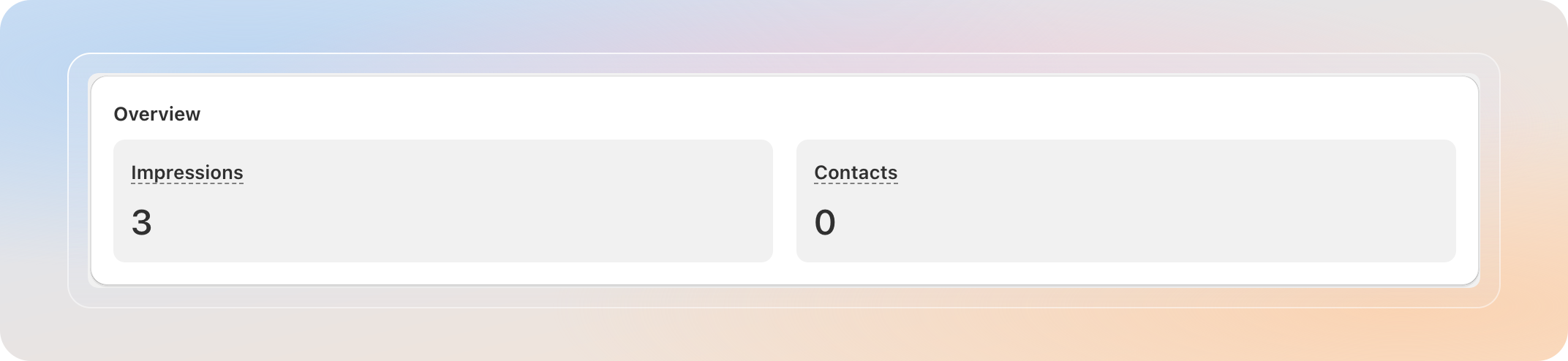
The Overview card sits above the Quick guide and shows two KPIs side by side.
| KPI | What it shows |
|---|---|
| Impressions | Number of times Avada Order Limit has successfully blocked invalid actions on your store |
| Contacts | Total customer contacts made through the app's "Contact us" entry on the limit notification |
If you are on a Free plan, the Impressions card also shows your free impression usage (e.g., 20 / 50 free impressions). This is a one-time lifetime allowance — it does not reset each month. When it runs out, your limit rules stop enforcing on the storefront until you upgrade.
Tip: If Impressions stays at 0 but you have active rules, check the Theme store app embed bar above. The embed must be On for impressions to count.
Block 3: Quick guide
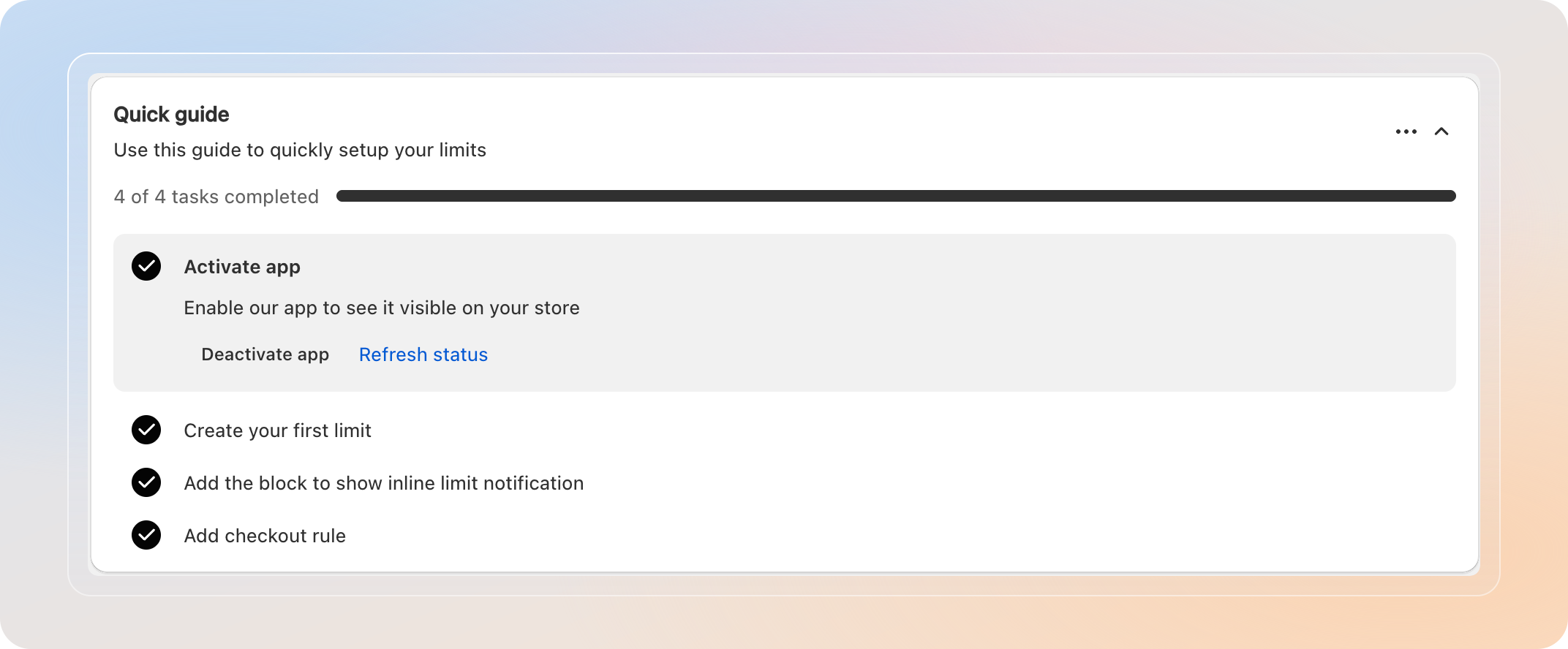
A 4-task checklist that takes a new store from install to fully enforced limits. Above the tasks you'll see a progress line — for example, "2 of 4 tasks completed" — that fills as you finish each one.
| Step | Task | What it means |
|---|---|---|
| 1 | Activate app | Enable our app to see it visible on your store. Click Activate app to open the Shopify theme editor, or Refresh status to re-check the embed. |
| 2 | Create your first limit | Set up your limit with various types. Click Create new limit to open the limit type picker and configure your first rule. |
| 3 | Add the block to show inline limit notification | Once you click Go to Settings, the app blocks will be added automatically. All you need to do is click Save on the theme editor page." |
| 4 | Add checkout rule | The app now automatically adds Checkout rules for you. To confirm, click Go to checkout setting to check their status in your Admin panel. |
Tip: Step 1 is the only blocker for the storefront. Step 4 is the safety net — without it, a savvy customer can land on
/checkoutdirectly and bypass your limits. We recommend completing all 4 steps before going live.
Block 4: Helpdesk
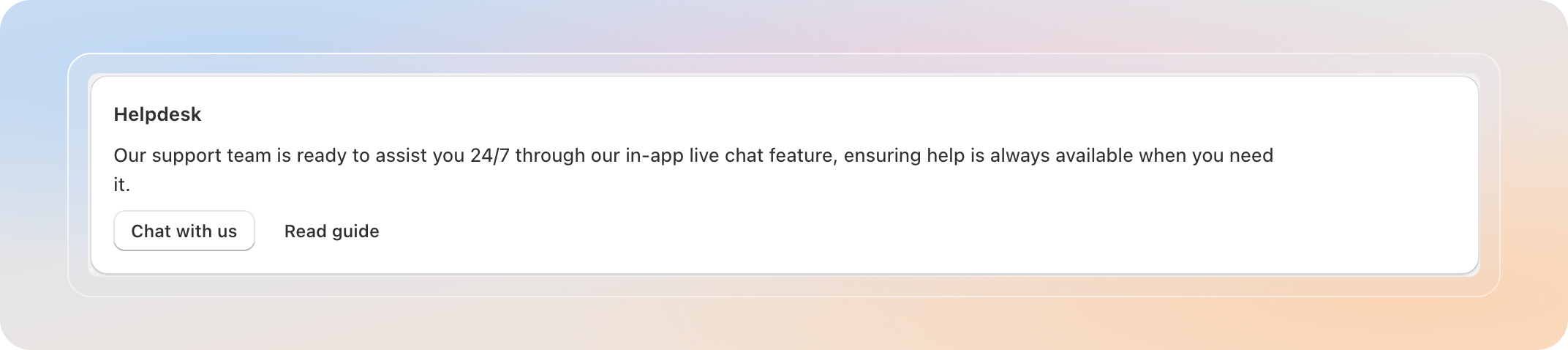
A small card at the bottom of the Dashboard for direct support.
- Chat with us — opens the in-app live chat with the Avada team (replies usually within minutes during business hours)
- Read guide — opens this help center
Tips
- Bookmark the Dashboard. It's the fastest way to spot when something has broken — e.g., a theme update accidentally toggled the embed off.
- Watch Impressions early. If the number stays at 0 after install, you have an embed or rule-coverage problem. Don't wait a month to notice.
- Treat the Quick guide as a gate. Don't share the store URL with customers until all 4 tasks show as completed.
- Free plan? Keep an eye on the free impression counter on the Overview card so you don't hit the cap mid-campaign.
And there you have it! You now know what every block on the Avada Order Limit Dashboard means. Complete the Quick guide, then check back weekly to monitor impressions and contacts.
If you have any questions or run into any issues, don't hesitate to reach out. We're here to help!