Bulk Create and Update Limits from a File
Note: Requires Import enabled in Dev Zone — contact support to turn this on for your store.
The Import feature lets you upload a CSV or XLSX file to create new limits and update limits you already have, instead of setting each one up by hand.
Step 1: Open Limits management
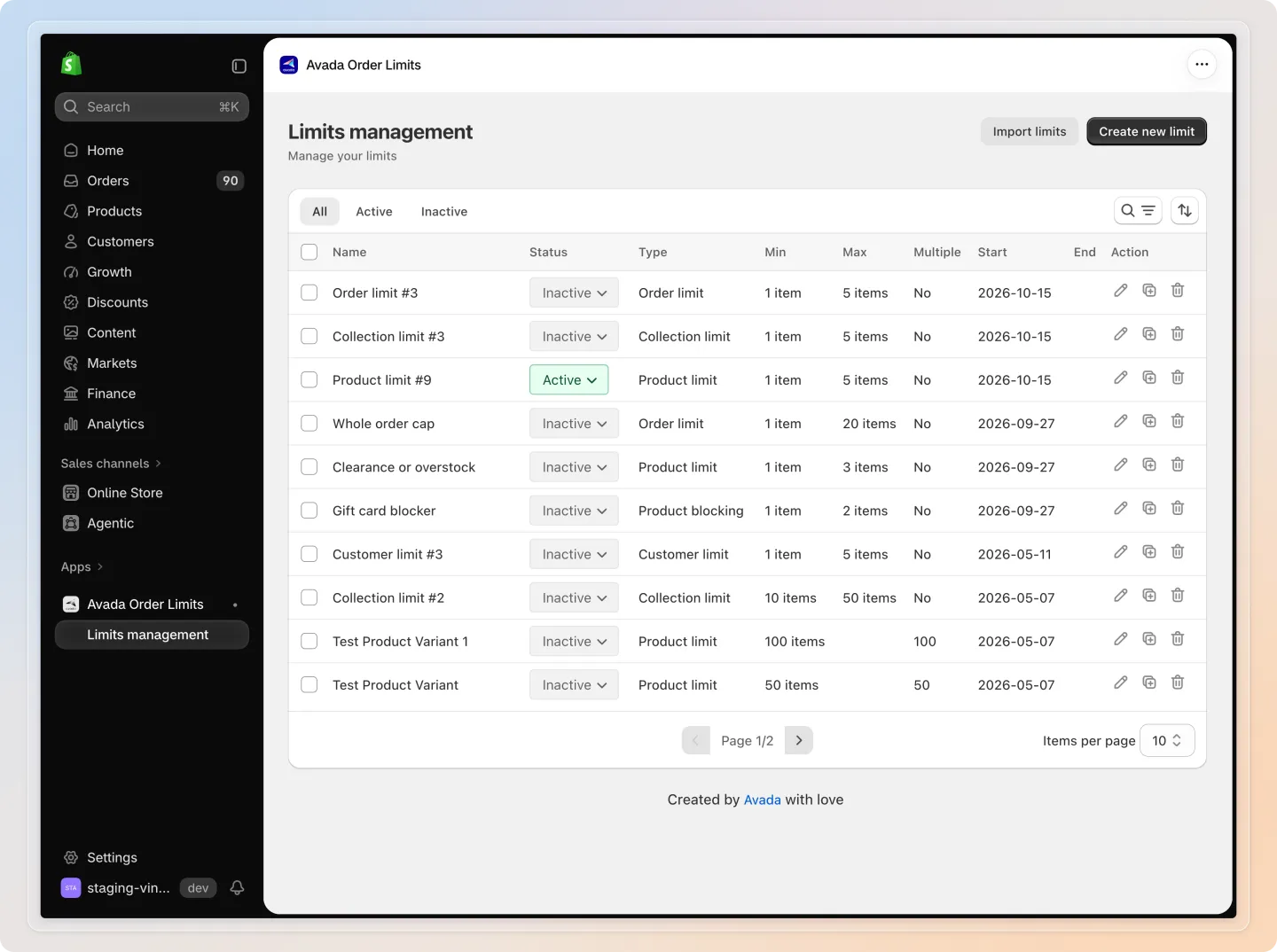
From the left-hand menu of the app, click Limits management to open the list of your rules.
Step 2: Start the import
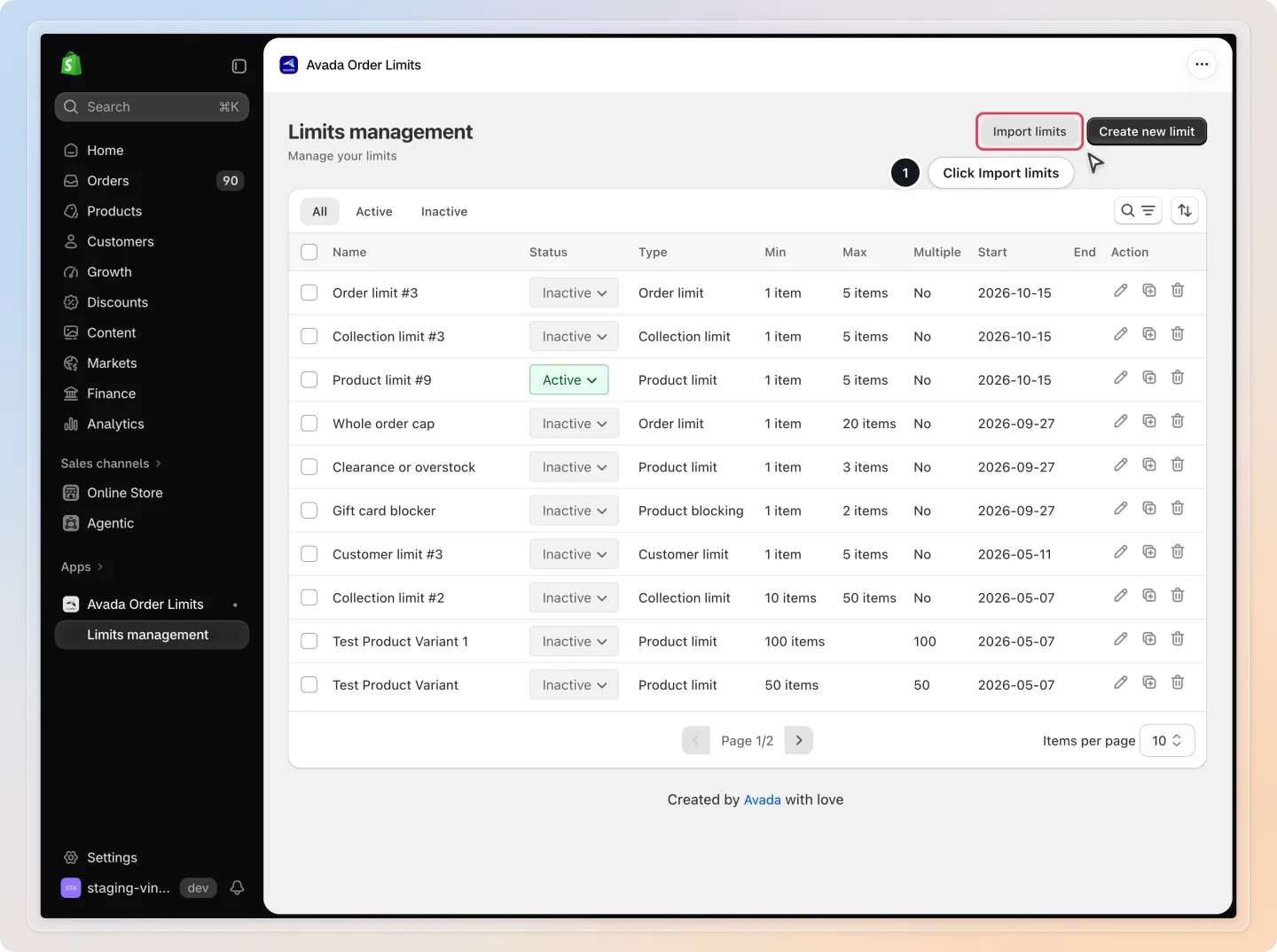
Click Import limits in the top-right of the page, next to Create new limit (or, if you don't have any rules yet, click Import limits next to Create new order limit on the empty state). The Import limits from a file window opens.
Note: Import limits only appears once support has turned on the import feature for your store.
Step 3: Check the file format
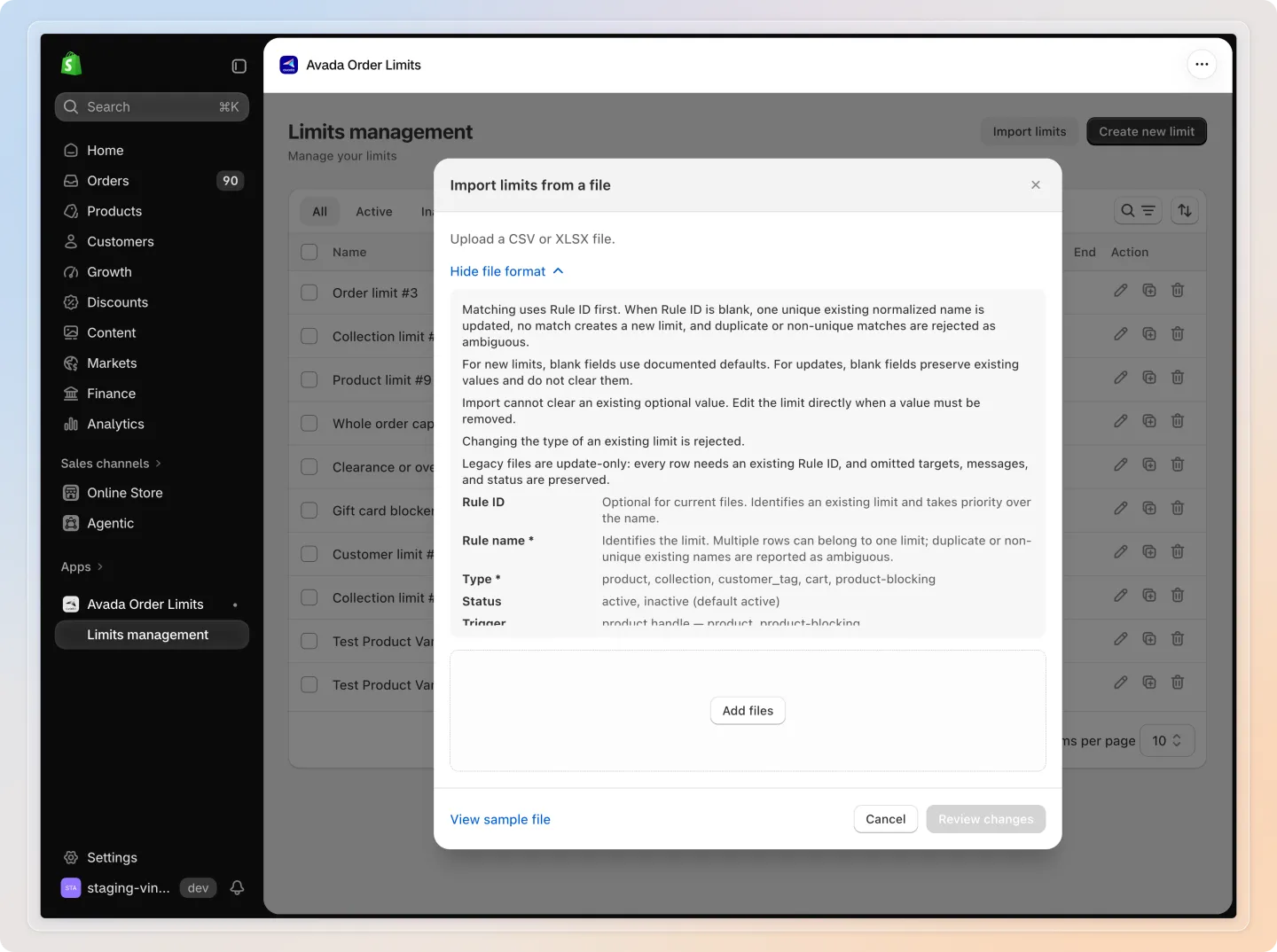
The window accepts a CSV or XLSX file. Before uploading, click View sample file (bottom-left) to get an example spreadsheet, and click View file format to expand a full column-by-column guide (click Hide file format to collapse it again).
Each row of your file describes one limit. Columns marked * are required:
| Column | What to enter |
|---|---|
| Rule ID | Optional. Leave blank when creating a new limit. Include it (unchanged, from a file you exported) to update that exact limit — it takes priority over the name. |
| Rule name * | Name for the limit. Rows with the same name belong to one limit. When Rule ID is blank, it is used to match an existing limit. |
| Type * | product, collection, customer_tag, cart (order limit), or product-blocking. |
| Status | active or inactive (default active). |
| Trigger | A product handle for product / product-blocking, a collection handle for collection, a customer tag for customer_tag, or blank for cart. The handle is the last part of the URL, e.g. classic-tee in /products/classic-tee. |
| Variant SKU | Optional, product and product-blocking only. Blank = all variants. |
| Apply to | customer_tag and product-blocking only: cart, collection, or product. |
| Condition type | product_quantity, total_product_value, or total_weight (default product_quantity). |
| Min / Max | The lowest and highest allowed amount. New limits use the rule-type defaults when blank; updates keep the current value when blank. |
| Multiple | Optional — above 0, the quantity must be a multiple of this number. |
| Enabled languages | Optional language codes, comma separated (e.g. fr, de). The app fills in its ready-made messages for each one. English is always included. |
| Message language / Message key / Message text | Optional, to replace a message with your own wording. Each row holds one override; add another override on its own row that repeats only the Rule name. |
The file can also include Target type, Condition logic, Operator, Skip quantities, and Multiple applies to columns — the expanded format guide describes each one.
Warning: Your file can have up to 1,000 rows and create up to 200 limits per import. The file itself must be under 2MB. Changing the type of an existing limit is not allowed, and import cannot clear an existing optional value — edit the limit directly for that.
Step 4: Upload your file
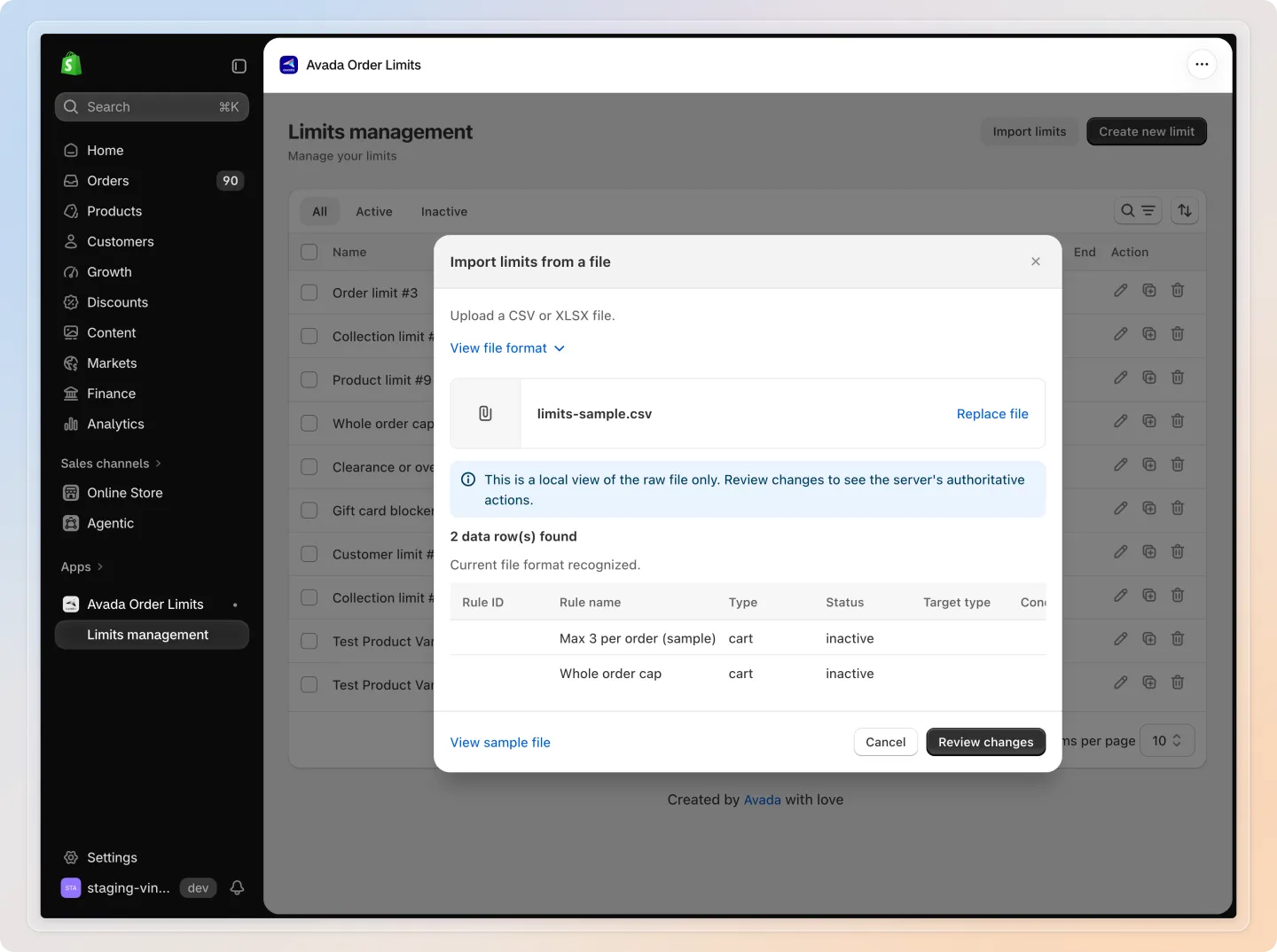
Drag and drop your CSV or XLSX file into the upload area (or click Add files to browse your computer). The window then shows a quick preview of the raw file: how many data rows were found (for example 2 data row(s) found), whether the file format was recognized, and any missing required columns. Click Replace file to pick a different file.
Step 5: Review what will change, then import
Click Review changes. Before anything is saved, the Review authoritative changes section shows how many limits will be created, updated, left unchanged, or rejected with an error — and lists each limit with its row number and the fields that will change.
- A row with a Rule ID that matches one of your limits updates that limit, even if you changed its name in the file.
- A row without a Rule ID whose name matches exactly one of your limits updates that limit instead of creating a duplicate.
- If a row's name matches more than one of your limits, that limit is rejected as ambiguous and reported as an error — the rest of the file still goes through.
- Any column you leave blank on an update row keeps the limit's current value for that column, so you only need to fill in what you're changing.
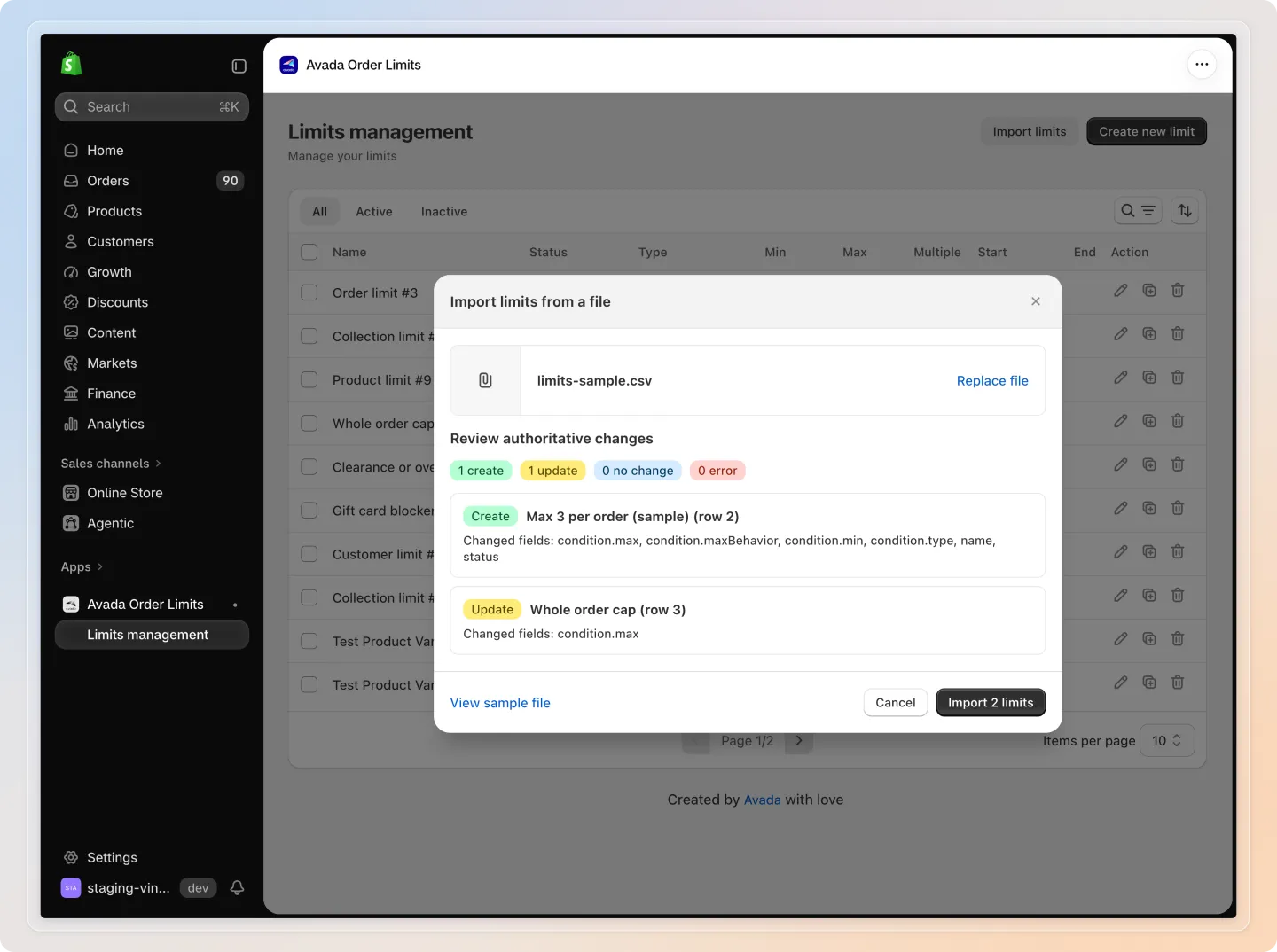
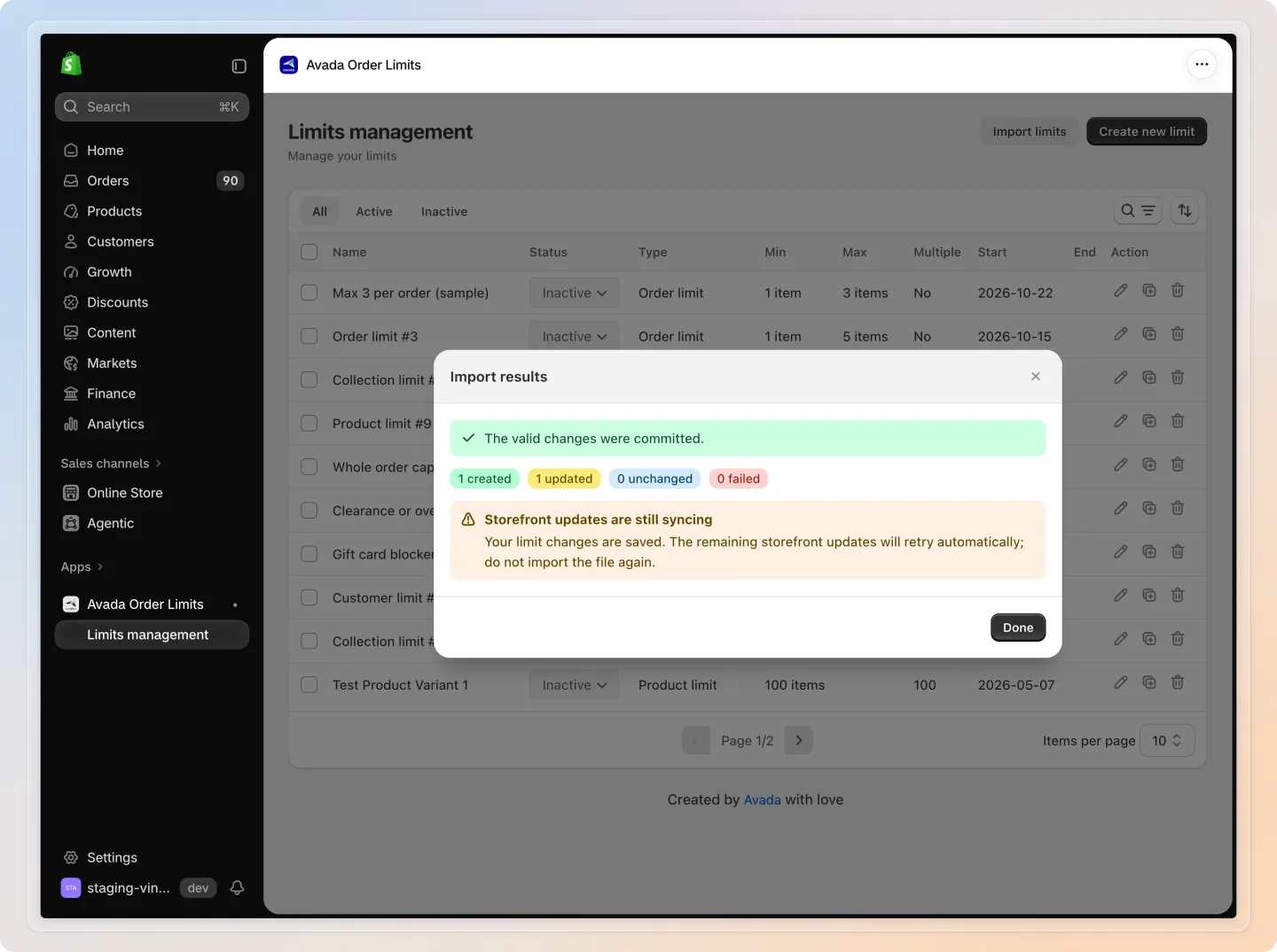
Click Import [N] limits to confirm. The Import results window then shows how many limits were created, updated, unchanged, and failed, plus any rows that were skipped and why.
If you see Storefront updates are still syncing, your changes are already saved — the remaining storefront updates retry automatically, so do not import the file again.
Click Done to close the results and go back to your updated limits list.
Note: Re-importing the exact same file you just exported, without changing anything, doesn't create duplicates or change any values.
Tips
- Export your current limits first, edit the values you want to change in that file, then import it back — this is the fastest way to bulk-update Min/Max, status, or translations across many limits at once.
- If a limit can't be enforced at checkout alongside your other active limits, the import results will call it out — the limit still shows on the storefront but only as a reminder, not a hard block at checkout.
- Keep one row per limit for simple cases. Only add extra rows under the same Rule name (or Rule ID) when you're adding a custom message override for another language.
Related Articles
And there you have it! You've used Import to create and update your limits from a file instead of doing it one by one. If you have any questions or run into any issues, don't hesitate to reach out. We're here to help!