Customize and Translate Limit Message
Customizing and Translating Limit Message gives you the ability to personalize and localize the warning messages that customers see when they reach product or order limits in your store. By creating custom messages in multiple languages, you can provide a clearer, more accessible shopping experience for your international customers.
Why Customize Limit Messages
Effective communication is essential when customers encounter purchasing limits in your store. Default limit messages may not always convey the right tone or provide enough information for your specific products or business policies.
By customizing your limit messages, you can:
- Provide clearer explanations about why limits exist
- Match your brand's tone and voice
- Offer alternative suggestions or next steps for customers
- Reduce customer frustration and support inquiries
- Ensure international customers understand restrictions in their preferred language
How to customize limit message
Step 1: Accessing the Limit Message Settings
Follow these steps to access the limit message customization area:
- Click on Limit Management in the main navigation menu.
- Select an existing limit rule that you want to customize messages for, or create a new rule.
- Within the rule settings, locate and click on the Message tab.
The Message tab is where you'll customize your default message and add translations. This centralized location makes it easy to manage all your limit messages from one place.
Step 2: Customizing Limit Message
Your default limit message is the foundation for all your communications about purchase limits. Here's how to create an effective default message:
- In the Message tab, you'll see a text field for your default message (typically in English, unless you've changed the default language).
- Enter your customized message. Consider including:
- A clear explanation of the limit
- The reason for the limit (if appropriate)
- What the customer can do next
- Use variables like
{{minimum_product_quantity}}or{{maximum_product_quantity}}to dynamically insert the specific limit values. - Review your message for clarity and tone.
- Click Save to apply your changes to the default message.
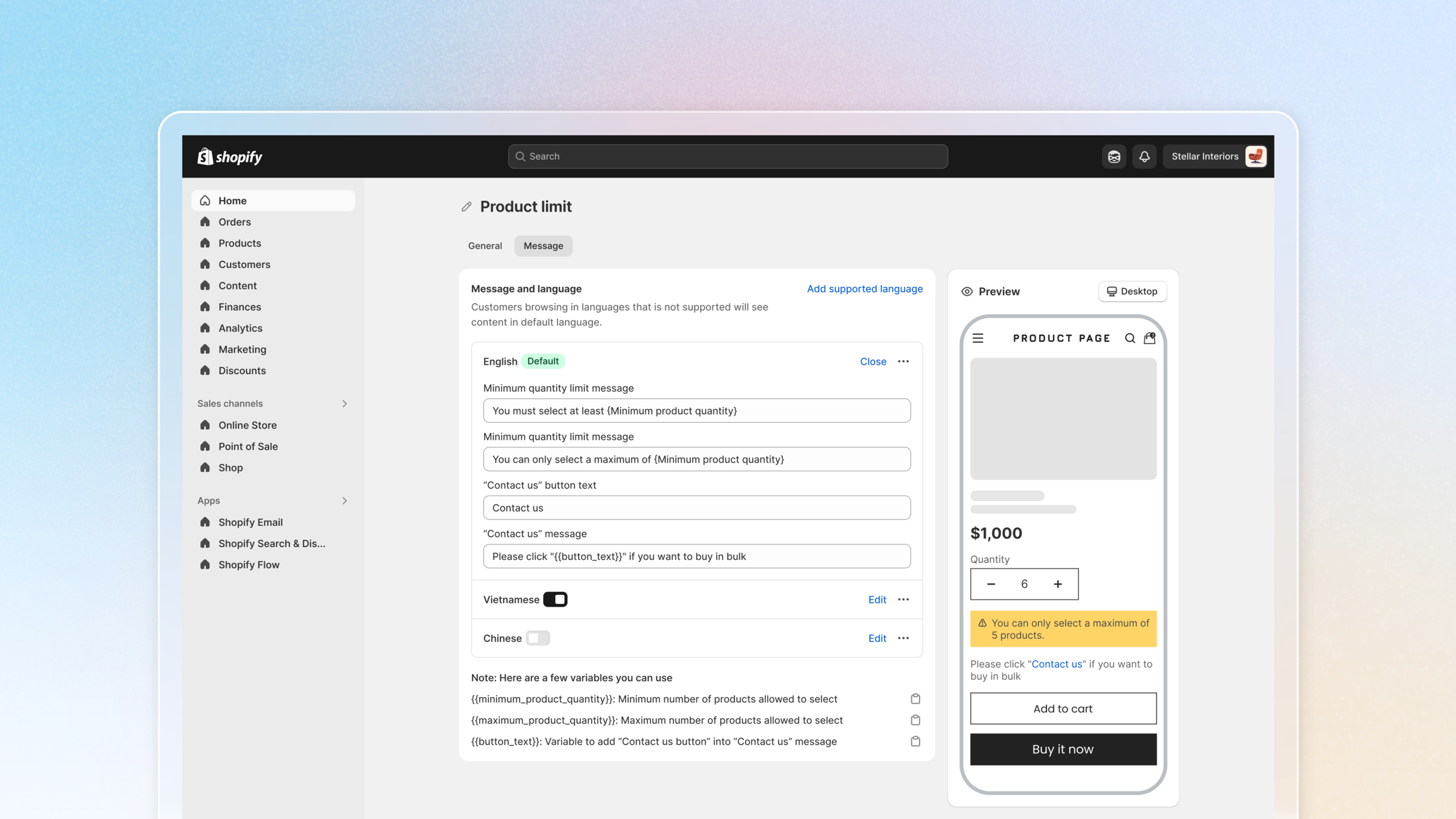
A well-crafted default message serves as the foundation for all your translations and ensures customers understand your policies clearly.
Step 3: Adding Language Translations
The Auto-Translate feature allows you to provide limit messages in multiple languages, which will be automatically displayed based on each customer's browser language settings. Follow these steps to add translations:
- Click on the Add Supported language button.
- Select a language from the menu.
- Enter the translated message.
- Repeat for all required languages.
- Toggle on to enable language after you add.
- Change default language as you want.
Customize and Translate Limit Message empowers you to communicate effectively with all your customers, regardless of their preferred language. By providing clear, localized messages when customers encounter purchase limits, you enhance the shopping experience, reduce confusion, and maintain positive customer relationships even when enforcing necessary restrictions.