Create Product Limit
Requires: Free plan (advanced gating options require Paid plan)
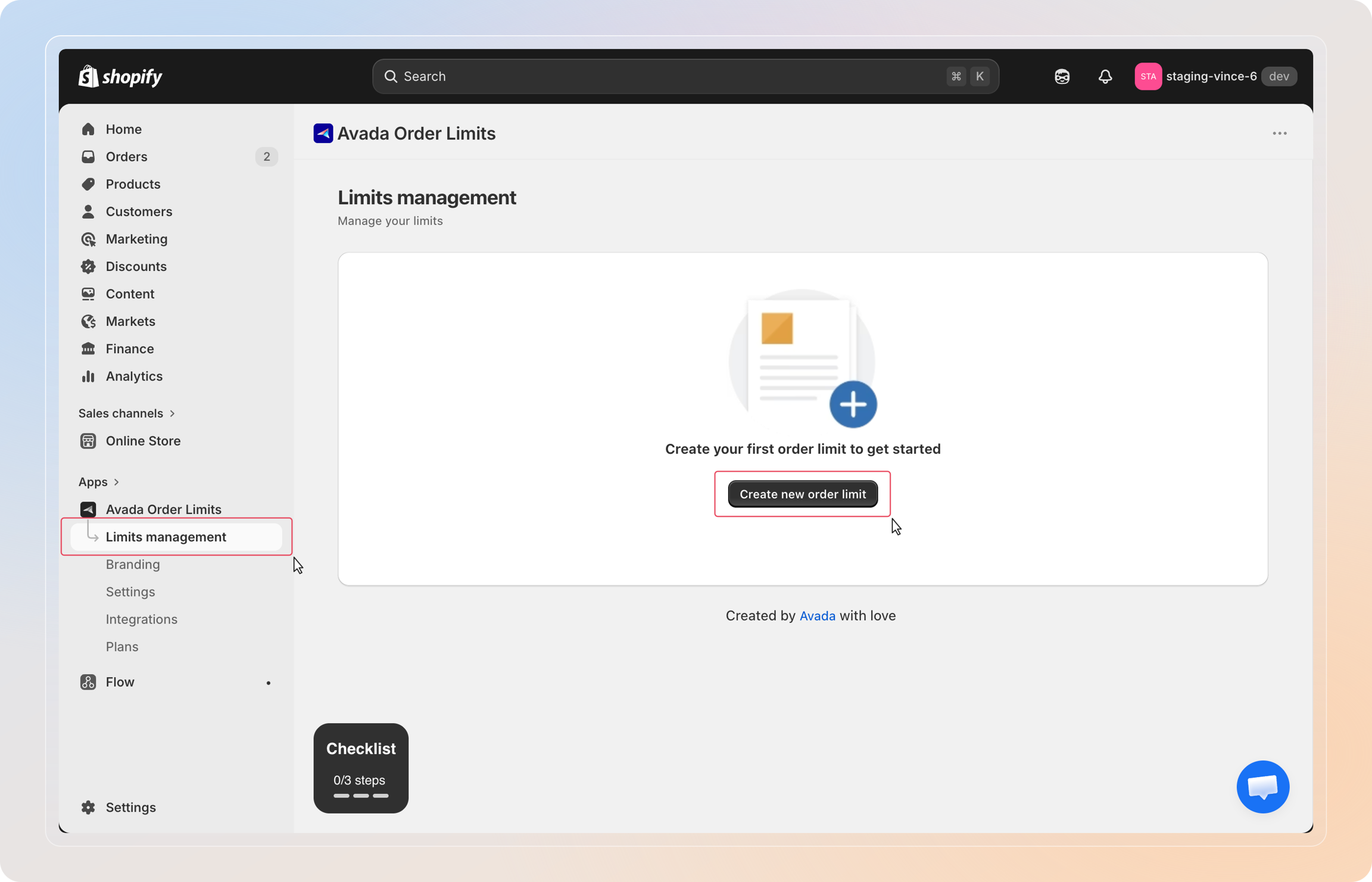
Step 1: Open Limits management and create a new limit
From the left-hand menu of the app, click Limits management to open the list of your rules. Click Create new order limit (or Create new limit, in the top-right, if you already have rules) to open the limit type chooser.
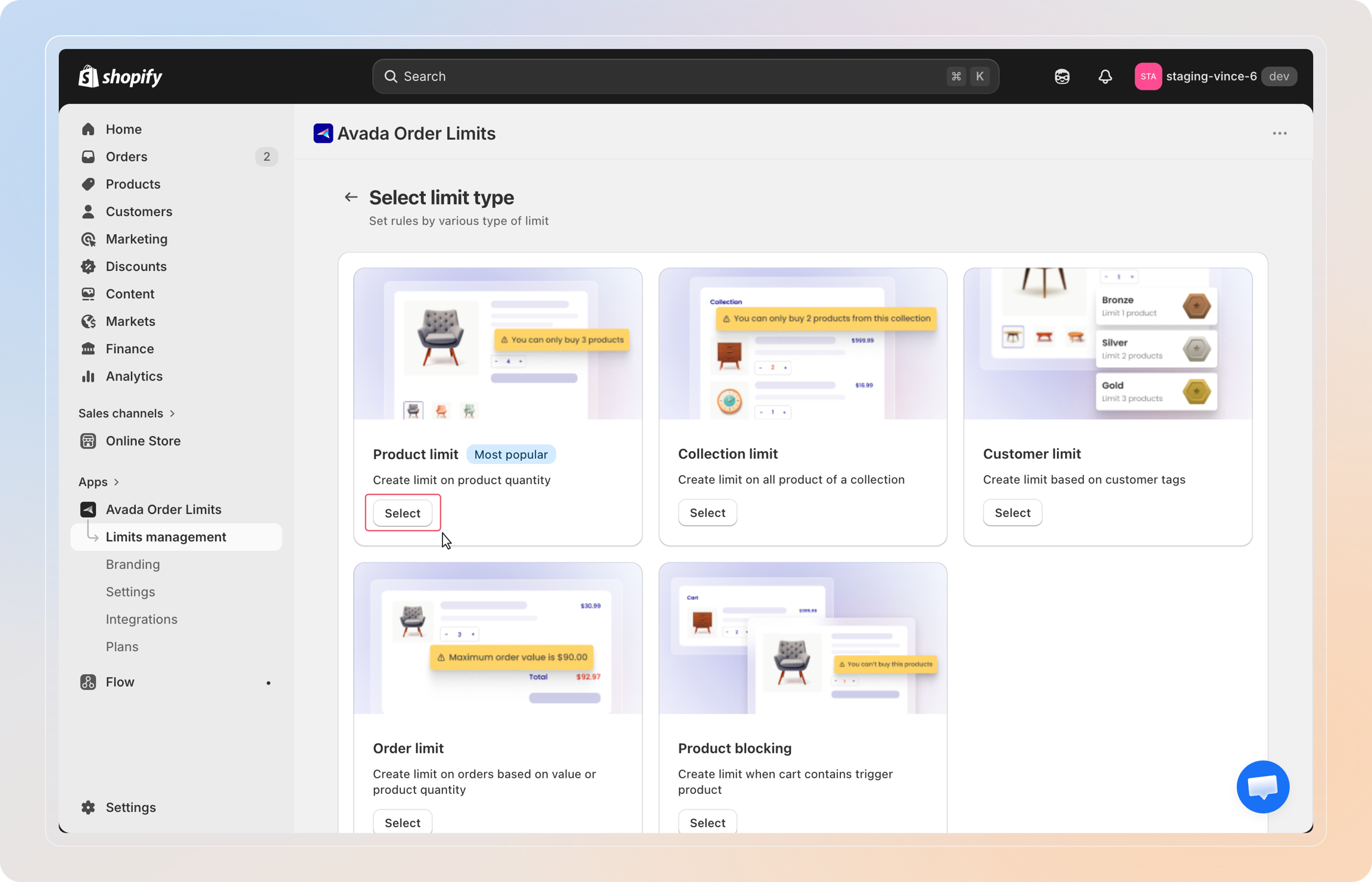
Step 2: Choose the limit type
On the limit type chooser, find the Product Limit card and click Select.
This is the entry point for every product-level rule. Each rule is independent, so you can run several Product Limits at once with different conditions and date windows.
Step 3: Name your limit
Enter a name in the Limit name field. This name is for internal use only — customers will never see it. Pick something that tells you at a glance what the rule does, for example "Hot sneakers — max 2 per order" or "Holiday gift set — sell in pairs".
Step 4: Choose which products the limit applies to
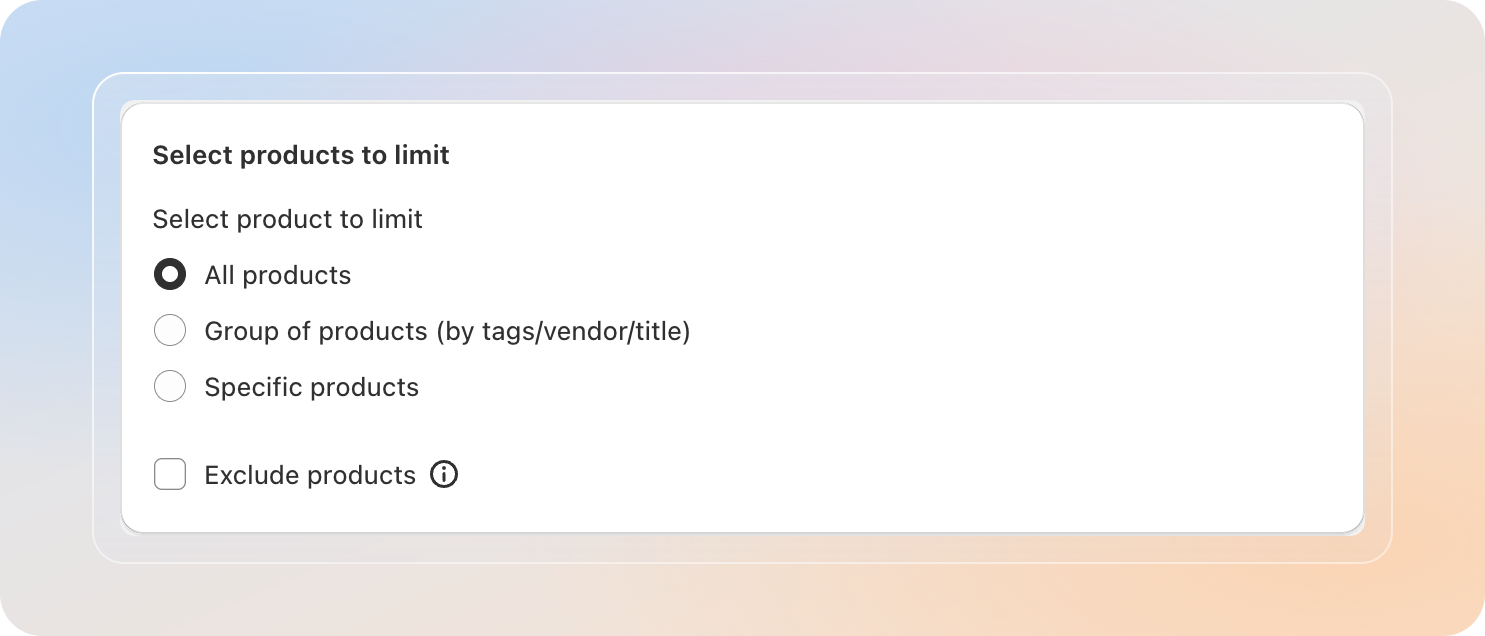
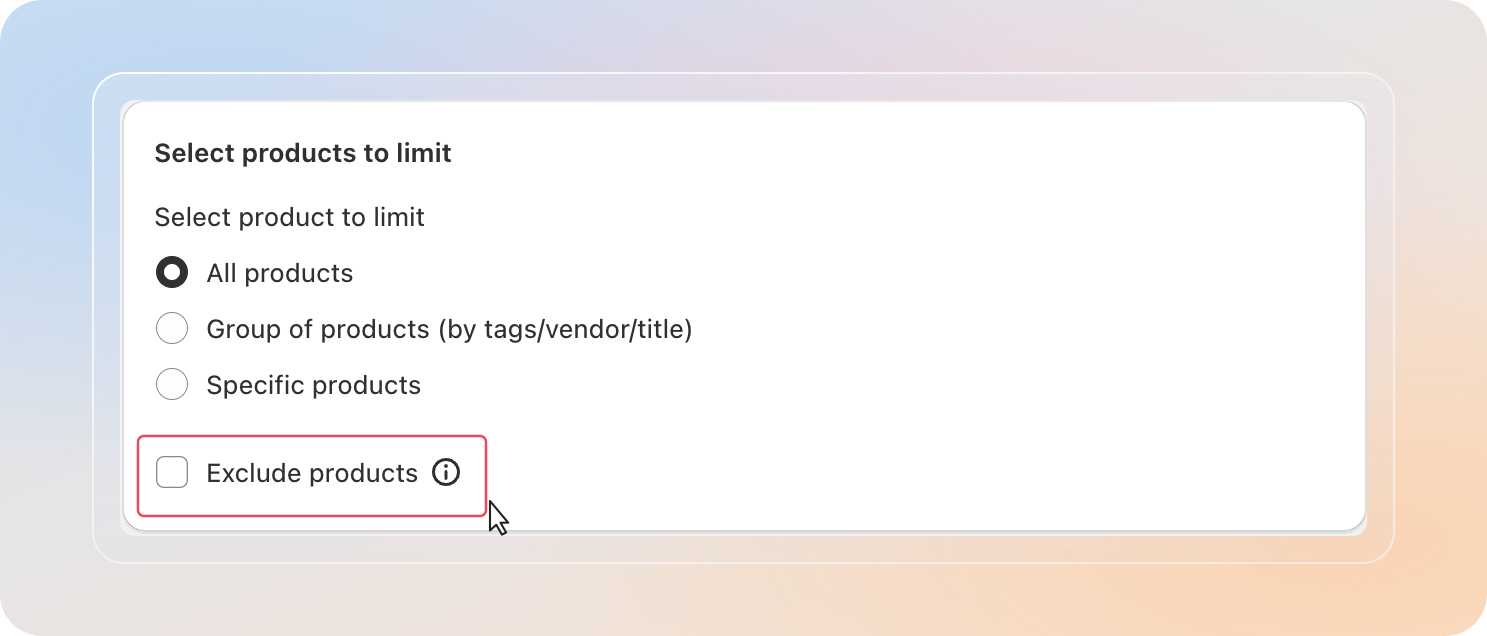
Under Select product to limit, pick one of three scopes:
| Option | When to use |
|---|---|
| All products | Apply the limit to every product in your store. Best for store-wide rules (e.g., max 10 items per order). |
| Group of products (by tags/vendor/title) | Apply the limit to any product matching a dynamic rule — for example, all products tagged limited-edition, or every product from a specific vendor. The group updates automatically as you add products. |
| Specific products | Hand-pick the exact products (and optional variants) you want to limit. Best for a small, fixed list. |
Group of products — build the matching rule
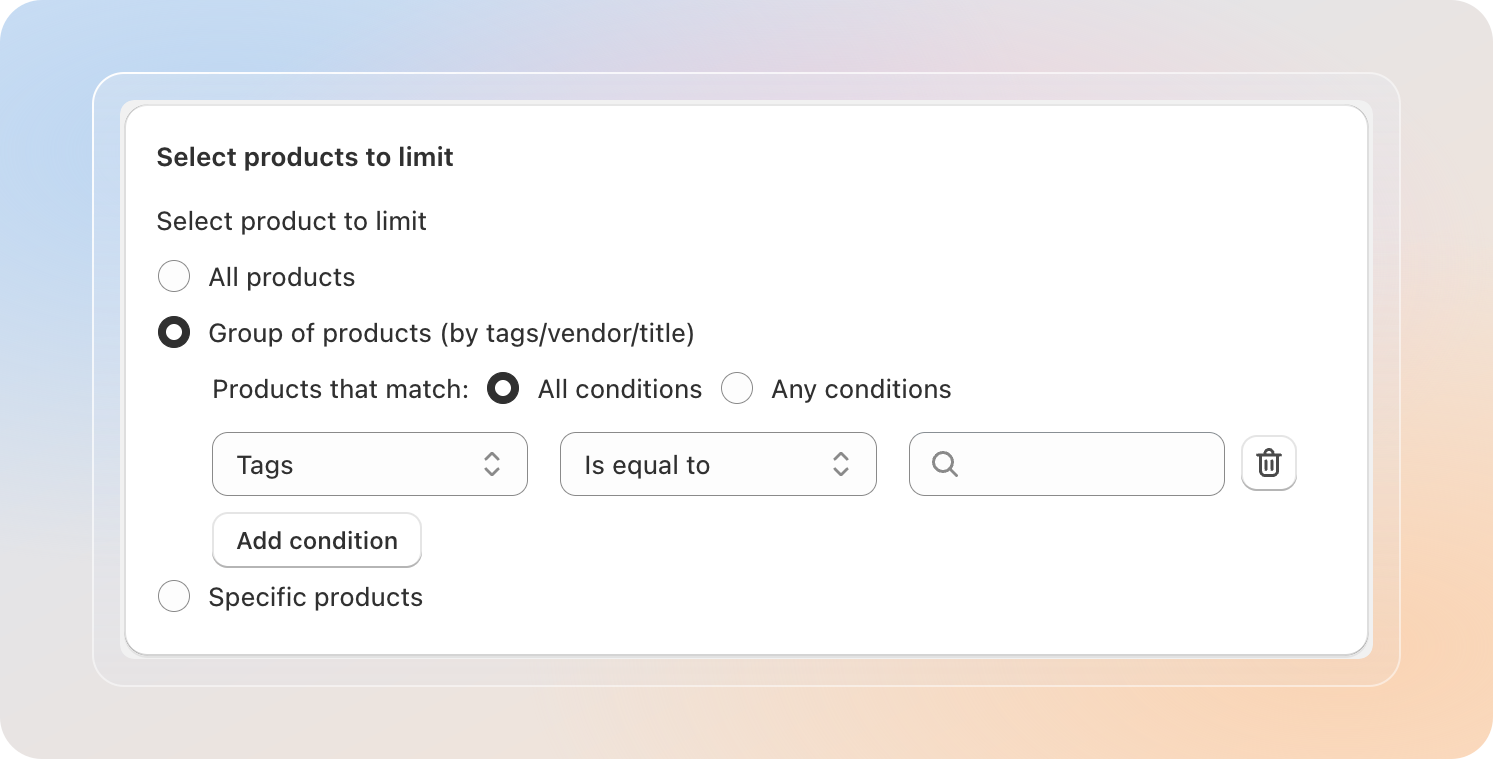
When you pick Group of products (by tags/vendor/title), a condition builder appears.
- Choose the matching mode: All conditions (product must match every row) or Any conditions (one match is enough).
- For each row pick a field type — Tags, Vendor, or Title.
- Pick an operator — Is equal to, Is not equal to, Starts with, Ends with, Contains, or Does not contain.
- Enter the value. Tags and Vendor offer autocomplete from your store data; Title accepts free text.
- Click Add condition to stack more rows.
Tip: Use Group of products for any "evergreen" rule. New products that match the conditions are limited automatically, with no need to re-edit the rule.
Specific products — pick a fixed list
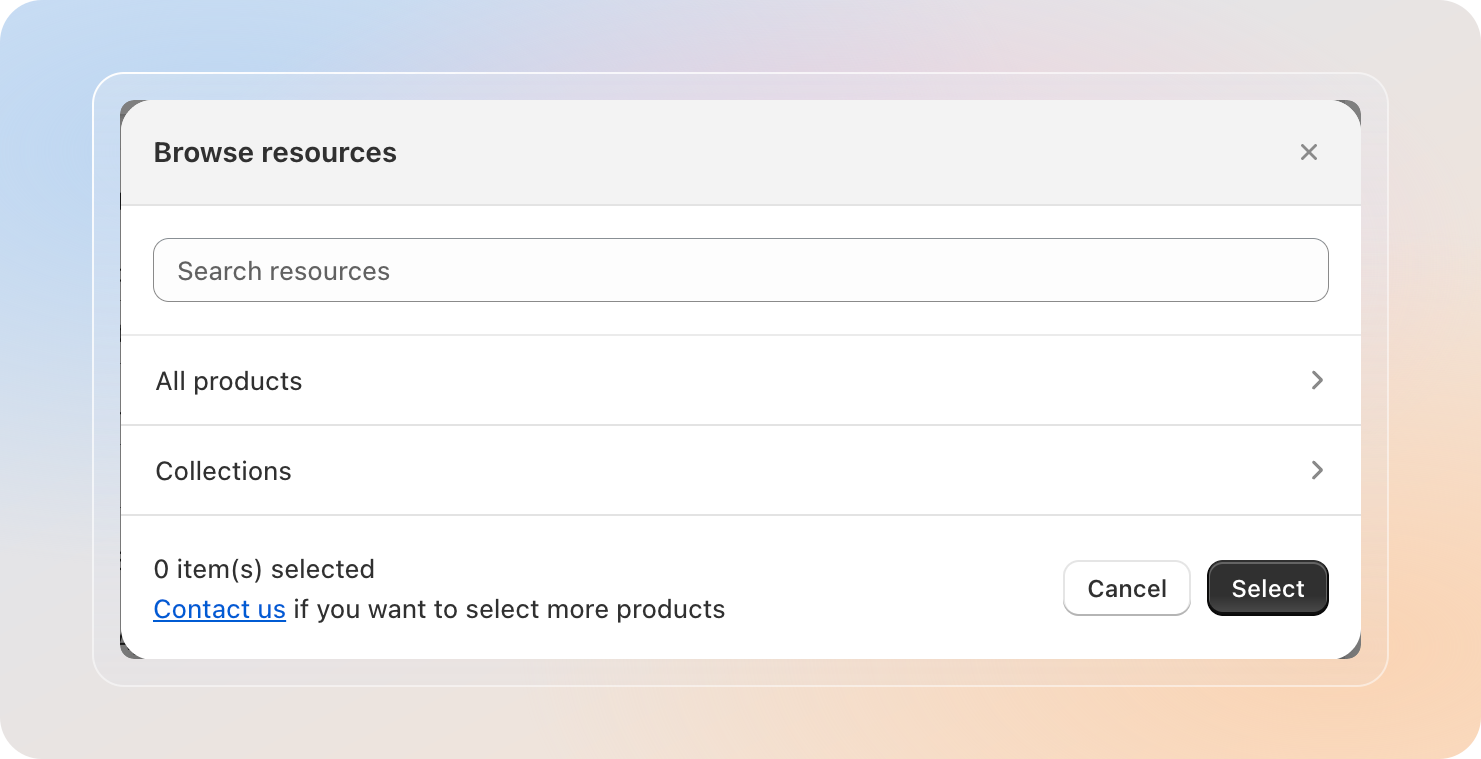
When you pick Specific products, click the Select product button to open the product browser, tick the products you want to limit, optionally drill into variants, then click Select.
Exclude products (optional)
When All products is selected, you can fine-tune the scope with Exclude products. Tick the checkbox, then choose whether the exclusion is a Group of products (by tags/vendor/title) or a Specific products list.
Pro plan: Exclude products is available on Pro and above. On the Free plan the checkbox is locked and a pricing prompt appears next to it.
Step 5: Set the limit conditions
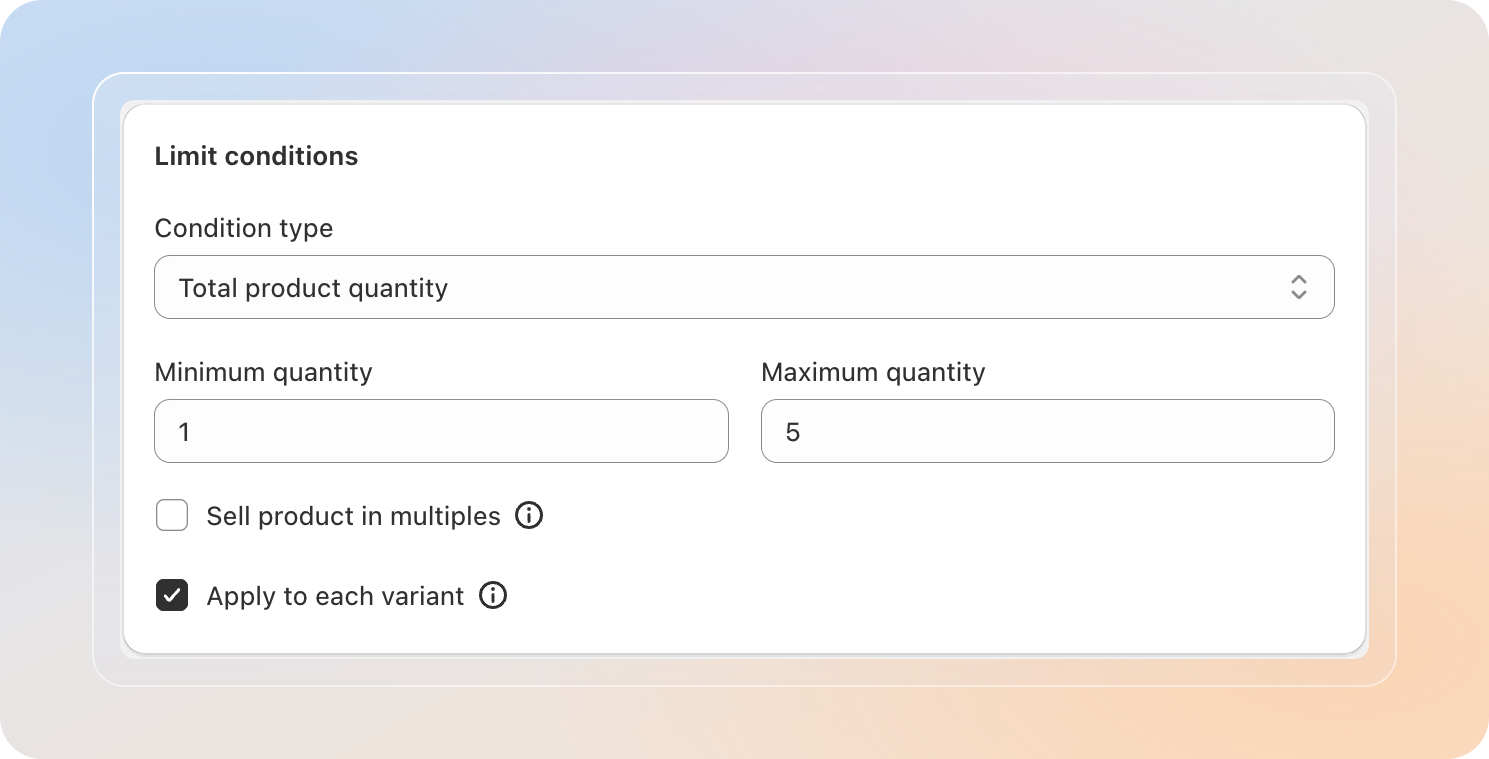
Open the Limit conditions card and choose the Condition type that matches what you want to cap:
| Condition type | What it caps |
|---|---|
| Total product quantity | Number of units of the matching products in the cart (whole numbers). |
| Total product value | Money value of the matching products. Currency follows your store. |
| Total product weight | Combined weight of the matching products. Unit follows your Shopify weight setting. |
Then fill in the Minimum and Maximum fields, which adapt to the condition type:
- Minimum quantity / Maximum quantity
- Minimum value / Maximum value
- Minimum weight / Maximum weight
Leave the Maximum field blank to set no upper limit. Set maximum = 0 to block customers from purchasing the matching products altogether.
Sell product in multiples
Tick Sell product in multiples to force purchases in fixed bundle sizes — for example, pairs of socks (multiple = 2) or six-packs (multiple = 6). The app rounds the minimum to the nearest valid multiple automatically.
Apply to each variant
Tick Apply to each variant so the min/max applies per variant rather than across the entire product. Useful when a single product has many sizes or colors and you want a cap on each one.
Step 6: Set a re-purchase limit (optional)
Re-purchase limit is its own collapsible section, sitting just below Limit conditions and above Advanced Settings.
Pro plan: Re-purchase is available on Pro and above. On Free, the dropdown is locked to No re-purchase limit.
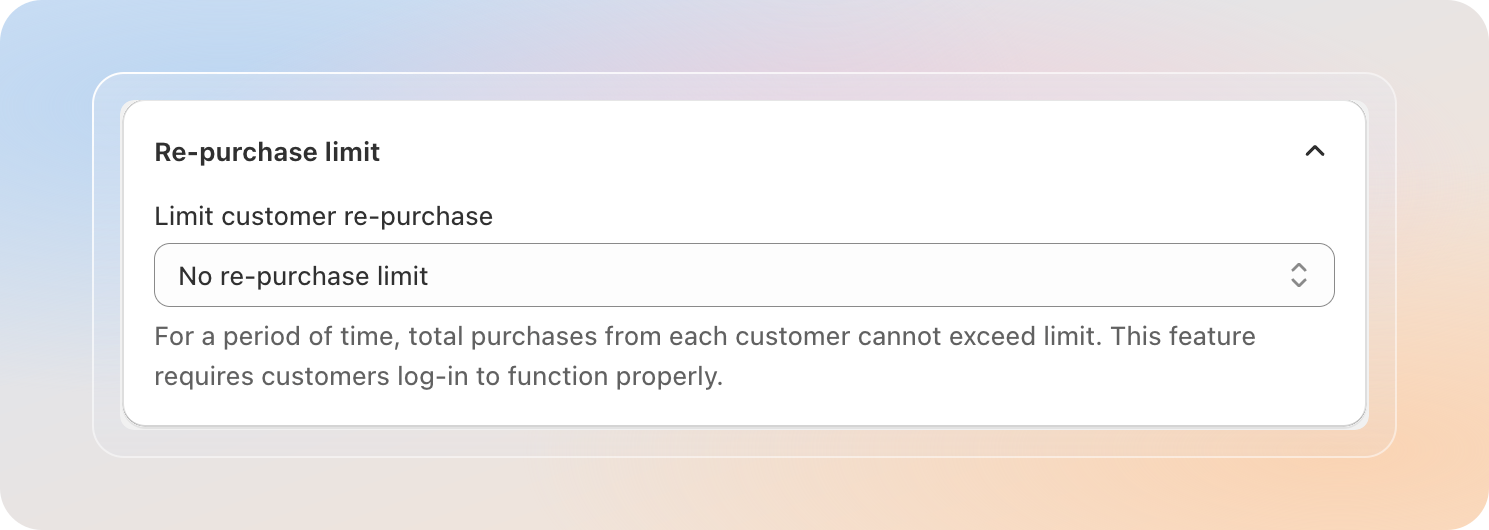
Use the Limit customer re-purchase dropdown to cap how often a single customer can re-buy the limited products over time:
- Once per lifetime
- Once per year
- Once per month
- No re-purchase limit
- Custom time — set your own interval in hours, days, months, or years.
Re-purchase counts a customer's purchases over a period and requires customers to be logged in to work properly.
For the full breakdown of each option, the Reset re-purchase at the start of the period behavior, and the Shopify login setup, see the Re-purchase limit guide.
Step 7: Configure Advanced Settings
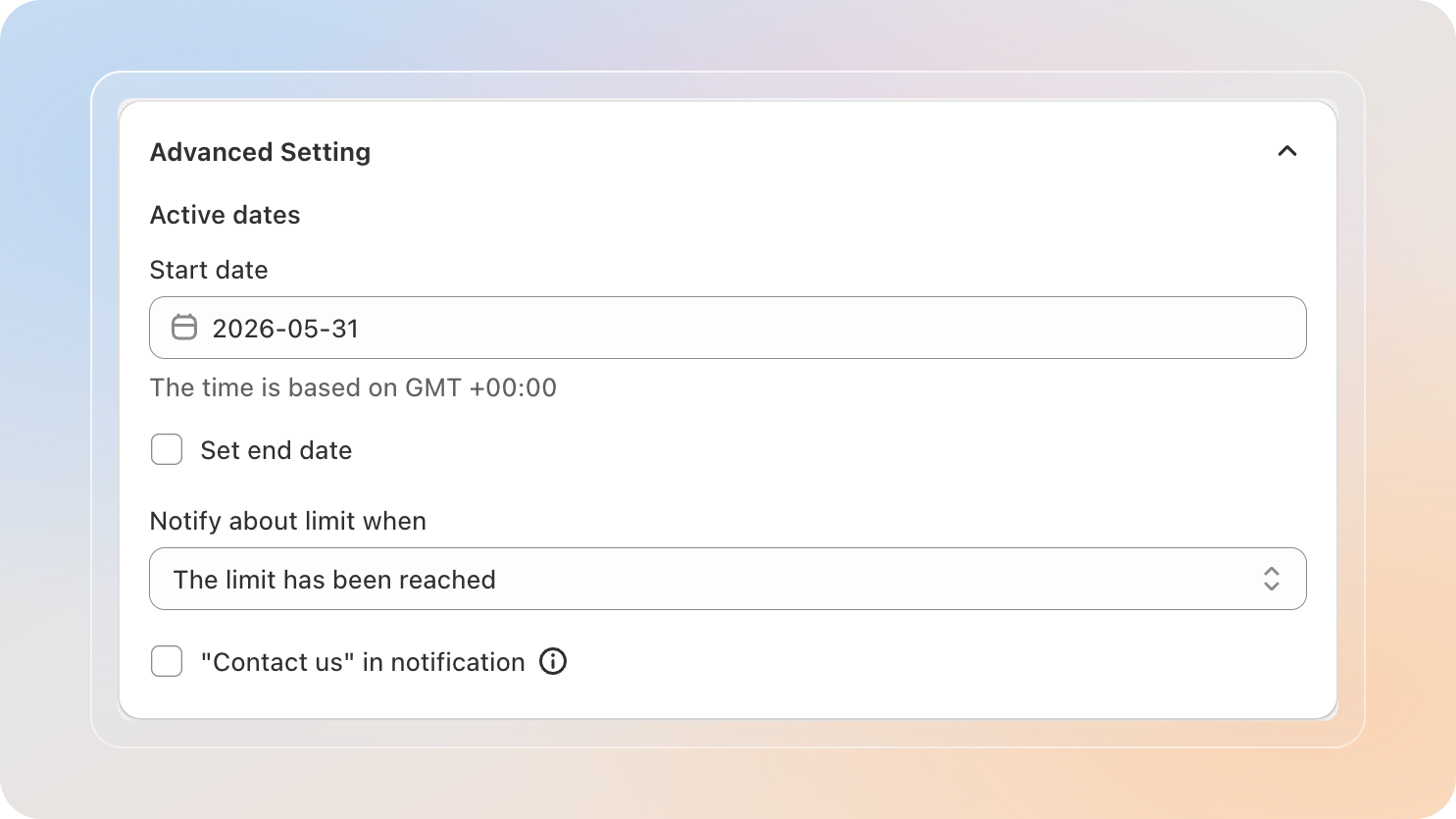
Expand the Advanced Setting card to control when the limit is active and how the notification behaves.
Active dates
- Start date — the date (GMT +00:00) the limit becomes active. Required.
- Set end date — tick this to add an end date. The limit stops applying after the end date. Leave it unchecked for an indefinite rule.
Notify about limit when
Pro plan: Notify about limit when is available on Pro and above. On Free, the dropdown is locked to the default option.
Pick when the on-storefront notification should appear:
- The limit has been reached — only show the message after the limit has been hit.
- "add-to-cart" button is clicked and in cart page — show whenever the customer adds to cart or changes a cart line in a way that would break the limit.
- No notification — silent mode. The Checkout button is disabled when the limit is hit, but no message is shown.
"Contact us" in notification
Tick "Contact us" in notification to add a Contact us button to the limit message. Use it to give customers a path to reach you for bulk requests, B2B inquiries, or special exceptions. When enabled, paste the destination link (live chat URL, contact form, social channel, etc.) in the "Contact us" URL field.
Step 8: Customize the message and save
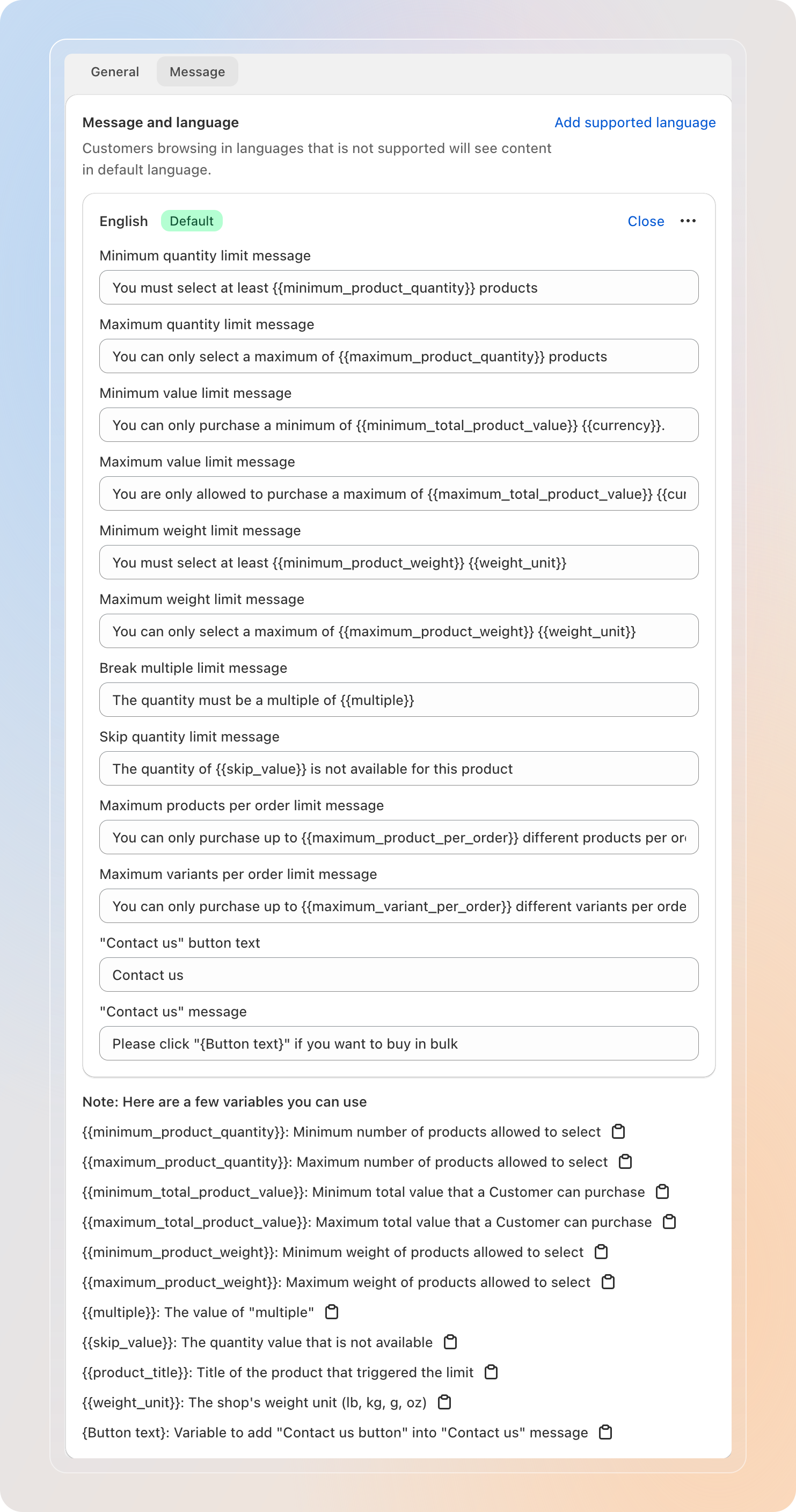
Switch to the Message tab to tailor the limit notification text and add translations. The default language card sits at the top; below it you can add more languages via Add supported language.
Use the available variables shown under Note: Here are a few variables you can use to inject the live limit values into your copy. For a Product Limit, the available variables are:
{{minimum_product_quantity}}/{{maximum_product_quantity}}— minimum / maximum product quantity{{minimum_total_product_value}}/{{maximum_total_product_value}}— minimum / maximum total value{{minimum_product_weight}}/{{maximum_product_weight}}— minimum / maximum product weight{{multiple}}— current multiple value{{skip_value}}— quantity value excluded from the multiple rule{{product_title}}— title of the product that triggered the limit{{weight_unit}}— the shop's weight unit (lb, kg, g, oz){Button text}— for the Contact us button copy
The app shows only the variables that match your chosen condition type. Click the copy icon next to any variable to put it on your clipboard.
For the full translation walkthrough (adding languages, toggling them on, setting a default), see Customize and translate limit message.
When everything looks right, click Save at the top of the page. The limit goes live immediately on the dates you set.
Tip: Open the published product page in an incognito tab and try to add the limited product to your cart. Confirm the limit triggers and the message appears as expected.
Tips
- Name limits clearly. Use names that describe the rule (e.g., "Black Friday — 1 per customer, sneakers") so your future self can audit them quickly.
- Run rules in parallel, not stacked. Avoid overlapping rules on the same product — the stricter one usually wins and that's rarely what merchants expect.
- Use Group of products for evergreen rules. Tagging your new products with the right tag is faster than editing the limit every time you add SKUs.
- Re-purchase needs login. The re-purchase rule depends on a logged-in customer. In Shopify Admin → Settings → Checkout, switch customer accounts on so the limit can identify repeat buyers.
- Test with a real cart. Before announcing a sale, place a test order to confirm min/max behavior, multiples rounding, and the message wording.