Limit how often customers re-order
Requires: Pro plan
The Re-Purchase Limit feature gives you powerful control over how much customers can purchase across multiple orders within a specific time period. Unlike basic order limits that apply to individual transactions, this advanced feature tracks customer purchases by email address, allowing you to restrict total quantities or order values regardless of how many separate orders they place.
What is Re-purchase Limit
Re-purchase Limit provides a sophisticated system for tracking and restricting customer purchases. Here's a breakdown of its core functionality:
- Customer tracking: The system identifies customers by their email address across multiple orders.
- Two ways to restrict: Cap the total product quantity or order value a customer can buy in a period, or set a waiting period (cooldown) that blocks any re-order for a set time after each purchase — regardless of how much they bought.
- Flexible time periods: Choose from preset time frames (lifetime, monthly, yearly), a custom time window, or a re-purchase waiting period that fits your business.
- Customer account requirement: To accurately track purchases, customers must log in to their accounts during checkout.
By understanding these key components, you'll be able to implement purchase limits that help you maintain inventory control while ensuring fair distribution of your products.
How to set up Re-purchase Limit
Follow these step-by-step instructions to configure Re-Purchase Limit for your store:
Step 1: Open the rule and find the Re-purchase limit section
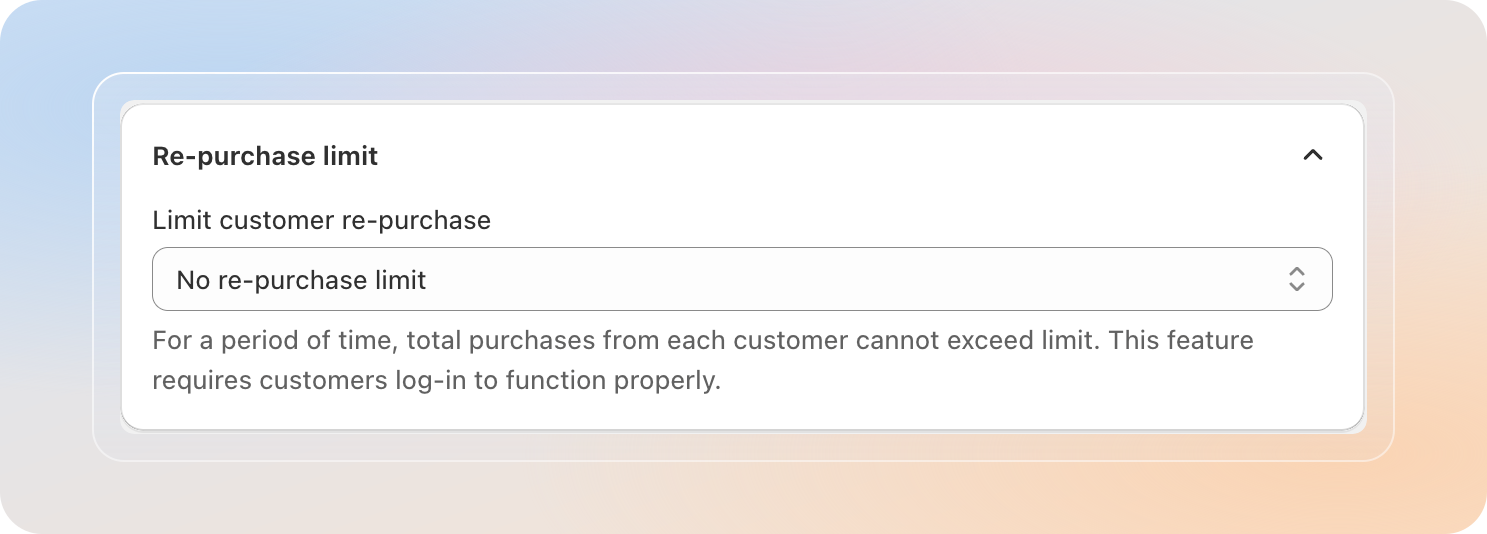
Open the rule you want the re-purchase cap to apply to and scroll to the Re-purchase limit section, which sits just above Advanced settings near the bottom of the form.
- From your Shopify admin, open the Avada Order Limit app
- Go to Limits management
- Select an existing rule, or click Create limit to start a new one
- Scroll to the Re-purchase limit section (just above Advanced settings) — expand it if it is collapsed
Step 2: Choose a re-purchase window
In the Re-purchase limit section, find the Limit customer re-purchase dropdown. Pick the period you want the rule's quantity or value cap to accumulate over.
| Option | Description |
|---|---|
| No re-purchase limit | Default. The cap resets every order — the rule only checks each single transaction. |
| Once per lifetime | The customer can hit the cap exactly once, ever. After that, they are blocked permanently for this rule. |
| Once per month | The cap accumulates across a 30-day rolling window per customer. |
| Once per year | The cap accumulates across a 365-day rolling window per customer. |
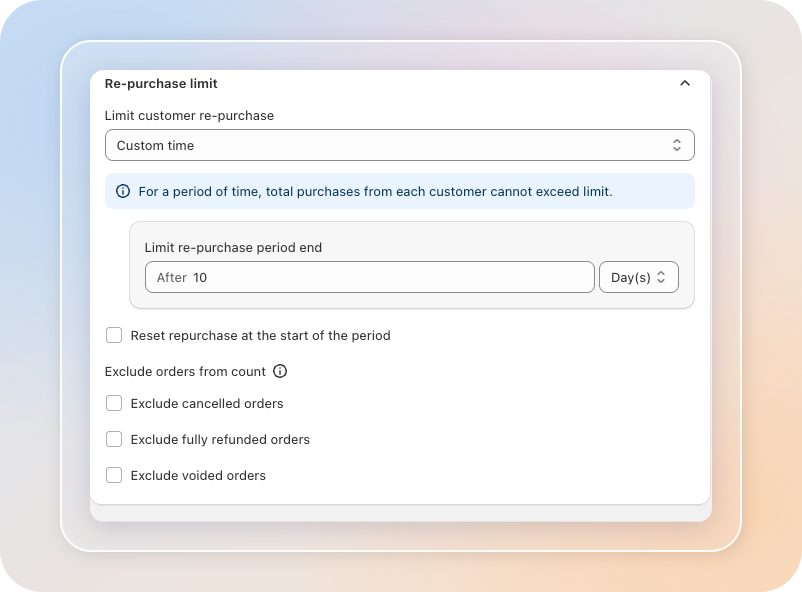
| Custom time | Define any window from 1 hour up to 2 years for the quantity/value cap to accumulate over (see Step 3). |
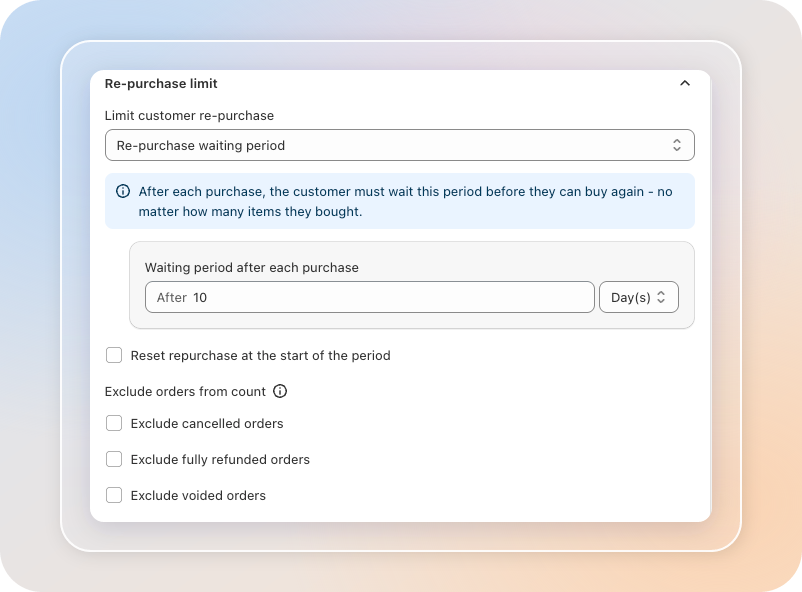
| Re-purchase waiting period | A cooldown: after any order, the customer must wait the period you set before they can order again — no matter how many items they bought. It blocks re-ordering entirely during the window, rather than only above a quantity or value cap (see Step 3). |
Note: The dropdown only appears on Product, Collection, Customer, and Order limit rules. It is hidden on Product Blocking rules because blocking is not quantity-based.
As soon as you pick any option other than No re-purchase limit, an info banner appears explaining how that option behaves.
Step 3: Set the time window (Custom time or Waiting period)
If you picked Custom time or Re-purchase waiting period, a nested card appears where you enter the period. The field reads After [number] [unit] — for example, After 10 Day(s).
- For Custom time, the card is labeled Limit re-purchase period end — how long the quantity or value cap keeps accumulating for each customer.
- For Re-purchase waiting period, the card is labeled Waiting period after each purchase — how long the customer must wait after any order before they can order again.
To set it:
- Enter a whole number in the After input
- Choose the unit from the dropdown on the right: Hour(s), Day(s), Month(s), or Year(s)
Maximum values per unit:
| Unit | Maximum |
|---|---|
| Hours | 17,520 (2 years) |
| Days | 730 (2 years) |
| Months | 24 |
| Years | 2 |
Tip: Use Hours for flash sales or limited drops (e.g. "after 24 hours"). Use Months or Years for long-term allocation rules like subscription boxes or pre-orders.
Step 4: Customize how the period counts (optional)
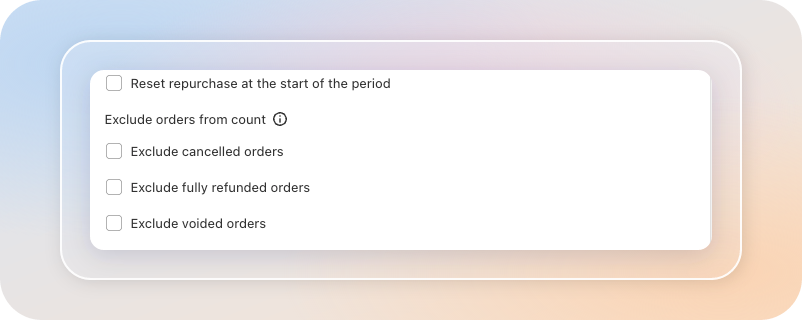
Below the dropdown, a reset option and an Exclude orders from count group let you adjust how the window tallies each customer's purchases.
Reset repurchase at the start of the period
When you choose Once per month, Once per year, Custom time, or Re-purchase waiting period, the Reset repurchase at the start of the period checkbox appears.
- Unchecked (default): The window is a rolling period counted from each customer's first qualifying purchase. Example with "Once per month": a customer who buys on the 10th gets a fresh window on the 10th of next month.
- Checked: The window aligns to a fixed calendar boundary. Every customer's counter resets together at the start of each month, year, or custom cycle — useful for monthly allocations, fairness campaigns, or accounting periods.
Note: This checkbox is hidden when you select No re-purchase limit or Once per lifetime — those options have nothing to reset.
Exclude orders from count
Under the Exclude orders from count heading (hover the info icon for a reminder), tick any of the three checkboxes to leave certain orders out of each customer's running total — so a customer is not blocked by a purchase they never actually completed:
- Exclude cancelled orders — orders that were placed and later cancelled no longer count.
- Exclude fully refunded orders — orders that were fully refunded no longer count.
- Exclude voided orders — orders that were voided no longer count.
Note: The Exclude orders from count group appears whenever you select any re-purchase window. It is hidden only when No re-purchase limit is selected.
Step 5: Save and verify
- Click Save at the top of the rule
- Sign in to your storefront as a test customer
- Place an order that reaches the rule's quantity or value cap
- Try a second order with the same account — the app should block checkout with your configured message
Tips
- Customer login is mandatory. The app keys the running total off the customer's email. Guest checkout cannot be tracked, so the limit will silently let guests through if login is not required at checkout.
- Picking the right time unit matters for the math. Monthly = 30 days and Yearly = 365 days under the hood. If you need exact calendar months (e.g. "reset on the 1st"), use the Reset repurchase at the start of the period checkbox.
- Re-purchase Limit stacks with the rule's own cap — for the quantity/value options, the rule's limit is what gets enforced; the re-purchase window just controls how long the count keeps adding up.
- Re-purchase waiting period ignores the quantity/value cap. It blocks any re-order during the cooldown, no matter how few items the customer bought. Customers who hit it see a dedicated message (for example, "You have recently placed an order. Please come back after the cooldown period to purchase again.").
- If the dropdown is greyed out, your store is on the Free plan. Re-purchase Limit is a Pro feature — see Plans & Pricing to upgrade.
And there you have it! You've successfully set up Re-purchase Limit. Your store will now track each customer's accumulated purchases against this rule and block additional orders once they hit the cap within the time window you defined.
If you have any questions or run into any issues, don't hesitate to reach out. We're here to help!