Email notifications
Automate your post-purchase communication. Send branded emails to customers at every key shipment milestone — from order confirmation to delivery — without writing a single line of code.
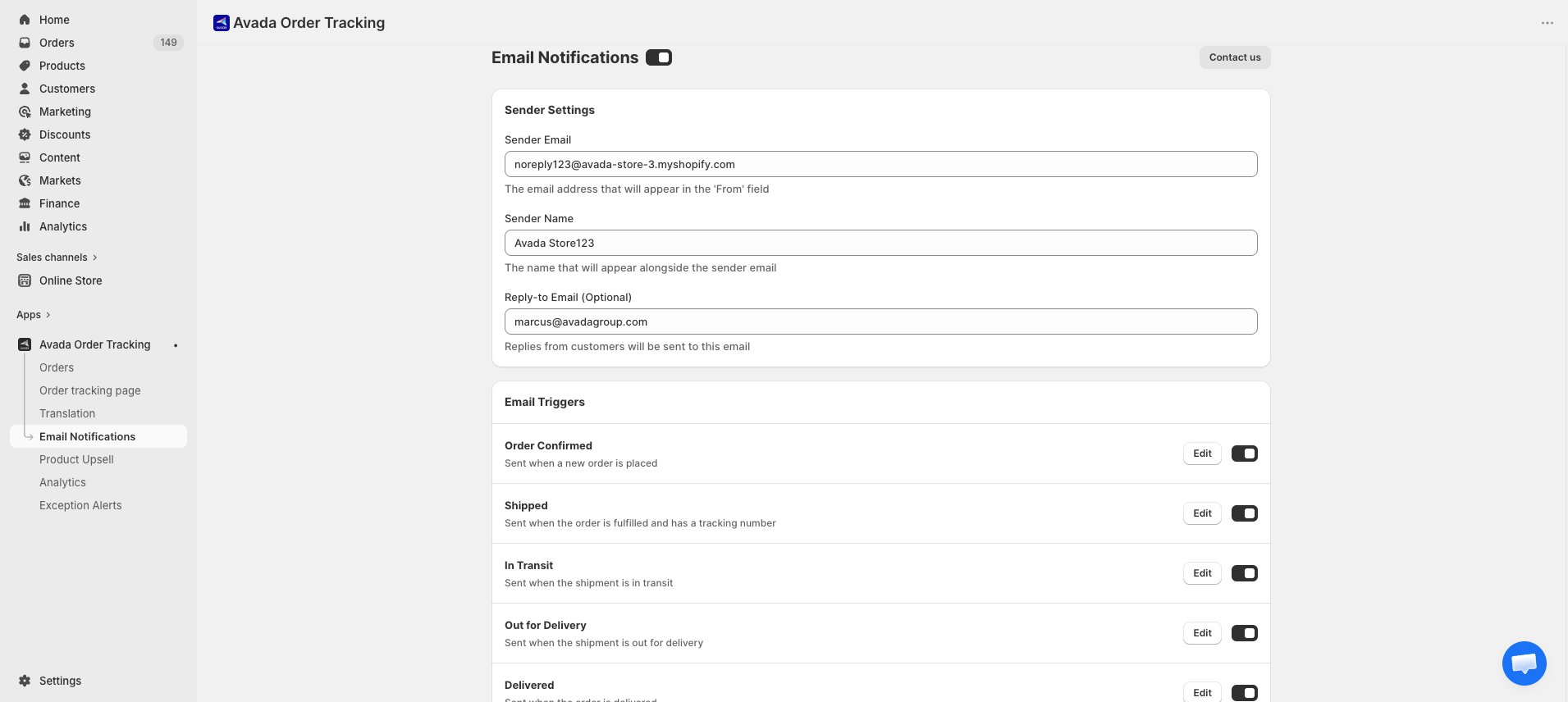
Opening Email notifications
Click Email notifications in the app sidebar.
Six built-in email triggers
Each trigger sends an email at a specific point in the shipment lifecycle. Enable only the ones that fit your customer experience.
| Trigger | Sent when |
|---|---|
| Order confirmed | A new order is placed |
| Shipped | The order is fulfilled and has a tracking number |
| In transit | The shipment status updates to "in transit" |
| Out for delivery | The shipment is with the final-mile courier |
| Delivered | The order has been delivered |
| Exception / Failed delivery | There's a delivery exception or failed attempt |
Sender Settings
At the top of the page you'll find sender settings that apply to all emails:
| Setting | Description |
|---|---|
| Sender Email | The "From" email address. Defaults to a shared Avada address for deliverability. |
| Sender Name | The "From" name customers see in their inbox (e.g. "Acme Store"). |
| Reply-to Email (Optional) | Where customer replies are sent — typically your support inbox. |
How the trigger list works
Each trigger appears as a row with:
- Name and short description.
- Status toggle — turn this trigger on or off without deleting the template.
- Edit button — opens the template editor.
Toggling a trigger off stops all emails for that milestone going forward. Emails already sent are not affected.
Editing an email template
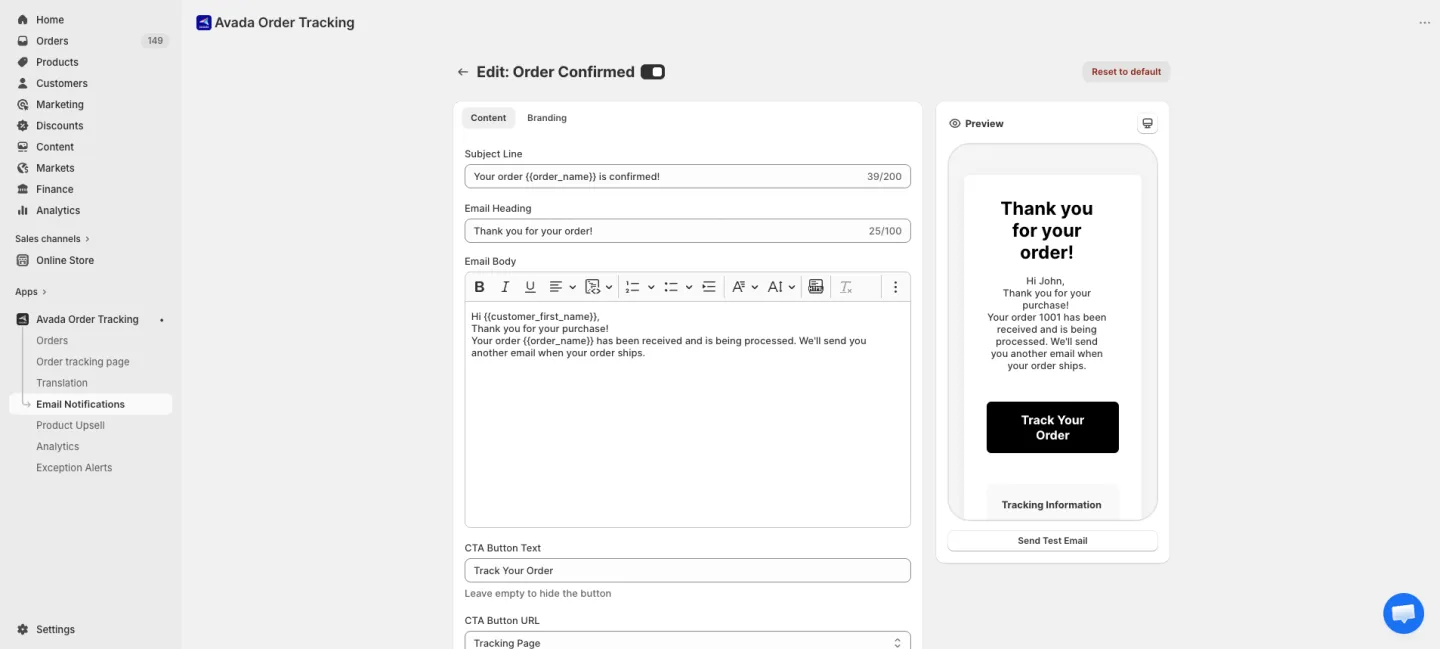
Click Edit on any trigger to open the template editor. The editor has two tabs (Content and Branding) plus a live preview on the right. A Reset to default button at the top right reverts the template.
Content tab
| Field | Purpose | Limit |
|---|---|---|
| Subject Line | What customers see in their inbox. Use variables like {{ order_name }} to personalize. | 200 chars |
| Email Heading | The main headline at the top of the email body. | 100 chars |
| Email Body | Rich text editor with Bold, Italic, Underline, Alignment, Variables, Lists, Indent, Font Family, Font Size, Insert HTML toolbar. | — |
| CTA Button Text | Text on the action button (e.g. "Track order"). | — |
| CTA Button URL | Where the button points (see options below). | — |
| Footer Text | Short text shown at the bottom of the email above the unsubscribe link. | — |
CTA URL options:
- Tracking Page — link to your app's branded tracking page (recommended).
- Shopify Order Status Page — link to Shopify's native order status page.
- Custom URL — type any URL you want.
Include Sections — checkboxes that toggle which content blocks appear in the email:
- Tracking Information — carrier, tracking number, current status.
- Order Items — products in the order with images and quantities.
- Shipping Address — where the order is going.
Turn off sections to keep the email shorter, or all on for the most informative experience.
Branding tab
Customize the look of all your emails in one place. Branding is shared across all triggers — change it once, every email uses it.
| Setting | Description |
|---|---|
| Logo URL | Paste a URL to your store logo (hosted publicly). |
| Logo Position | Left, Center, or Right. |
| Primary Color | Used for buttons and links. |
| Background Color | Outer email background (around the content). |
| Body Background Color | Inner content background. |
| Text Color | Body text color. |
| Button Text Color | Text inside the CTA button. |
| Font Family | Arial, Helvetica, Georgia, Times New Roman, or Verdana. |
| Show "Powered by AVADA" in footer | Toggle whether to show the badge at the email footer. |
Variables
Personalize your emails with dynamic variables (Liquid-style syntax):
{{ customer_first_name }}— the customer's first name.{{ order_name }}— the Shopify order number (e.g. #1024).{{ tracking_number }}— the carrier tracking number.{{ carrier }}— the courier name (e.g. "USPS").{{ shop_name }}— your store name.{{ tracking_url }}— direct link to this order's tracking page.{{ shop_email }}— your store contact email.
Type {{ in any text field to see the full variable picker.
Preview
The right panel shows a live preview using sample data. Toggle between Desktop and Mobile to check both layouts.
The preview reflects:
- Your current subject, body, CTA, and branding settings.
- Variable replacement using sample values.
- Responsive email layout (single column on mobile).
Sending test emails
Click Send test email in the template editor. The app sends a preview email to your shop owner's email address so you can check it in a real inbox.
Saving changes
Click Save at the top right. Changes take effect immediately for future emails — no delay.
Email delivery
Emails are sent from a reliable transactional email service. Typical delivery is under one minute. If customers report missing emails:
- Ask them to check spam/junk folder.
- Confirm the trigger is enabled.
- Check the customer email on the order is correct.
Tips
- Start with fewer triggers. Turn on Shipped, Out for delivery, and Delivered first. These are the most valuable. Add others later if your customers ask for more granularity.
- Keep subject lines short. Under 50 characters so they don't truncate on mobile.
- Use the tracking page URL, not Shopify's. Customers get a better experience, and you can promote products via Product upsell.
- Test every template. Send yourself a test email for each trigger before turning it on.