Orders
The Orders page is your command center for every shipment. Monitor statuses, search for specific orders, and drill into individual shipments.
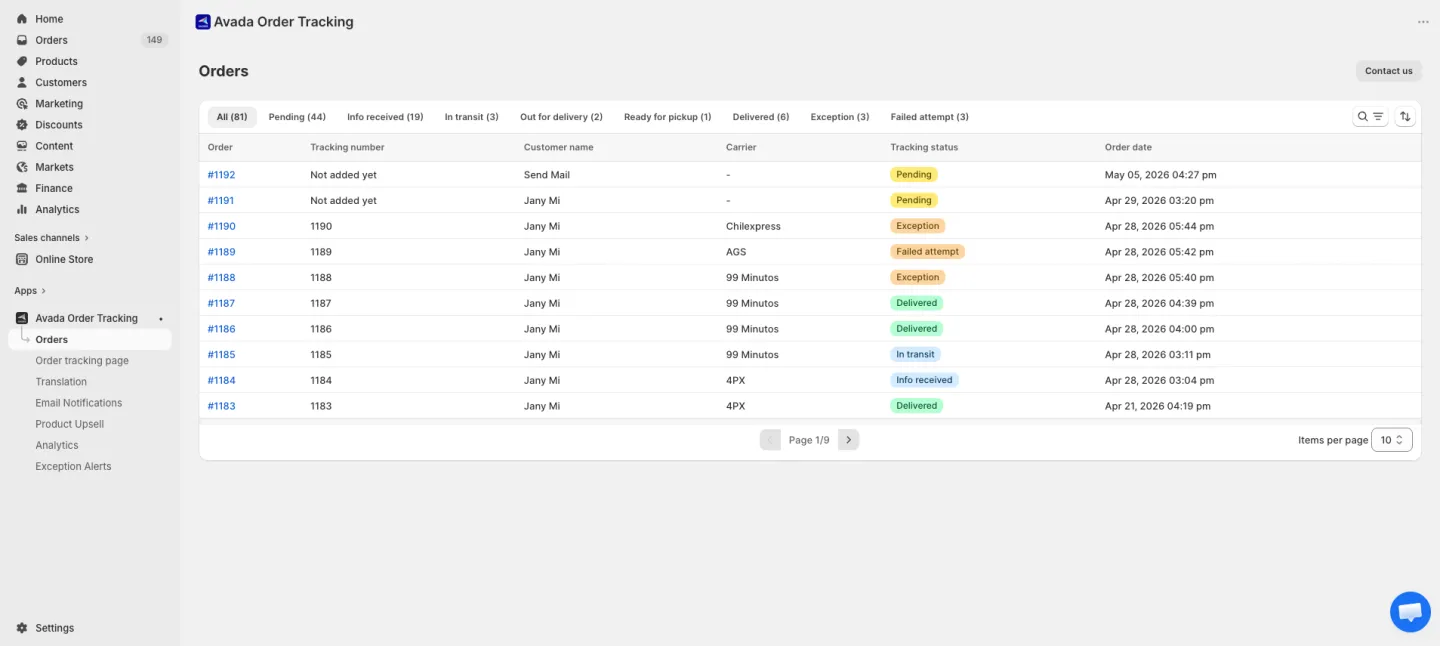
Opening the Orders page
Click Orders in the app sidebar.
If the list is empty (e.g. fresh install), you'll see an empty state with "No orders found" and a single Sync orders button to import recent history.
What you see
| Column | Description |
|---|---|
| Order | The Shopify order number. Clicking the number opens the order in your Shopify admin. Clicking anywhere else on the row opens the order detail in the app. |
| Tracking number | The carrier tracking number. If an order has multiple shipments, hover to see all numbers. |
| Customer | First and last name of the customer. |
| Carrier | The courier handling the shipment (USPS, UPS, FedEx, DHL, etc.) |
| Status | Current shipment status as a colored badge. |
| Created at | When the order was placed. |
Shipment statuses
| Status | Meaning |
|---|---|
| Pending | Order placed but no fulfillment yet. |
| Info received | Carrier has received the label info but hasn't scanned the package. |
| In transit | Package is on its way to the customer. |
| Out for delivery | Package is with the final-mile courier today. |
| Ready for pickup | Waiting for customer to collect (locker, pickup point). |
| Delivered | Package has reached the customer. |
| Exception | Delivery attempt failed or the shipment is stuck. |
| Failed attempt | Carrier attempted delivery but was unable to complete. |
Status badges are color-coded for quick scanning — green for Delivered, amber for In transit, red for Exception.
Filtering orders
Use the filter bar to narrow the list.
Status tabs
Click any status tab at the top to show only orders in that status. The All tab shows everything.
Search
Type in the search box to find orders by:
- Order number (e.g.
#1024) - Tracking number (e.g.
9400111...) - Customer name (e.g.
John Doe)
Search is debounced — there's a brief pause after you stop typing before results update.
Filters
Click Filter to open additional filters:
- Carrier — multi-select from carriers that actually appear in your orders.
- Fulfillment date — select a preset range: Today, Last 7 days, Last 30 days, Last 60 days, Last 90 days.
Applied filters appear as chips below the filter bar. Remove a filter by clicking the × on its chip.
Sorting
Orders are sorted by creation date (newest first) by default. Click the Sort control to change.
Pagination
Page through results using the Previous and Next buttons at the bottom. Change the number of orders per page using the Items per page dropdown.
Syncing orders
The Sync orders button at the top of the Orders page imports historical orders from Shopify. Click it to open a dropdown:
- Last 7 days — quick sync of the most recent week
- Last 30 days — populate the past month
- Last 60 days — full two months of history
New orders placed after install sync automatically through Shopify webhooks — you only need to sync once for backfill.
If you need orders older than 60 days imported, contact support through in-app chat.
Opening an order's details
Click any row to open its Order details page, where you can see the full status timeline, customer info, and items.