Storefront experience
How your customers interact with Avada Order Tracking. Share this page with your team so they understand exactly what buyers see.
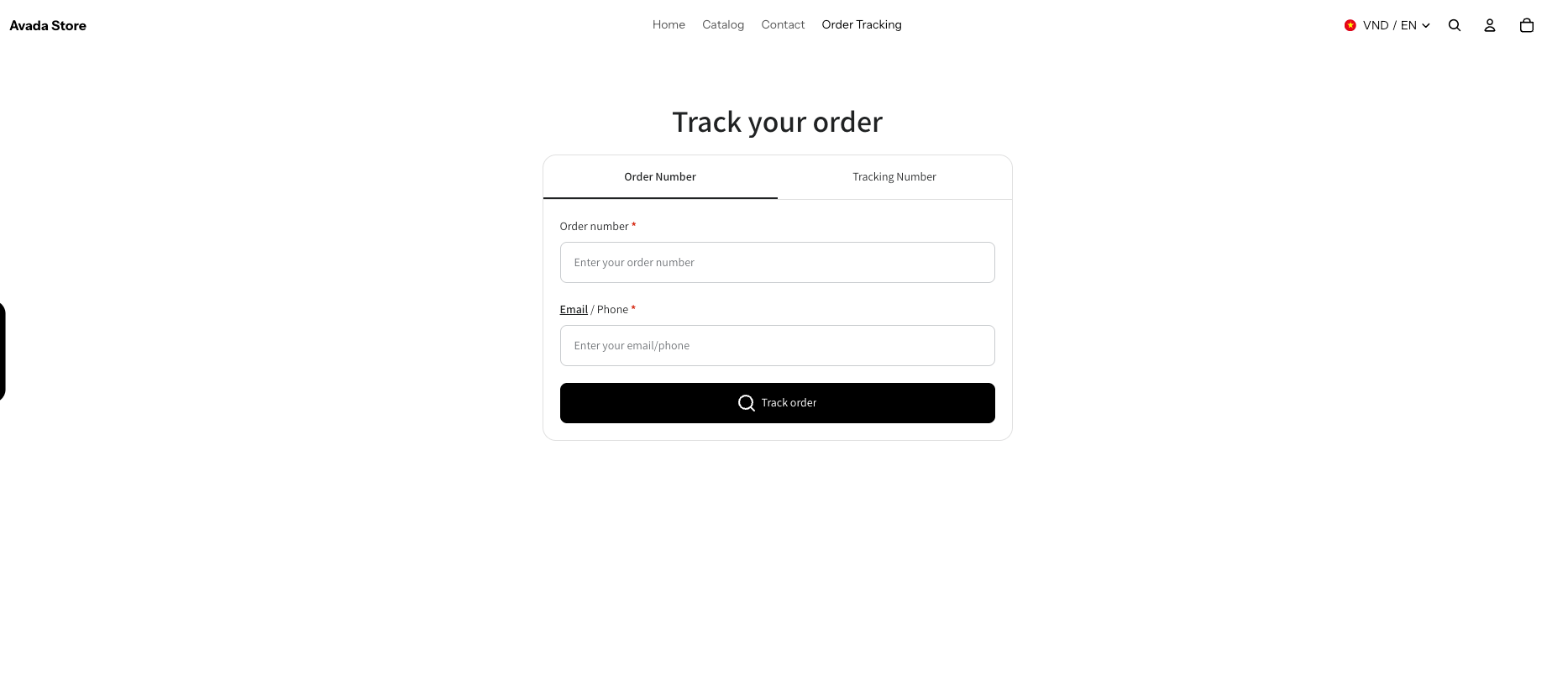
The tracking page URL
After completing the Quickstart, your tracking page is live at:
https://<your-store>.myshopify.com/pages/<your-slug>Default slug: order-tracking. Customize from the URL tab in Order tracking page settings.
This URL is also linked from your main navigation menu as Order tracking (or the equivalent translation based on store language).
Looking up an order
When a customer visits the tracking page, they see the Lookup form. Depending on your Tracking page settings, they'll have:
Option 1: Lookup by order number + email/phone
Most common setup. Requires both fields to prevent anyone from fishing for other people's orders.
The customer types:
- Order number (e.g.
#1024or1024— both work). - Email or phone — whichever was used when placing the order.
Click the Track button to look up.
Option 2: Lookup by tracking number
For customers who have the tracking number directly (from a carrier notification email, for example).
The customer types:
- Tracking number (e.g.
9400111899223828290226).
No email needed — tracking numbers are unique and can't be enumerated.
Option 3: Both methods available
If both lookup options are enabled, the customer sees two tabs and can choose which method to use.
Viewing the order
Once the lookup succeeds, the customer sees:
Progress timeline
A horizontal bar with five steps: Ordered → Preparing shipment → In transit → Out for delivery → Delivered. The active step is highlighted in your brand color (set in Tracking page > Style).
Tracking information
- Carrier name and logo (e.g. "USPS", "UPS", "FedEx").
- Tracking number (clickable — opens the carrier's tracking page in a new tab for maximum detail).
Shipment updates (if available)
A list of tracking events from the carrier: pickup, in transit scans, out for delivery, delivered. Each event has a timestamp and location.
Order information
Summary of the order: items ordered, quantities, variants.
Estimated delivery date (if shown)
Based on carrier data, an estimated arrival date. Not all carriers provide this — may be hidden for some shipments.
Product upsell (if enabled)
Your selected products shown as a "You might also like" section. See Product upsell.
Mobile experience
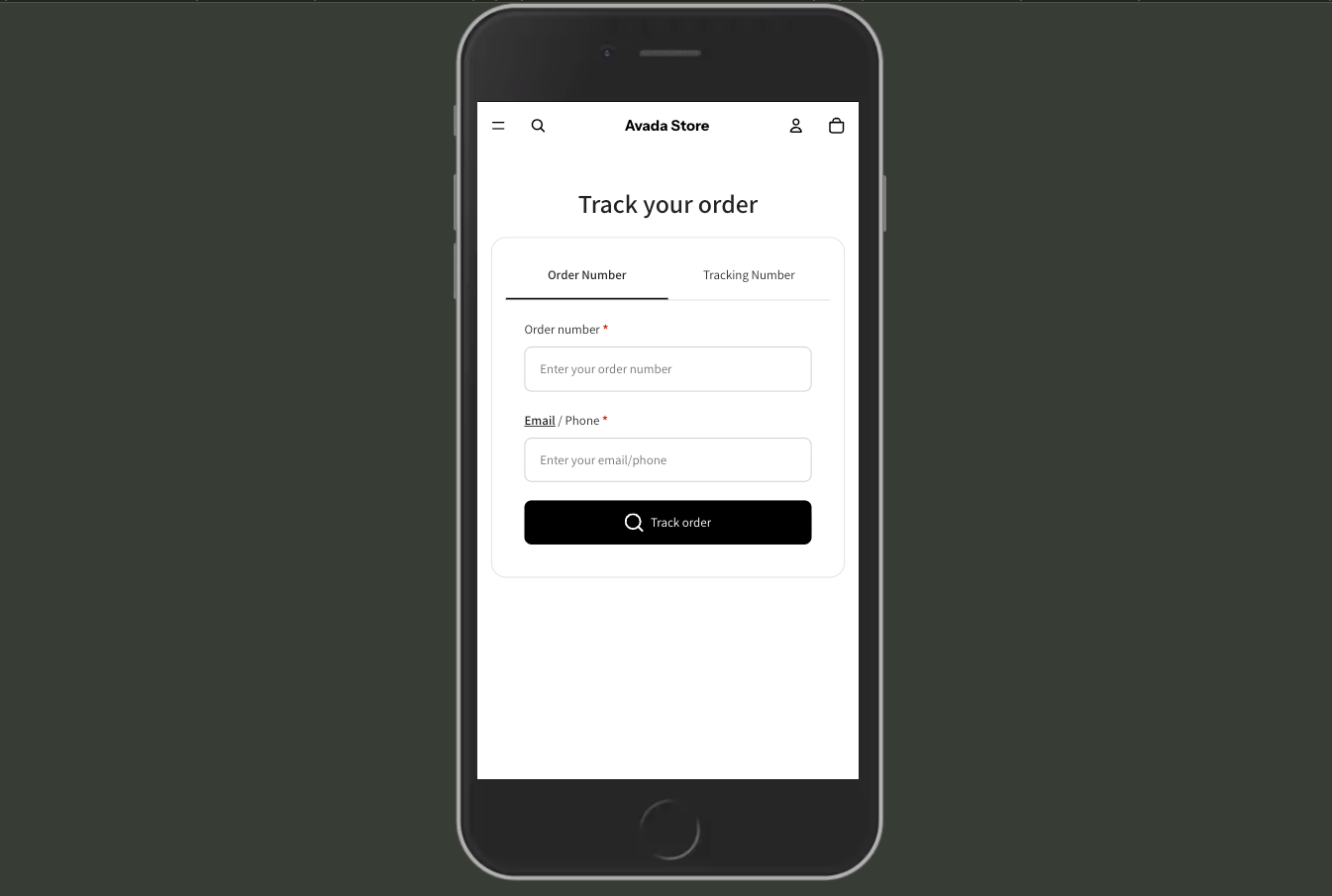
The tracking page is fully responsive. On mobile:
- Lookup form stacks vertically with full-width inputs.
- Progress bar remains horizontal but shrinks for narrower screens.
- Carrier info and events stack in a single column.
- Product upsell switches to a 2-across grid.
Tested on iOS Safari, Android Chrome, and major mobile browsers.
Error states
"Order not found"
Shown when the lookup doesn't match any order. Common causes:
- Order number typed incorrectly.
- Email/phone doesn't match the one on the order.
- Order was placed before the app was installed and hasn't been synced yet.
- Customer used a different email than what they entered.
Message text is customizable under Translation.
"Please enter an order number"
Shown when the customer submits the form with empty required fields. Placeholder text is also customizable.
Language display
The tracking page automatically picks the customer's language based on:
- Your Translation detection setting (Browser / IP / Store language).
- Available translations you've enabled.
- Falls back to the default language if no match.
No language switcher appears on the public page — customers just see the right language automatically.
Speed and performance
The tracking widget is lightweight and loads asynchronously, so it doesn't slow down your main storefront bundle. First render typically completes within a second on mobile.
Shareable tracking URL
Each tracking result has a direct URL customers can bookmark or share:
https://<your-store>.myshopify.com/pages/order-tracking?order=1024&[email protected]Including the order + email in the query string auto-fills the form and runs the lookup. Useful for:
- "Track your order" links in confirmation emails.
- Post-purchase redirect flows.
- Customer service messaging.
Your customer's journey
A typical flow after a purchase:
- Customer places an order. Gets Shopify's confirmation email, plus your Order confirmed email (Email notifications).
- You ship. Customer gets Shipped email with a tracking link.
- They click the link, land on your branded tracking page, see their progress.
- They come back over the next few days to check status — each visit is a touchpoint for your brand (and a chance for Product upsell).
- Package arrives. Customer gets Delivered email with a review request or next-order coupon.
Every step is yours to customize.