Order details
Click any order row from the Orders page to open its detail view. This page shows everything related to a single shipment.
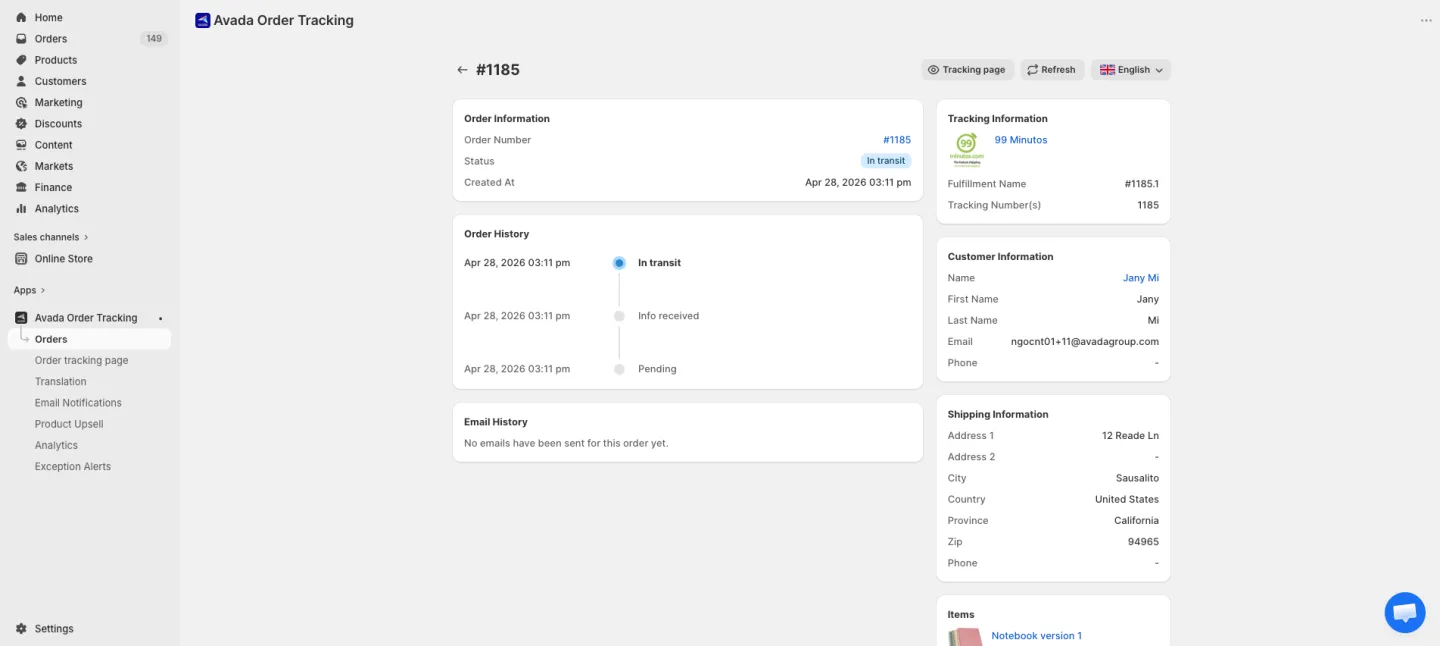
Layout
The page is split into two columns:
- Left (main) — Order info and shipment timeline.
- Right (side) — Tracking, customer, shipping, and line items.
Header
At the top you'll find:
- Back button — returns to the Orders list.
- Order number — linked to the order in your Shopify admin.
- Status badge — current shipment status.
- View tracking page — opens the public tracking page for this order in a new tab.
- Refresh — re-fetches the latest data from Shopify and the carrier.
Order info card
Shows the order number, created date, and current status. Clicking the order number opens it in your Shopify admin.
Tracking timeline
A vertical timeline showing every status change this shipment has gone through, from order creation to the latest carrier scan.
Each timeline entry includes:
- The status (e.g. "In transit")
- Timestamp
- Location (when provided by the carrier)
- Description (e.g. "Arrived at distribution facility")
The timeline only appears when there's tracking history available. For brand-new orders or orders without tracking yet, you'll see a "No tracking updates yet" message.
Tracking information card
Shows carrier and tracking details:
- Carrier logo and name — clicking opens the carrier's homepage.
- Fulfillment name — Shopify's internal fulfillment identifier.
- Tracking number(s) — if the order has multiple shipments, all numbers are shown.
Customer information card
Contains:
- Full name — clickable to open the customer in your Shopify admin.
- Email — the email the app will send review requests and notifications to.
- Phone — customer phone number if provided.
Shipping information card
Full shipping address including address line 1 and 2, city, province/state, country, ZIP/postal code, and contact phone.
Items card
Lists the products in this order. For each item you see:
- Product image (thumbnail)
- Product title — linked to the product in Shopify admin
- Variant (if applicable)
- Quantity
By default only the first item shows. If the order has more items, click Show more to expand the list.
Troubleshooting
If the order details look stale, click Refresh in the header. The app will re-query Shopify for the latest order and customer info.