Exception alerts
Catch delivery problems before customers email you about them. Exception alerts monitor every shipment and notify you when something goes wrong — lost packages, stuck orders, failed deliveries.
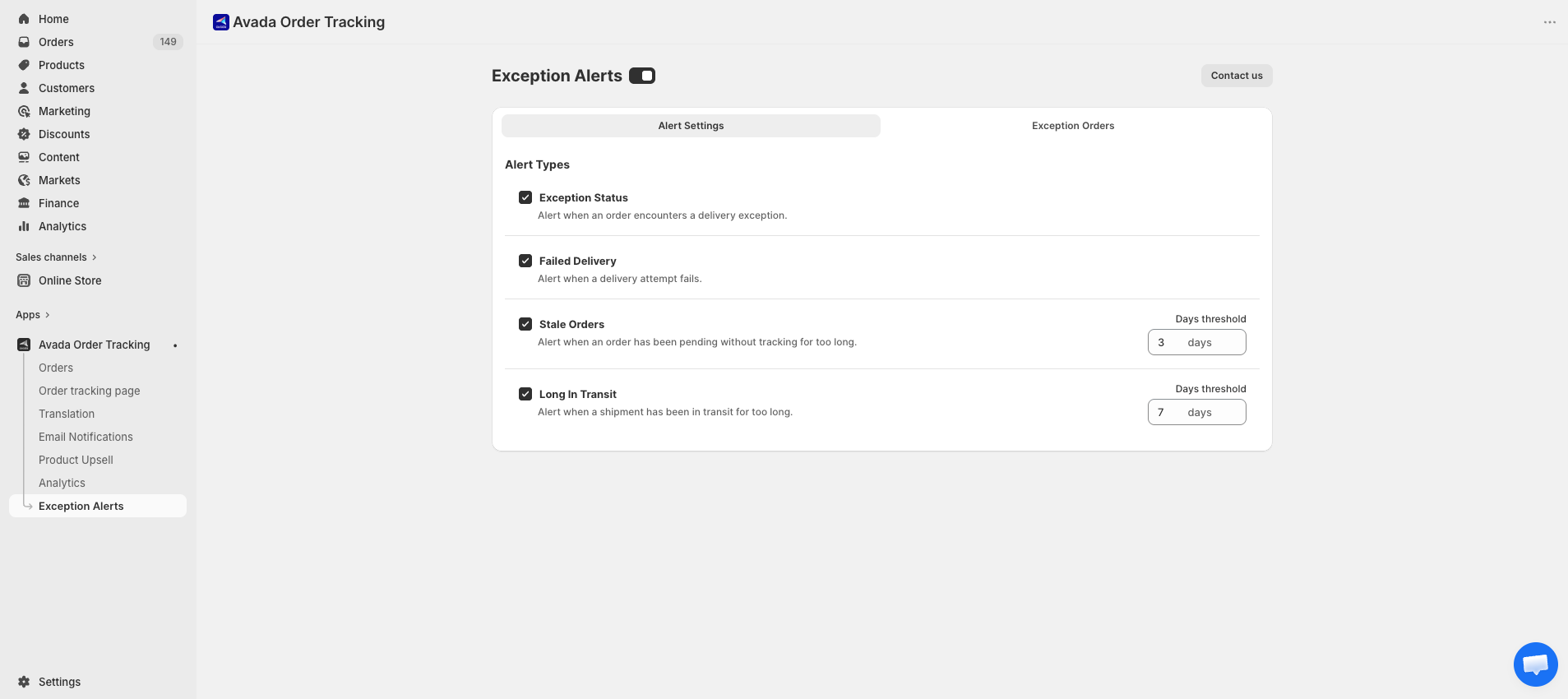
Opening Exception alerts
Click Exception alerts in the app sidebar.
Why this matters
Most shipping problems follow the same pattern: the customer notices first, opens a support ticket, and you investigate. With exception alerts, you see the issue the moment the carrier reports it — giving you time to contact the customer, reship, or refund before frustration sets in.
Two sub-tabs
The Exception alerts page has 2 sub-tabs:
- Alert Settings — configure which alert types are enabled and their thresholds.
- Exception Orders — see the list of orders that have triggered an alert.
A master toggle at the top right turns the entire feature on or off.
Four alert types (Alert Settings tab)
Exception Status
Triggered when the carrier reports a shipment exception — lost package, damaged package, returned to sender, wrong address, etc.
Enable when: You want to know immediately about any delivery problem.
Failed Delivery
Triggered when the carrier attempts delivery but is unable to complete — nobody home, incorrect address, refused by customer.
Enable when: You ship items that require signature or are in markets with delivery attempt issues.
Stale Orders
Triggered when an order has been sitting in Pending status for too long without carrier activity.
- Default threshold: 3 days.
Enable when: You want to catch orders your fulfillment team may have missed.
Long In Transit
Triggered when a shipment has been in In transit status longer than expected.
- Default threshold: 7 days.
Enable when: You ship internationally or want to proactively reach customers with slow-moving packages.
Setting up alerts
For each alert type, you'll find:
- A toggle to enable/disable.
- A threshold days input (only for warning-type alerts with adjustable thresholds).
Start by enabling only the alerts that match your business:
- Domestic-only stores: Exception status + Failed delivery.
- International stores: enable all four, with longer thresholds for stale/long-transit.
- High-volume stores: start with Exception status only to avoid notification fatigue.
Notification channel
When an alert fires, an email is sent to your sender email (set up in Email notifications) with order details and a link to the Order detail page.
Exception Orders tab
The Exception Orders sub-tab lists all orders that have triggered an alert. Each row shows:
- Alert type.
- Affected order number.
- Timestamp.
- Current status of the order.
Click any row to open the Order detail page and investigate.
Resolving an alert
There's no "resolve" button — alerts automatically clear when the underlying issue changes:
- Exception status clears when the carrier moves the shipment to a non-exception status.
- Failed delivery clears when the carrier successfully delivers on a later attempt.
- Stale orders clears when tracking activity resumes.
- Long in transit clears when the shipment is delivered.
If a problem can't self-resolve (truly lost package, wrong address), handle it with the customer through normal support channels. The alert stays in the history for reference.
Tips
- Set realistic thresholds. If your international shipments usually take 12 days, set Long in transit threshold to 15+. Default 7 days will spam you.
- Triage daily, not hourly. Check the alerts page once a day to batch-process exceptions. Real-time reaction isn't usually necessary.
- Forward to CS team. If you have a customer service team, route the email notifications to a shared inbox they can work from.
- Pair with email notifications. When an exception fires, your customer also gets the Exception email. Make sure the copy is reassuring, not alarming.