Product upsell
Turn the tracking page into a revenue channel. Customers checking their order status see recommended products right below the tracking timeline — a prime moment because they're already engaged with your brand.
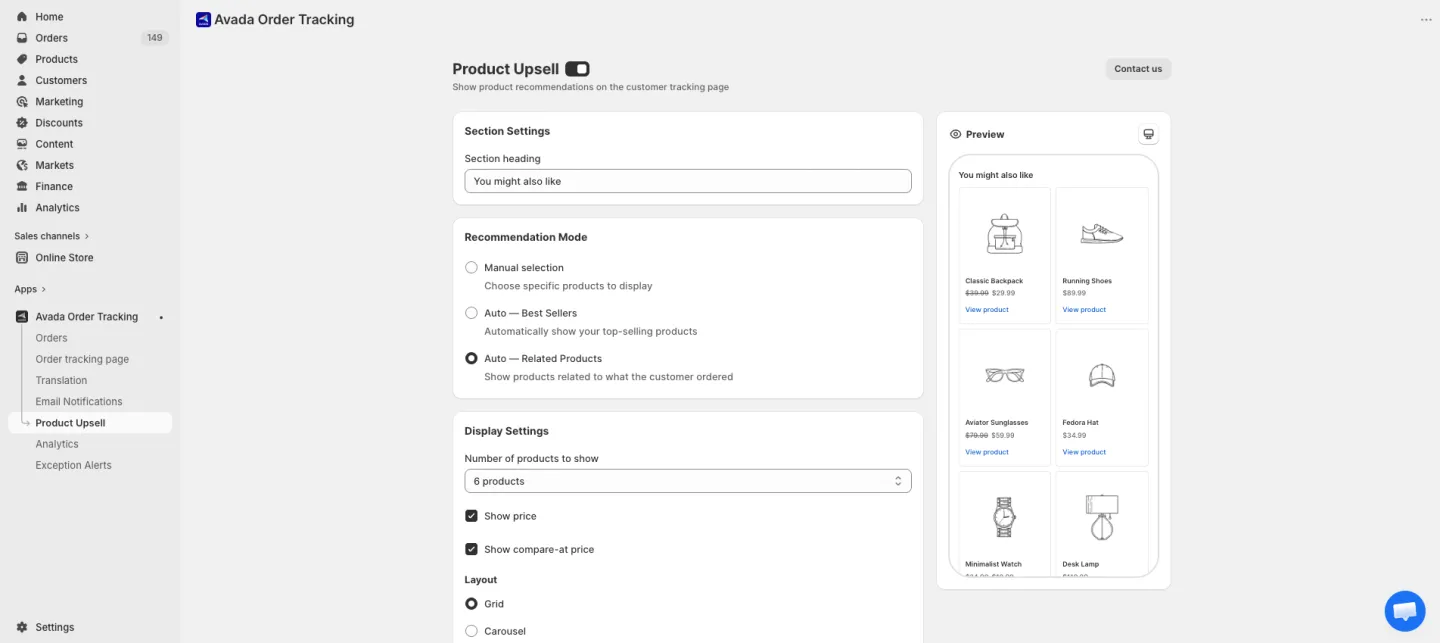
Opening Product upsell
Click Product upsell in the app sidebar.
How upsell works
When a customer looks up their order on the tracking page and views the result:
- They see the progress timeline for their order.
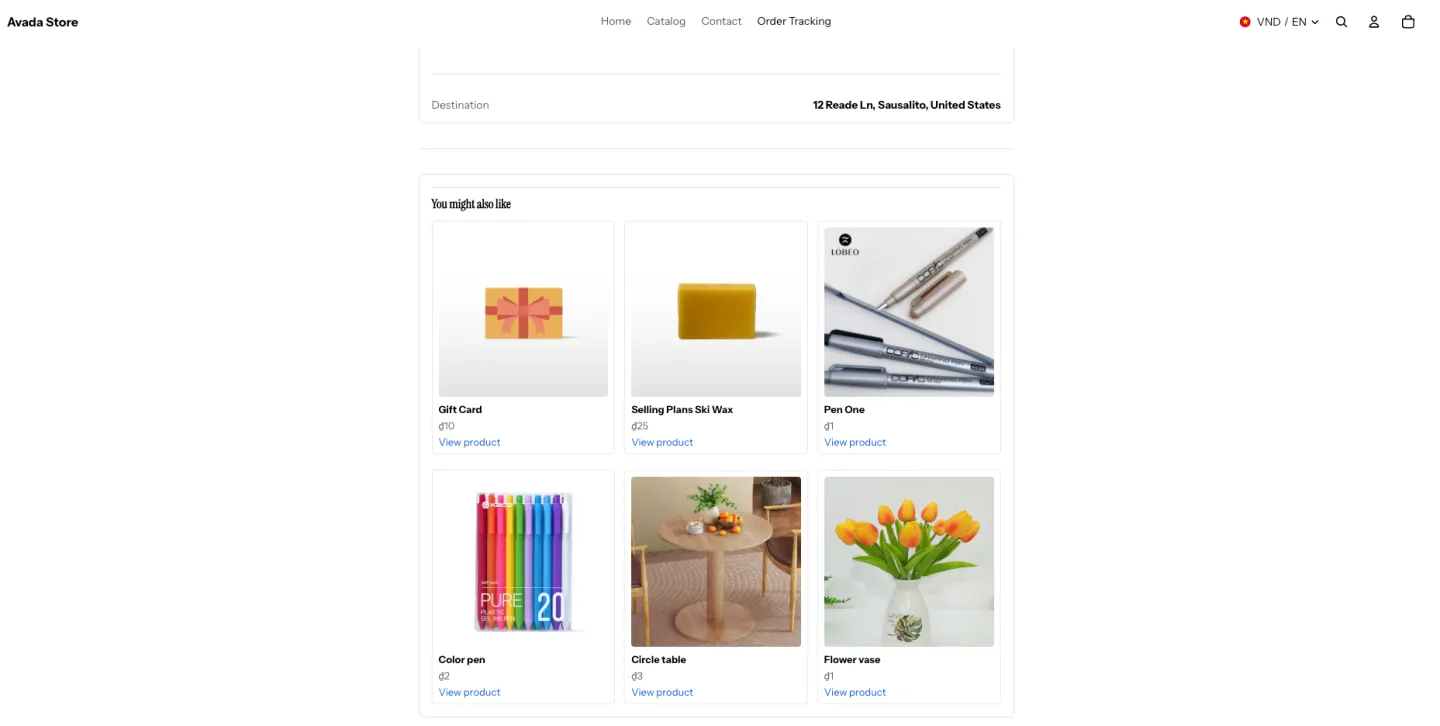
- Below the timeline, a "You might also like" section appears with your selected products.
- Clicking a product takes them to the product page on your storefront.
This happens only on the tracking page result view — not the lookup form or order details elsewhere.
Enabling upsell
Toggle the master switch at the top of the Product upsell page. When off, no upsell section appears on the tracking page regardless of other settings.
Widget settings
Heading
The title shown above the product list. Examples:
- "You might also like"
- "Customers also bought"
- "Complete your order"
- "Trending right now"
Keep it short — mobile screens truncate long headings.
Recommendation mode
Choose how the app picks which products to show:
| Mode | How it works | Best for |
|---|---|---|
| Manual selection | You hand-pick the exact products to show. | Curated upsells, seasonal promos, hero products. |
| Auto – Best Sellers | Auto-pulls your top-selling products from Shopify. | Stores with strong best-seller patterns; minimal maintenance. |
| Auto – Related Products | Shows products related to what the customer ordered. | Cross-sell accessories or complementary items. |
You can switch modes at any time without losing your manual product selection.
Number of products to show
Choose how many products appear. Options:
- 2 — compact, fits nicely on mobile.
- 3 — balanced for most layouts.
- 4 — default, fills desktop width.
- 6 — for stores with a large catalog wanting maximum exposure.
Selected Products (Manual selection mode only)
When using Manual selection mode, click Add Products to open the product picker and select which products to showcase. Search by product name and pick the products you want.
Tip: Choose complementary products, not duplicates of what the customer just ordered. If they bought a phone case, show screen protectors or chargers — not another phone case.
Display Settings
Additional controls available regardless of mode:
- Show price — toggle visibility of product prices.
- Show compare-at price — show the original price with a strikethrough next to discounted prices.
- Layout — choose between Grid or Carousel (horizontal scroll).
- Button text — customize the product CTA label. Default: "View product".
Preview
The right panel shows how the upsell widget will appear on the tracking page. It updates as you change settings.
Saving changes
Click Save at the top right. Changes apply immediately on the storefront.
Strategies that work
- Cross-sell, don't re-sell. Promote accessories, consumables, or complementary items. Avoid showing the same product they just bought.
- Use "seasonal" picks. Rotate products based on holidays, new arrivals, or sales.
- Match price points. If they bought a $50 item, showing $500 products feels off. Keep recommendations in range.
- Rotate monthly. Refresh your upsell products monthly to avoid stale suggestions for repeat customers.
Measuring impact
Check your Shopify analytics for:
- Referral traffic from the tracking page — tells you how many clicks the upsell generates.
- Conversion rate on recommended products — compare pre/post upsell enable dates.