Order tracking page
The tracking page is what your customers use to look up their orders on your storefront. The default URL is /pages/order-tracking — you can customize the slug from the URL tab.
Customize it at Order tracking page in the app sidebar. The page is split into a settings panel on the left and a live preview on the right that updates as you change settings.
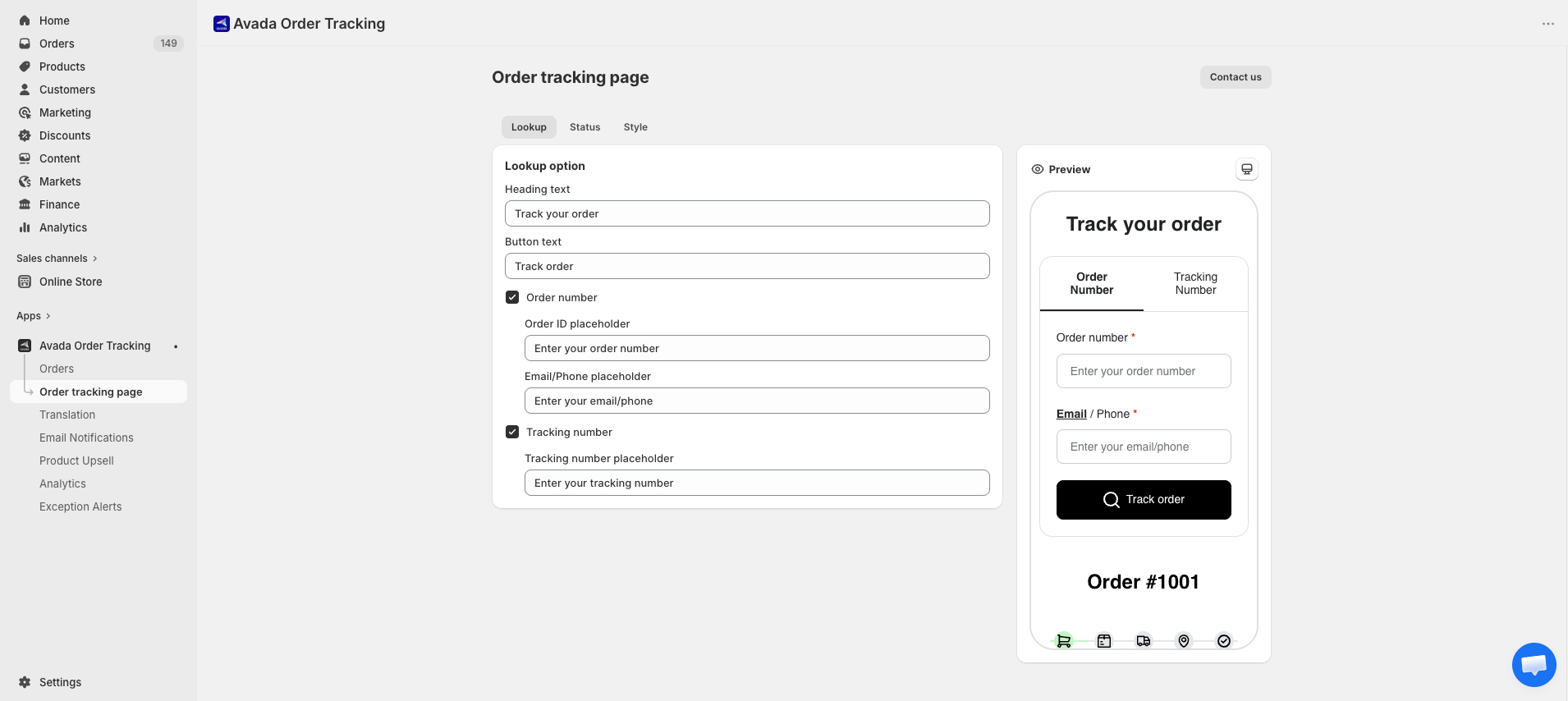
Four customization tabs
| Tab | Controls |
|---|---|
| URL | The slug at the end of your tracking page URL |
| Lookup | Search form fields customers see |
| Status | Progress bar, tracking info, order info sections |
| Style | Colors of buttons and progress bar |
URL
Customize the URL of your tracking page to match your brand. Your URL stays on your store domain.
https://<your-store>.myshopify.com/pages/<slug>Default slug: order-tracking. Maximum 30 characters.
| Setting | Description |
|---|---|
| URL slug | Type the slug you want — e.g. track, where-is-my-order, theo-doi-don-hang. |
A status badge shows whether the page exists:
- Active — page is created and live on your storefront.
- Not created — page doesn't exist yet (run the Quickstart to create it, or change slug to trigger creation).
Managed by your app — Your tracking page is created and kept in sync from this admin. Avoid editing the page handle directly in Online Store → Pages — change it here so customers always land on the right URL.
Lookup
Controls the search form customers use to find their order.
| Setting | Description |
|---|---|
| Heading text | Title shown above the lookup form. Default: "Track your order". |
| Button text | Text on the submit button. Default: "Track order". |
Order number (toggle)
- When enabled, customers can search by order number plus email or phone.
- Customize 2 placeholders: Order ID placeholder and Email/Phone placeholder.
- Email/phone is required alongside order number to prevent anyone from looking up any order.
Tracking number (toggle)
- When enabled, customers can search by tracking number alone.
- Customize the Tracking number placeholder.
- No email/phone needed since tracking numbers are already unique identifiers.
If both toggles are on, customers see two tabs to choose between.
Status
Controls the result view shown after a customer finds their order. Three independent sections, each with a toggle and a customizable heading.
Progress bar
When enabled, a horizontal progress bar shows the shipment's position across five steps. You can customize the label for each step:
- Ordered — default label, customize as desired.
- Preparing shipment — default label, customize as desired.
- In transit — default label, customize as desired.
- Out for delivery — default label, customize as desired.
- Delivered — default label, customize as desired.
Examples: change "Preparing shipment" to "Packing your order" or "Delivered" to "Arrived at your door".
Tracking information
When enabled, the result shows the carrier name, tracking number, and (if the carrier supports it) the latest scan event. Customize the section heading.
Order information
When enabled, the result shows the order summary — items, quantities, shipping address. Customize the section heading.
Style
Controls colors used on the tracking page.
| Setting | Controls |
|---|---|
| Track button | Background color of the submit button. |
| Button text | Text color inside the submit button. |
| Progress bar | Active steps on the progress timeline. |
Pick colors that match your brand. The preview updates instantly.
Preview panel
The right panel shows a live preview using sample order data. You don't need a real order to test the look and feel.
The preview reflects:
- Your current URL, Lookup, Status, and Style settings.
- Active translation (English by default — see Translation).
- Mobile and desktop layouts automatically.
Saving changes
Settings sync to Shopify metafields so the storefront widget picks them up within seconds — no theme republish needed.
Customer URL
After customization, customers can reach the tracking page at:
https://<your-store>.myshopify.com/pages/<your-slug>A menu link is also added automatically to your store's main navigation when you run the Quickstart.
Troubleshooting
Preview doesn't update: Hard-refresh the admin page (Ctrl/Cmd + Shift + R).
Colors don't show on storefront: Clear your browser cache or test in incognito mode. Shopify caches metafields for a few seconds after saves.
Lookup returns "Order not found": Confirm the order has been synced to the app (see Orders). Orders placed before you installed need a sync.
Slug change didn't take effect: Make sure no existing Shopify Page already uses that handle. If a conflict exists, Shopify auto-appends -1. Check Online Store → Pages and delete or rename the conflicting page.