Translation
Serve your global customers in their own language. The Translation page lets you translate every text element on the tracking page into 40+ languages.
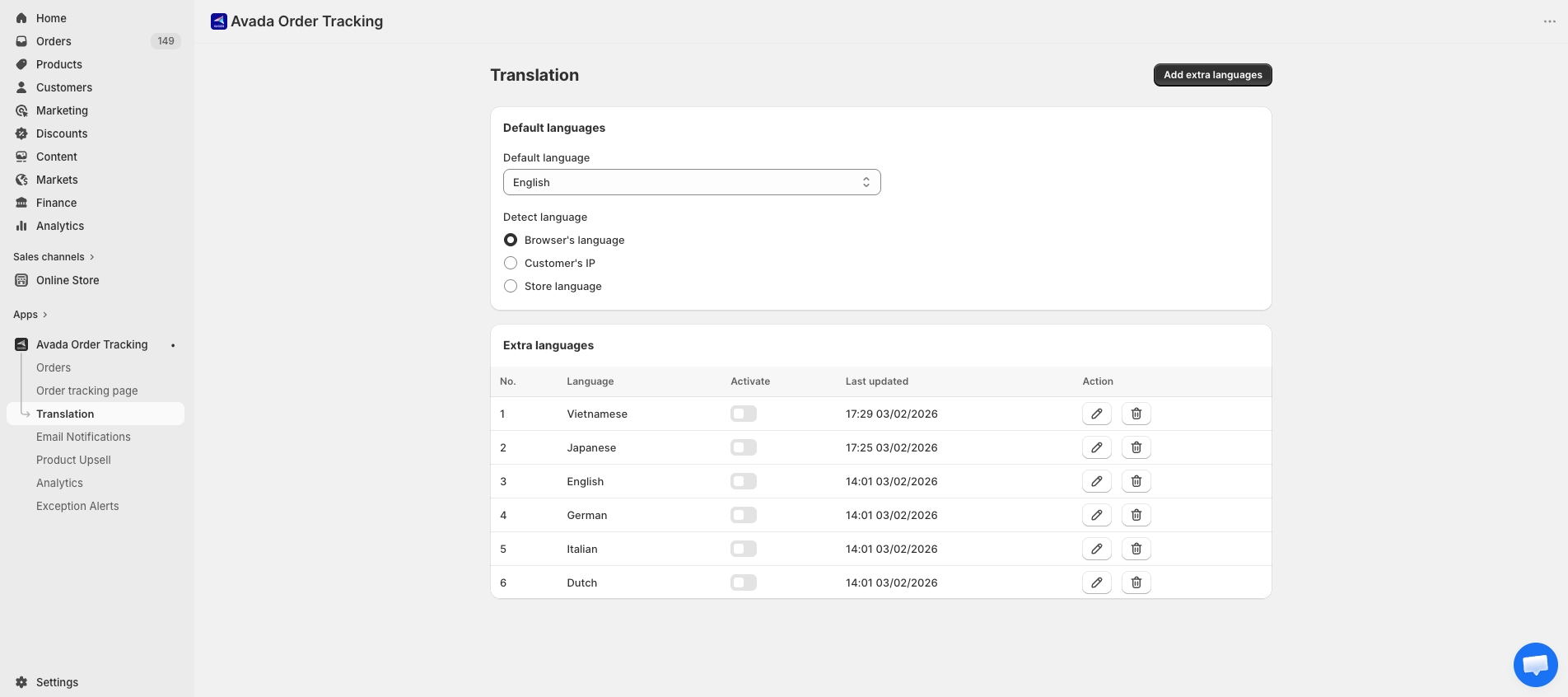
Opening Translation
Click Translation in the app sidebar.
Default language
The Default language dropdown sets what appears when the app can't detect a customer's preferred language. Available defaults:
- English (en)
- German (de)
- Italian (it)
- French (fr)
- Dutch (nl)
If your customers are primarily in a specific region, set the default language to match.
Language detection
Choose how the app decides which language to show each visitor:
| Method | How it works |
|---|---|
| Browser's language | Reads the visitor's browser language preference. Works well for most customers. |
| Customer's IP | Infers language from the visitor's IP country. Useful if customers don't set browser language. |
| Store language | Always uses the language currently active on your Shopify store (based on Shopify Markets). |
Adding languages
Beyond the 5 defaults, you can add extra languages from a wide list (Arabic, Chinese variants, Japanese, Korean, Vietnamese, and more):
- Click Add extra languages on the Translation page.
- Select the target language from the dropdown.
- The language appears in your list as a new row in the languages table.
The languages table has these columns:
| Column | Description |
|---|---|
| No. | Order index. |
| Language | Language name and locale code. |
| Activate | Toggle to enable/disable serving this language to customers. |
| Last updated | Timestamp of the latest edit. |
| Action | Edit (pencil) opens the translation editor; Delete removes the language. |
Editing a translation
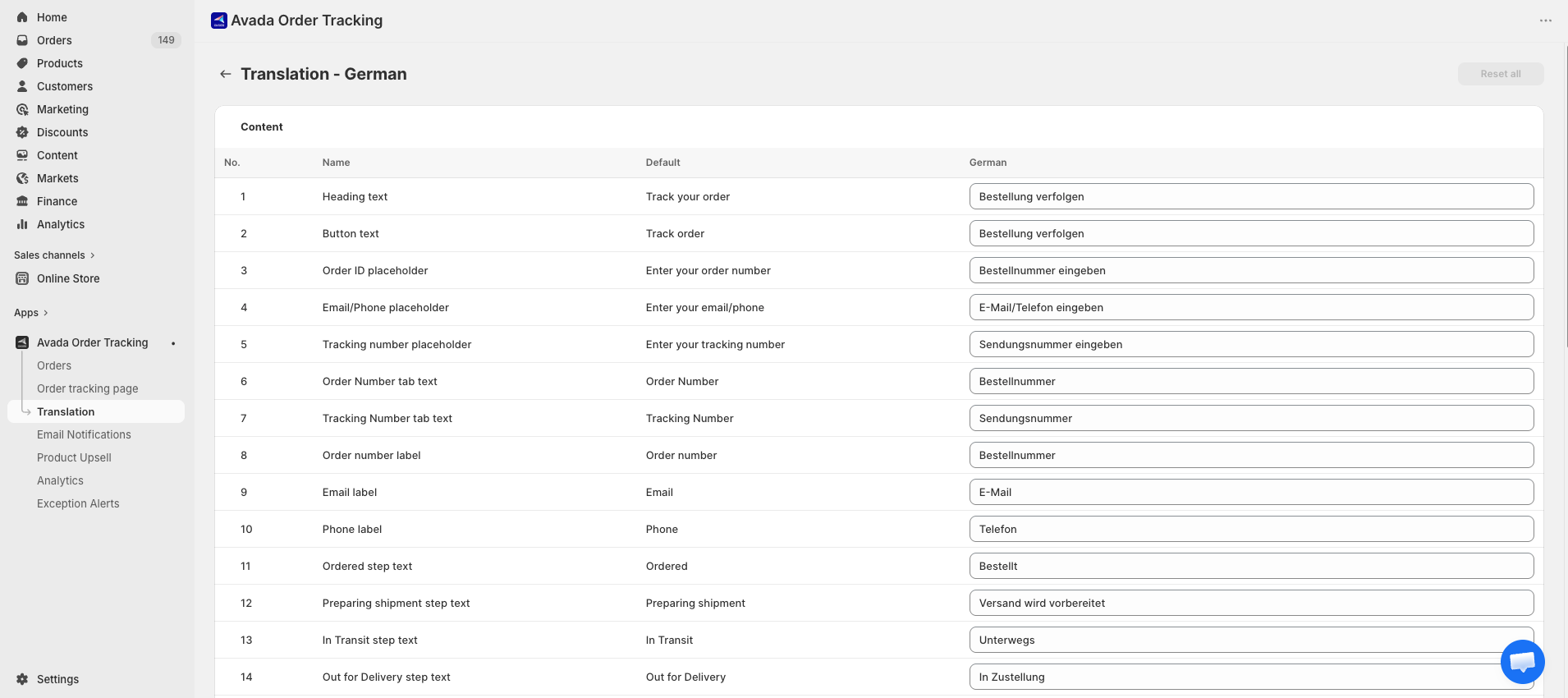
Click Edit on any language row to open the editor. You'll see every translatable field grouped by section:
- Lookup form — heading, button, placeholder texts, error messages.
- Progress bar — labels for the five status steps.
- Tracking information — section headings, field labels.
- Order information — section headings, field labels, "N/A" fallback.
- Messages — success and error messages shown after lookup.
Type the translation into each field. Changes save automatically as you edit.
Enabling/disabling languages
Each language has a toggle:
- On — the language is live. Customers whose detected language matches will see the translated tracking page.
- Off — the language is stored but not served. Use this to draft translations without exposing them yet.
Removing a language
Click the ⋯ menu on any language row and select Delete. The translation is permanently removed.
You cannot delete the default language. To change it, set a new default first.
How customers experience translation
When a customer opens the tracking page:
- The app detects their language using the method you selected.
- If a translation exists for that language, the page renders in that language.
- If no translation exists, the default language is used.
There's no language switcher on the public tracking page — customers see their detected language automatically.
Tips
- Start with your top 3 markets. You don't need to translate into every language at once. Pick the languages your top customer countries speak.
- Get reviews from native speakers. Machine translation is a starting point; have a native speaker review before enabling.
- Keep placeholders clear. Translated "Enter your order number" should match the exact format you use locally.
- Progress bar labels matter. "Out for delivery" may sound awkward literally translated — use natural equivalents.