Alerts
Alerts surfaces breakage and anomalies the app detects automatically, critical first. It's the page that means you don't have to check your tracking every morning.
When everything is fine
You'll see a green banner: "No active alerts - tracking is healthy" — "We'll surface a banner here the moment anything breaks." You can dismiss it; the dismissal is remembered for that store only.
An alert exists only while its condition is still true. So if a row is listed — even one you've already read or snoozed — something is genuinely still broken.
What the app watches for
| Alert | Cause | Suggested fix |
|---|---|---|
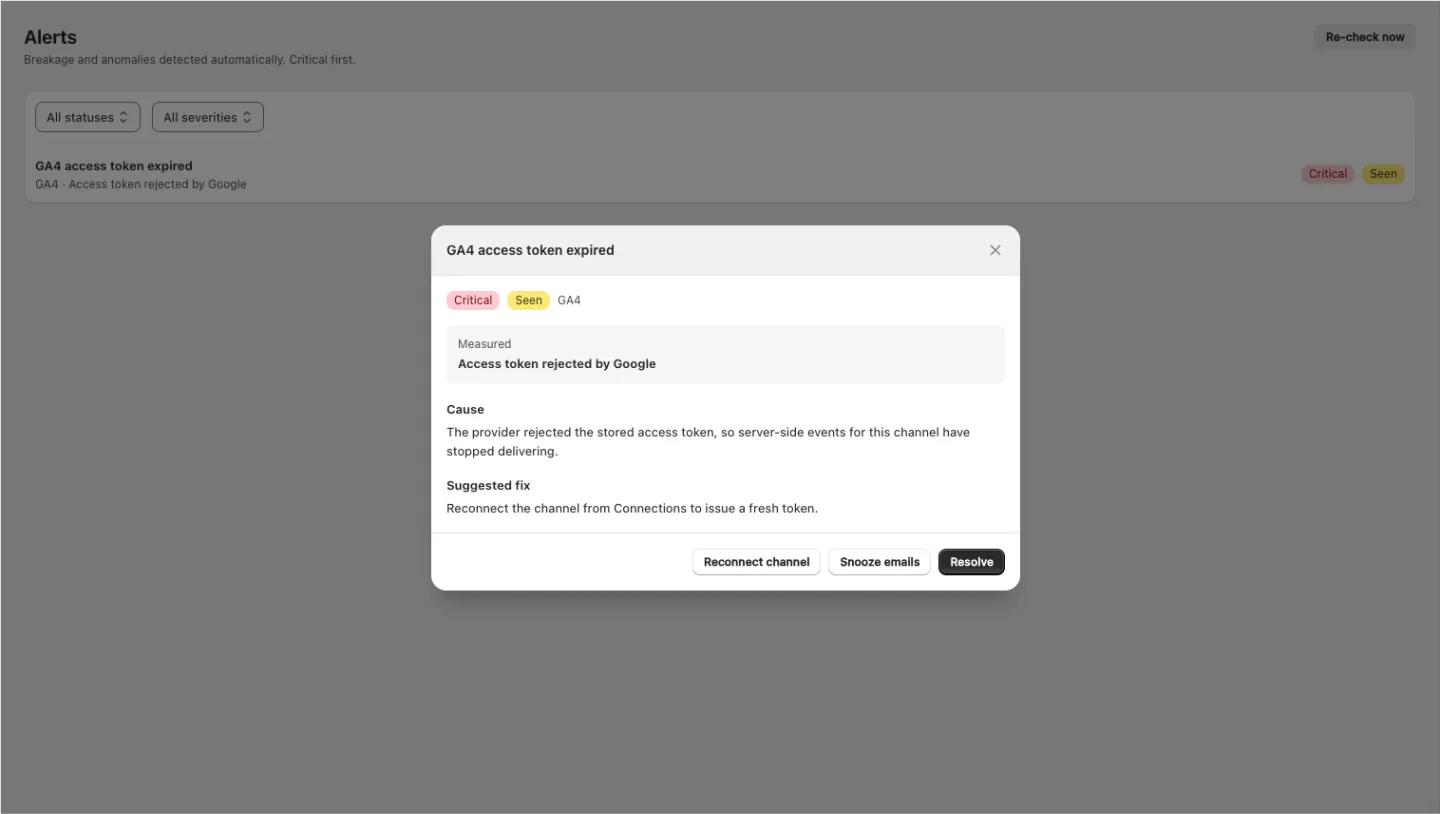
| Meta access token expired / GA4 access token expired | The provider rejected the stored access token, so server-side events for this channel have stopped delivering. | Reconnect the channel from Connections to issue a fresh token. |
| Meta tracking accuracy drifting / GA4 tracking accuracy drifting | Tracked Purchases are running below real Shopify orders — most often ad-blockers or consent-denied browser sessions reducing browser-side pixel coverage. | Confirm the Conversions API / Measurement Protocol is delivering server-side (it covers ad-blocked sessions), then review the reconciliation drill-down. |
| Orders received but no events tracked | Shopify recorded orders in the last 24 hours but no tracking events arrived at all, so the storefront pixel is not firing. The app embed may be off, the theme changed, or the pixel removed. | Check the storefront app embed is on (Home), then verify the pixel fires in Diagnostic. |
The drift alert fires when tracked drifts 5% or more from your Shopify orders. That threshold is fixed.
Filtering
Two dropdowns above the list:
- Status — All statuses, Active, Seen, Acknowledged, Resolved
- Severity — All severities, Critical, Warning, Info
Critical alerts always sort to the top.
Reading an alert
Each row shows the alert title, the channel and the measured value, and two badges — severity and status. Click it to open the detail:
- Measured — the actual number that triggered the alert
- Cause — why this happens
- Suggested fix — what to do about it
Opening an alert marks it Seen. That's all it does — it does not silence the emails.
Acting on an alert
| Action | What it does |
|---|---|
| Resolve | Marks it resolved, then re-checks live. If the condition is really gone, the alert disappears — "Resolved - condition cleared and verified." If it's still firing, the alert comes straight back and the app tells you: "Still failing - the issue is active again, not resolved yet." |
| Reconnect channel / Open reconciliation / Open settings / View diagnostic | Takes you to the exact place the fix happens — the button changes to match the alert |
| Snooze emails | Stops the emails while you work on it. The alert stays listed until it actually clears. |
| Re-check now (page header) | Re-probes your tokens on demand and reloads. Reports back either "Re-checked - all clear" or a count of the issues still active |
Resolve is verified, not assumed. You can't mark a live problem as fixed and have it disappear — the app checks first. Use Re-check now after making a fix to confirm it took.
Getting alerts by email
Recipients and severities are configured in Settings → Notifications:
- Critical alerts are always on and can't be turned off — token expired, channel disconnected, events stopped.
- Warning alerts are optional — accuracy drift.
Alert emails go out once a day, when the app runs its daily check. They are not real-time.
Next steps
- Settings → Notifications — who gets alerted, and about what
- Reconciliation — the drill-down behind a drift alert
- Diagnostic — confirm a pixel is firing again after a fix