Add a pixel
From Connections, click Add pixel and pick Meta pixel or GA4 pixel. A modal titled Add Meta pixel / Add GA4 pixel opens.
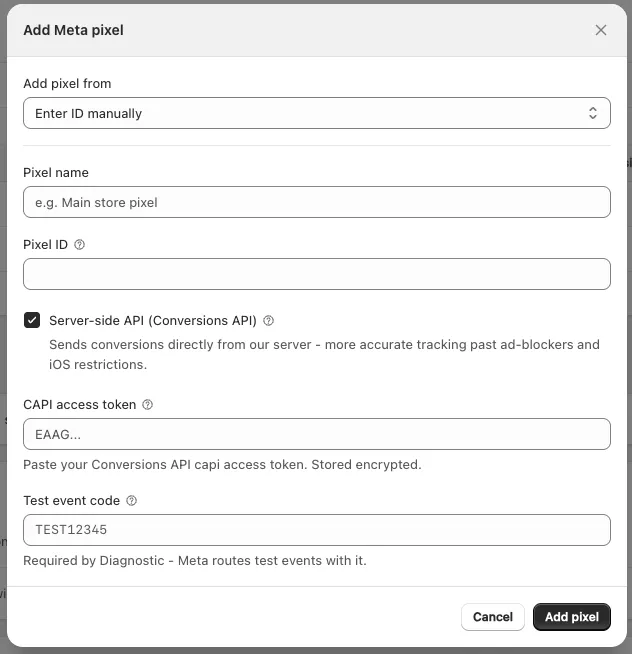
Add pixel from
The first dropdown decides how much typing you do:
| Option | What happens |
|---|---|
| Enter ID manually | You paste the pixel's ID yourself |
| Choose from Meta account / Choose from GA4 account | You sign in once, then pick the pixel out of your account |
Choose from your account
If you're not signed in yet the modal shows Sign in to Meta / Sign in to GA4:
"Connect with Facebook via OAuth - no tokens to copy. Then pick a pixel straight from your Meta account."
Click Log in with Facebook (Meta) or Log in with Google (GA4). Once you're in, two dropdowns appear:
- Meta → Ad account, then Pixel
- GA4 → GA4 property, then Data stream
Enter ID manually
Fill in the ID field yourself:
| Platform | Field | Format | Where to find it |
|---|---|---|---|
| Meta | Pixel ID | 15–16 digits | Events Manager → Data sources |
| GA4 | Measurement ID | G-XXXXXXXXXX | GA4 Admin → Data Streams |
Every field label in this form has a ? icon — click it for an explanation, where to look, and a link straight to Events Manager or GA4 Admin.
Pixel name
Name the pixel — for example Main store pixel. It's for your reference and it's what the app shows everywhere.
Server-side API
Tick Server-side API (Conversions API) for Meta, or Server-side API (Measurement Protocol) for GA4.
"Sends conversions directly from our server - more accurate tracking past ad-blockers and iOS restrictions."
Whether you need to paste a credential depends on how you added the pixel:
- Meta, picked from your account — nothing to paste. The token comes from your Facebook login.
- Meta, ID entered manually — paste your CAPI access token (starts with
EAAG…). Get it from Events Manager → Settings → Conversions API → Generate access token. - GA4 — always paste an API secret. Get it from GA4 Admin → Data Streams → Measurement Protocol API secrets.
A saved GA4 secret is not proof that it works — GA4 accepts the call even when the secret is wrong. Run a test event in Diagnostic to confirm delivery.
Test event code / Debug mode
The last field is what makes Diagnostic useful — "Used by Diagnostic to route test events."
- Meta — Test event code, e.g.
TEST12345. Copy it from Events Manager → Test events. - GA4 — Debug mode. Enter
debug_modeto surface events in GA4 DebugView.
You can leave it empty and add it later, but Diagnostic will warn you until you do.
Finish
Click Add pixel. The pixel appears in the table straight away, enabled.
If the store is already at its pixel limit, the Add pixel button is replaced by 🔒 Contact us to unlimit. See Plans and limits.
Next steps
- Pixel settings — edit the pixel, advanced matching, test pixel
- Diagnostic — confirm the pixel is firing