Pixel settings
Click a pixel in the Connections table — or ⋯ → Edit — to open its own page. The header shows the pixel's name, its platform and masked ID, and a badge for Enabled / Disabled.
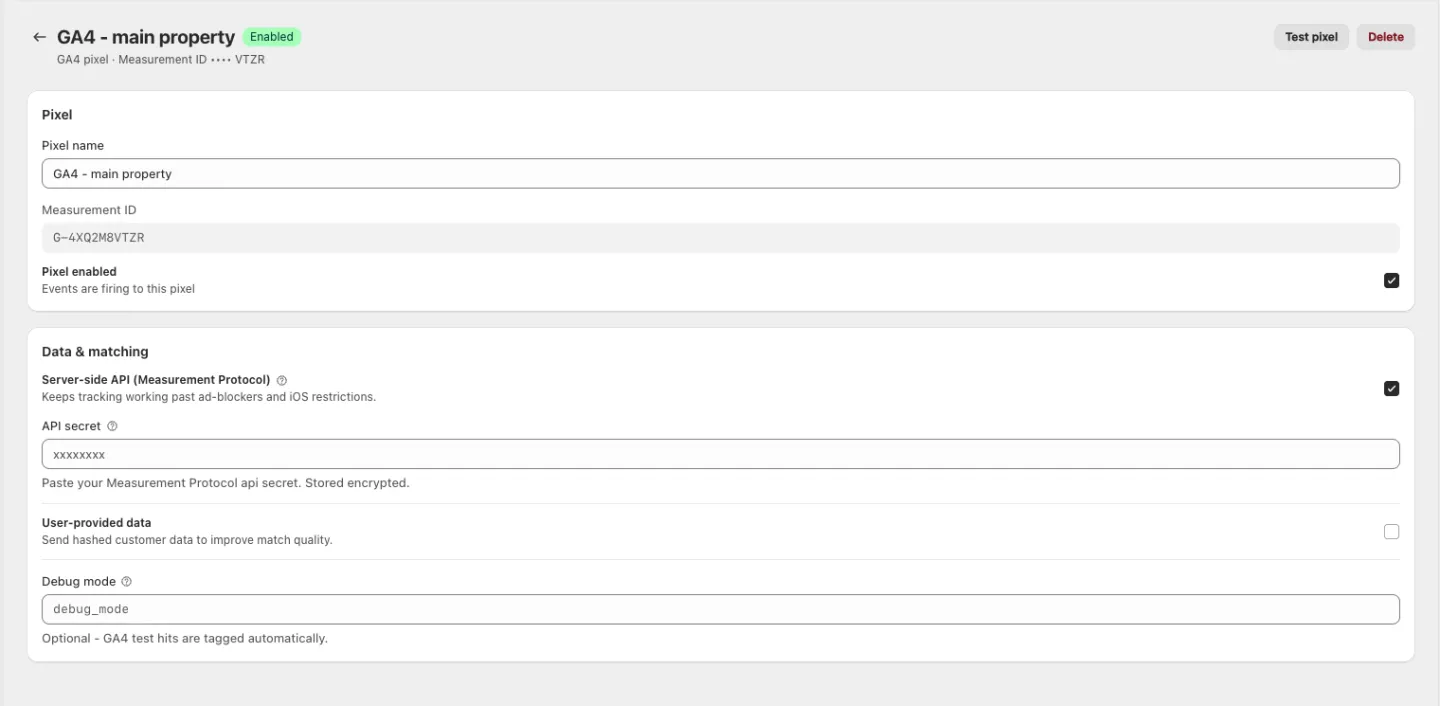
Pixel
| Field | Notes |
|---|---|
| Pixel name | Rename it any time — it's for your reference only |
| Pixel ID / Measurement ID | Read-only. To track a different ID, add a new pixel instead |
| Pixel enabled | On: "Events are firing to this pixel." Off: "Disabled - configuration kept" — nothing is lost, so you can pause and resume safely |
Data & matching
Server-side API
Labelled Server-side API (Conversions API) for Meta, Server-side API (Measurement Protocol) for GA4. "Keeps tracking working past ad-blockers and iOS restrictions."
With it on, a credential field appears — CAPI access token (Meta) or API secret (GA4). Tokens are stored encrypted, so the field never shows you the saved value: once one is saved the placeholder reads "Saved - enter to replace". Leave it alone to keep the current token; type a new one to replace it.
Advanced matching / User-provided data
Called Advanced matching on Meta and User-provided data on GA4. "Send hashed customer data to improve match quality." The customer details are hashed before they leave your store, and better matching means the platform can attribute more of your conversions.
Test event code / Debug mode
Used by Diagnostic to route test events.
- Meta — Test event code, e.g.
TEST12345, from Events Manager → Test events. - GA4 — Debug mode; enter
debug_modeto see events in DebugView.
Without a value here, Diagnostic can still show you real shopper events but can't route test traffic to Meta Test Events or GA4 DebugView — and it will warn you about it.
Header actions
- Test pixel — opens Diagnostic filtered to this pixel.
- Delete — removes the pixel. You'll be asked to confirm: "This stops all tracking through it and can't be undone."
Edits are committed with the save bar that appears at the top of the page once you change something. Discard puts everything back to the last saved state.
When the token has expired
If the platform has stopped accepting your login, the page opens with a red banner — "Token expired - reconnect needed" — and "Re-authenticate the Meta connection to resume server-side events for this pixel."
While that's true, Test pixel and the Data & matching controls are disabled: there's nothing useful to change until the connection is healthy again. Reconnect from Settings → Platforms, and this pixel resumes with the settings it already had.
Next steps
- Diagnostic — watch this pixel's events arrive
- Reconciliation — how much of your real order volume it captures