Home
Home is your tracking at a glance — setup, accuracy, key events, and pixel health, all live from your store's own data.
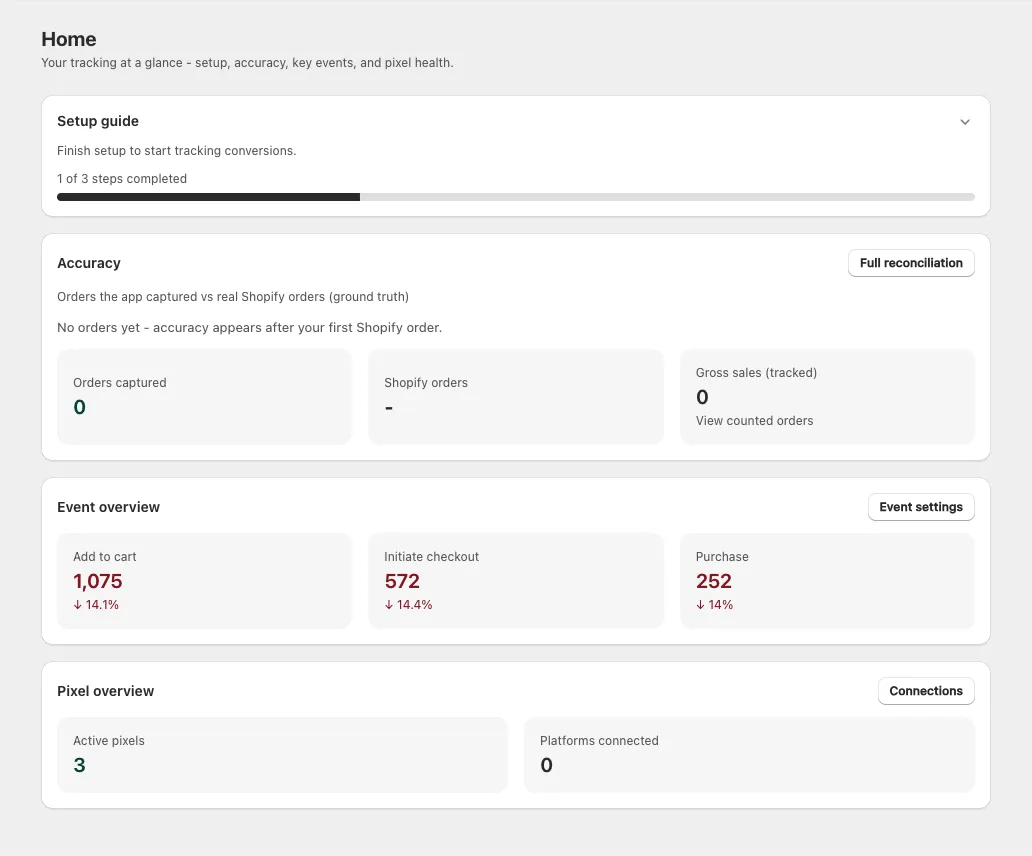
Setup guide
The top card walks you through the three things that must be true before tracking works. It shows how many of the 3 steps are completed, with a progress bar, and expands the first unfinished step for you.
| Step | Done when | What it's for |
|---|---|---|
| Enable app | The Avada Pixel app embed is on your live theme | Loads your pixels on the storefront. Without it, no browser-side events are sent. |
| Connect platform | You're signed in to Meta or GA4 | Lets the app deliver server-side conversions. |
| Add pixel | At least one pixel exists | Starts tracking conversions. |
Each step's state is worked out fresh every time the page loads — nothing is remembered. Turn the app embed off, or disconnect a platform, and that step reopens on its own.
Use the ⌃ / ⌄ button in the card header to collapse or expand the whole guide. Once all three steps are done the card reads "All set - your store is tracking conversions."
"The Avada Pixel app embed isn't on this theme yet." — click Enable and the app opens your theme editor. Turn on Avada Pixel under App embeds, click Save, then come back.
Accuracy
Orders the app captured vs real Shopify orders (ground truth). One big percentage, then three tiles:
| Tile | What it shows |
|---|---|
| Orders captured | Purchases your pixels recorded. If some are still settling, a sub-line says how many are awaiting confirmation |
| Shopify orders | The real order count from Shopify — the number everything is measured against |
| Gross sales (tracked) | Value of the orders the app counted |
The percentage turns green at 95% or above.
Click Orders captured or Gross sales (tracked) to open Orders the app counted — a per-order list with Order, Counted at, Value, and Delivered to (which platforms received it). Per-order rows only exist from the day this feature shipped, so older stores may see "No counted orders yet" while the totals above still show data.
Full reconciliation takes you to the per-channel breakdown on Connections.
Before you have data the card says "Not enough data yet - connect a pixel and let some orders come in to see accuracy." With a pixel but no orders yet: "No orders yet - accuracy appears after your first Shopify order."
Event overview
One tile per funnel event, counting the last 7 days with an ↑ / ↓ % change against the previous 7 days. Green when up, red when down.
Event settings jumps to Settings → Tracking events, where you choose which events each platform fires.
Pixel overview
Two tiles:
- Active pixels — pixels that aren't switched off
- Platforms connected — how many of Meta / GA4 you're signed in to
Connections opens the full pixels list.
Plans and limits
The Home dashboard is a locked feature to begin with. While it's locked, the Accuracy, Event overview, and Pixel overview cards appear blurred behind an Unlock your Dashboard prompt:
"See tracking accuracy, key events and pixel health at a glance. Available on request - message us to unlock it for your store."
Click Contact us to unlock and the app opens chat with our team, pre-filled with the request. The Setup guide card is never locked.
Next steps
- Connections — manage pixels and platform logins
- Diagnostic — confirm events are actually arriving
- Settings — choose which events fire