Set up the accessibility menu
The Menu settings page controls which accessibility features show up inside the widget your visitors open on your storefront.
Toggle features on or off across 4 sections — General, Reading supports, Visual setting, and Content setting — with a live preview on the right.
Anatomy of the Menu Settings page
The page has two columns:
| Column | What it does |
|---|---|
| Left | Four feature sections, each a list of toggles |
| Right | A Preview panel showing the actual widget — desktop / mobile toggle at top |
Each section header has a chevron — click it to collapse the section if you don't need it open.
There is also an Advanced button in the top-right corner of the page — it opens the Advanced Settings card described at the end of this article.
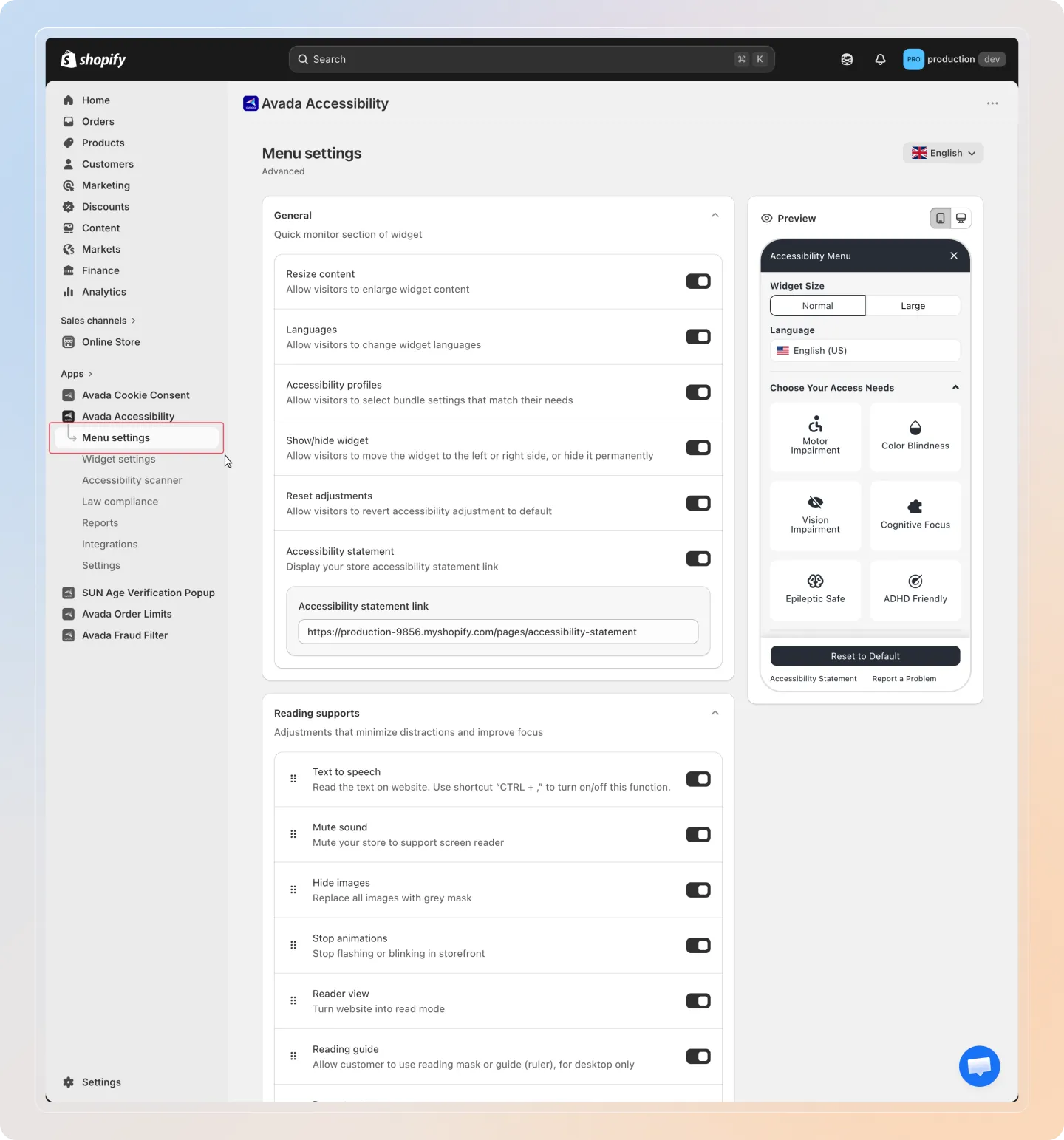
The four sections always appear in this order, from top to bottom:
- General — global controls (resize, languages, profiles, show/hide, statement)
- Reading supports — features that minimize distractions and improve focus
- Visual setting — adjustments for appearance and visibility
- Content setting — adjustments for text readability
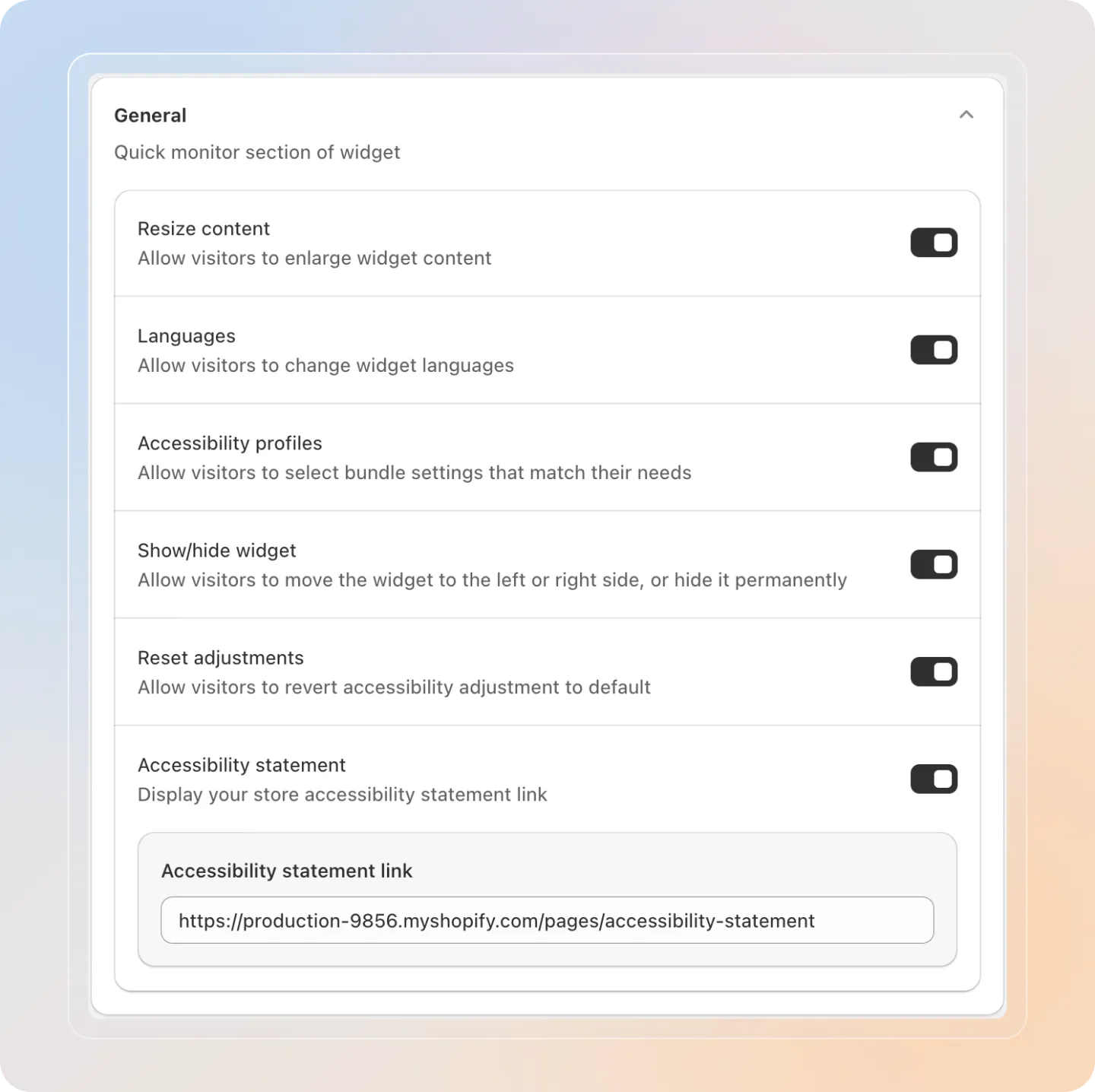
General
Quick-monitor controls that affect the widget as a whole.
| Feature | What it does |
|---|---|
| Resize content | Allow visitors to enlarge widget content |
| Languages | Allow visitors to change widget languages |
| Accessibility profiles | Allow visitors to select bundle settings that match their needs (Motor / Color Blindness / Vision / Cognitive Focus / Epileptic Safe / ADHD) |
| Show/hide widget | Allow visitors to move the widget to the left or right side, or hide it permanently |
| Reset adjustments | Allow visitors to revert all accessibility adjustments to default |
| Accessibility statement | Display your store's accessibility statement link inside the widget |
When Accessibility statement is toggled on, an Accessibility statement link textbox appears below it. Paste the URL of your statement page (default: https://yourstore.com/pages/accessibility-statement). This is the same URL the widget's bottom-left "Accessibility Statement" link sends visitors to.
Reading supports
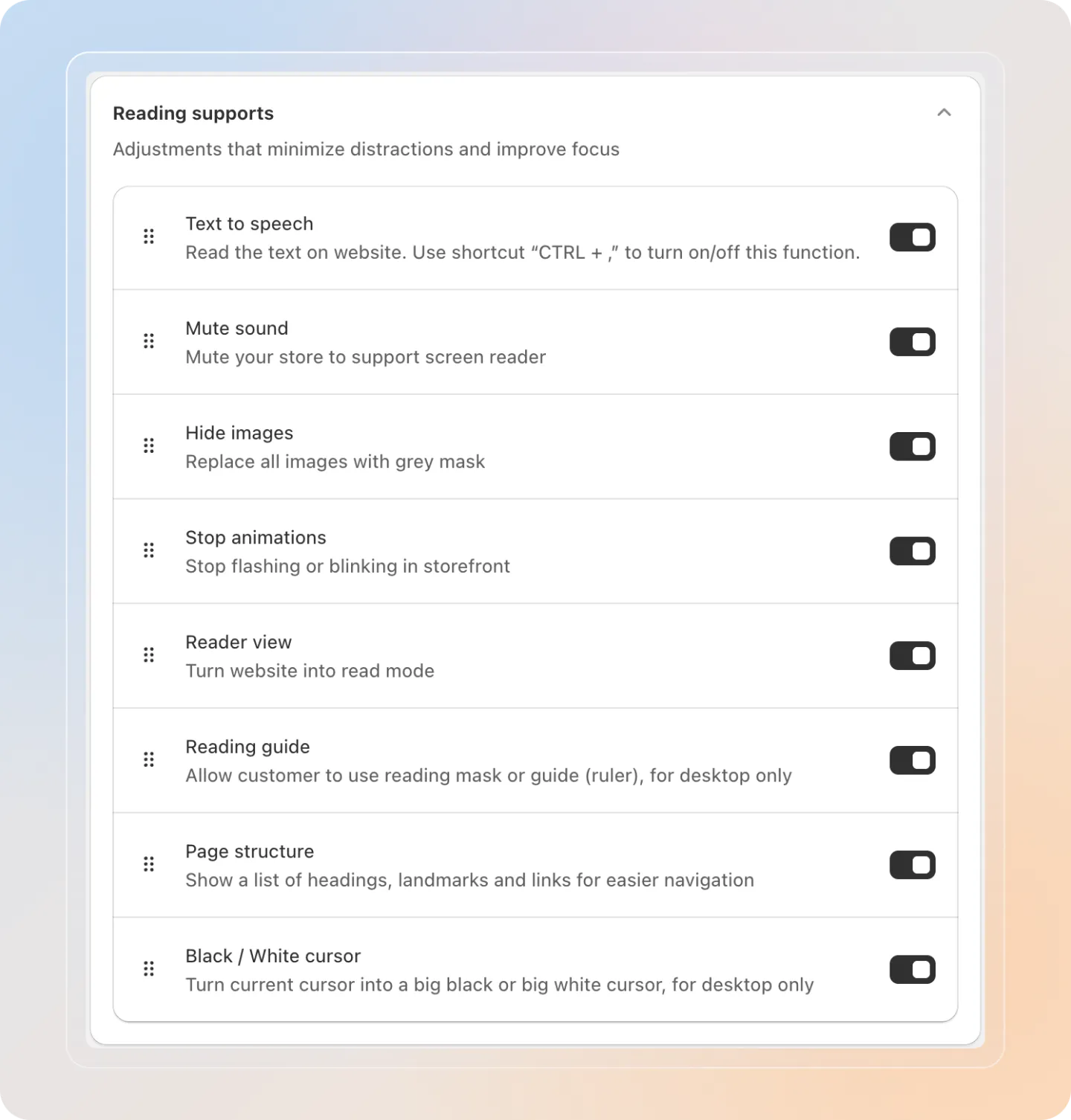
Features that minimize distractions and improve focus while reading.
| Feature | What it does | Desktop only? |
|---|---|---|
| Text to speech | Read the text on website out loud. Use shortcut CTRL + , to turn on/off this function. | No |
| Mute sound | Mute your store to support screen reader | No |
| Hide images | Replace all images with grey mask | No |
| Stop animations | Stop flashing or blinking in storefront | No |
| Reader view | Turn website into read mode | No |
| Reading guide | Allow customer to use reading mask or guide (ruler) | Yes |
| Page structure | Show a list of headings, landmarks and links for easier navigation | No |
| Black / White cursor | Turn current cursor into a big black or big white cursor | Yes |
Text to speech uses your browser's built-in speech engine. The keyboard shortcut CTRL + , only works when this toggle is on and the page has been reloaded after enabling it.
Visual setting
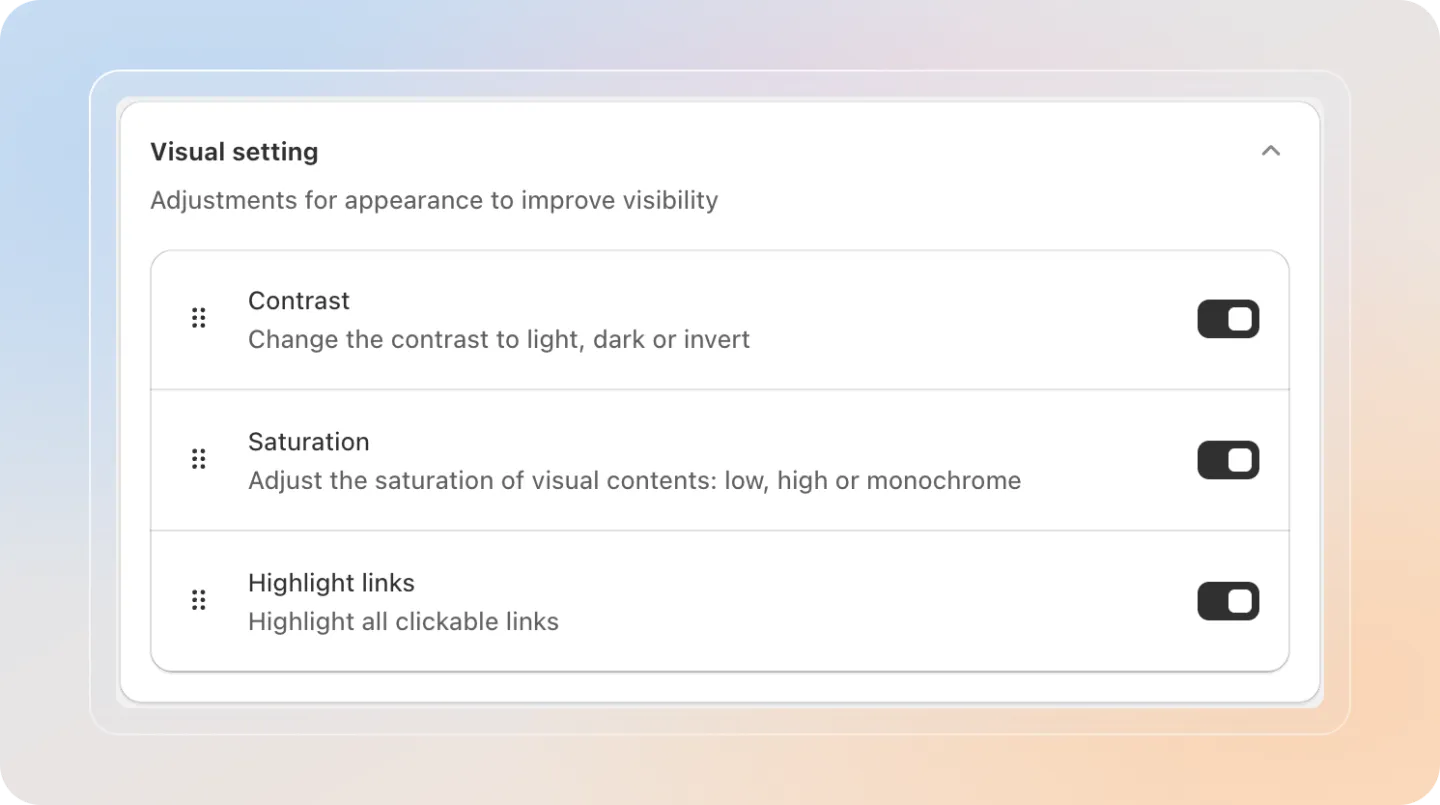
Adjustments for appearance to improve visibility.
| Feature | What it does |
|---|---|
| Contrast | Change the contrast to light, dark, or invert |
| Saturation | Adjust the saturation of visual contents: low, high, or monochrome |
| Highlight links | Highlight all clickable links across the storefront |
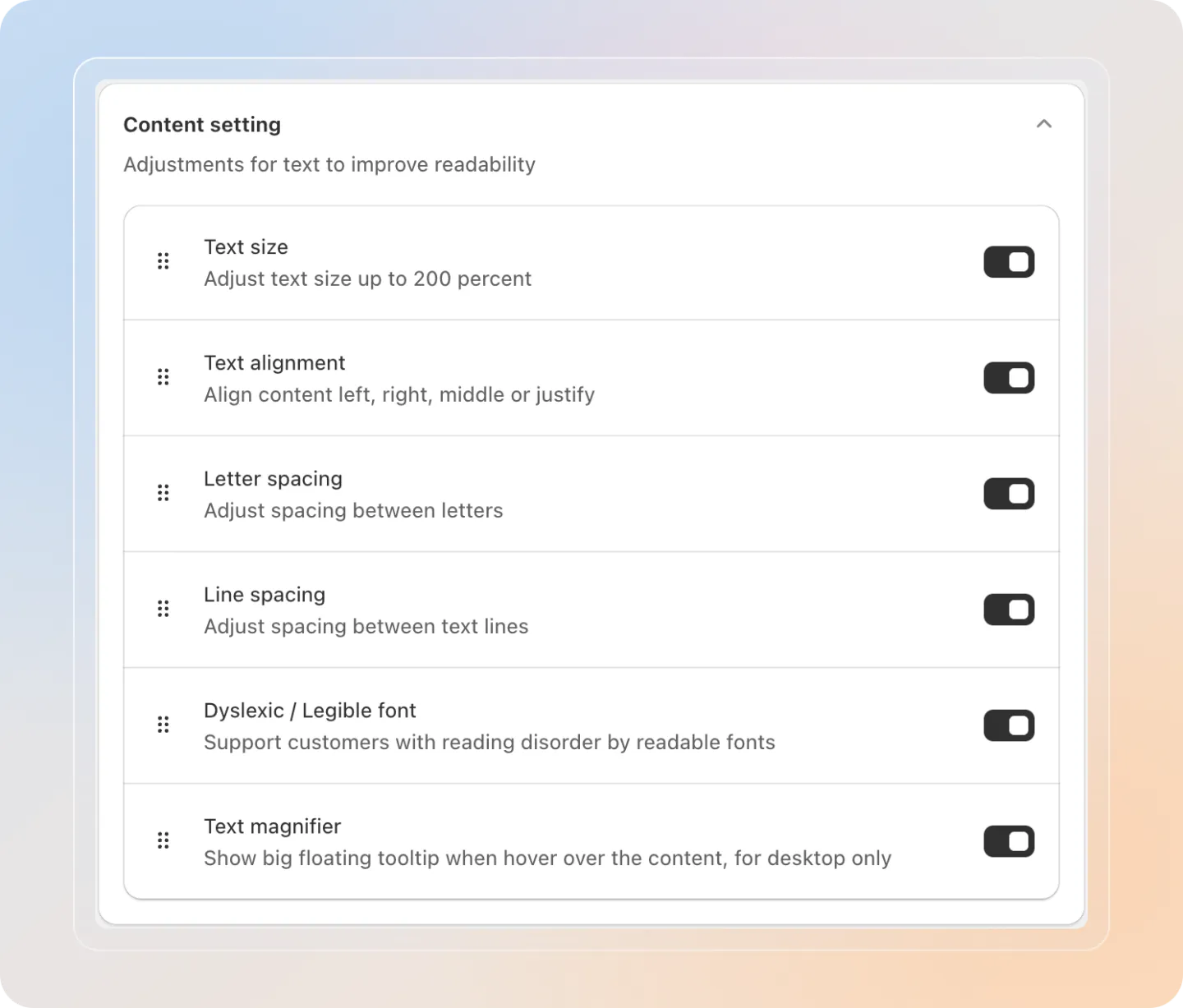
Content setting
Adjustments for text to improve readability.
| Feature | What it does | Desktop only? |
|---|---|---|
| Text size | Adjust text size up to 200 percent | No |
| Text alignment | Align content left, right, middle, or justify | No |
| Letter spacing | Adjust spacing between letters | No |
| Line spacing | Adjust spacing between text lines | No |
| Dyslexic / Legible font | Support customers with reading disorder by readable fonts | No |
| Text magnifier | Show big floating tooltip when hover over the content | Yes |
Advanced Settings (Scale plan)
Avada Accessibility can automatically add alt text to images and accessible names to interactive elements on your storefront, so screen reader users get a better experience without manual edits.
Advanced Settings is available on the Scale plan.
Open Advanced Settings
Go to Menu settings in the app, then click Advanced in the top-right corner.

Turn on Auto Alt Text
Toggle on Auto generate alt-text and accessible name to let the app scan your storefront and fill in missing alt text and accessible names automatically.
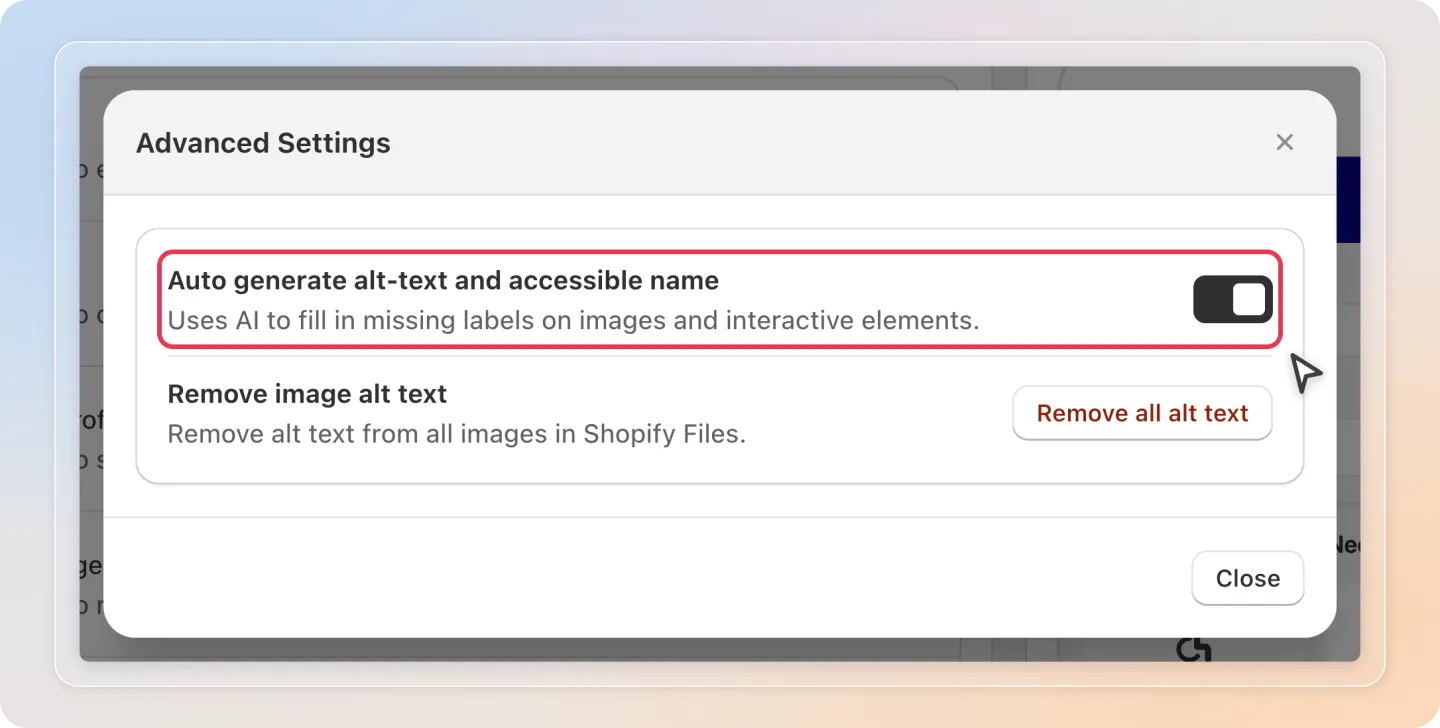
This works independently of Text-to-Speech — you don't need to turn on Text-to-Speech for Auto Alt Text and Accessible Name to take effect.
Save and verify
Click Save in the Shopify save bar. Changes take effect the next time a visitor loads your storefront.
Images that already have alt text keep their original text — the app only fills in what's missing. The app also handles images and interactive elements that load after the page (lazy-loaded images, infinite scroll, popups).
Saving your changes
The Avada Accessibility admin uses Shopify's contextual save bar at the top of the page.
- Toggle any feature → the Save / Discard bar appears
- Click Save to publish changes to your storefront
- Click Discard to revert without saving
Changes don't apply to visitors until you click Save. The live Preview on the right updates instantly to help you decide before saving.
Tips
- Start with everything on. New stores should leave all toggles on so visitors get the maximum set of options. Turn things off only if a feature conflicts with your theme.
- Mind the desktop-only features. Reading guide, Black/White cursor, and Text magnifier only work for mouse users — they won't appear in the mobile widget. Don't promise them to mobile shoppers.
- Watch the order. Sections always render top-to-bottom in the widget — General controls first, then Reading supports, then Visual, then Content. You can't re-order from the admin.
- Profiles are bundles. When Accessibility profiles is on, picking a profile (e.g., Vision Impairment) auto-applies a curated set of toggles. Visitors can then fine-tune from the menu.
If you have any questions or run into any issues, don't hesitate to reach out. We're here to help!