Clear Alt Text From All Your Images at once
Avada Accessibility can automatically generate alt text and accessible names for your images. If you ever need to start over — for example, to regenerate alt text differently or clean up outdated descriptions — you can remove all existing alt text from your Shopify Files in one step.
Requires: read_files and write_files permissions
Prerequisites
- Your Shopify Files already contain images that have alt text (from Avada's auto-generation or added any other way)
- You can grant file access when prompted — the app needs it to read and update alt text
Open Advanced Settings
Go to Avada Accessibility > Menu settings, then click the Advanced button in the top-right corner. The Advanced Settings dialog opens and shows the Remove image alt text section.

Click Remove All Alt Text
In the Remove image alt text row, click Remove all alt text.
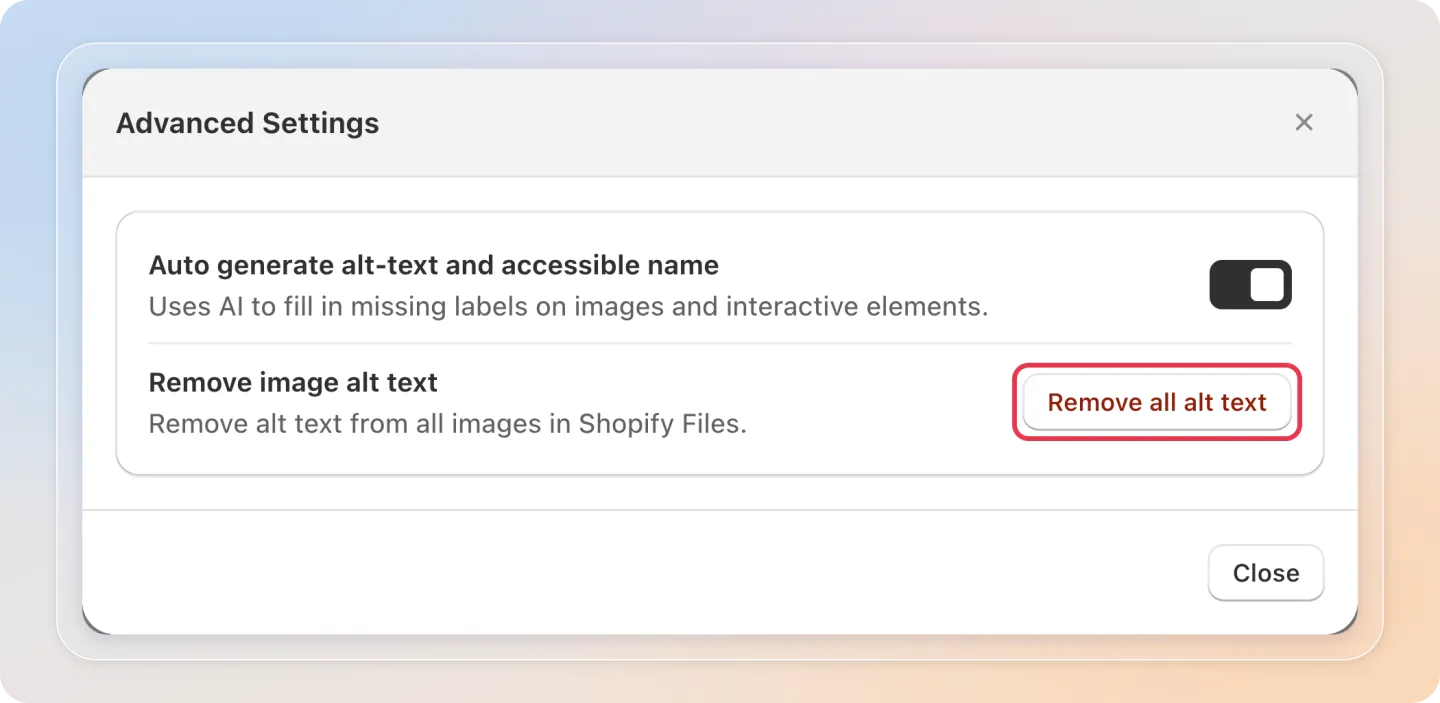
Note: If your store hasn't granted file access yet, the row says Grant Files access to remove alt text from Shopify images. and shows a Grant access button instead. Click it and approve the
read_filesandwrite_filespermissions, then click Remove all alt text.
Warning: This action removes alt text from every image in your Shopify Files that currently has one. It cannot be undone.
Confirm and Review the Result
A dialog titled Remove all image alt text? appears and warns that this permanently removes alt text from every image in your Shopify Files. Click Remove alt text to confirm, or Cancel to back out.
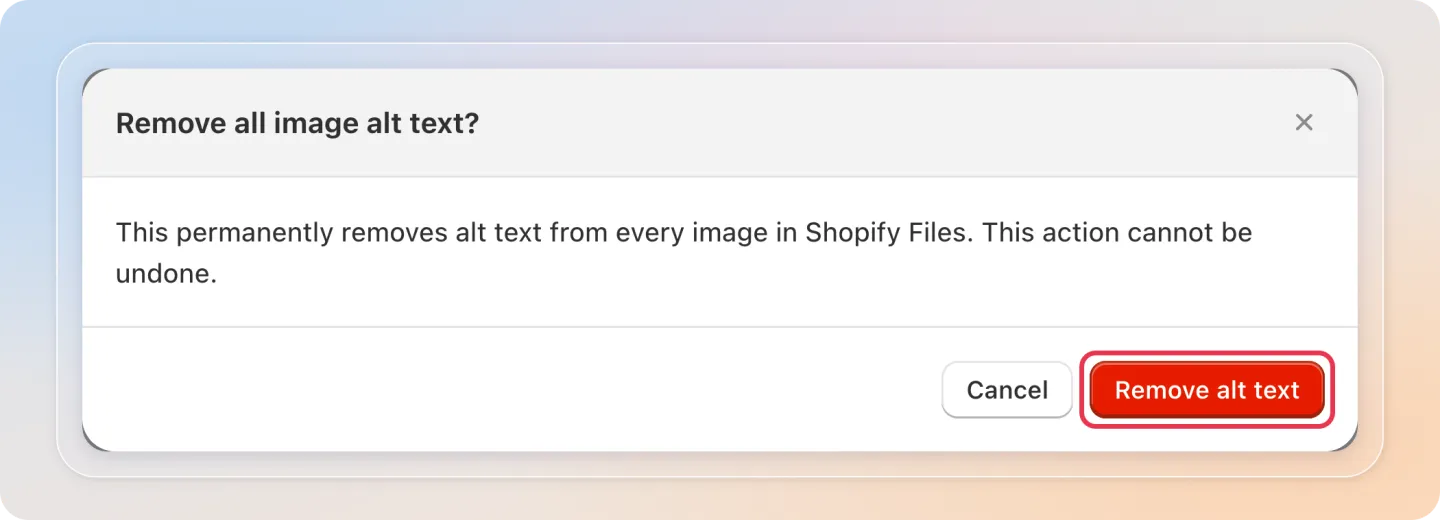
The app scans all images in your Shopify Files and clears the alt text on any image that currently has one. When it finishes, you'll see a message such as Alt text removed from 128 images.
- Images that have no alt text, or that aren't finished processing yet, are skipped and aren't counted
- If Shopify returns an error partway through, the app stops and shows an error message. Images that were already cleared before the error stay cleared — the app does not restore them, so you may end up partly cleared. Check your files, then run it again if needed
Tips
- Use this before switching to a different alt text style or language, so old and new descriptions don't mix
- This only clears alt text that the app can see through Shopify Files — it doesn't affect alt text set directly on a product, theme, or anywhere outside your store's file library
Related Articles
And there you have it! You've successfully cleared alt text from all your images. You can now regenerate it however you'd like.
If you have any questions or run into any issues, don't hesitate to reach out. We're here to help!