Manage Alt Text for Your Product Images
Premium automatically writes alt text for product images that are missing it, and lets you review and edit it any time from one page.
Requires: Premium plan
Prerequisites
- Your store must be on the Premium plan. See Plans & Pricing to upgrade.
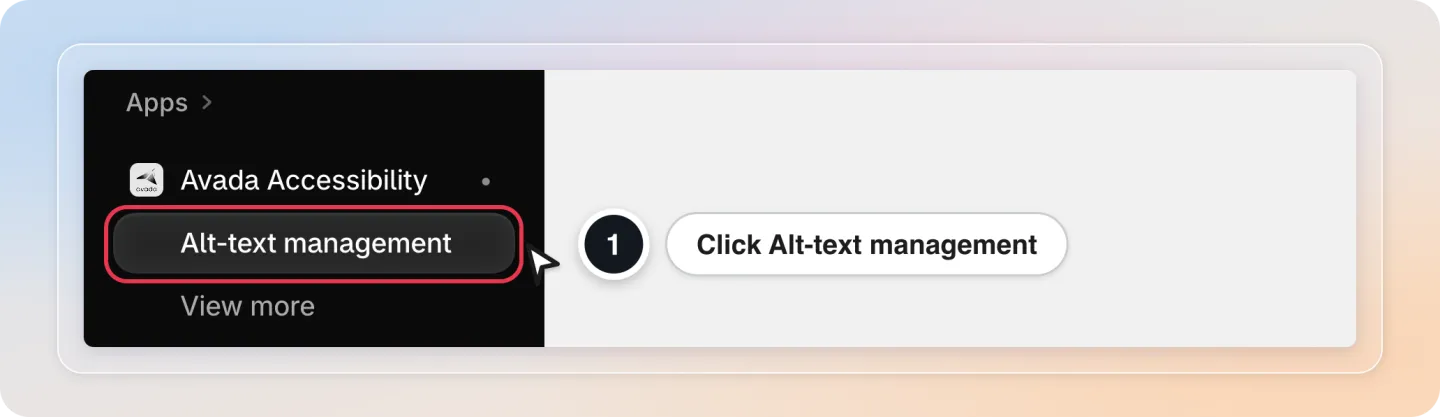
Open Alt-text management
In the Avada Accessibility app menu, click Alt-text management.
- The app lists every product image, starting with the images it recently wrote alt text for.
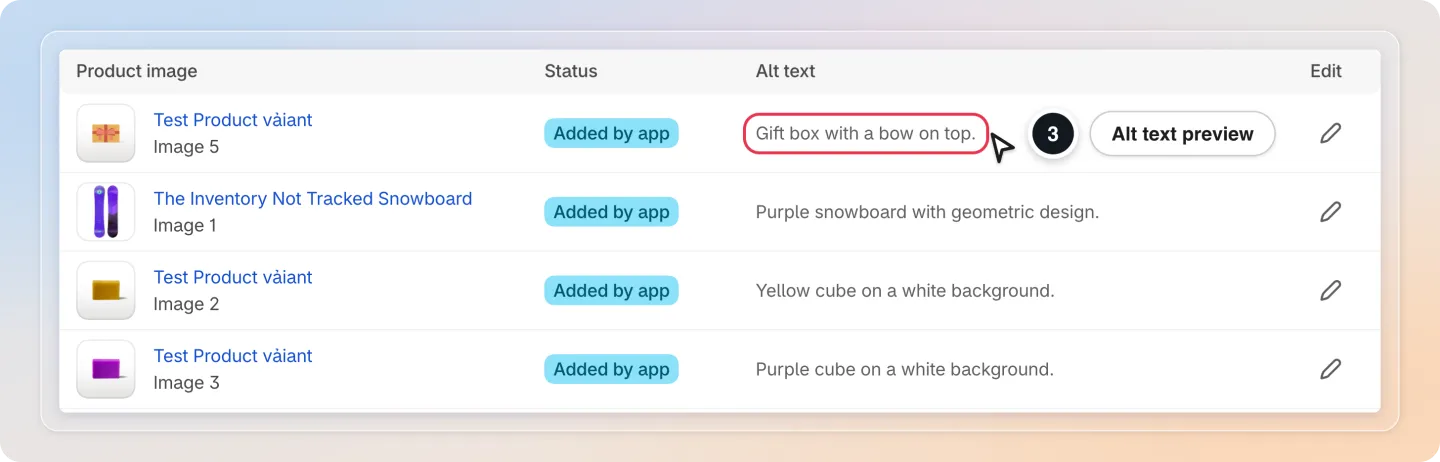
- Each row shows one image and its alt text.
Check the status of each image
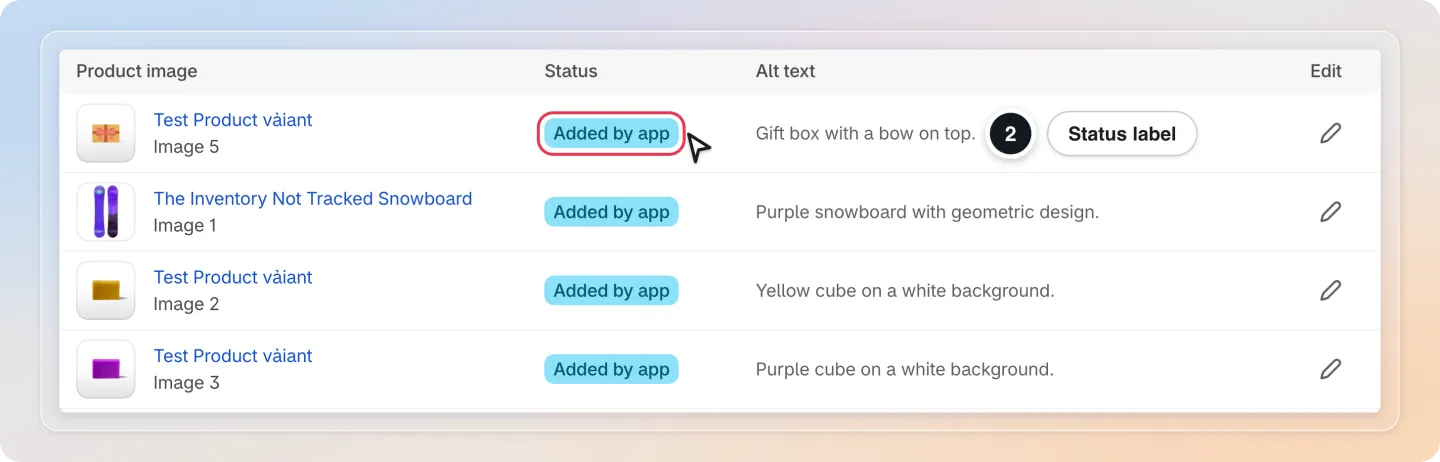
Every image has a label so you know where its alt text came from:
| Label | What it means |
|---|---|
| Added by app | The app wrote this alt text automatically |
| Edited by you | You or your team edited this alt text |
| Existing alt text | This image already had alt text before Premium |
| Generating… | The app is still writing alt text for this image |
| Processing | Shopify is still processing this image. Alt text is added once it finishes |
| No alt text | This image has no alt text yet |
Each label has its own color (Added by app is blue, Edited by you is green, Existing alt text is grey, No alt text is yellow), so you can tell them apart at a glance instead of reading every label.
Tip: Use the filter at the top to show only Added by app or Edited by you images, or search by product name.
Preview an image's alt text
Each row shows the current alt text as a short preview — the Alt text column is read-only, so you can scan every image without accidentally changing anything. Long product names are shortened with …; hover over a name to see it in full.
Edit an image's alt text
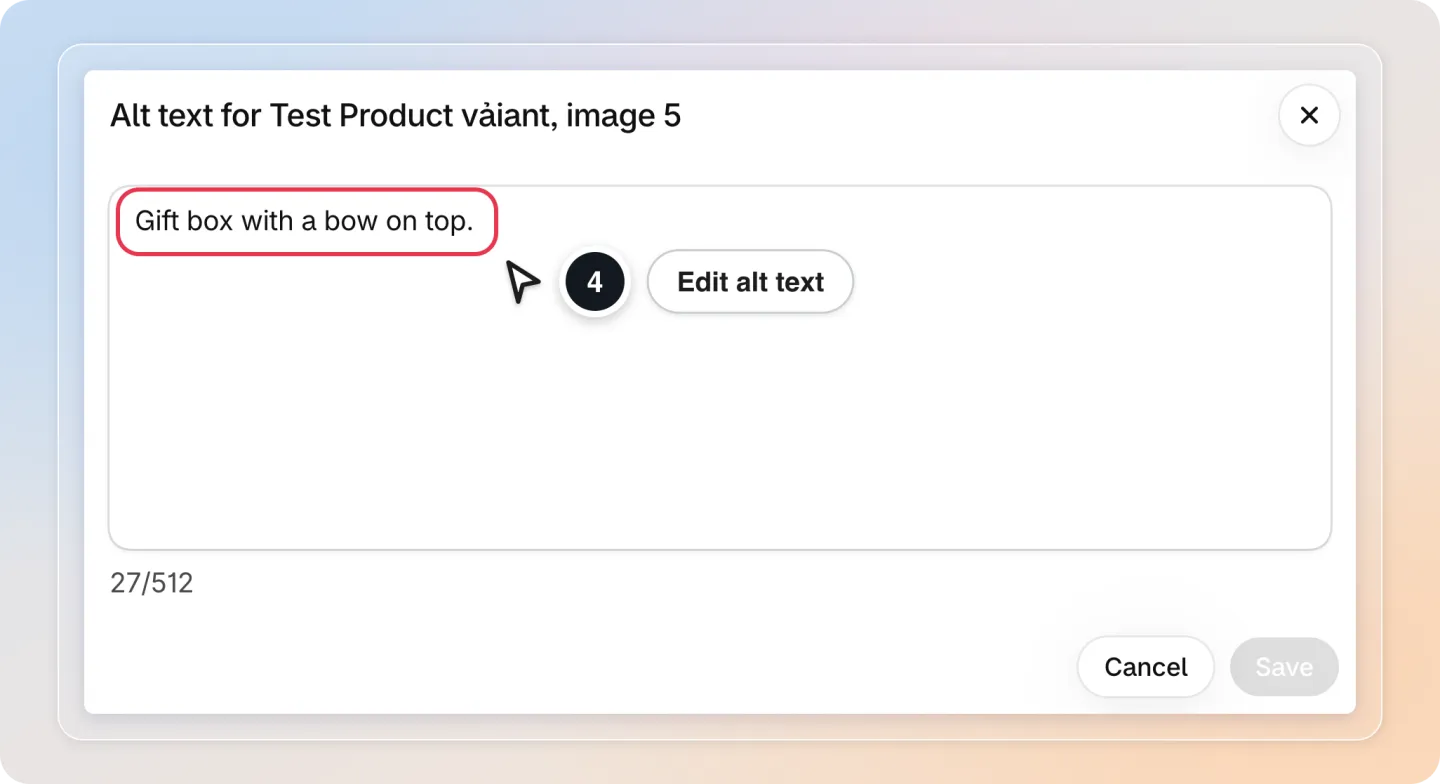
Click the Edit icon on a row to open the edit window for that image.
- Type your own description. There's a character counter, and alt text is limited to 512 characters.
- Click Save to apply the change to that image only, or Cancel to close without saving.
- Editing an image marks it Edited by you, and the app will not overwrite it again.
- If your text differs from what the app wrote, the app shows its own version with a Use app version link to switch back to it.
Note: Each edit saves right away for that image — there's no page-wide Save or Discard step anymore. Alt text the app writes automatically is also saved directly to your products.
Tips
- Only images missing alt text are written automatically; alt text you already had is left untouched.
- Downgrading from Premium does not remove alt text already saved to your products — it only stops the app from writing new alt text and sending weekly reports.
Related Articles
Need help? Contact our support team.