Basic elements
10 essential content blocks available for free on all plans
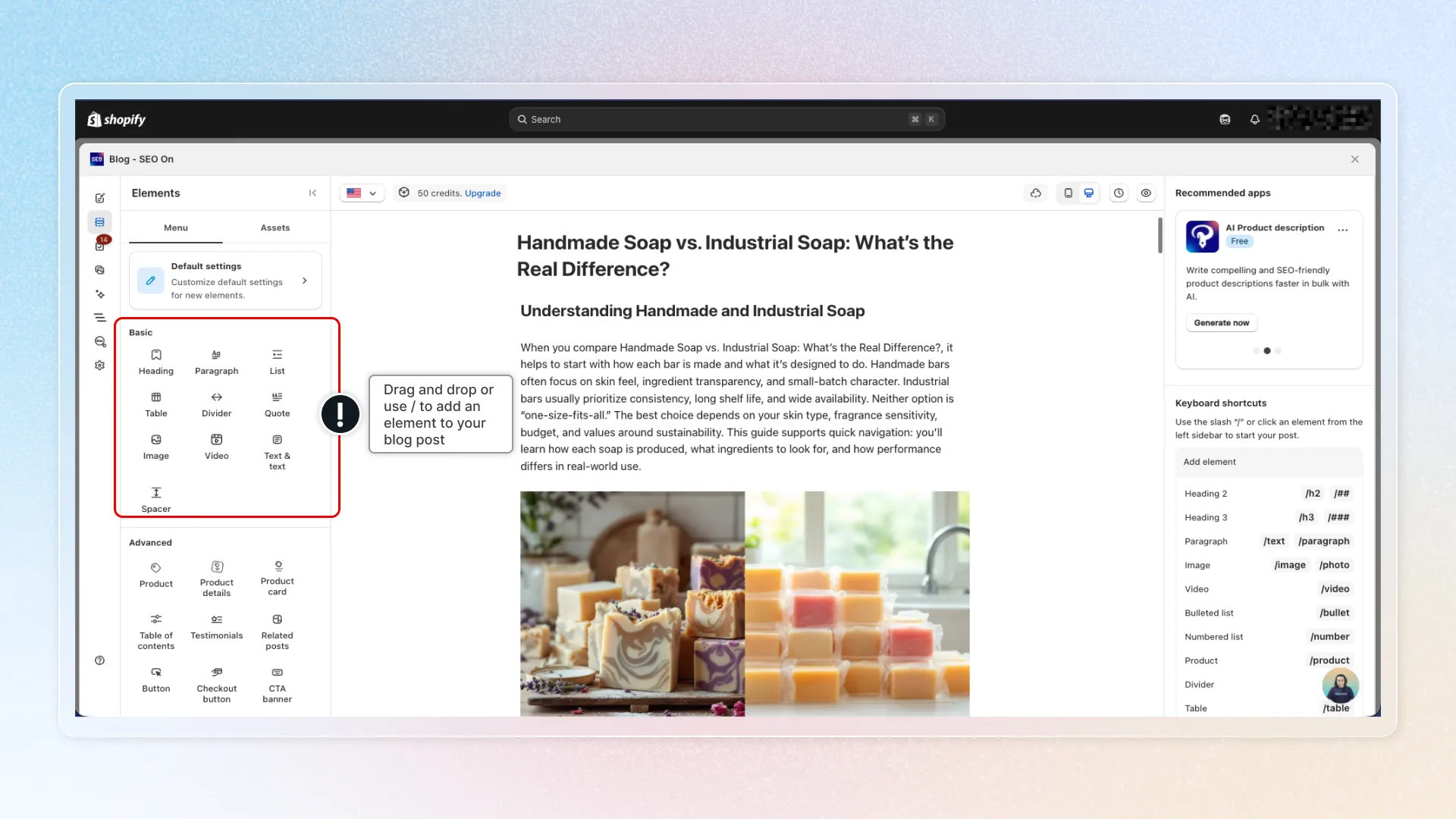
Basic elements are the foundation of every blog post. They are free for all users on every plan - no upgrade required. These 10 elements cover the most common content needs: text, headings, images, videos, lists, tables, and layout spacing. Whether you are writing your first post or your hundredth, these are the building blocks you will use in every article.
Heading
Add headings to structure your blog post into clear sections. Supports heading levels H2 through H6.
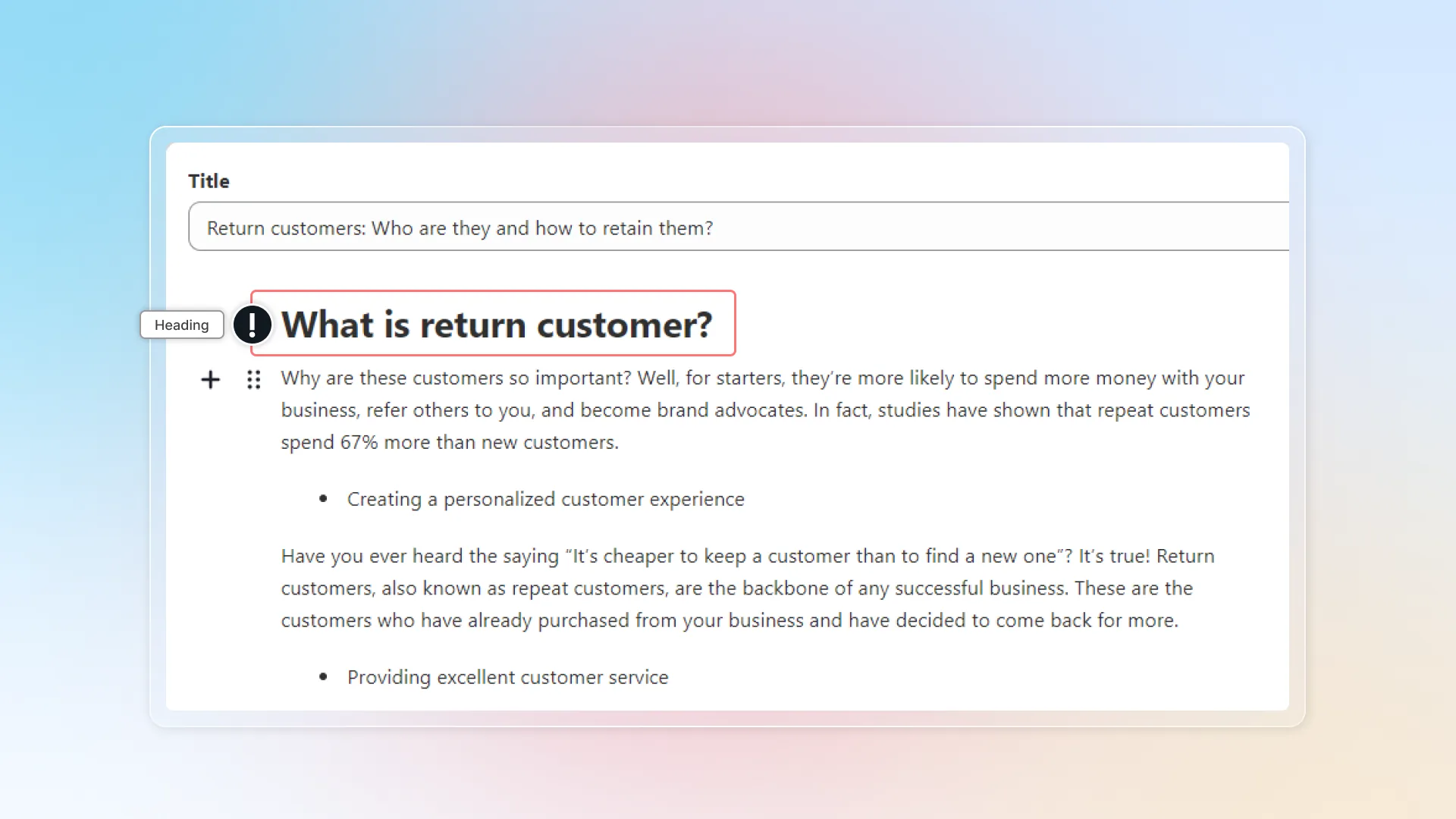
How to use:
- Add a Heading element or type
/heading - Type your heading texee
- Select the heading level (H2-H6) from the toolbar
Formatting options: Bold, Italic, Underline
| Do | Don't |
|---|---|
| Use H2 for main sections | Skip levels (H2 -> H4) |
| Use H3 for subsections under H2 | Use H1 (reserved for page title) |
| Include keywords naturally | Stuff keywords into every heading |
| Keep headings concise (5-10 words) | Write full sentences as headings |
SEO Tip: Your most important keywords should appear in H2 headings. Google gives more weight to higher-level headings. The Table of Contents element automatically generates navigation from your headings.
Paragraph
The standard text block for writing content. Every blog post is built primarily from paragraph elements.
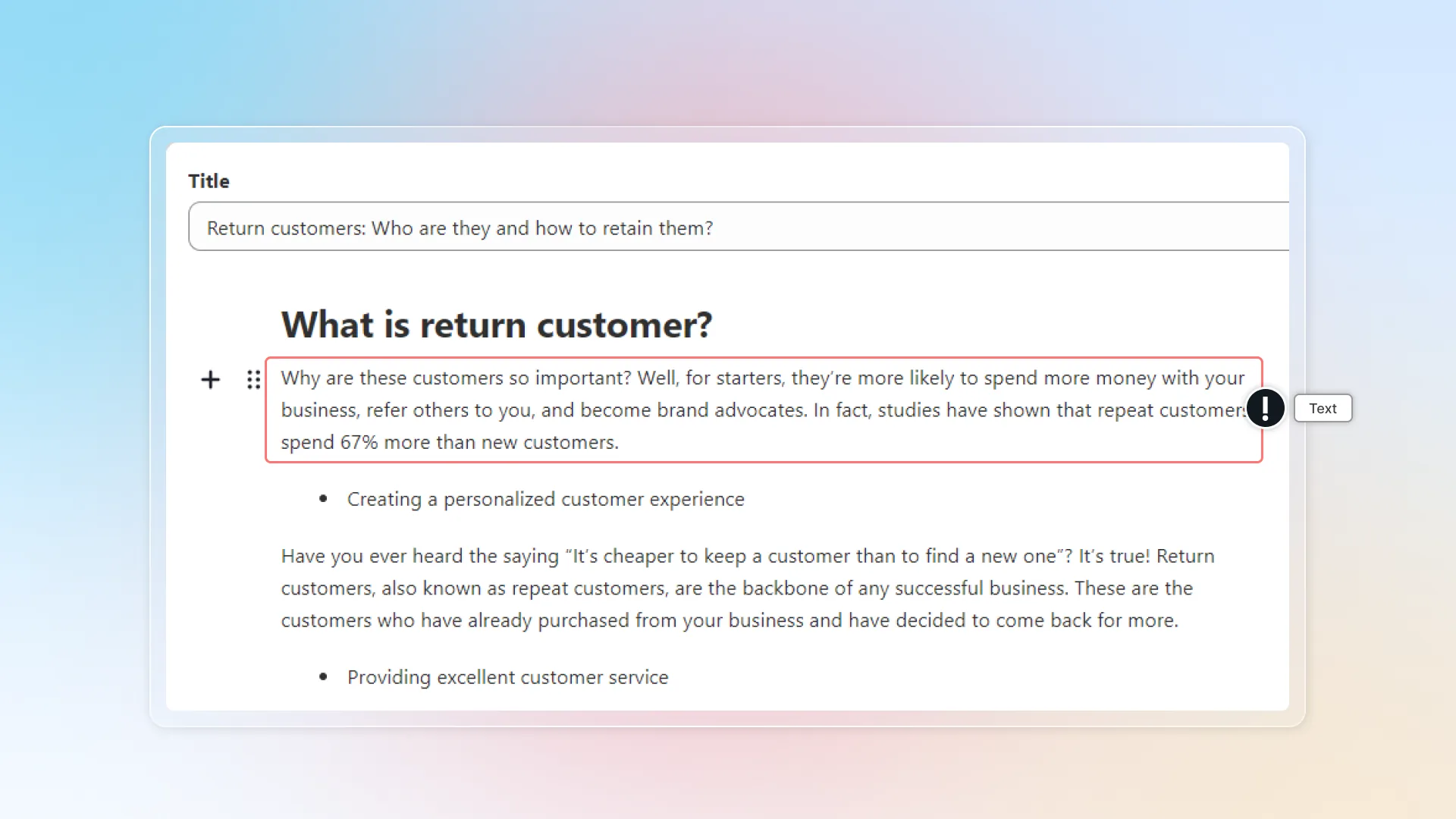
How to use:
- Add a Paragraph element or simply start typing in the editor
- Write your content
- Format text using the toolbar: Bold, Italic, Underline, Hyperlinks
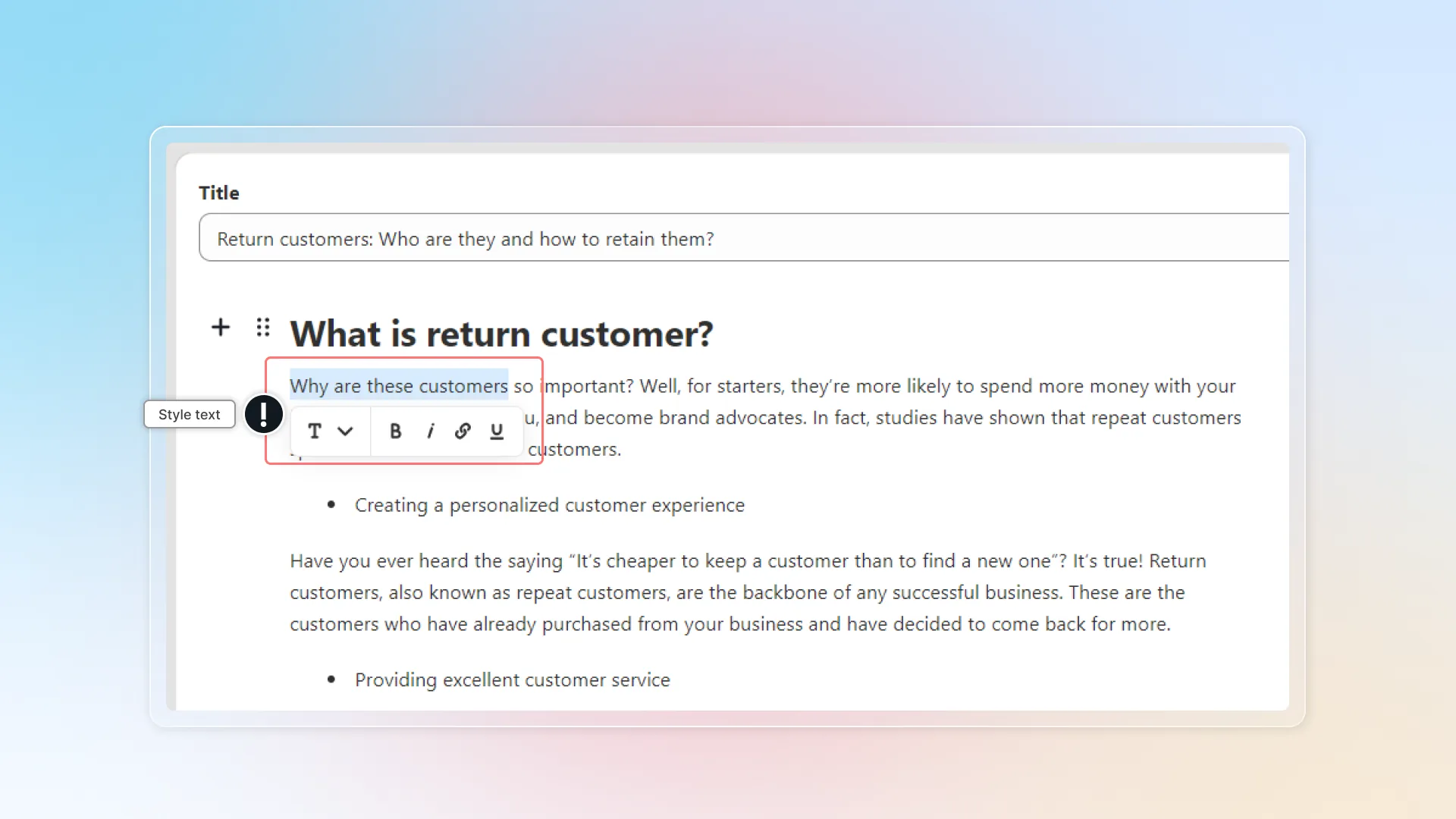
Best practices:
- Keep paragraphs 3-5 sentences - walls of text scare readers away
- Use short sentences for mobile readability (60% of blog traffic is mobile)
- Include internal links to product pages naturally within your content
- Front-load important information - readers scan, they don't read every word
List
Create ordered (numbered) or unordered (bulleted) lists to organize information in an easy-to-scan format.
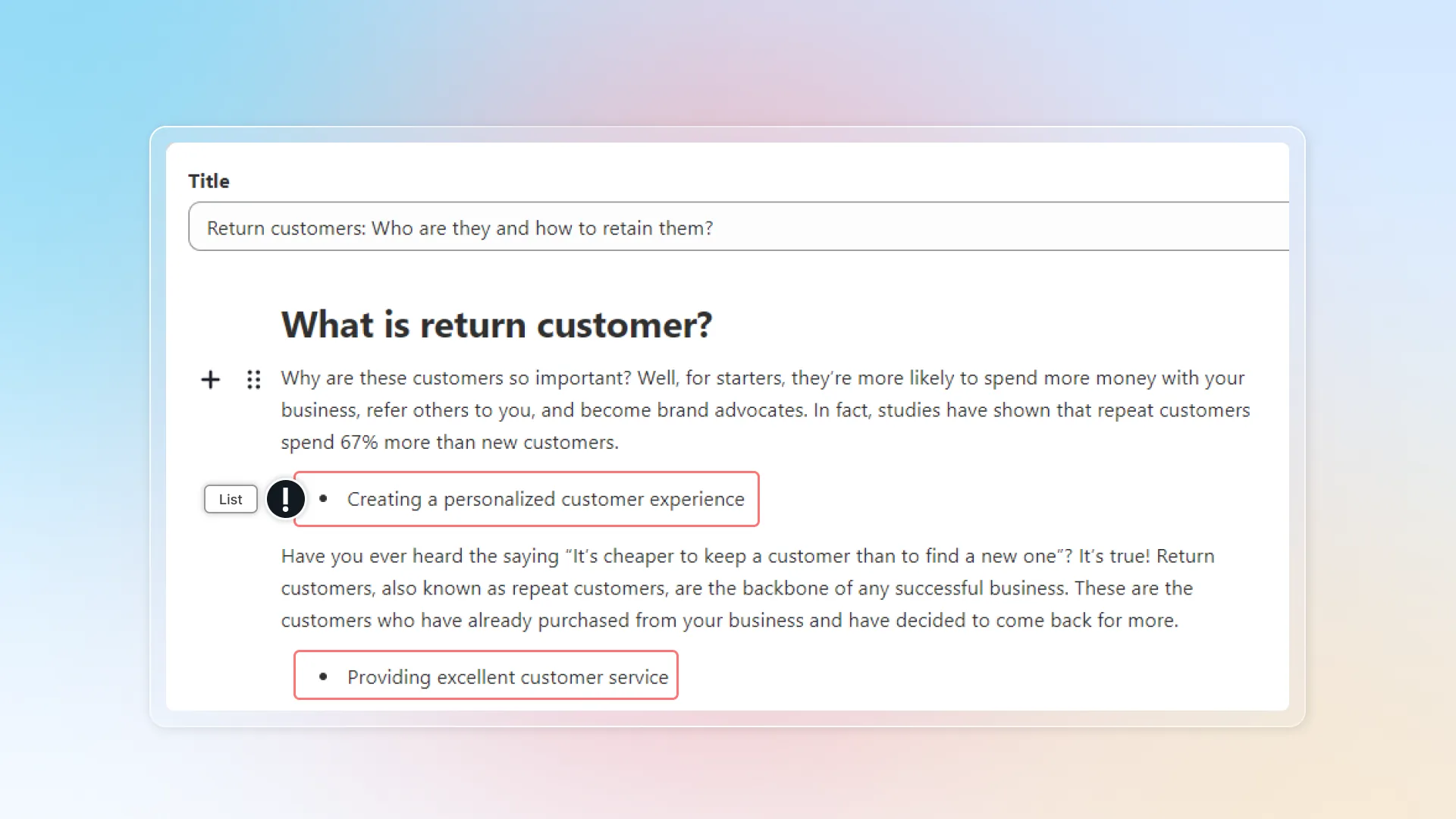
How to use:
- Add a List element or type
/list - Choose Bulleted (unordered) or Numbered (ordered)
- Type each item, press Enter for the next
| Type | Best for |
|---|---|
| Bulleted | Features, benefits, tips, ingredients |
| Numbered | Steps, rankings, instructions, tutorials |
Best practices:
- Use lists for 3+ items
- Keep items parallel in structure (all start with verbs, or all are nouns)
- Google frequently pulls list content into featured snippets (position zero)
Table
Insert data tables with customizable rows and columns. Add or remove rows/columns above, below, left, or right of any selected cell.
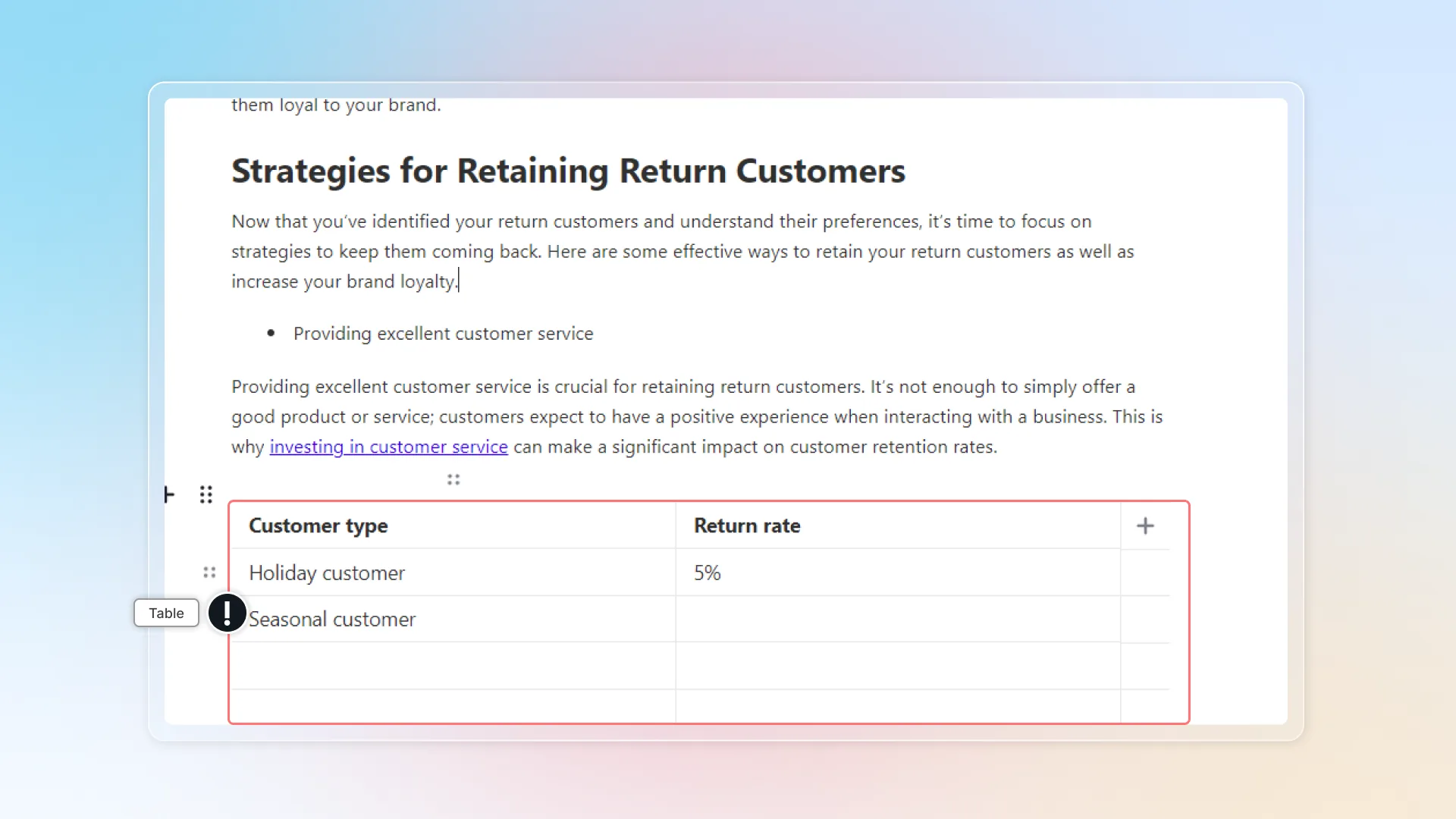
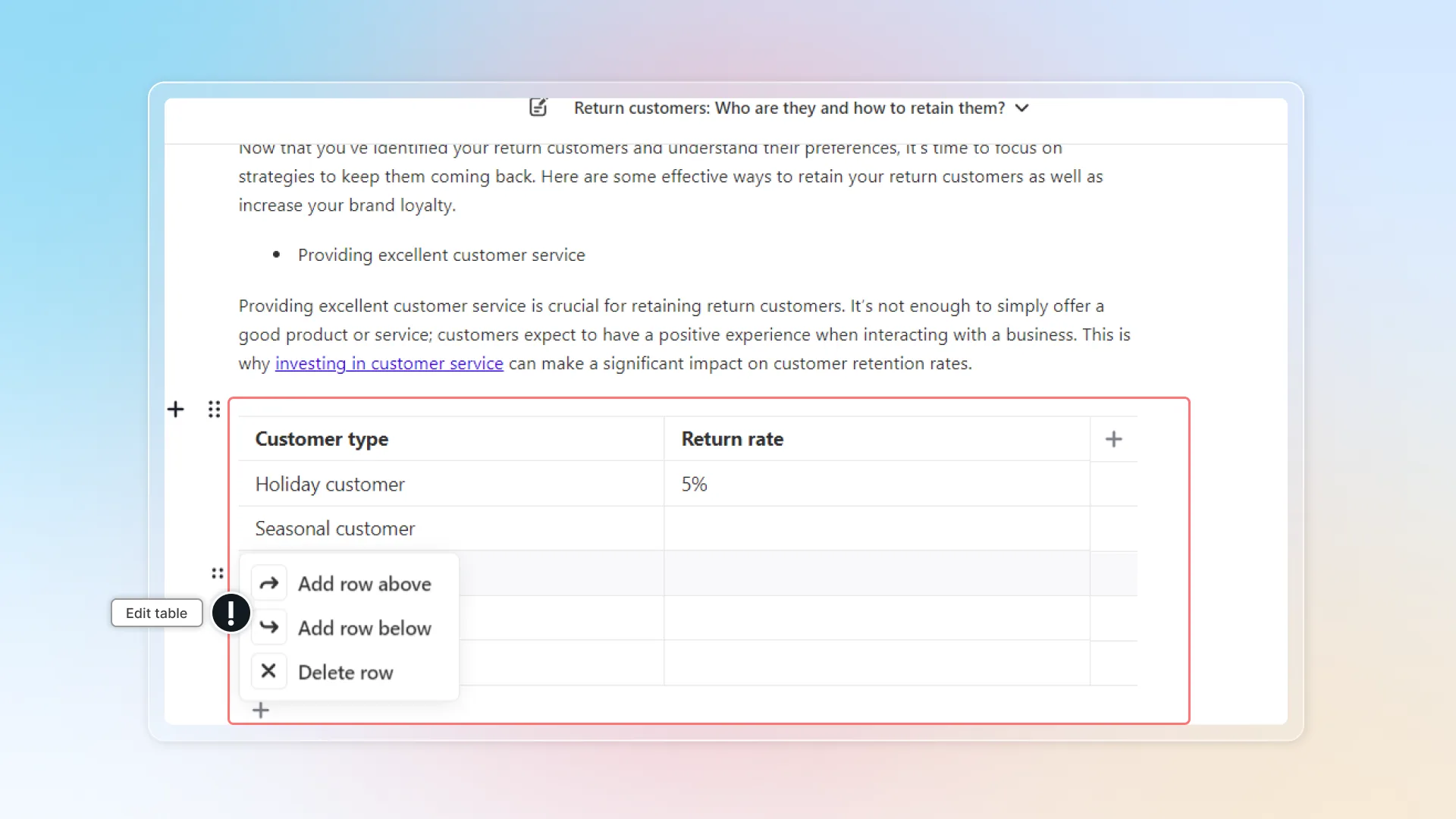
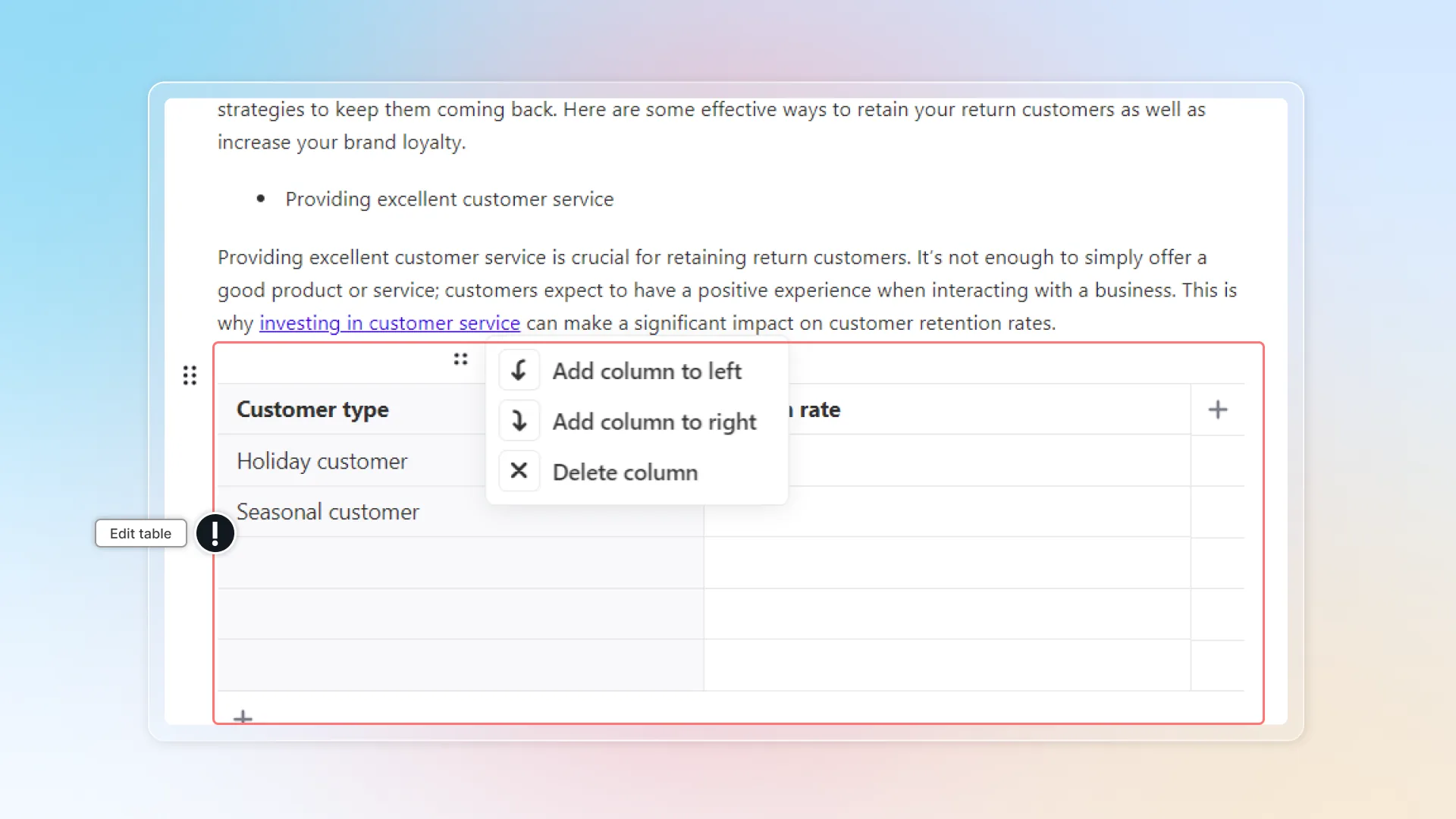
How to use:
- Add a Table element or type
/table - Set the number of rows and columns
- Click any cell to type content
- Use the toolbar to add/remove rows and columns
Use case examples:
| Use case | Example |
|---|---|
| Size chart | XS/S/M/L/XL with measurements |
| Product comparison | Feature vs feature across 3 products |
| Pricing table | Plan features side by side |
| Shipping rates | Region x delivery speed x cost |
Best practices:
- Keep tables under 6 columns for mobile readability
- Use the first row as headers
- Google can extract table data for featured snippets, especially for comparison queries
Divider
A horizontal line that visually separates sections of your blog post. The divider's appearance adapts to your Shopify theme styling.
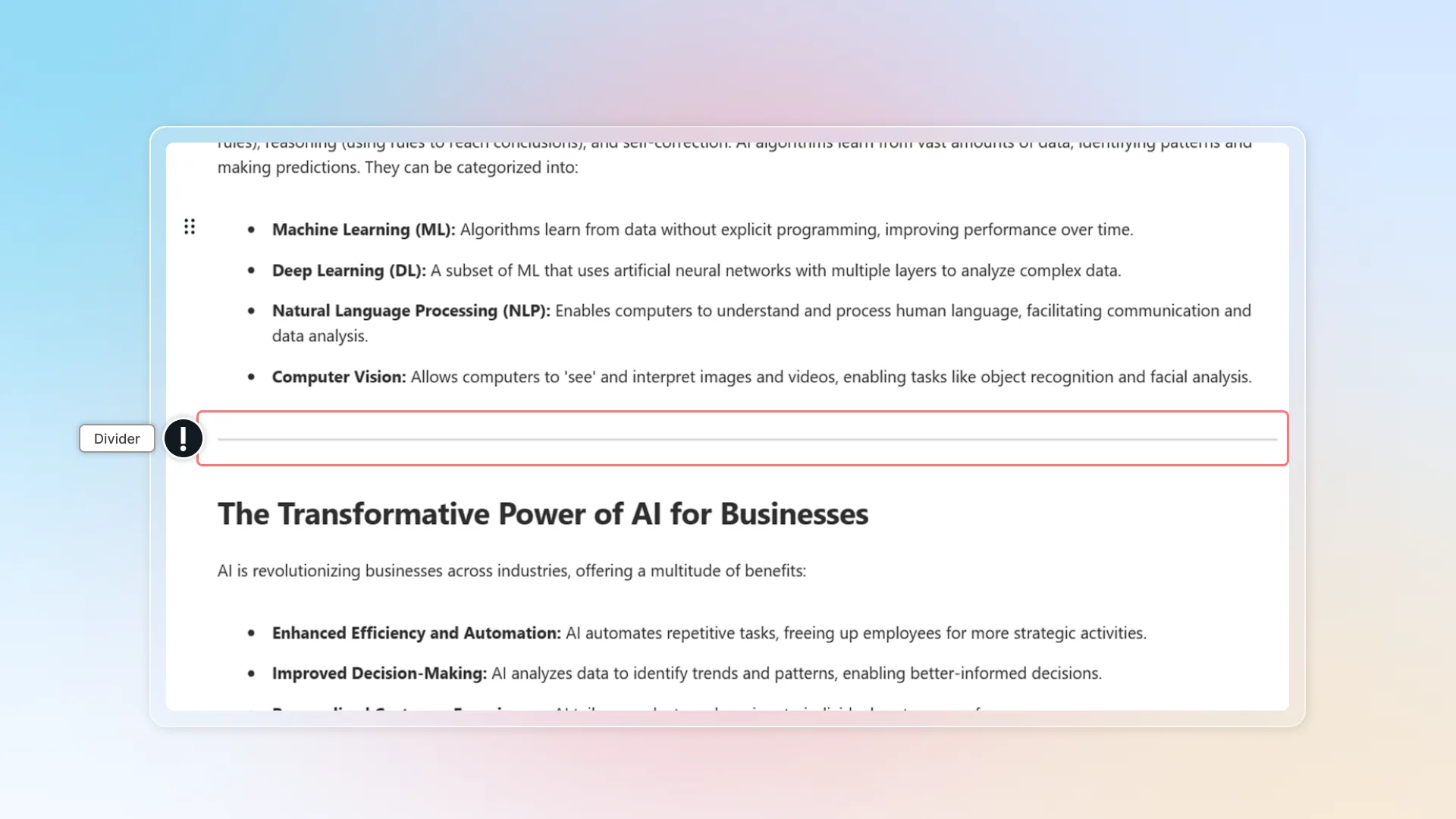
How to use:
- Add a Divider element or type
/divider - The divider appears automatically - no configuration needed
Best practices:
- Use dividers sparingly - too many makes the post look fragmented
- Pair with headings for major sections; use dividers alone for minor breaks
- Works well before product recommendation sections or CTA banners
Quote
Add a styled blockquote to highlight important text, cite a source, or feature a customer testimonial.
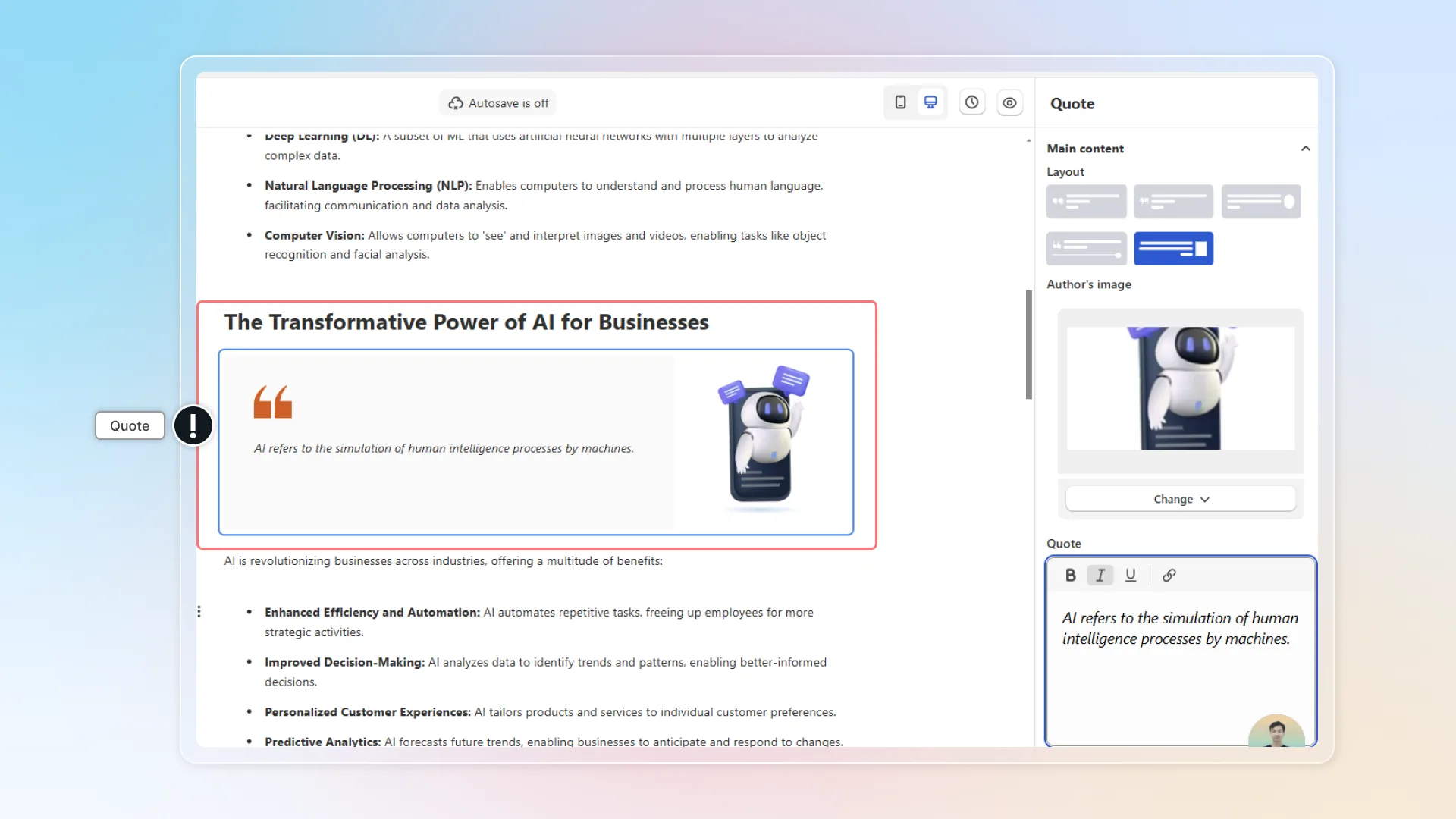
How to use:
- Add a Quote element or type
/quote - Type the quote text
- (Optional) Add author name and title
- Customize styling via the settings panel
Customization options:
- Layout & alignment (left, center, right)
- Background color, text color, quote symbol color
- Author name and title/role fields
Use case examples:
| Scenario | Example |
|---|---|
| Customer testimonial | "This serum changed my skin in 2 weeks" - Sarah M., verified buyer |
| Expert opinion | "Organic cotton is the future of sustainable fashion" - Dr. Jane Lee |
| Data highlight | "73% of consumers prefer brands with sustainable packaging" |
Best practices:
- Always attribute quotes to a real person or source
- Limit to 1-2 quotes per post to maintain impact
Image
Add images to your blog post. Upload from your computer, select from the media library, or paste an image URL. Images are stored in your Shopify Files section.
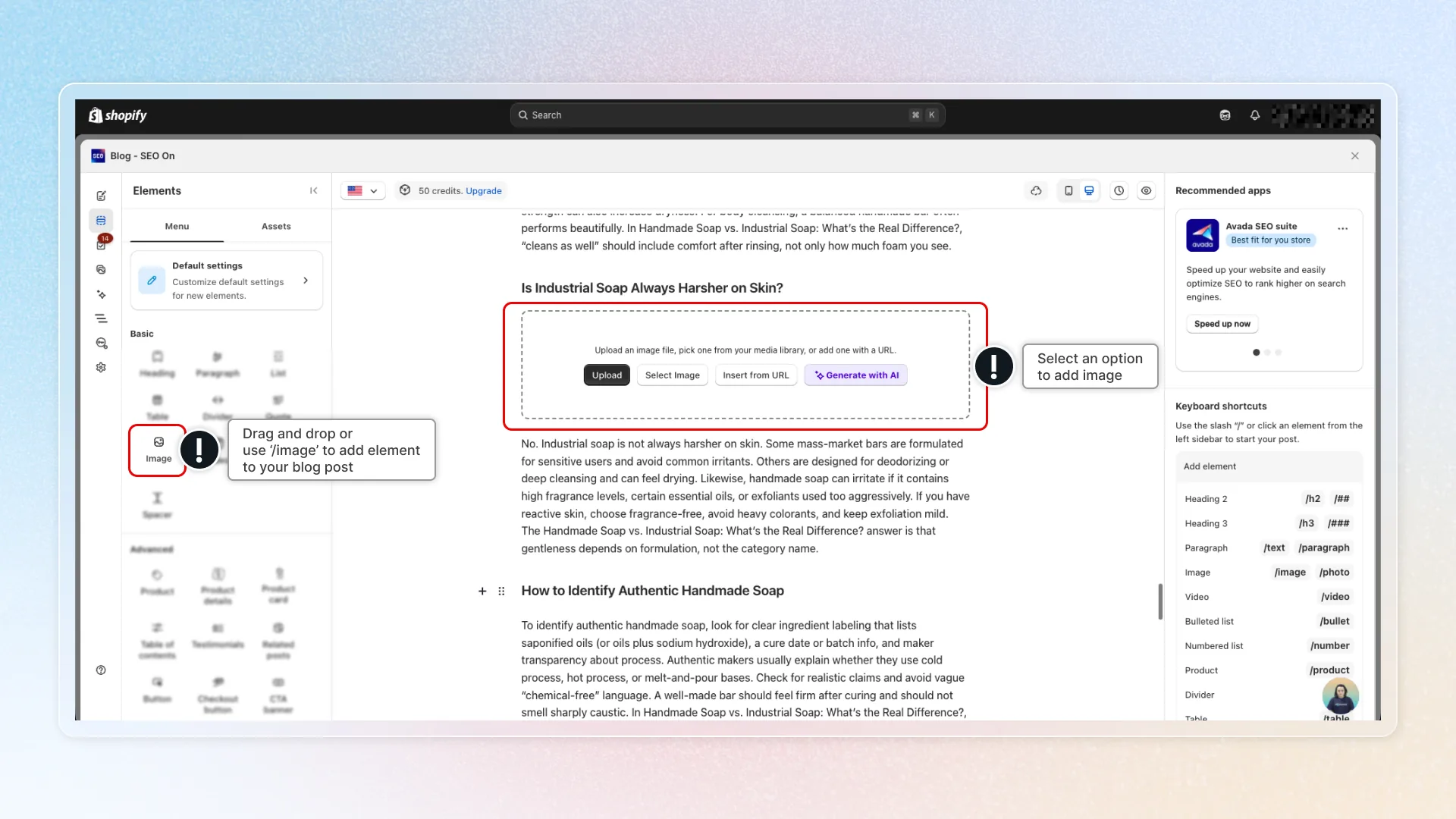
How to use:
- Add an Image element or type
/image - Choose your source: Upload, Media Library, or URL
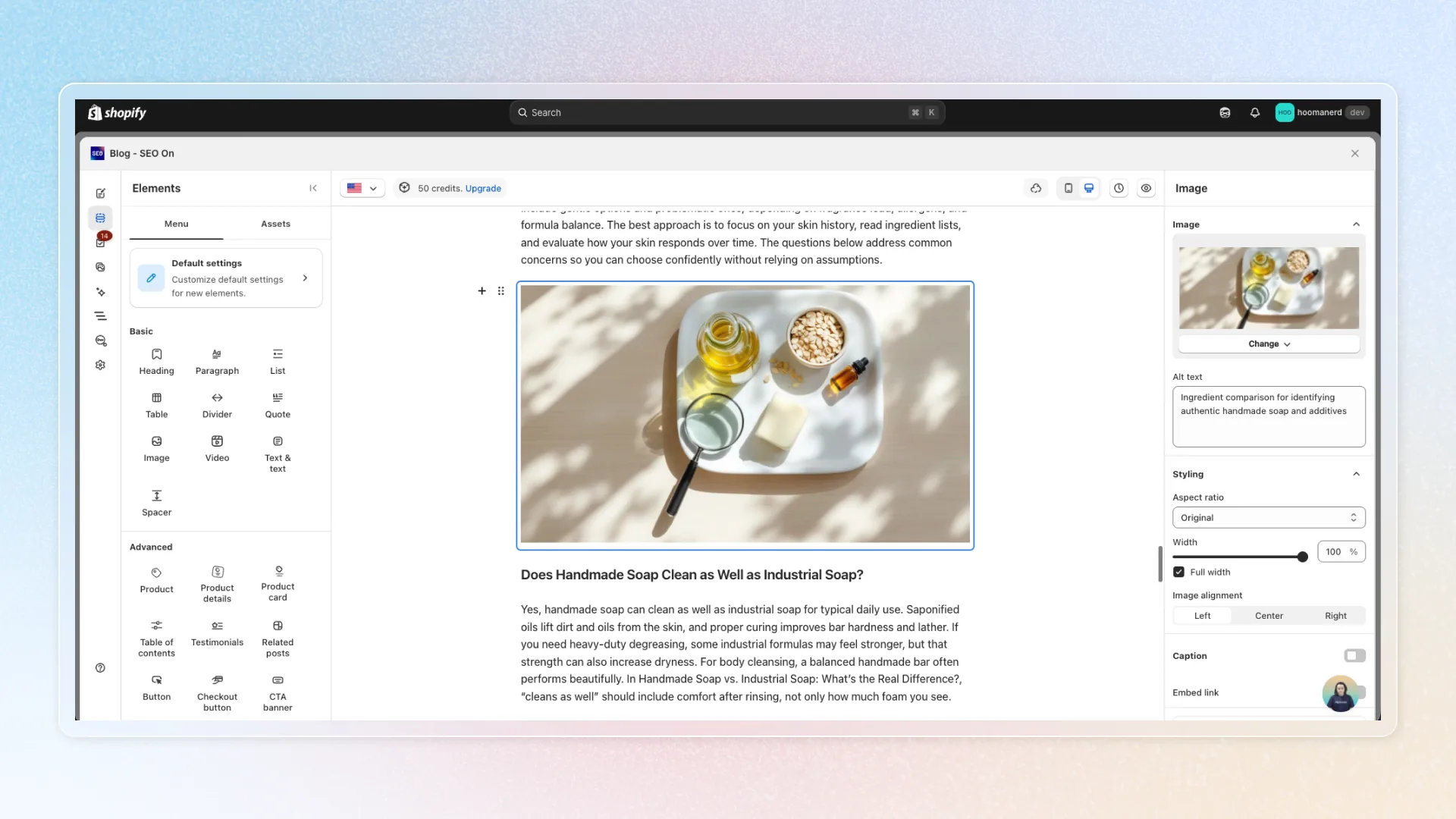
- Configure image settings
Configuration options:
- Alt text - Describe the image for SEO and accessibility
- Aspect ratio - Control image proportions
- Alignment - Left, center, right
- Caption - Add descriptive text below the image
- Image link - Make the image clickable (link to product, collection, etc.)
Best practices:
- Always add alt text - Google uses it for image search ranking, and it's essential for accessibility
- Write alt text that describes the content: "Woman wearing red summer dress on beach" not "image1.jpg"
- Use high-quality images but keep file size under 500KB for page speed
- Add image links to product photos - turn every image into a sales opportunity
SEO Tip: Include your target keyword naturally in alt text when relevant. "Organic cotton baby blanket in mint green" is better than "baby blanket".
Video
Embed videos in your blog post. Upload from your device, select from the media library, or paste a YouTube/Vimeo URL.
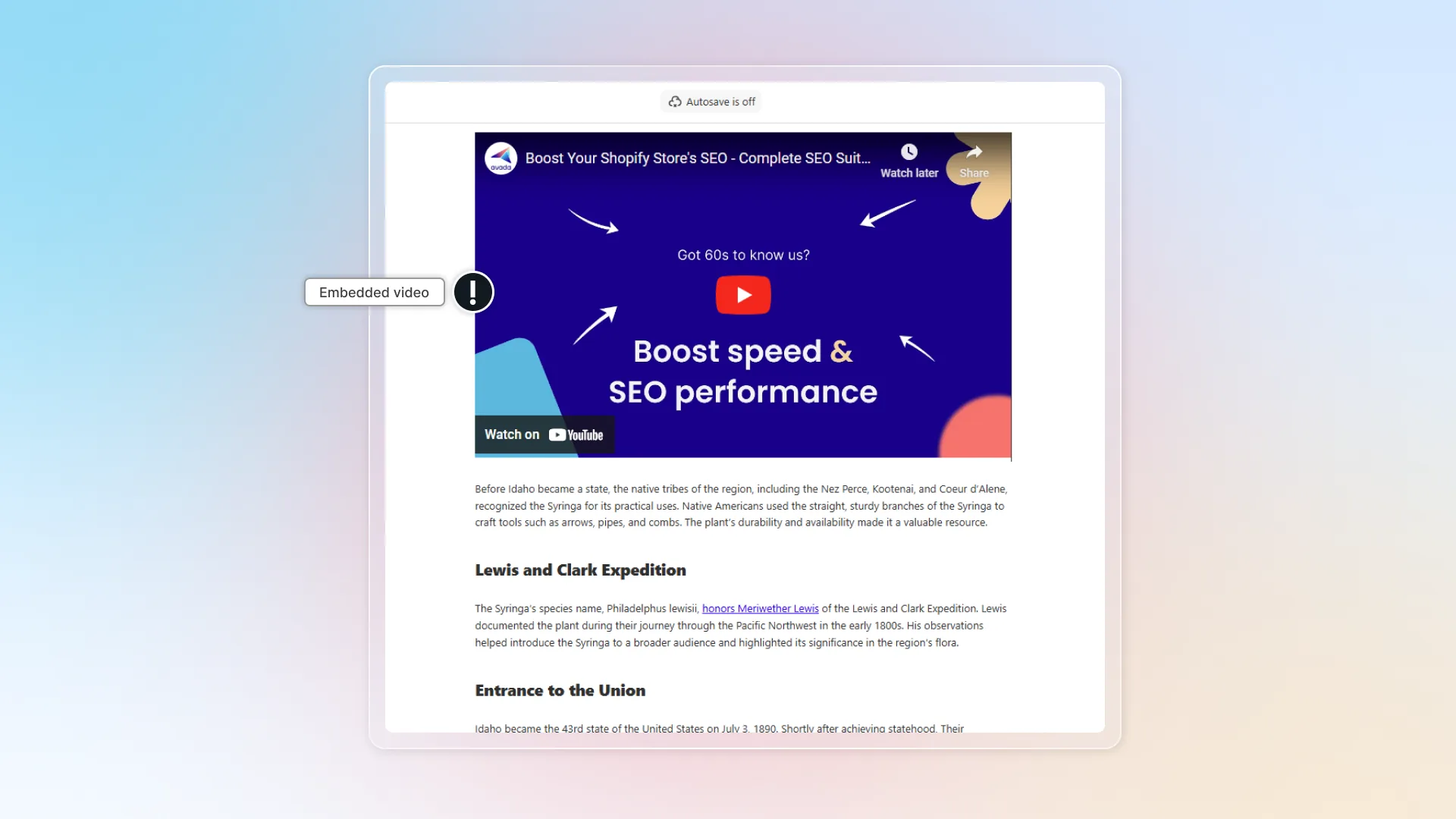
How to use:
- Add a Video element or type
/video - Choose your source: Upload, Media Library, or URL (YouTube/Vimeo)
- The video embeds with a player in your post
Supported platforms: YouTube, Vimeo
Best practices:
- YouTube is preferred for SEO - Google owns YouTube and gives its videos search priority
- Keep product demo videos under 2 minutes
- Add a text summary below the video for readers who prefer reading (and for SEO - Google can't index video content directly)
- Video increases average time on page by 88%
Text & Text
A two-column layout with text on both sides. Each column is independently editable with full paragraph formatting.
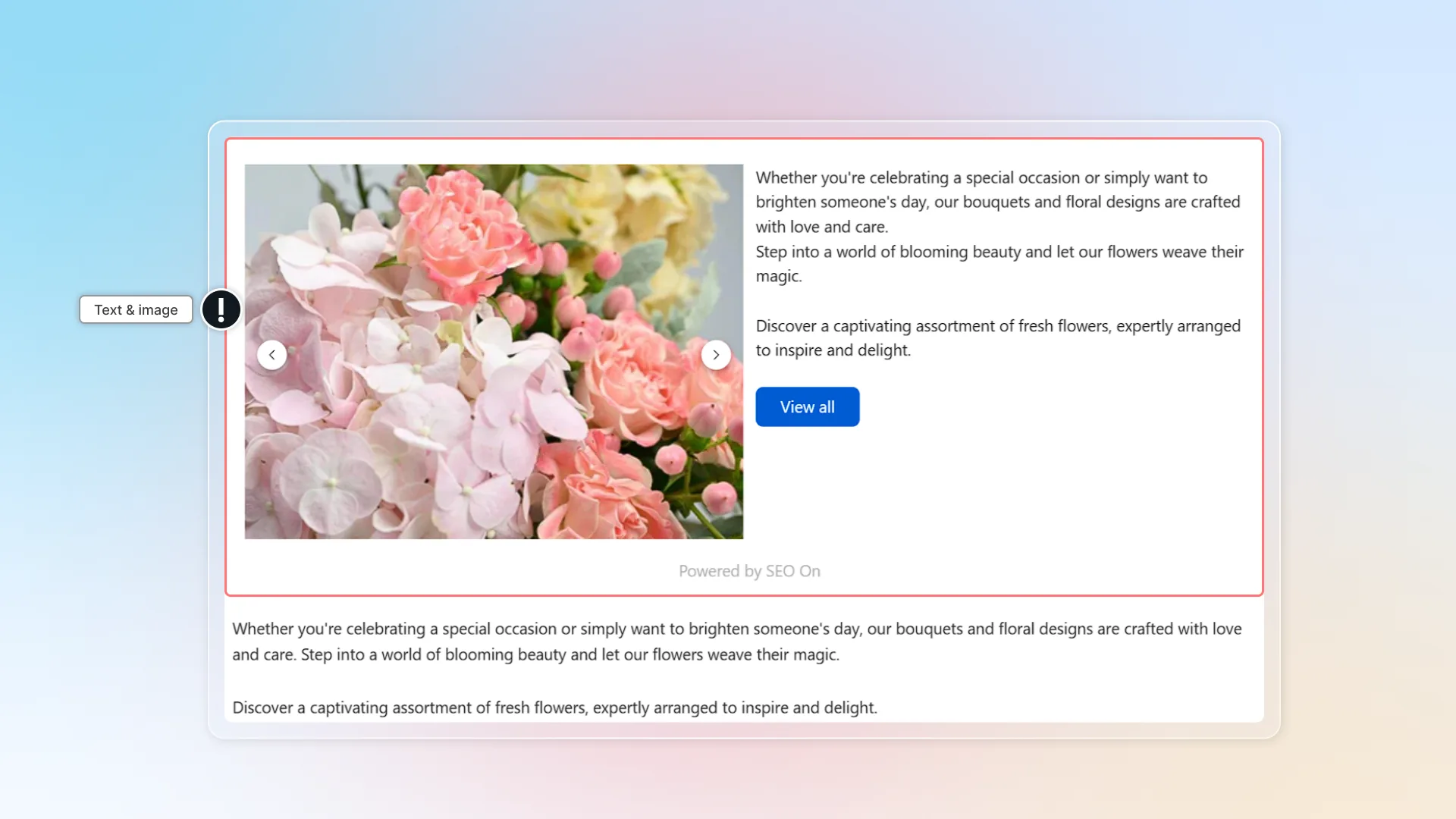
How to use:
- Add a Text & Text element or type
/text & text - Click on the left column to type content
- Click on the right column to type content
- Format each column independently
Use case examples:
| Left column | Right column |
|---|---|
| Product benefits | Product specifications |
| Customer problem | Your solution |
| Free plan features | Pro plan features |
Best practices:
- Use for genuinely parallel content - don't force unrelated text into columns
- Keep column content similar in length for visual balance
- On mobile devices, columns stack vertically - make sure each column makes sense on its own
Spacer
Add adjustable vertical spacing between elements. Control the height and background color with opacity.
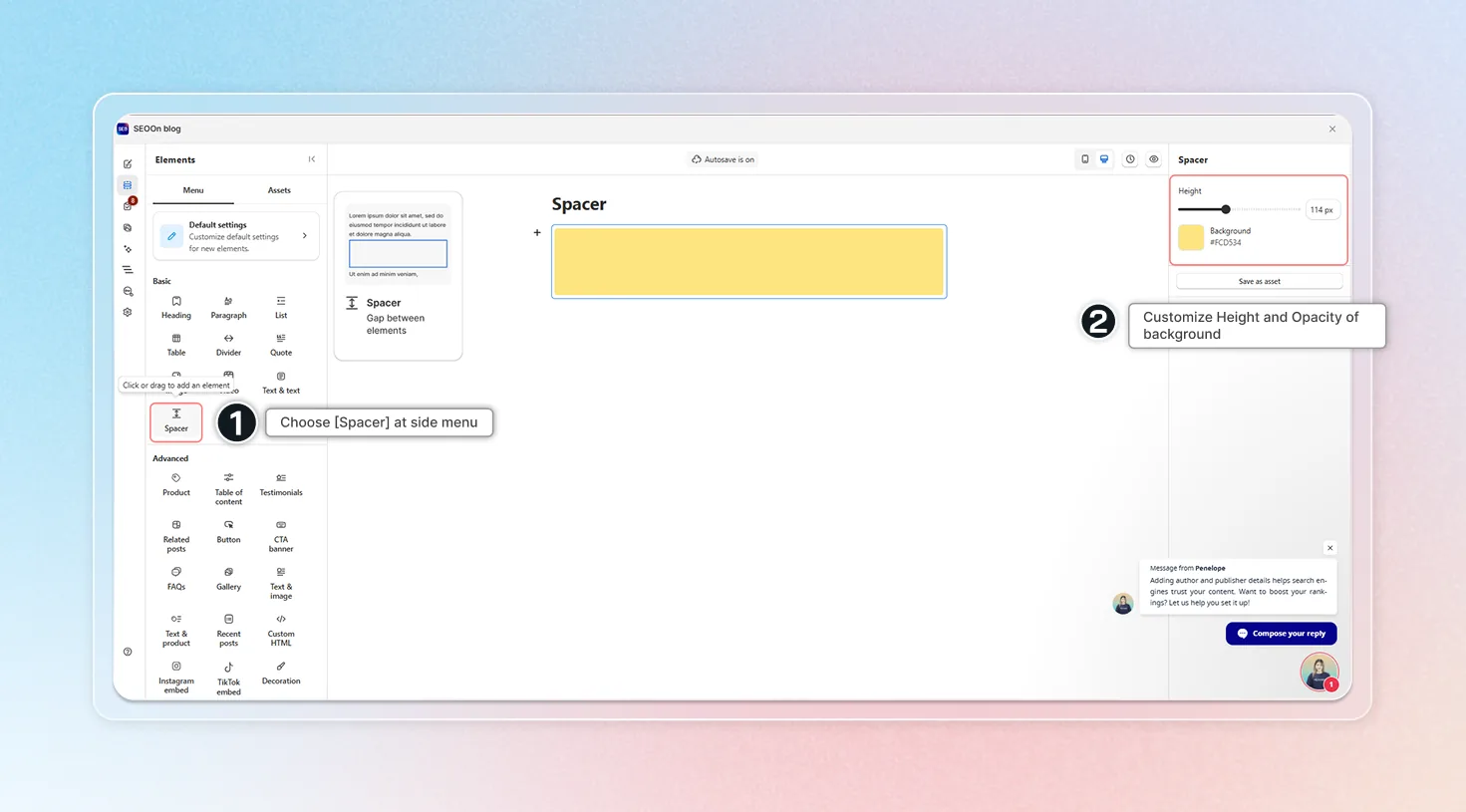
How to use:
- Add a Spacer element or type
/spacer - Adjust the height using the settings
- (Optional) Set a background color with opacity
Configuration:
- Height - Pixel value for vertical space
- Background color - Optional colored space
- Opacity - Control transparency of the background
Best practices:
- Use 20-40px for minor gaps, 60-100px for major section breaks
- Transparent spacers are most common - colored spacers work for visual emphasis
- Don't overuse - too much white space makes the post feel empty
- Consider Spacer v2 (New Elements) for more height options