Overview
Learn what elements are, why they matter for your store, and how to add them to your blog posts.
What are Elements?
Elements are the building blocks of every blog post in Avada AI Blog Builder. Instead of writing in one continuous text box like a traditional editor, you build your post by stacking independent content blocks - each one is an element.
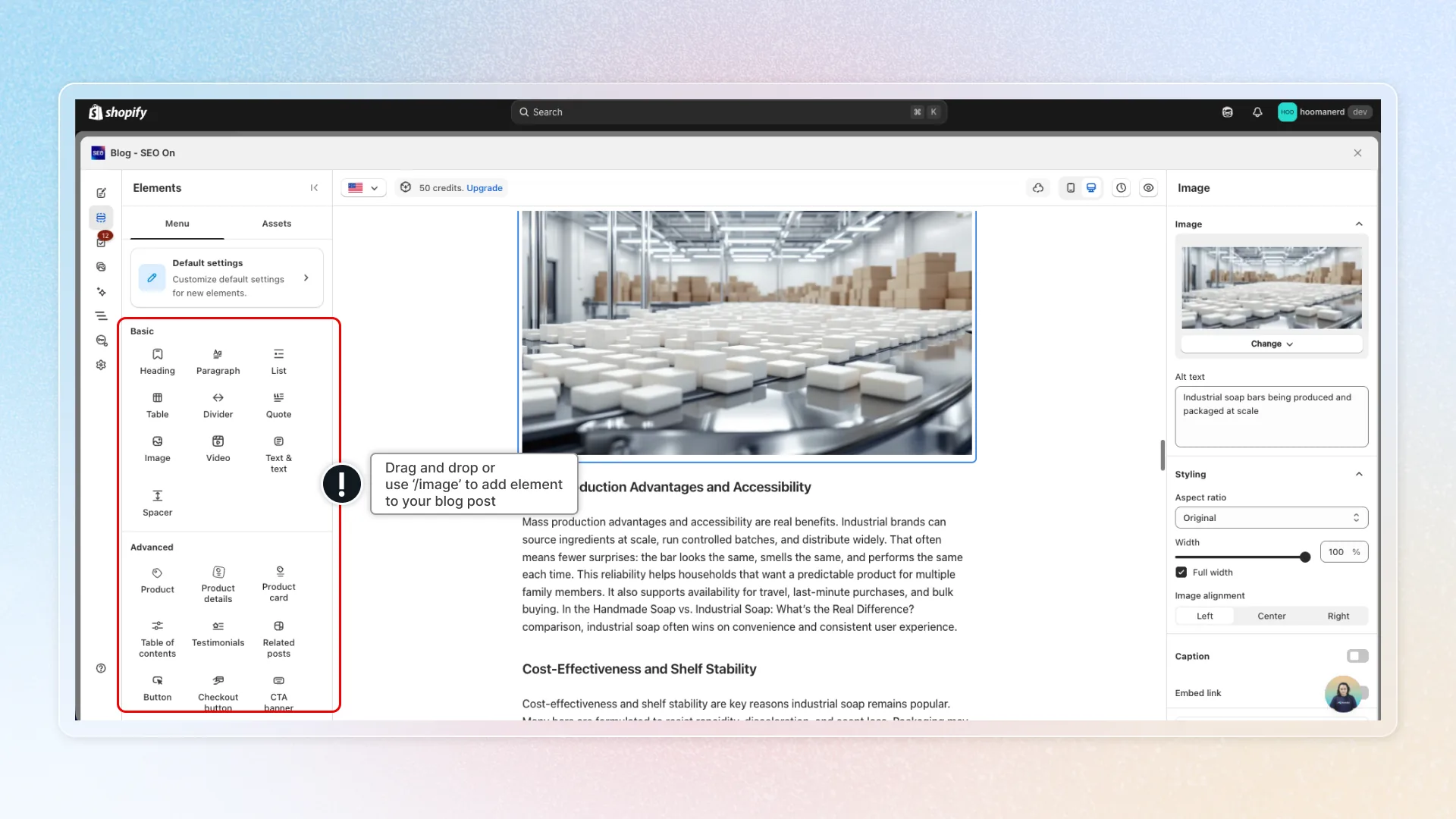
Think of it like building with LEGO: each piece has a specific shape and purpose. You pick the pieces you need, arrange them in order, and the result is a complete blog post.
Every element is:
- Independent - has its own settings and content
- Movable - drag to rearrange anytime
- Configurable - click to customize appearance and behavior
- Reusable - save as a component and use across multiple posts
Why Elements Matter for Your Store
1. Sell products inside your blog posts
Traditional blog editors only let you write text. With elements, you can embed products, checkout buttons, and CTA banners directly in your content. Every blog post becomes a sales page - readers discover your products in context and buy without leaving the article.
2. Rank higher on Google
Elements like Table of Contents, FAQs, and Recipe automatically generate structured data (schema markup) that Google uses for rich results. Your posts get more visibility in search with star ratings, FAQ dropdowns, jump links, and recipe cards - all without writing a single line of code.
3. Create professional content without a designer
Two-column layouts, image galleries, before/after sliders, testimonials, countdown timers - elements that would normally require a web designer are available with one click. Your blog looks like it was built by a professional content team.
4. Keep readers engaged longer
Walls of text drive readers away. Elements break your content into visually varied sections - images, videos, quotes, product cards, social embeds - keeping readers scrolling and reducing bounce rate. Lower bounce rate = better Google rankings.
5. Save time with reusable components
Configure an element once (your branded CTA banner, standard product layout, testimonial format), save it as a component, and reuse it across every post. Consistency without repetitive work.
How to Add Elements
There are 3 ways to insert an element into your post:
1. Elements Library (Left Panel)
Open the Elements tab in the left panel → browse categories → click any element to insert it at the cursor position.
2. The "+" Button
Between every two elements in the editor, a "+" button appears on hover. Click it to insert a new element at that exact position.
3. Slash Command
Type / anywhere in the editor to open a quick search. Start typing the element name (e.g., /image, /faq, /product) and select from the dropdown. This is the fastest method.
Tips for Building Great Posts
Start with structure
Before adding content, plan your post structure:
- Heading - Title of the section
- Paragraph - Your content
- Visual - Image, video, product, or embed
- CTA - What should the reader do next?
Repeat this pattern for each section. It creates a natural rhythm that keeps readers engaged.
Use the right element for the job
| If you want to... | Use this element |
|---|---|
| Show a product | Product, Product Card, or Text & Product |
| Get readers to buy | Checkout Button or CTA Banner |
| Add social proof | Testimonials or social embeds |
| Help readers navigate | Table of Contents |
| Boost SEO | FAQs, Recipe, Author, Heading structure |
| Create urgency | Event Countdown |
| Show before/after | Image Compare |
Save time with components
Found a layout you love? Save it as a component:
- Configure the element exactly how you want it
- Click the save/component option in the toolbar
- Name it (e.g., "Standard CTA Banner", "Product Spotlight Layout")
- Reuse across all future posts with one click
Set defaults
Tired of reconfiguring the same font size and colors? Set default settings for each element type. Every new instance starts with your preferred style.
Plan Availability
| Plan | What you get |
|---|---|
| Free | 10 basic elements |
| Pro | 30+ elements |
All plans include saved components, default settings, and drag-and-drop editing.