Understand your dashboard
A Theme store app embed indicator, a Quick start guide checklist, three request stat cards, and a Recent Withdrawal Requests list — everything you need to confirm your form is live and stay on top of incoming requests.
Anatomy of the Dashboard
The Dashboard stacks the following blocks from top to bottom:
| Block | What it shows |
|---|---|
| Theme store app embed | Whether the withdrawal form is active on your storefront (On or Off). |
| Quick start guide | The three setup tasks and your progress through them. |
| Stat cards | Open, received-in-period, and processed request counts, scoped by a Time period dropdown. |
| Recent Withdrawal Requests | The latest five submitted requests. |
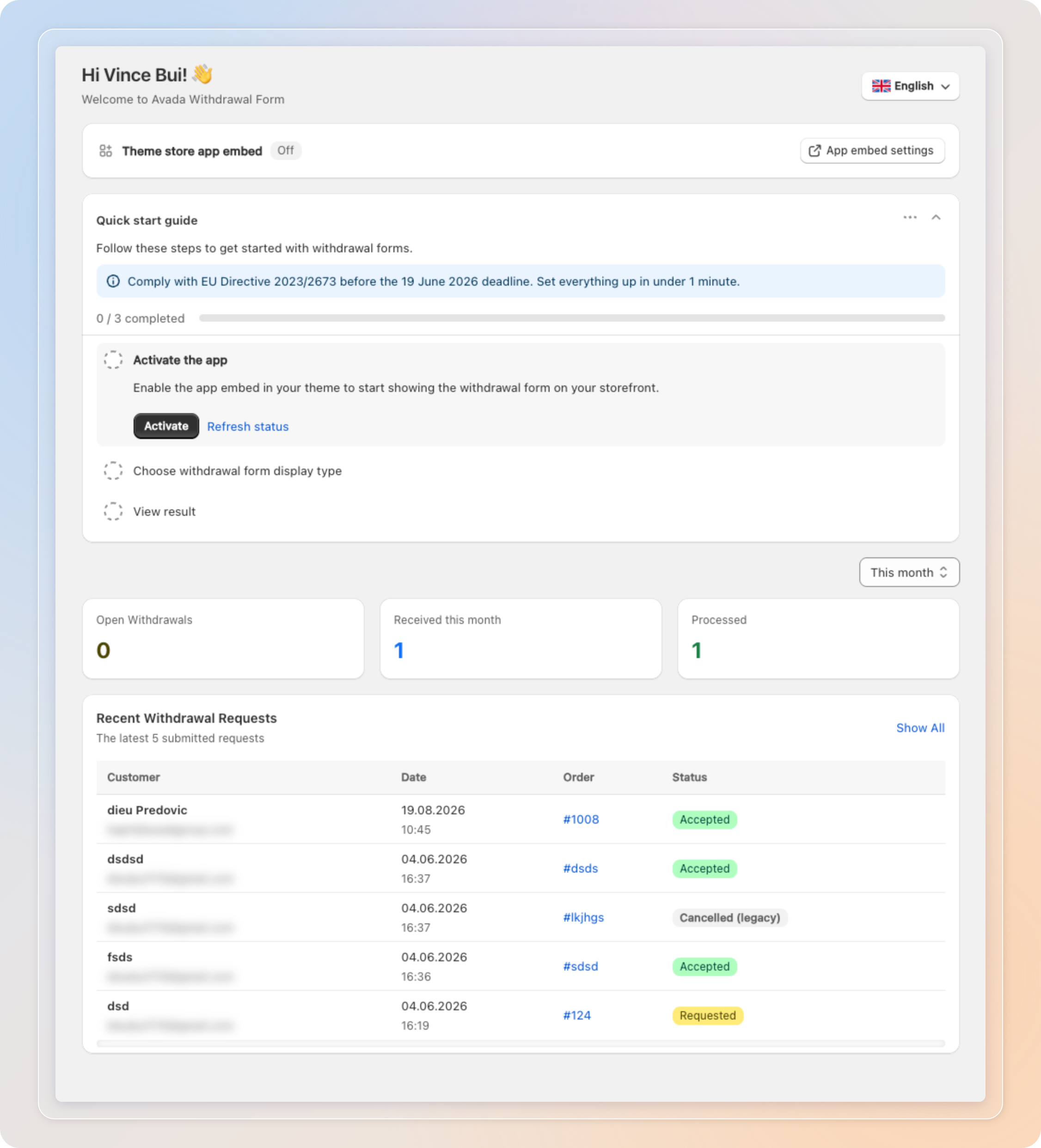
Use the language selector in the top-right corner to switch the admin language.
Block 1: Theme store app embed
A status bar showing whether the withdrawal form is active on your current theme.
- Off — the form isn't active yet, so customers can't see or submit it.
- On — the form is live on your storefront and customers can submit requests.
Click App embed settings to jump straight to the Shopify theme editor with the Avada embed pre-selected, so you can switch it on without hunting for it.
If this reads Off after install, finish the Activate the app task in the Quick start guide before anything else — no requests can come in until the embed is on.

Block 2: Quick start guide
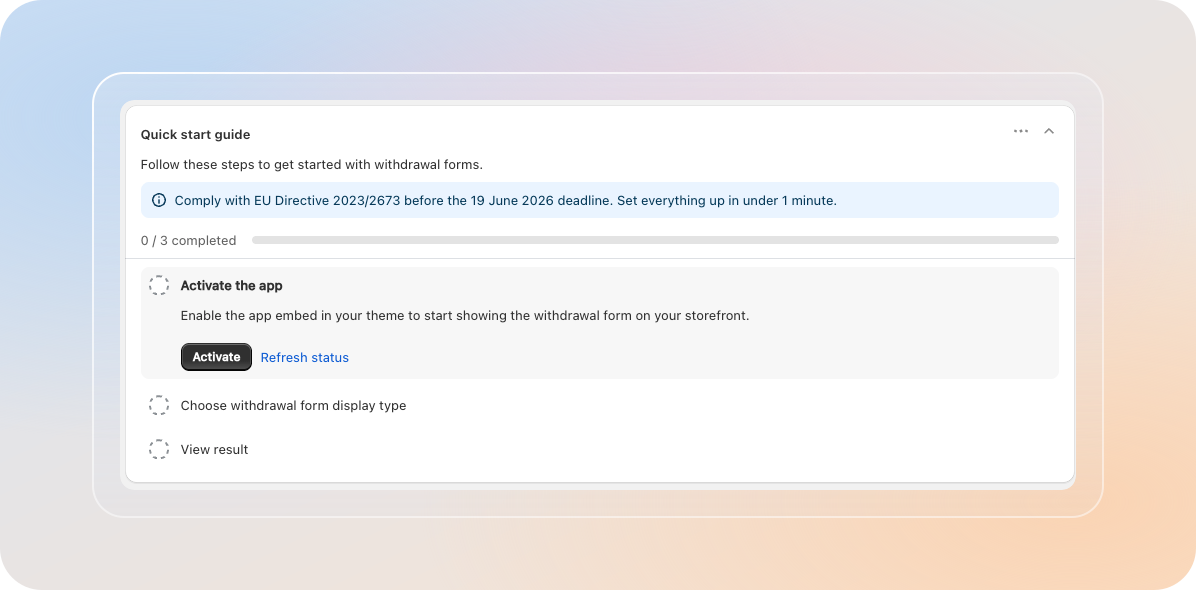
A three-task checklist that takes a new store from install to a live form. A progress bar ("0 / 3 completed") fills as you finish each task.
| Step | Task | What it does |
|---|---|---|
| 1 | Activate the app | Enable the app embed in your theme to start showing the withdrawal form on your storefront. Click Activate. |
| 2 | Choose withdrawal form display type | Pick how the withdrawal form appears on your store from the Form & Widget page. Click Choose display type. |
| 3 | View result | Preview the withdrawal form on your storefront to make sure everything looks right. Click Preview on store. |
Comply with EU Directive 2023/2673 before the 19 June 2026 deadline — the whole setup takes under a minute. The card collapses automatically once all three tasks are complete.
Block 3: Stat cards
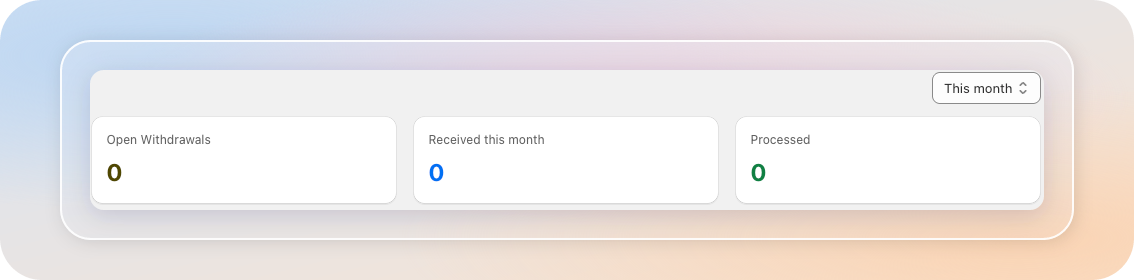
Three cards summarize your request activity, with a Time period dropdown above them that scopes the numbers.
| Card | What it counts |
|---|---|
| Open Withdrawals | Requests that still need your action. |
| Received this month | Requests submitted in the selected period. The card label follows the dropdown — pick This week and it reads Received this week. |
| Processed | Requests you've already resolved. |
The dropdown offers This week, Last week, This month (default), and Last month.
Block 4: Recent Withdrawal Requests
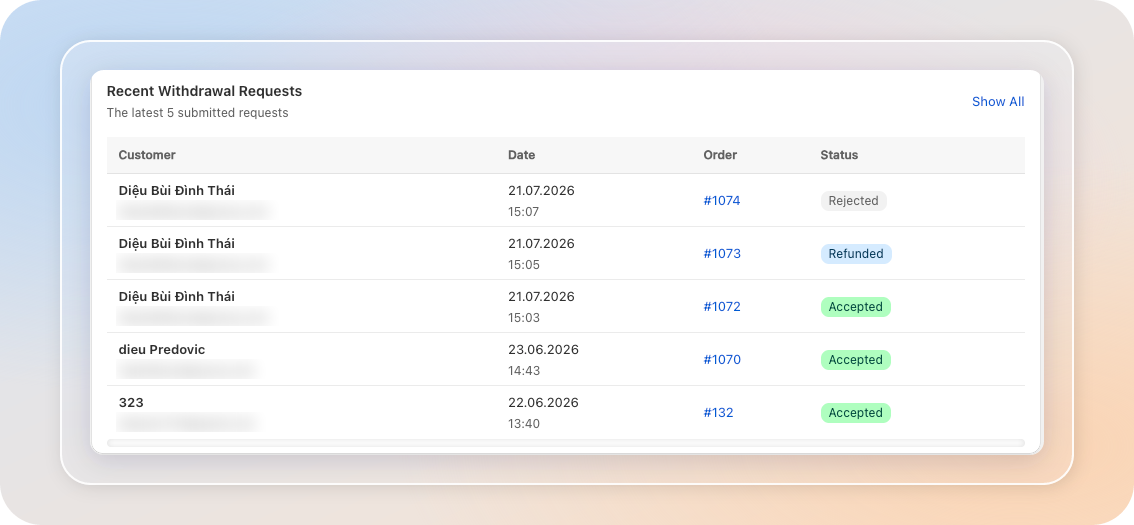
The latest five submitted requests, so you can jump straight into the newest activity.
- Each row shows the Customer, Date, Order, and Status.
- Click an order number to open that request's detail page.
- Click Show All to go to the full Withdrawals list.
Tips
- Check the Theme store app embed badge first; if it reads Off, your form isn't live yet.
- Treat Open Withdrawals as your daily to-do count and clear it regularly.
- Use Show All whenever you need to search or sort beyond the latest five requests.
Related Articles
And there you have it! You now know what every block on the Avada Withdrawal Form Dashboard means. Finish the Quick start guide, then check back to keep your open requests under control.
If you have any questions or run into any issues, don't hesitate to reach out. We're here to help!