Configure Email Notifications
Avada Withdrawal Form sends two kinds of email: a confirmation to the customer and a notification to you. You manage both from one place on the Settings page.
Open email notification settings
Open Avada Withdrawal Form and go to the Settings page. In the left column, select the Email notification tab.
You'll see two cards:
| Card | Sent to | |
|---|---|---|
| Customer emails | Withdrawal request confirmation | The customer, when they submit a withdrawal request. |
| Store owner emails | Withdrawal request notification | You (the store owner), when a new request comes in. |
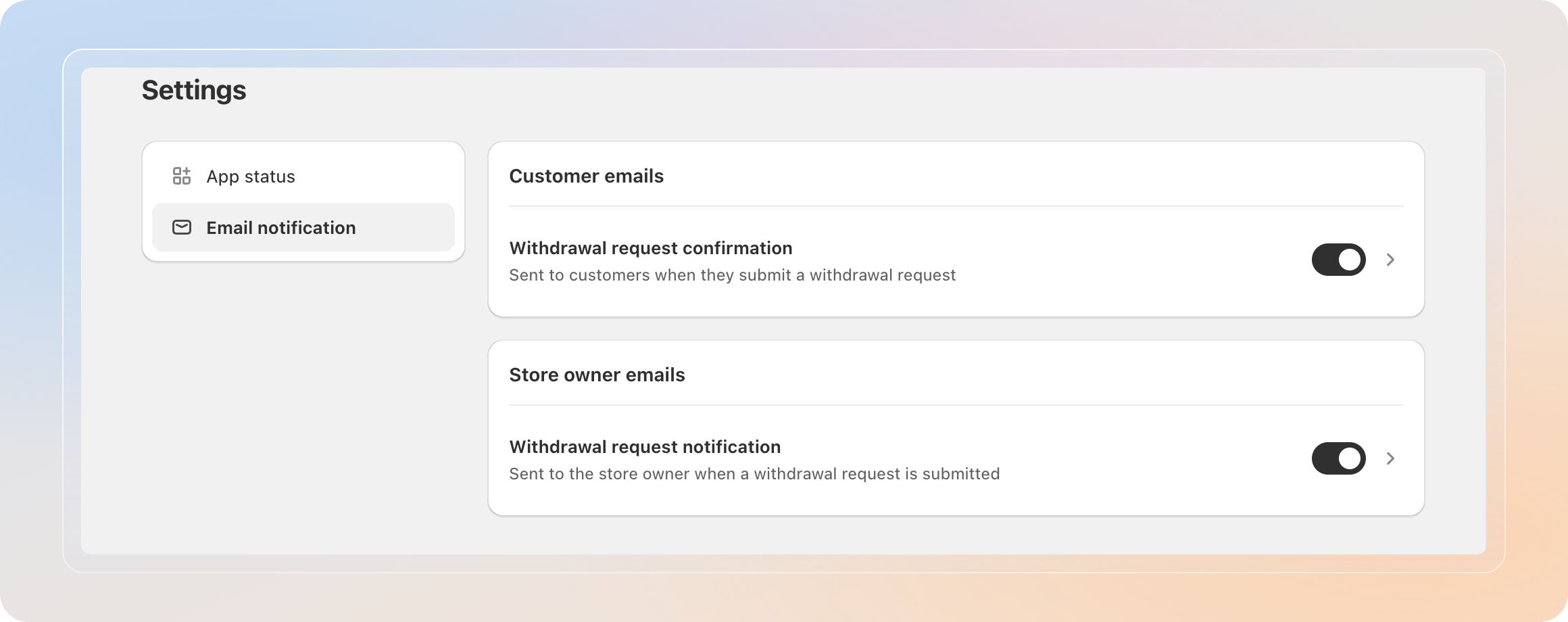
Both emails are turned on by default.
Turn each email on or off
Use the toggle on the right of each row to enable or disable that email.
- Turn off Withdrawal request confirmation to stop sending the customer their receipt email.
- Turn off Withdrawal request notification to stop emailing yourself about new requests.
Keep the store owner notification on so you never miss a new request, even when you're not in the app.
Open an email to customize it
Click a row (or the › arrow) to open that email's editor, where you can change the subject, body, and sender details.
- Withdrawal request confirmation opens the customer confirmation email editor.
- Withdrawal request notification opens the store owner email editor.
Tips
- Leave the customer confirmation on to reassure shoppers that their request is being handled.
- If your team checks the Withdrawal request page regularly, you can turn off the store owner email to reduce inbox noise.
- Editing the email content and translating it for each language are Pro features. See the FAQ for details.
Related Articles
And there you have it! You've configured your email notifications. The right people are now alerted the moment a withdrawal request is submitted.
If you have any questions or run into any issues, don't hesitate to reach out. We're here to help!