Block Visitors by IP, Country, or Location
Rules let you block or redirect visitors based on their IP address, country, state/province, or city. Each rule you create applies to incoming visitors in real time - no restart required.
Open the Rules page
In the app sidebar, click Rules.
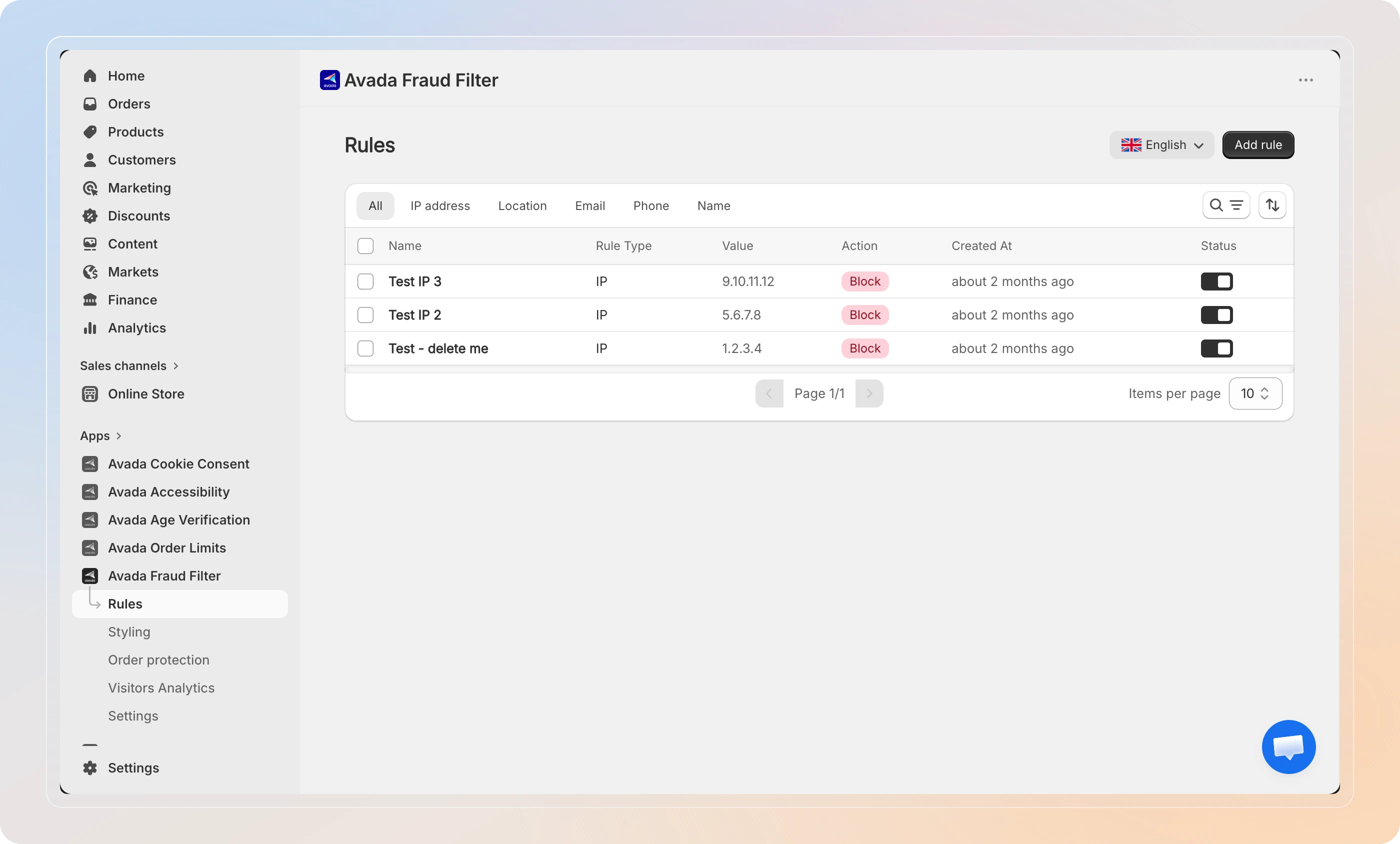
The list shows all your saved rules, organized by tabs: All, Blacklist, Whitelist, IP address, Location, Email, Phone, and Name.
Add a new rule
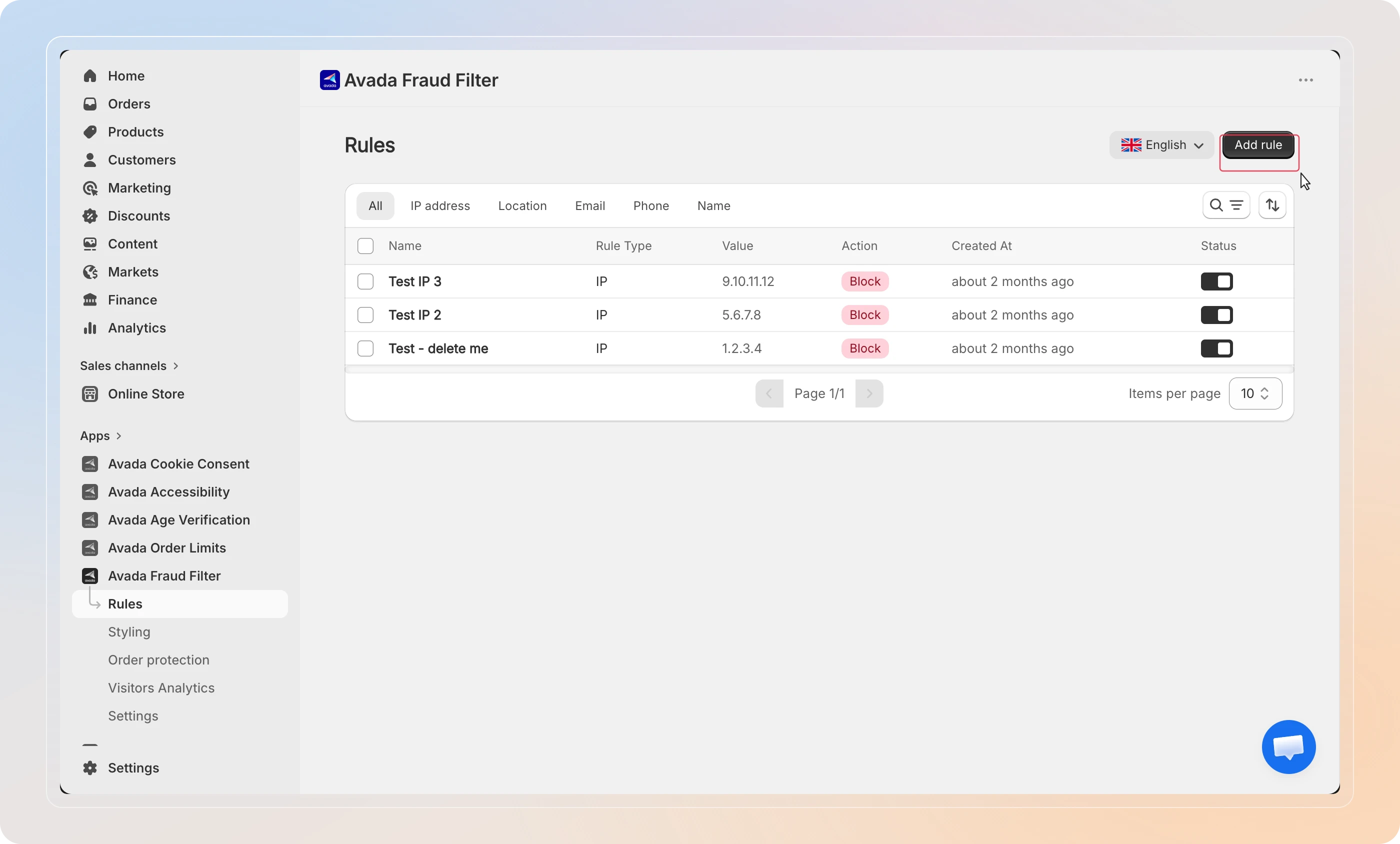
Click Add rule in the top right.
This opens the Rule detail page where you configure what to match and what action to take.
Choose a rule type
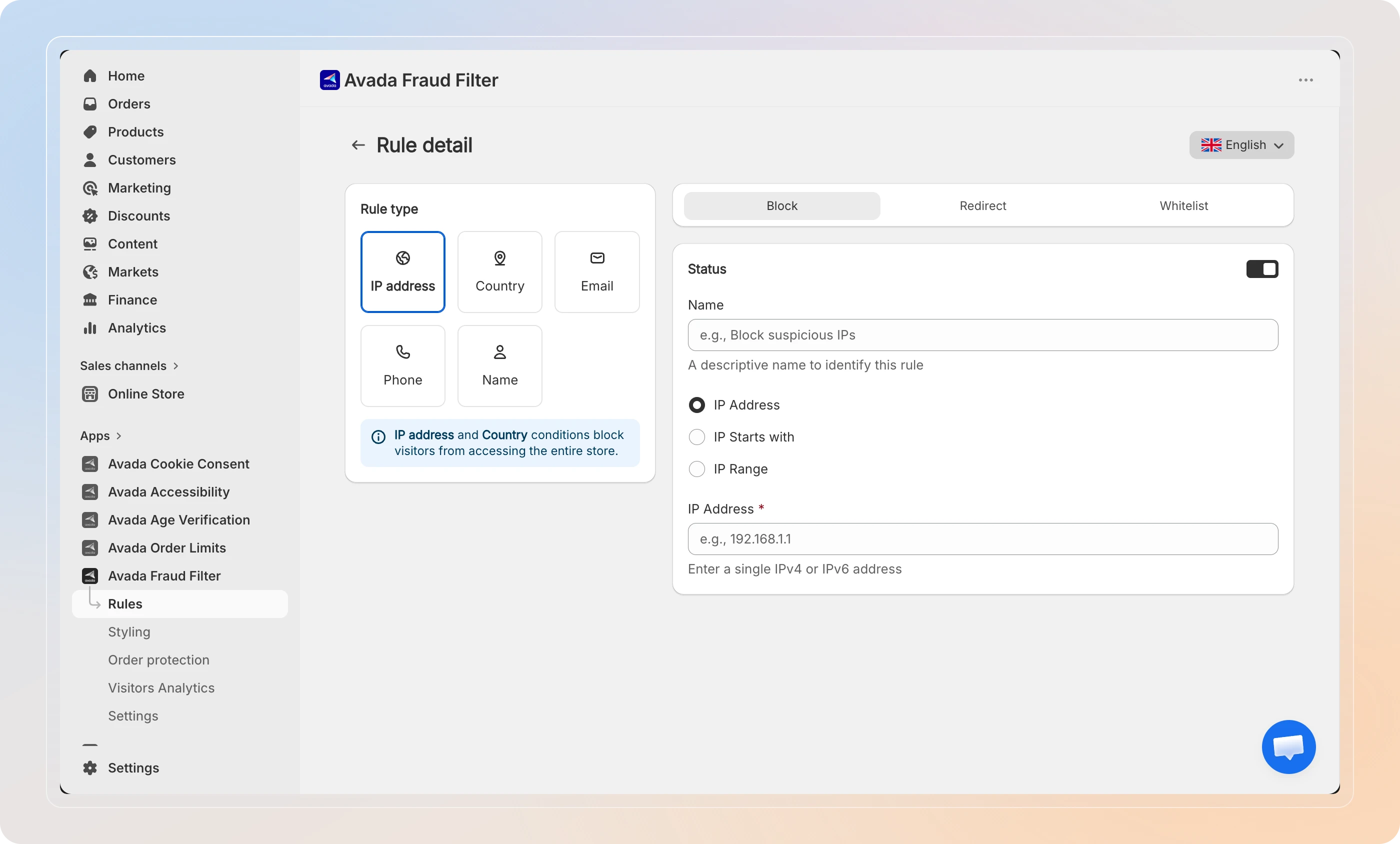
In the Rule type panel, select the type of visitor data to match:
| Type | What it matches |
|---|---|
| IP address | A specific IP, IP prefix, or IP range |
| Country | A country, state/province, or city |
| A customer's email address at checkout | |
| Phone | A customer's phone number at checkout |
| Name | A customer's name at checkout |
Email, Phone, and Name rules apply at checkout only. For storefront-level blocking, use IP address or Country. See Block Fraudulent Customers at Checkout for the checkout types.
Then fill in the details for your chosen type:
IP address
Select one of these match modes:
- IP Address - enter a single IPv4 or IPv6 address (e.g.,
192.168.1.1) - IP Starts with - enter a prefix to match all IPs beginning with that string (e.g.,
192.168) - IP Range - enter a Start IP and End IP to cover an entire range
- CIDR Notation - enter a range in CIDR format (e.g.,
192.168.1.0/24)
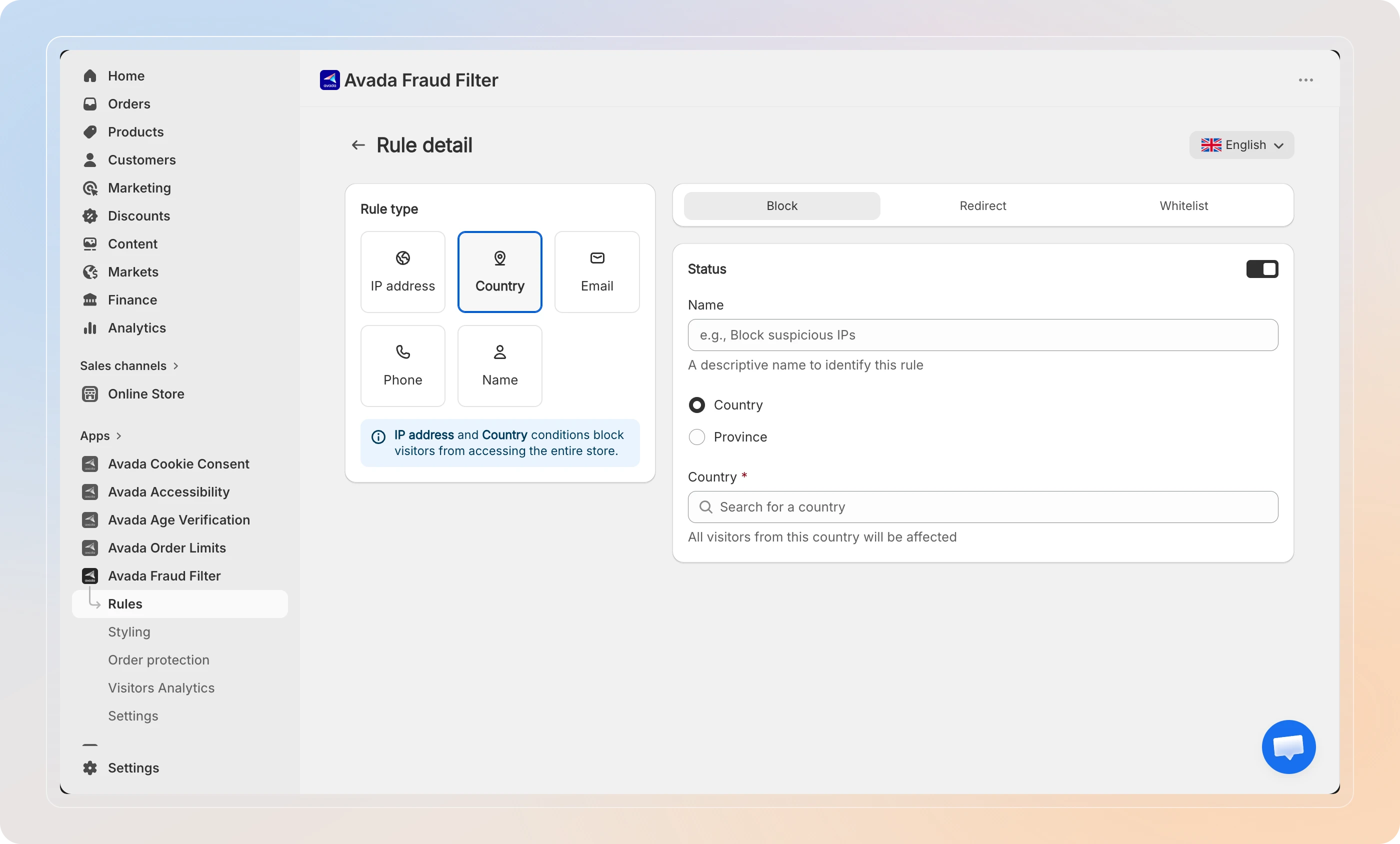
Country
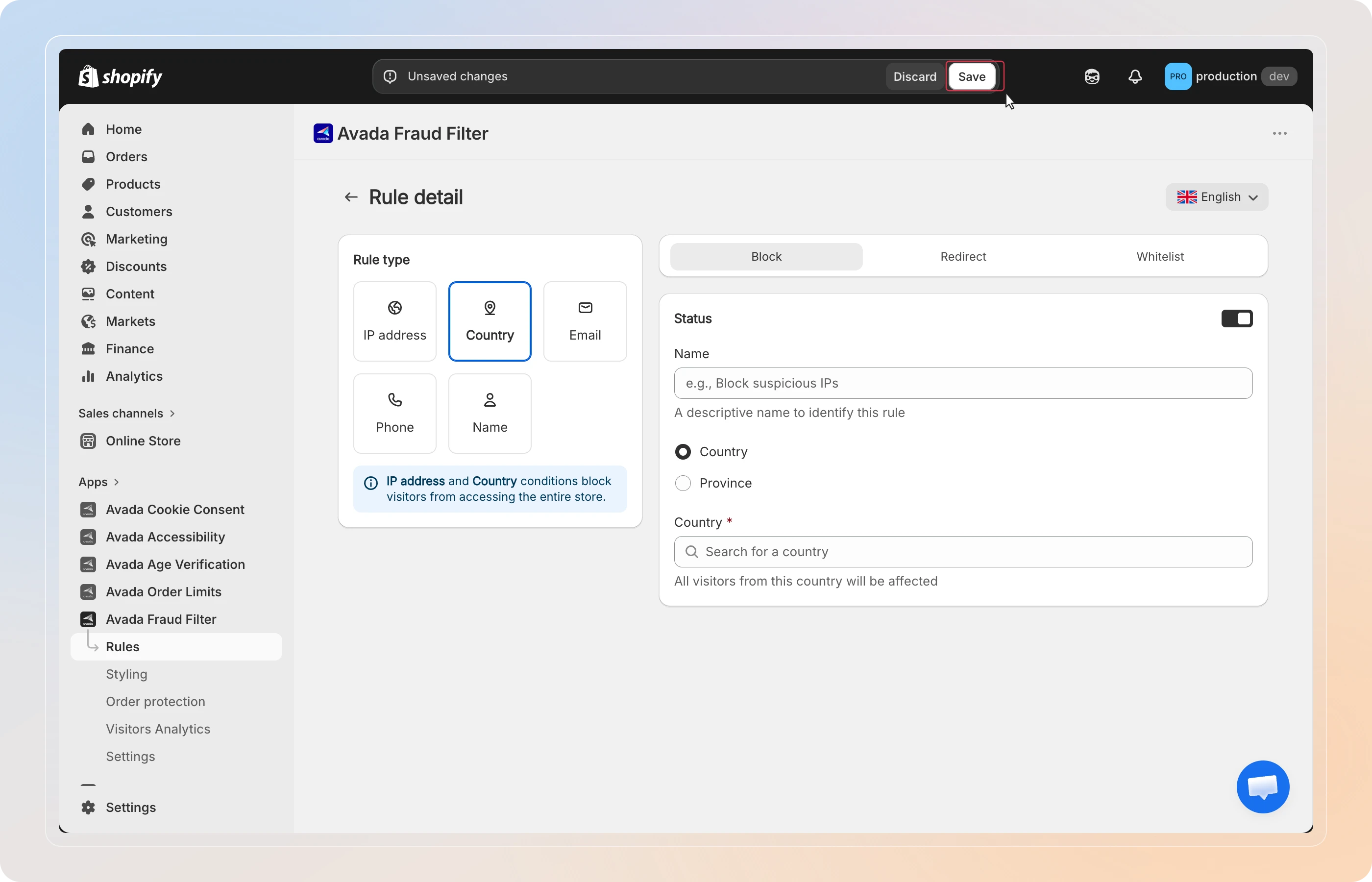
Select Country to match all visitors from a country, or Province to narrow to a specific state/province and optionally a city.
- Country - search for and select a country in the Country field
- Province/State - select a country first, then choose a Province/State, and optionally enter a City
Choose an action
Select the action for this rule:
| Action | What happens |
|---|---|
| Block | The visitor sees a block page and cannot proceed |
| Redirect | The visitor is immediately sent to a URL you specify |
| Whitelist | The visitor bypasses all blocking rules - use this for trusted IPs |
If you select Redirect, enter the destination in the Redirect to field. Enter the domain without https:// (e.g., example.com).
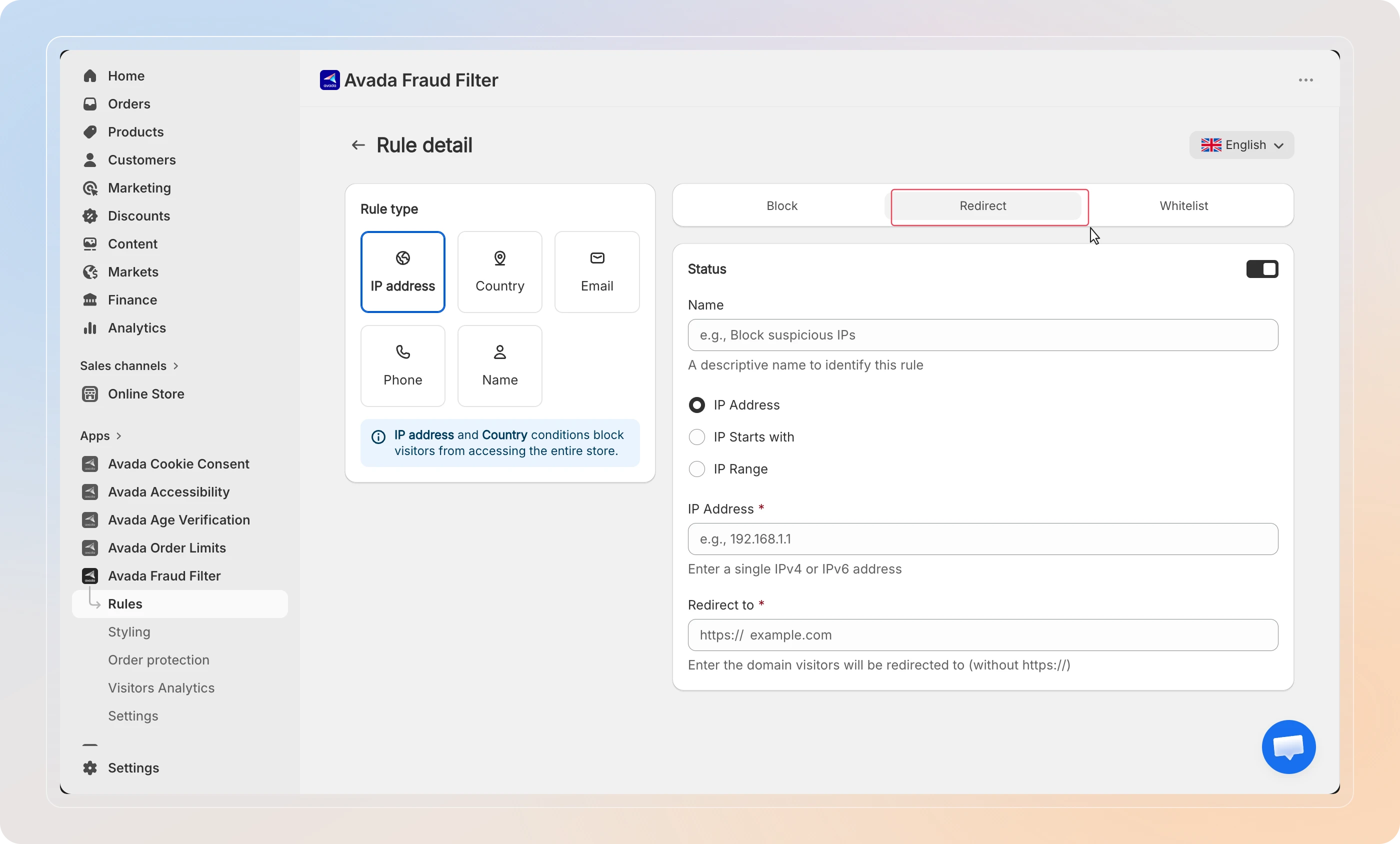
Tip: Use Redirect to send blocked visitors to a custom page explaining why access is restricted, rather than showing the generic block page.
Save the rule
Optionally, enter a descriptive Name (e.g., Block suspicious IPs) to help you identify the rule in the list.
The Status toggle is Active by default - leave it on to apply the rule immediately.
Click Save in the top bar. The rule appears in your list with its type, scope, and status.
Manage your rules
From the Rules list you can update or remove any rule:
- Click a rule row to Edit rule - change its type, details, action, or name.
- Use the row's action menu to Delete rule permanently (you'll be asked to confirm).
- To pause a rule temporarily, open it and set Status to Inactive, then save. The rule stays in your list and can be re-enabled at any time.
You can also filter by tab (IP address, Location, etc.), filter by Rule Type, Rule Scope, or Status, and sort by Newest first, Type A-Z, and more.
Bulk import IP rules
To add many IP rules at once, use Import on the IP address type and upload a .csv or .txt file. The app previews the entries it found, then imports them - skipping duplicates and invalid lines automatically.
Imported entries are subject to your blacklist limit. If a file exceeds the limit, the extra entries are skipped and the app tells you how many.
Tips
- Filter by tab - use the tabs at the top of the Rules list to quickly find the rule you need.
- Whitelist before you block - if you're blocking an entire country but need to allow specific IPs (e.g., your own office), create a Whitelist rule for those IPs first. Whitelist rules always take priority.
- Combine rules - pair a Country block with an IP whitelist to block an entire region while keeping access for known trusted addresses.
- Avoid locking yourself out - if you enter an IP that matches your own current IP, the app warns you before saving.
And there you have it! You've successfully created a rule to block or redirect visitors. The rule applies to incoming traffic in real time.