Customize Your Block Page
The block page is what visitors see when one of your rules stops them. With Styling, you control its message, colors, fonts, and button - so a blocked visitor gets a clear, on-brand explanation instead of a dead end.
You can style your block page at any time, even before adding rules.
Open Styling
In the sidebar, click Styling.
The editor sits on the left, with a live Preview of your block page on the right that updates as you make changes.
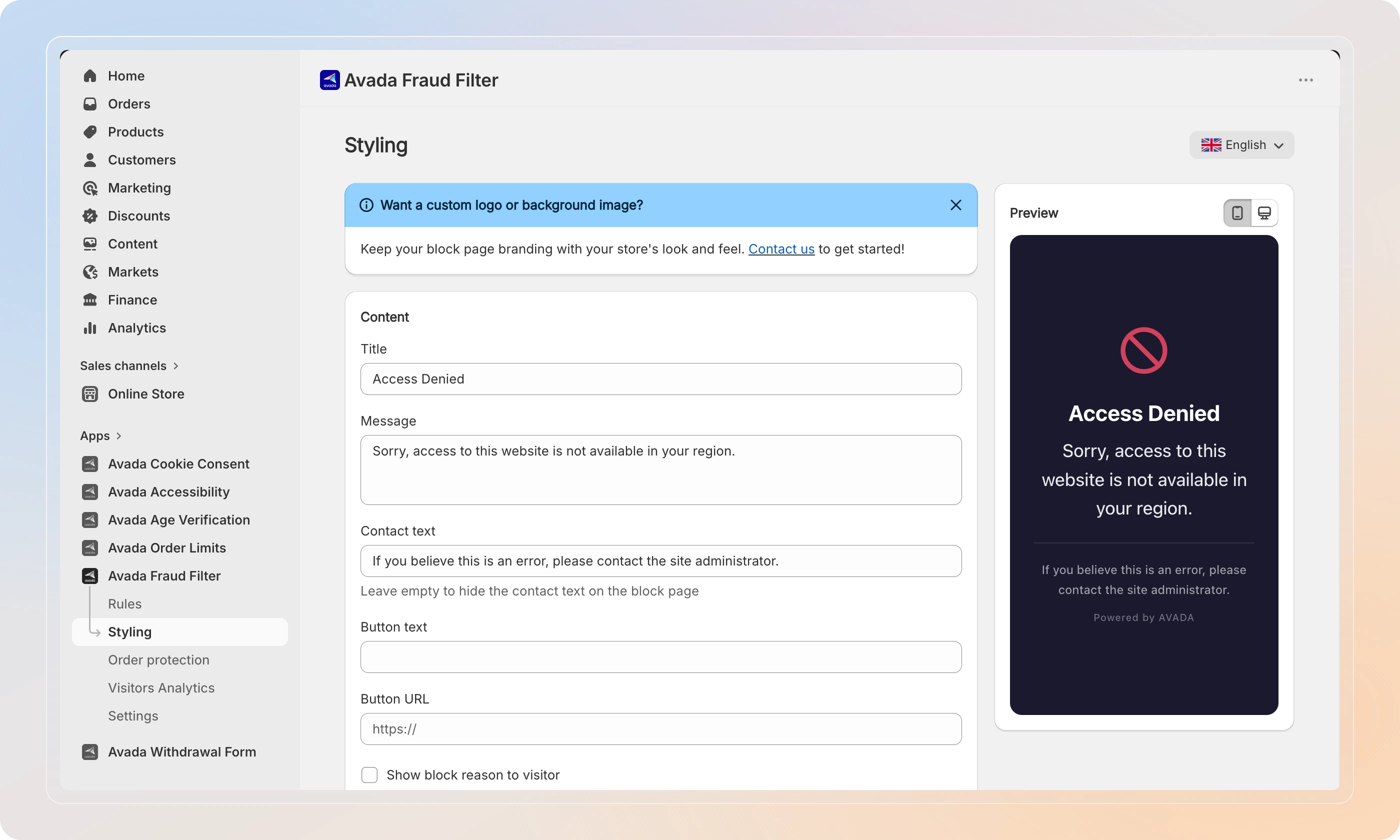
Edit the content
Under Content, set the text visitors read:
| Field | What it controls |
|---|---|
| Title | The headline (required) - e.g., Access Denied |
| Message | The explanation below the title |
| Contact text | Optional support line - leave empty to hide it |
| Button text | Optional call-to-action button label |
| Button URL | Where the button links (required if button text is set; must start with http:// or https://) |
You can also turn on Show block reason to visitor to tell visitors why they were blocked.
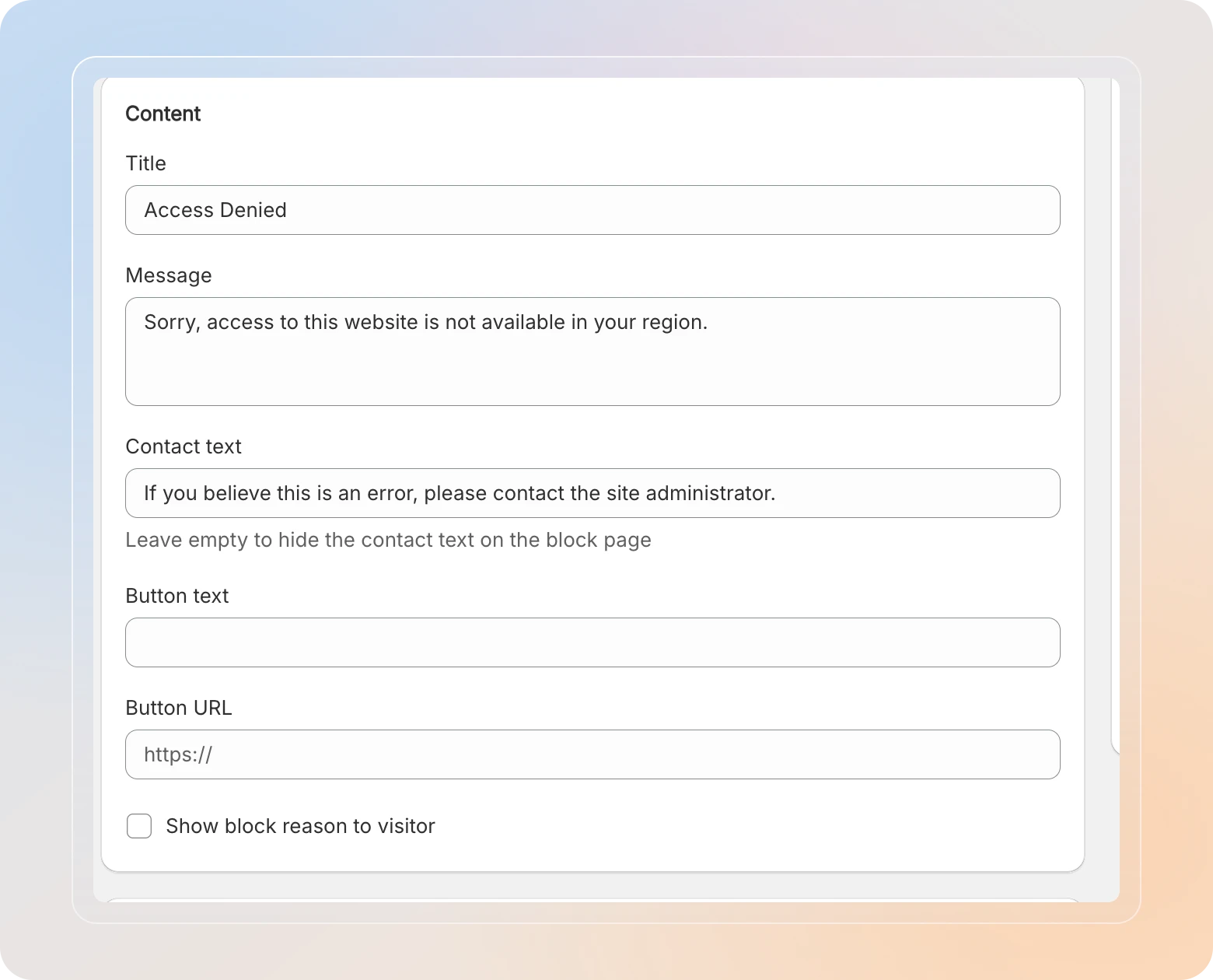
Showing the block reason may reveal your rule configuration to visitors. Leave it off unless you have a reason to expose it.
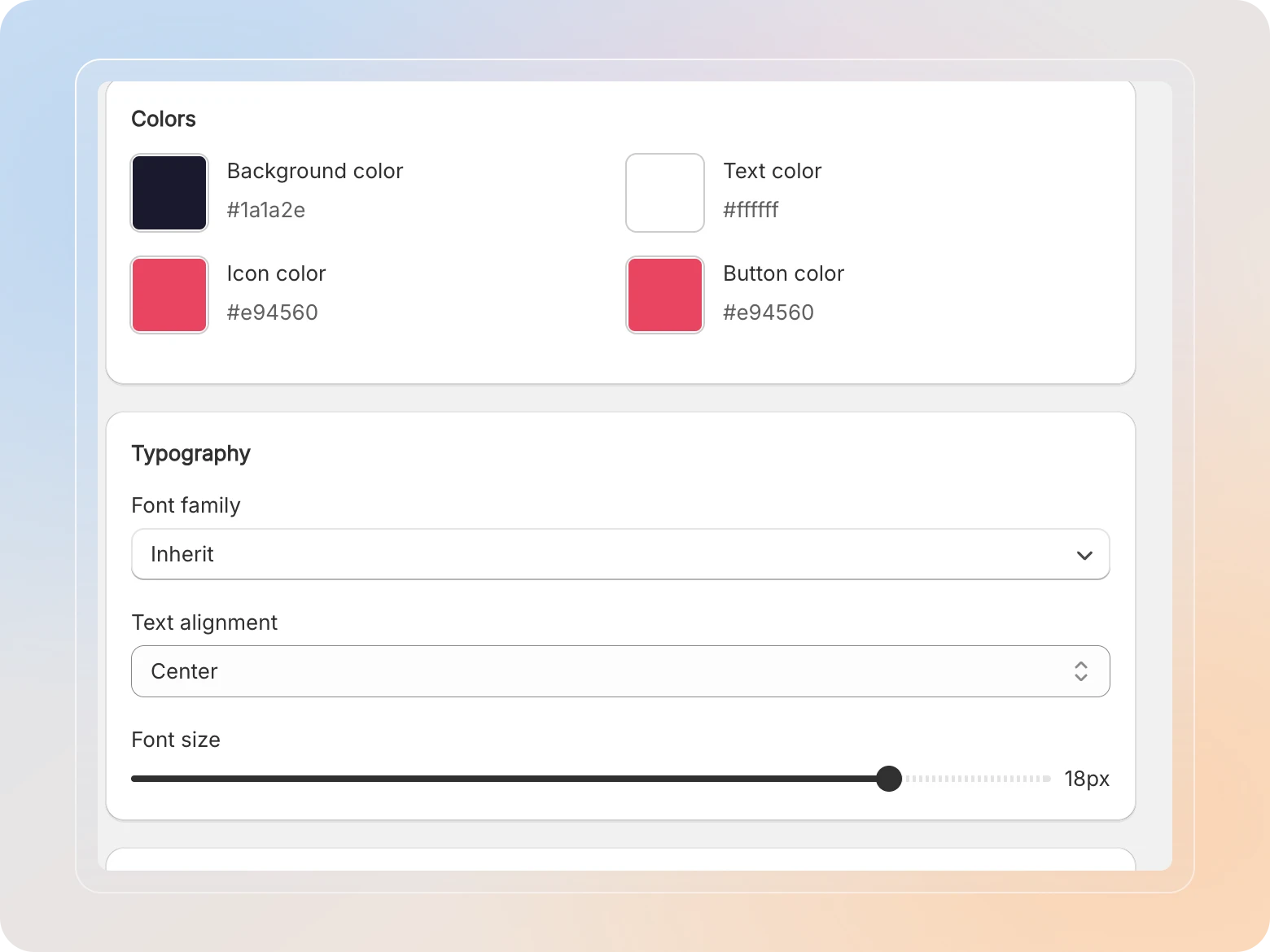
Set colors and typography
Match the page to your brand.
- Colors - set Background color, Text color, Icon color, and Button color.
- Typography - choose a Font (or Inherit from your store), adjust Font size, and set Text alignment to Left, Center, or Right.
Watch the live preview update with each change.
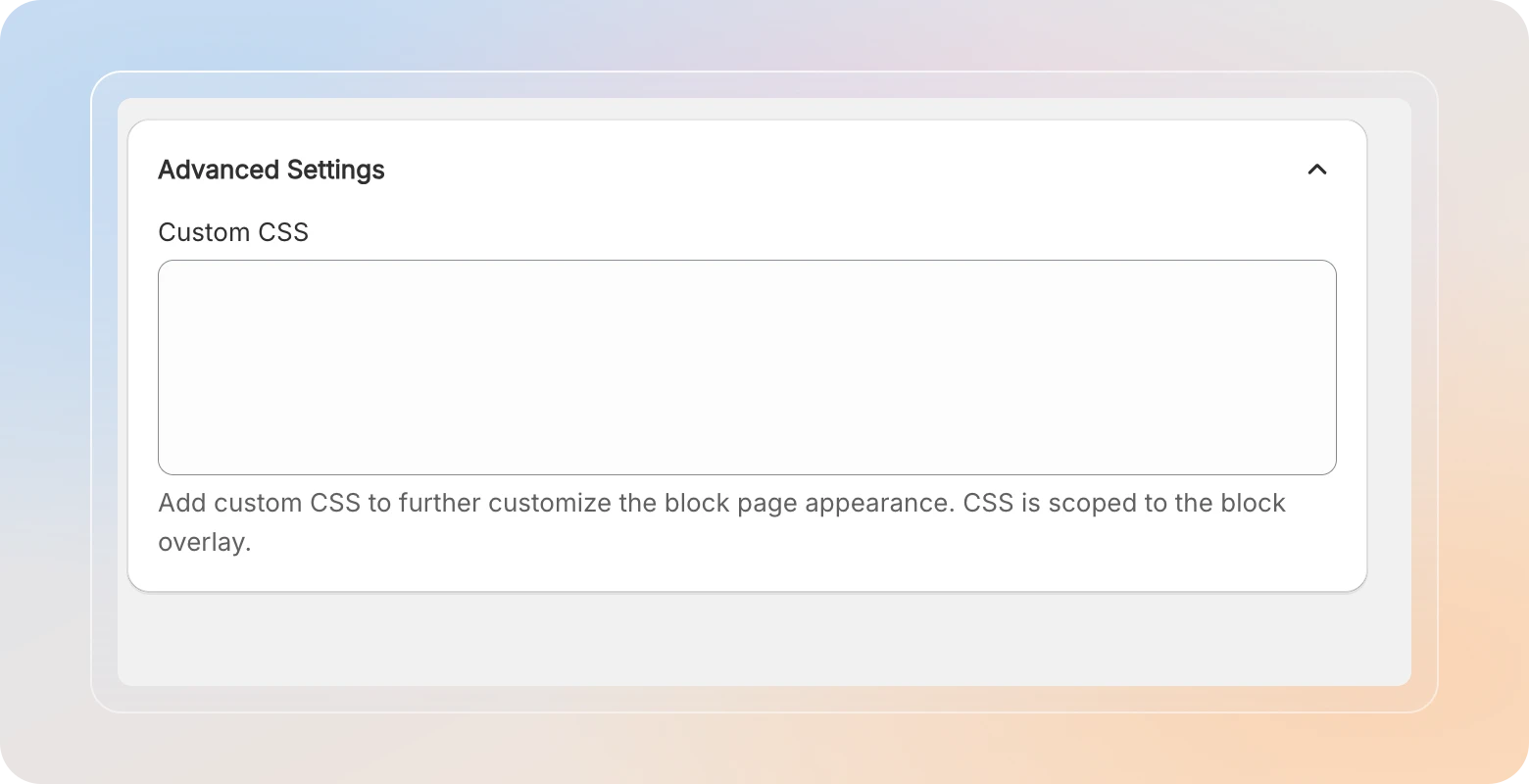
Add custom CSS (optional)
For fine-grained control, open Advanced Settings and add Custom CSS. Your CSS is scoped to the block overlay, so it only affects the block page.
Preview and save
- Use the preview to check both mobile and Desktop preview.
- When you're happy, click Save in the top bar.
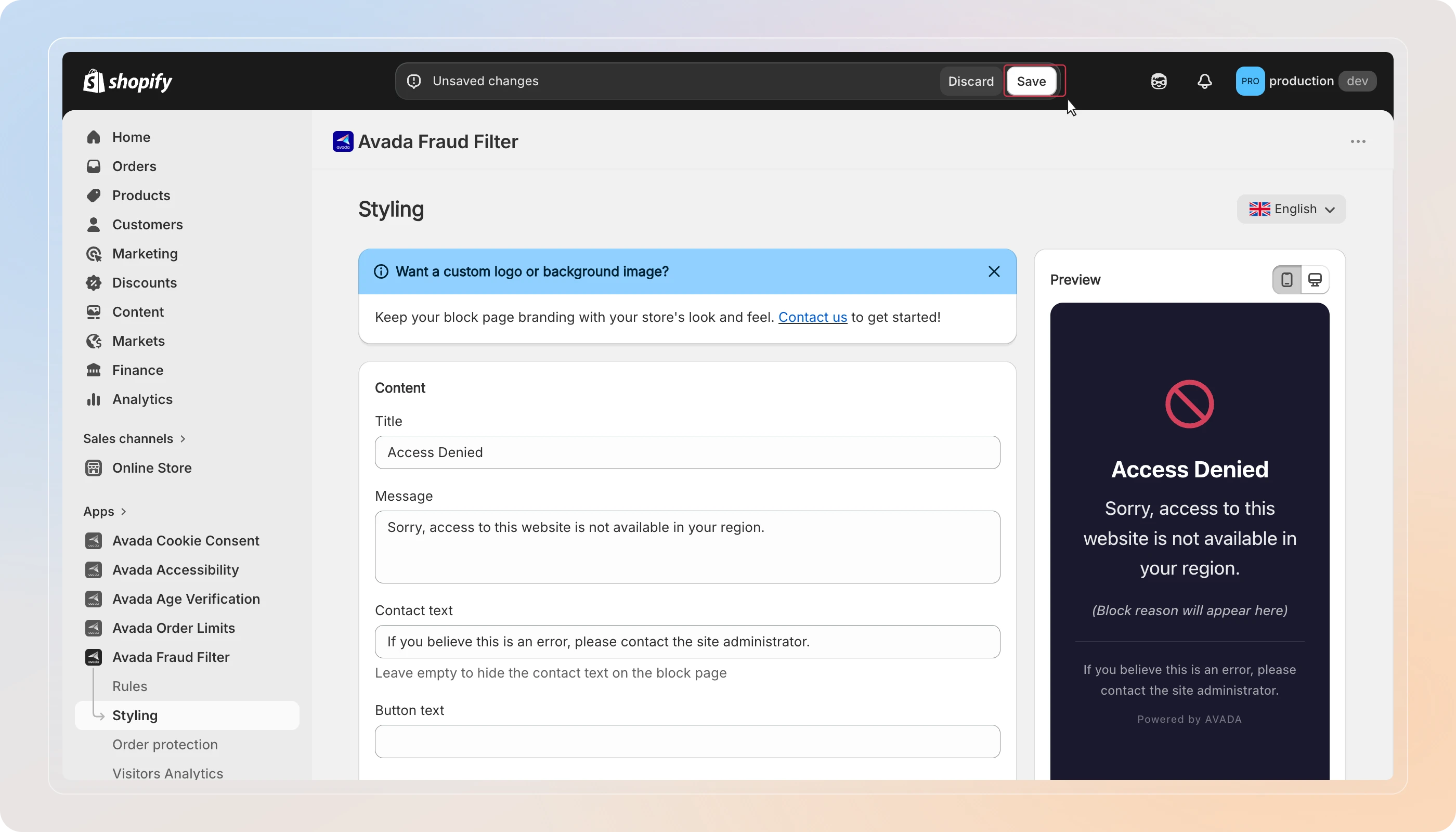
Want a custom logo or background?
The styling editor covers text, colors, and fonts. If you'd like a custom logo or background image to fully match your store's branding, use the Want a custom logo or background image? banner on the Styling page and click Contact us - our team will help you set it up.
Tips
- Keep the message helpful - tell visitors what happened and how to reach you, rather than just "Access Denied." A support line reduces confusion and angry emails.
- Test on mobile - most storefront traffic is mobile, so check the default preview before saving.
- Mind your contrast - pick text and background colors with enough contrast so the page stays readable.
And there you have it! You've successfully customized your block page. Blocked visitors now see a clear, on-brand message.