Understand Risk Scores & Risk Factors
Once order risk analysis is on, every order gets a risk score from 0 to 100% and a risk level of Low, Medium, or High. This article explains where the score comes from, how you can customize it, and how to read an order's risk breakdown.
Prerequisites
- Order risk analysis must be enabled. See Set Up Order Risk Analysis.
How the score works
Each order is checked against eight risk factors. Every factor that triggers adds its weight to the order's total, then the total is normalized so it always lands on a 0-100% scale - even if you've turned some factors off.
| Risk factor | What triggers it | Default weight |
|---|---|---|
| Bot detection | Automated or headless browser | 25 |
| VPN/Proxy detection | VPN or proxy connection (via VPNapi.io) | 20 |
| IP ≠ Shipping country | IP location doesn't match shipping address | 15 |
| Multiple orders from same IP | More than your threshold of orders from one IP in 24 hours | 15 |
| High order value | Order total above your value threshold | 10 |
| New customer | First order from this customer | 5 |
| High-risk country | Shipping to a country on your high-risk list | 5 |
| Suspicious email | Disposable / temporary email provider | 5 |
The score then maps to a risk level:
- Low - score 0-30%
- Medium - score 31-69%
- High - score 70-100%
Note: You control which factors count, their thresholds, and now their weight, in Settings → Order protection → Risk factors. Turning a factor off removes it from every future score, and the remaining factors are automatically re-normalized to 100% - so your risk levels stay meaningful even if you only use two or three factors.
Customize each factor's weight
Every risk factor now has its own Weight field next to its toggle. Raise a factor's weight to make it count more toward the final score, or lower it if that signal isn't reliable for your store. Avada Fraud Filter automatically re-normalizes all enabled weights back to 100%, so you don't need to make them add up to any specific number yourself.
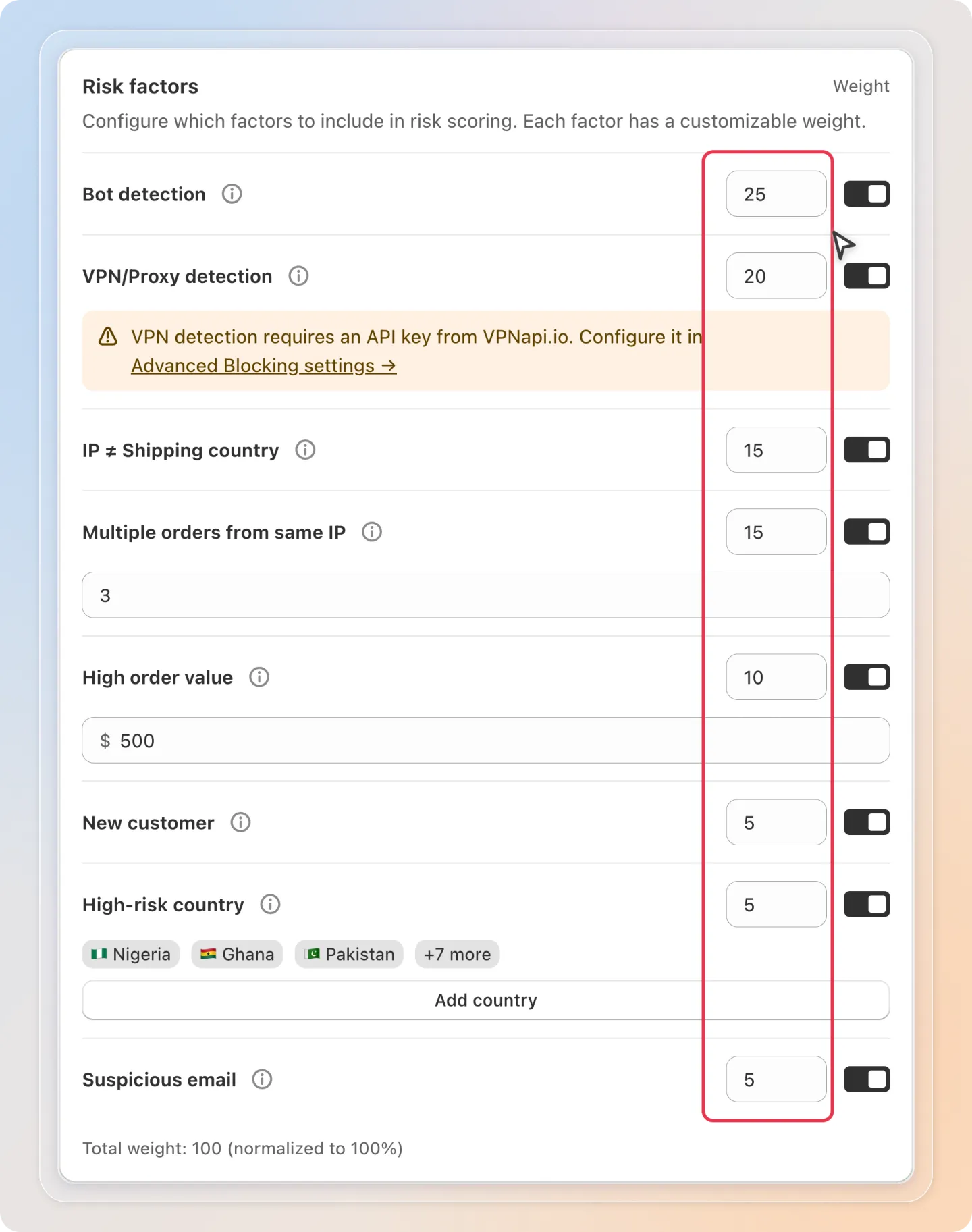
Tip: If you only enable a couple of factors that matter most to your store (for example Bot detection and Multiple orders from same IP), those factors alone can now drive an order to a High risk score - you no longer need every factor on to reach 100%.
Better detection for disposable emails
The Suspicious email factor now recognizes a much wider list of disposable and temporary email providers than before, so orders placed with throwaway email addresses are caught more reliably.
VPN detection needs an API key
If you turn on VPN/Proxy detection but haven't added a VPNapi.io API key yet, you'll see a warning banner right under that factor reminding you to configure it in Advanced Blocking settings. Until the key is added, this factor is skipped for new orders instead of silently doing nothing.
Note: Orders that were scored before this update keep showing their original score on the old 0-100 point scale. Only orders scored after the update use the new percentage scale, so scores stay accurate for the scoring method that was active when each order came in.
Open the Order protection page
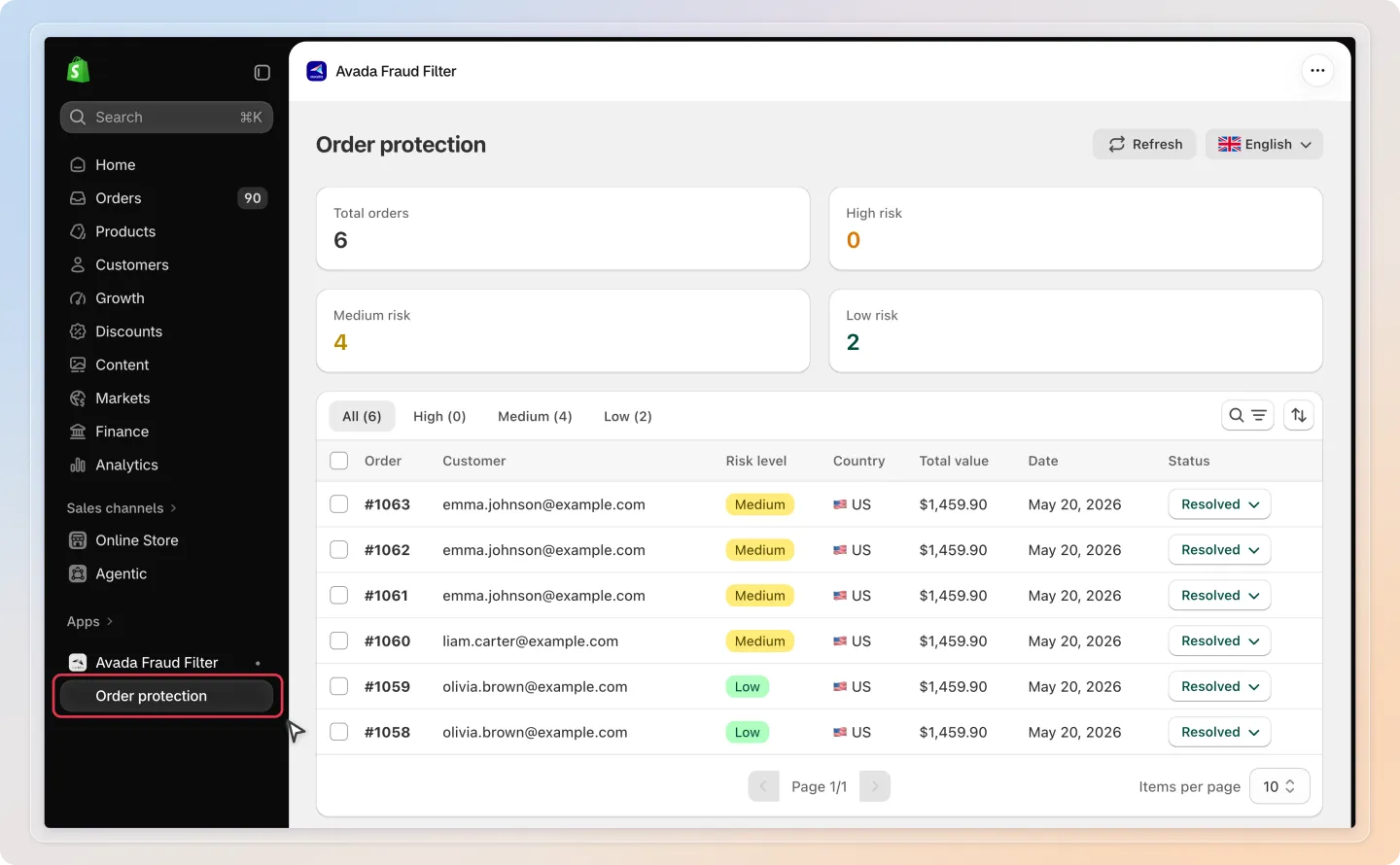
In the sidebar, click Order protection.
The page opens with summary cards - Total orders, High risk, Medium risk, and Low risk - and a list of analyzed orders.
Filter and sort
Find the orders you care about most:
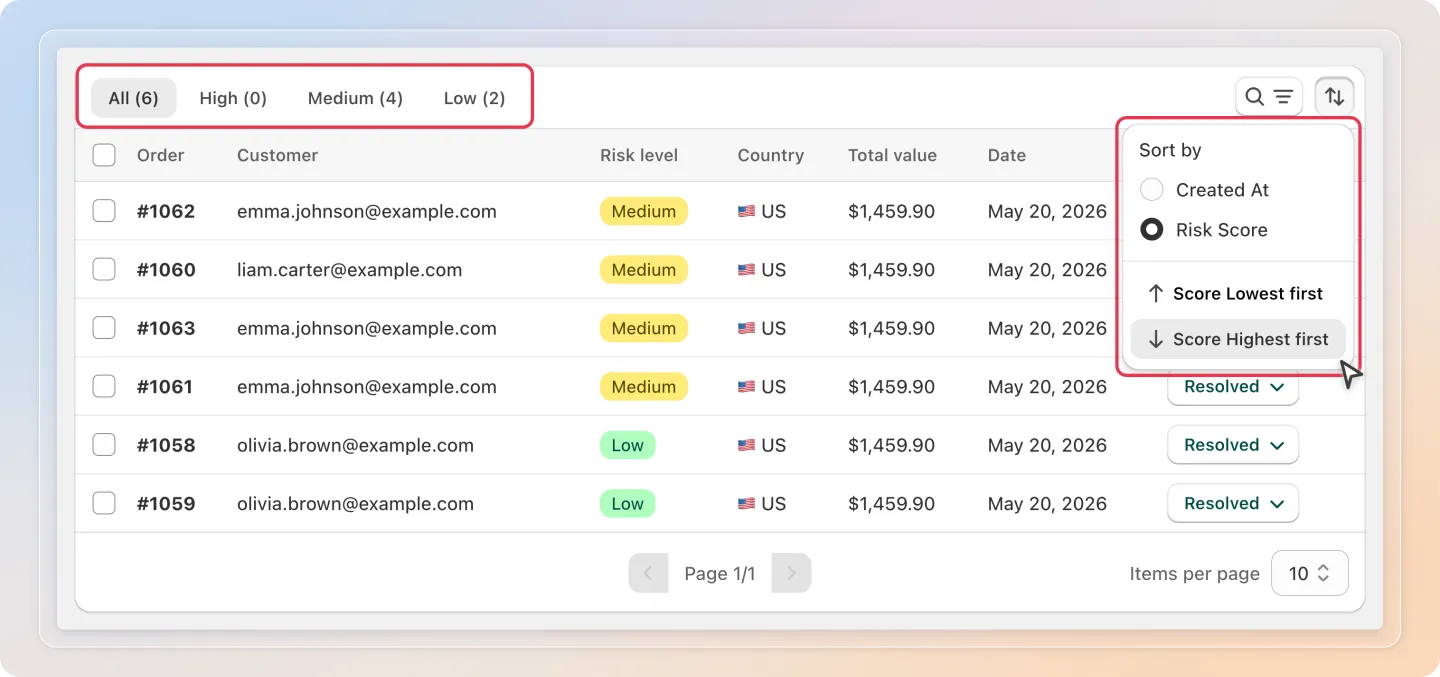
- Use the All / High / Medium / Low tabs to focus on a risk level.
- Search by order ID or email.
- Filter by Status (Resolved / Unresolved), Country, or Date range.
- Sort by Risk Score (Highest first) to put the riskiest orders on top.
Open an order's risk detail
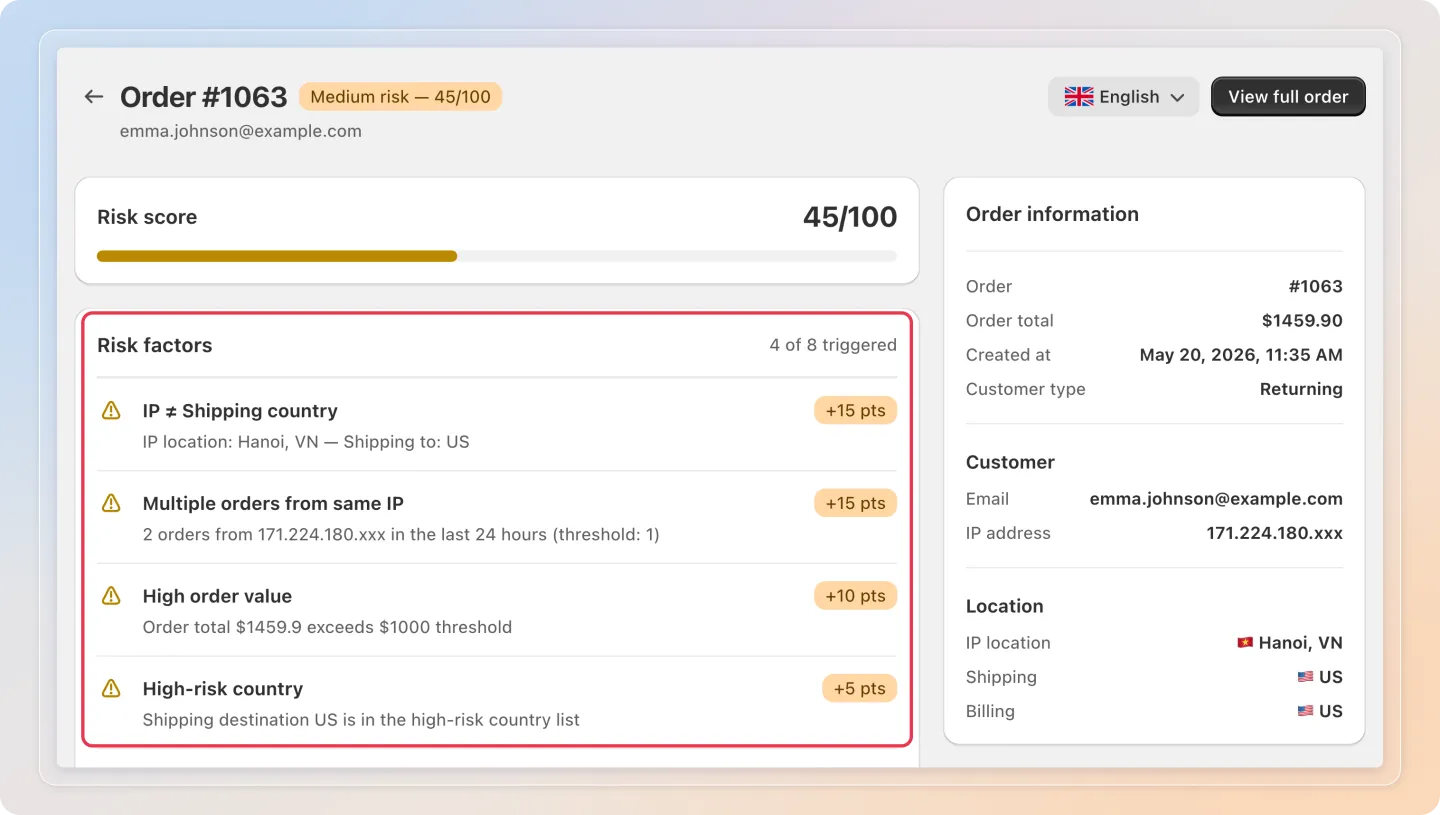
Click any order to open its detail page. Here you'll find the full breakdown:
- Risk score - the order's score, with its risk badge.
- Risk factors - how many of the factors triggered, and the detail for each one. For example, IP location: Hanoi, VN - Shipping to: US for an IP/shipping mismatch, or First order from this customer for a new customer.
- Order information - order number, total, created date, and customer type (New / Returning).
- Customer - email and IP address.
- Location - IP location, shipping, and billing addresses.
- Actions taken - whether the order was tagged, pushed to Shopify Admin, emailed, or auto-cancelled.
Use View full order to jump to the order in Shopify Admin.
Mark orders as resolved
After reviewing an order, keep your queue tidy:
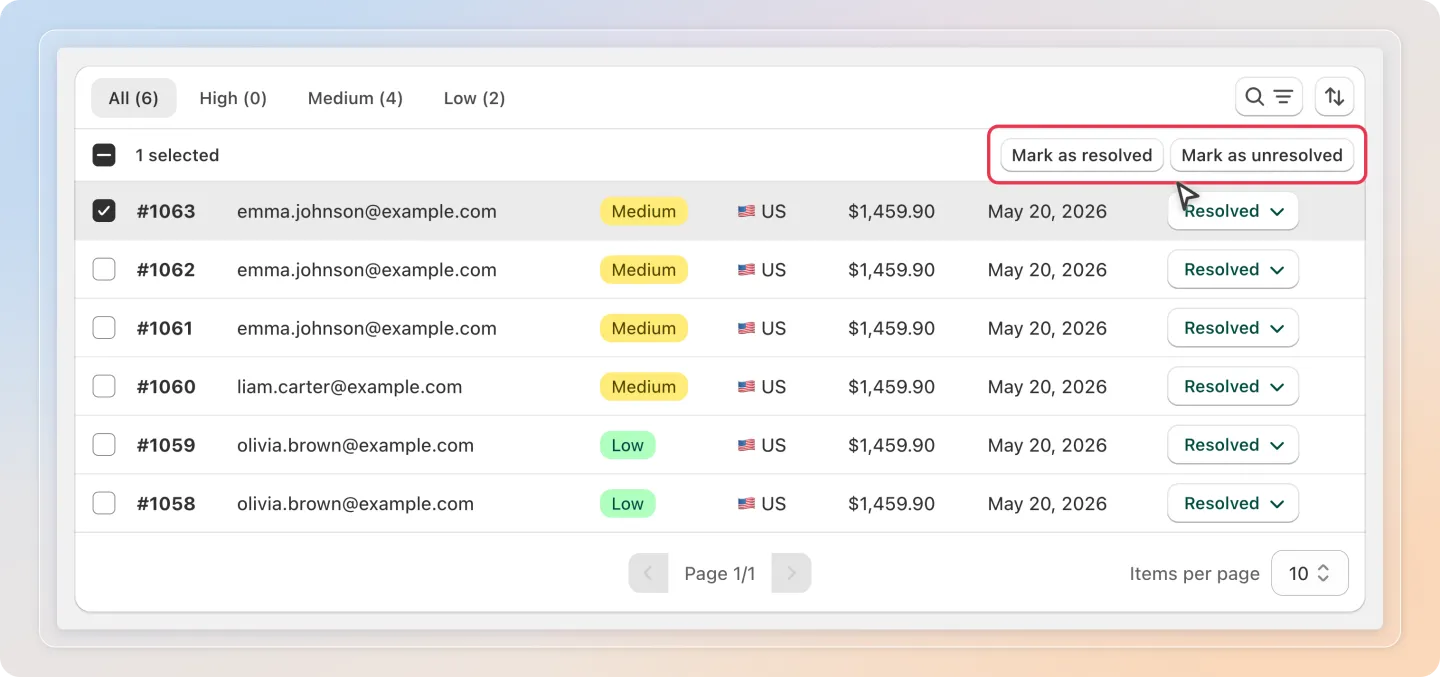
- Select one or more orders and choose Mark as resolved (or Mark as unresolved) from the bulk actions.
- Each order shows its Status (Resolved or Unresolved) in the list. Filter by Status → Unresolved to focus on what still needs attention.
Tip: Click Refresh to re-analyze recent orders if you've just changed your risk factor settings.
Tips
- High score ≠ guaranteed fraud - the score is a signal, not a verdict. Always open the detail and judge the factors in context before cancelling.
- Watch your highest weights - Bot detection and VPN/Proxy detection have the highest default weights. If those fire together, the order is already at high risk before any other factor.
- Revisit your weights after this update - since the scoring method changed, it's worth checking Settings → Order protection → Risk factors and adjusting weights to match how you actually want risk to be judged for your store.
And there you have it! You now know how risk scores are built, how to customize them, and how to review an order's risk detail. Ready to act on them automatically? See Automate Order Actions.