View Analytics & Blocked Traffic
Analytics shows you who's reaching your store, who's being blocked, and where blocked traffic comes from. Use it to confirm your rules are working, spot new threats, and decide what to block next.
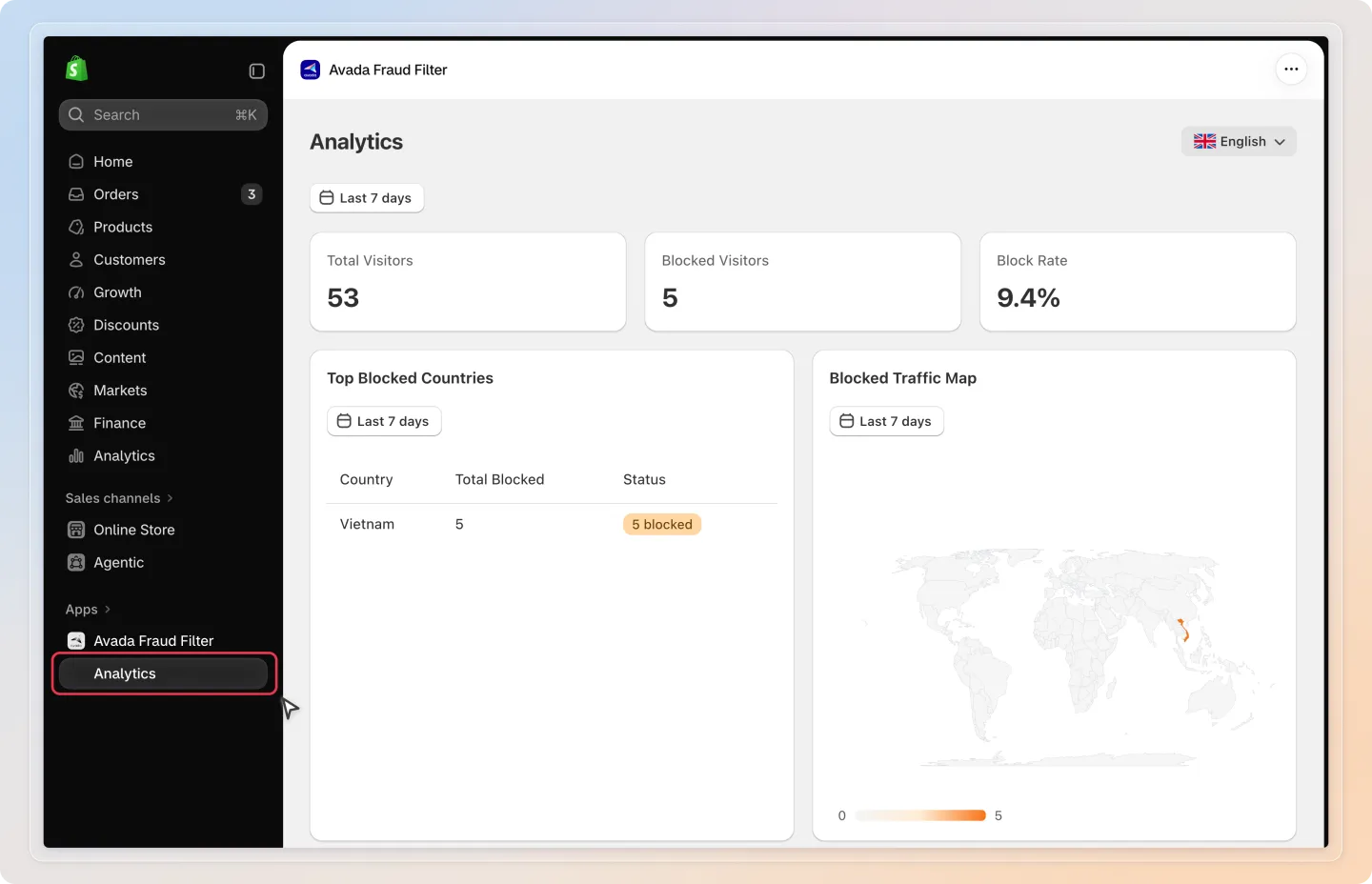
In the sidebar, under Avada Fraud Filter, click Analytics to open the page. (This menu was previously named Visitor Analytics.)
Overview
The page combines summary stats, visual trends, and detailed logs:
| Section | What it shows |
|---|---|
| Stat cards | Total Visitors, Blocked Visitors, and Block Rate for the selected period |
| Top Blocked Countries | Which countries generate the most blocked traffic |
| Blocked Traffic Map | A world map of where blocked visitors come from |
| Blocked Activity by Hour | When blocking happens across the day |
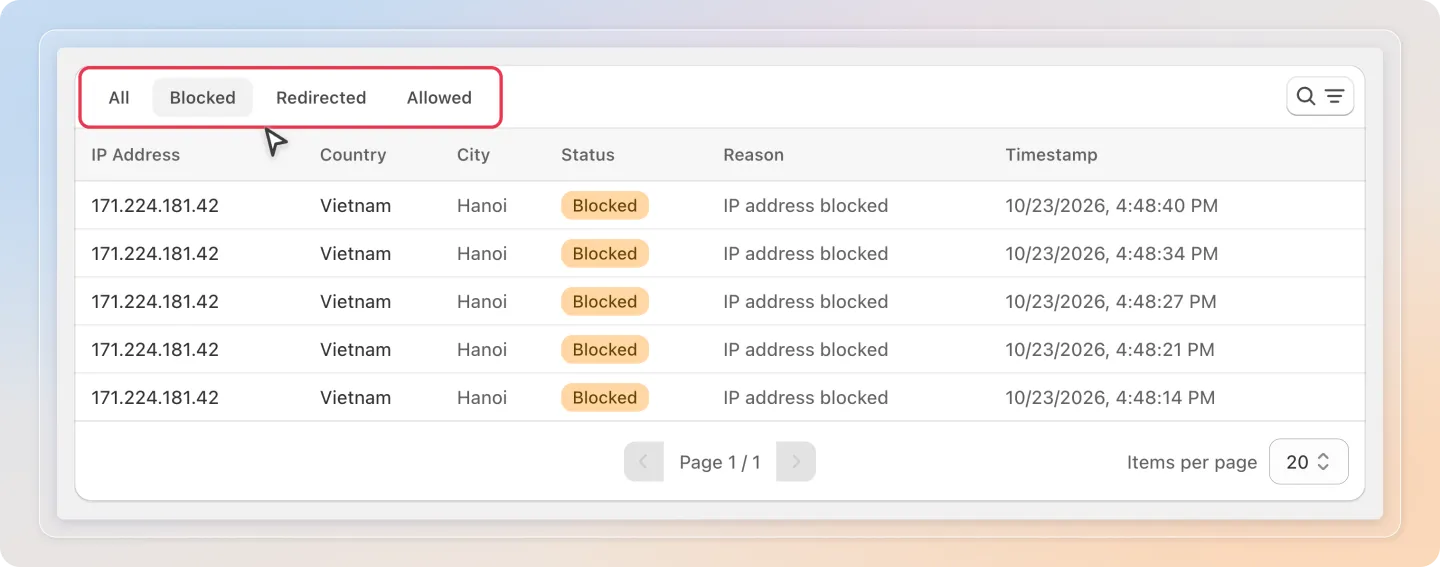
| Visitor log table | Every visitor, split into All, Blocked, Redirected, and Allowed tabs |
Each card has its own date range picker (Today, Yesterday, Last 7 days, Last 30 days, Last 60 days, or Custom range). Analytics keeps up to 60 days of history, so a custom range can't go further back than that.
Reading your stats
- Total Visitors - everyone who reached your store in the period.
- Blocked Visitors - how many were stopped by your rules or detection.
- Block Rate - the share of visitors blocked. A sudden jump can mean a new attack - or a rule that's too broad.
The Blocked Traffic Map and Top Blocked Countries table tell you where threats originate. Click a country on the map to filter the visitor log to that country.
Explore the visitor log
The visitor log lists every visitor with their IP Address, Country, City, Status, Reason, and Timestamp. Use the tabs above the table to switch between All, Blocked, Redirected, and Allowed visitors.
Filter blocked traffic
Click the search and filter icon at the top right of the visitor log, then use the filter row (or Add filter) to narrow the list:
- Date range - set the period for the table (e.g., Last 7 days).
- Country - focus on traffic from one or more countries.
- Block reason - show only one reason: Blocked country, Blocked IP, VPN detected, or Bot detected. This filter is available on the Blocked and Redirected tabs.
- Search by IP address - type an IP to find a specific visitor (enter at least 4 characters).
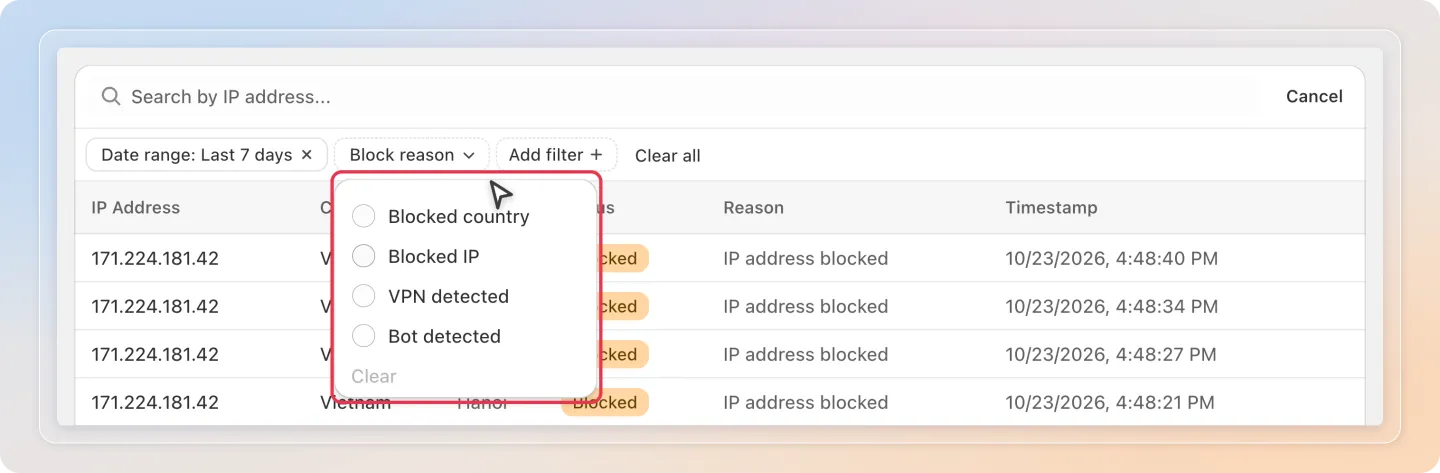
Tip: Filter by VPN detected after turning on VPN blocking to confirm it's catching anonymized traffic - see Block Bots, VPNs & Proxy Traffic.
Tips
- Watch the Block Rate trend - a steady rate is healthy; a spike means investigate. Use Blocked Activity by Hour to see if an attack is concentrated at certain times.
- Turn insights into rules - if one country dominates Top Blocked Countries but isn't on a rule yet, consider adding one. See Block Visitors by IP, Country, or Location.
- Check for false positives - scan the Blocked tab for legitimate-looking shoppers, and whitelist them if needed.
And there you have it! You now know how to read Analytics and filter blocked traffic to keep your store protected.