Connect ChatGPT or Claude to Avada Fraud Filter
AI Access lets you ask Claude or ChatGPT about your Avada Fraud Filter settings and figures, and lets the assistant change the settings you open to it.
Once it is set up, you can ask about your own store instead of opening the app. You decide two things when you turn it on: which groups of data the assistant may work with, and whether it may only look, or also change things.
Prerequisites
- Avada Fraud Filter installed on your store.
- A Claude or ChatGPT account on a plan that supports custom connectors. See the table below.
| Assistant | What you need | Limit to know |
|---|---|---|
| Claude | A paid plan is recommended | The Free plan allows only one custom connector in total. Each Avada app needs its own connector. |
| ChatGPT | Developer mode, available on Pro, Plus, Business, Enterprise and Education | The Free plan has no Developer mode, so it cannot be connected. |
Step 1: Open AI Access
In your Shopify admin, open Avada Fraud Filter and select Integrations in the app menu, then select the AI Access card.
The card carries an On or Off badge, so you can see the current state before you open it.

Step 2: Read what is shared
Step 1 on the page explains what leaves the app and what never leaves it. Select Show what is shared and never shared to open both lists.
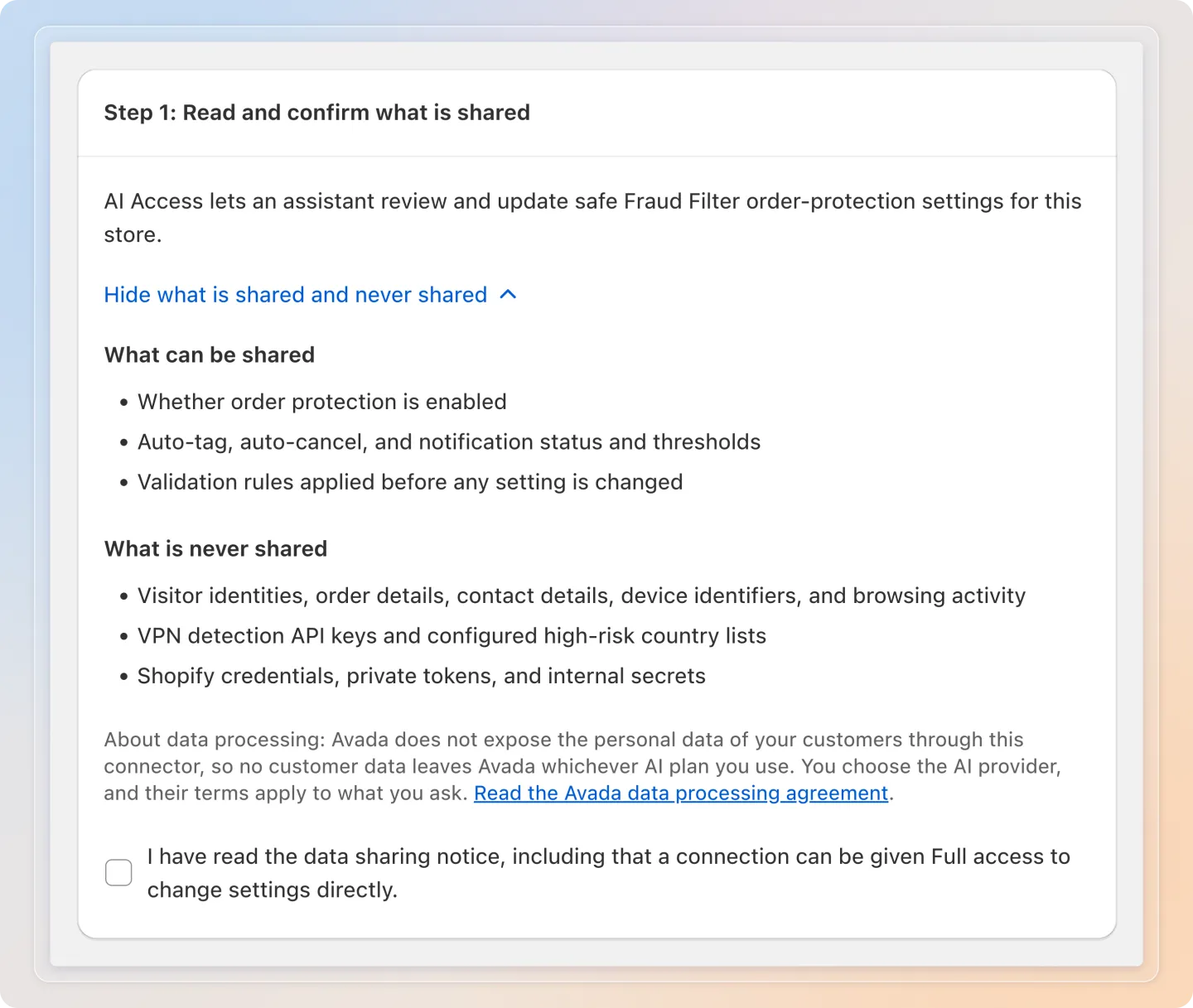
For Avada Fraud Filter:
| Can be shared | Never shared |
|---|---|
| Whether order protection is enabled | Visitor identities, order details, contact details, device identifiers, and browsing activity |
| Auto-tag, auto-cancel, and notification status and thresholds | VPN detection API keys and configured high-risk country lists |
| Validation rules applied before any setting is changed | Shopify credentials, private tokens, and internal secrets |
These lists describe the settings side of the connection. The full set of data groups you can pick from, including blocking figures and app status, is in the table under Step 3.
The blocked list is enforced inside the app. There is no setting, no plan and no way of phrasing a question that opens it, and giving a connection full access does not open it either.
Tick I have read the data sharing notice to continue. The button in Step 2 stays disabled until you do.
Step 3: Turn on AI Access
Select Turn on. A window opens where you choose what your assistant may do.
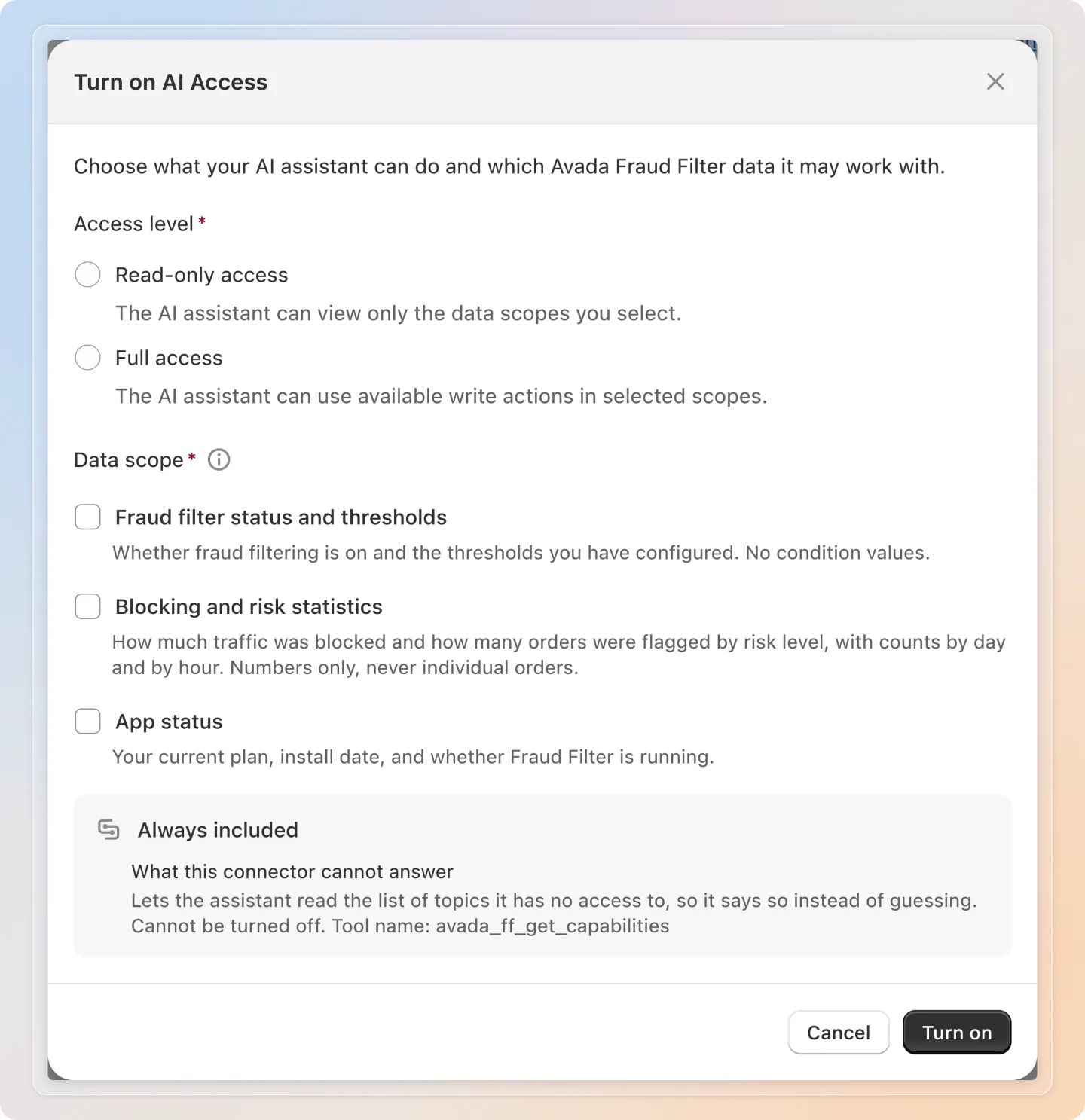
Access level. Nothing is selected in advance, so this is always a deliberate choice.
| Access level | What the assistant can do |
|---|---|
| Read-only access | View the data groups you tick. It cannot change anything in the app. |
| Full access | View those groups and change the settings inside them, where the group allows changes. Changes take effect immediately. |
Data scope. Avada Fraud Filter has three groups. Tick at least one group to continue. This is what the assistant may work with.
| Data group | What it covers | Can Full access change it |
|---|---|---|
| Fraud filter status and thresholds | Whether fraud filtering is on and the thresholds you have configured. No condition values. | Yes |
| Blocking and risk statistics | How much traffic was blocked and how many orders were flagged by risk level, with counts by day and by hour. Numbers only, never individual orders. | No |
| App status | Your current plan, install date, and whether Fraud Filter is running. | No |
Full access does not open every group. Only Fraud filter status and thresholds holds settings the assistant can write to. Blocking and risk statistics and App status stay read-only whichever access level you pick, so choosing Full access does not let the assistant change anything in those two groups.
Always included
Under the groups you tick, the window shows an Always included section headed What this connector cannot answer. It works the same for every connection, at every access level, and you cannot switch it off.
It lets the assistant read the list of topics it has no permission for, so it can tell you plainly that it does not have access instead of guessing an answer. It reads the list of topic names only, never the data behind them. For Avada Fraud Filter that list is:
- Visitor and order personal data
- VPN detection API key
- High-risk country list
- Store access credentials
Full access has no approval step. The assistant does not send you a suggestion to review. It calls the app and the setting changes at that moment. Revoking the connection later stops further changes, but the settings it already changed keep their new values until you change them back yourself.
Select Turn on. AI Access is on and your connection is created in one action.
Step 4: Copy your server URL
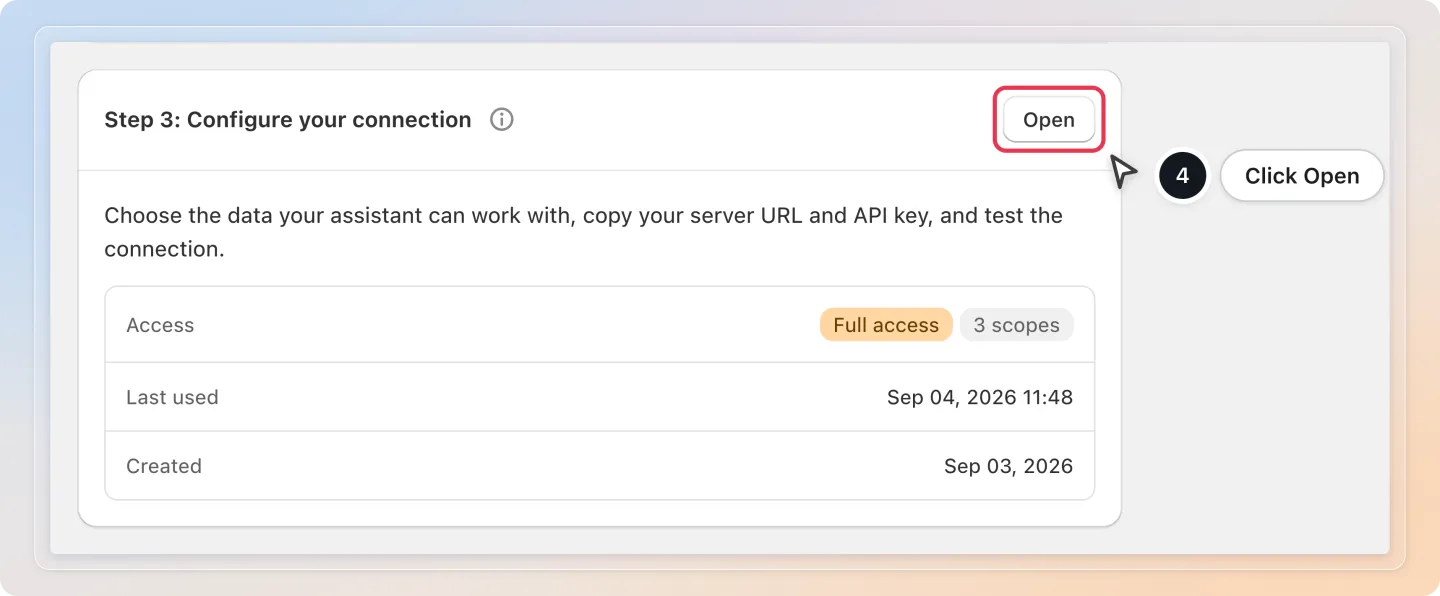
Select Open in Step 3 of the page to open your connection.
Under Step 2: Copy your connection details, select the copy button next to Server URL.
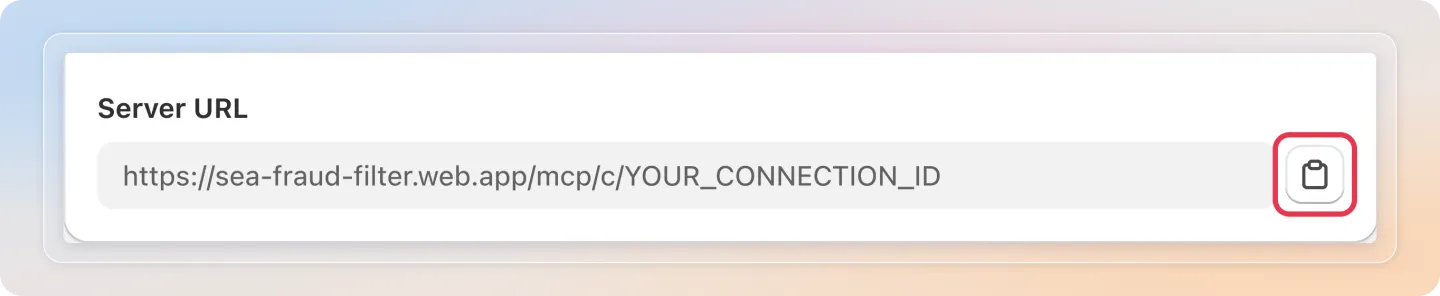
This URL belongs to this connection in this app. Avada Fraud Filter has its own URL, and so does every other Avada app.
Step 5: Generate an API key
You only need this for the command line and desktop clients. Claude and ChatGPT on the web ask you to approve access instead, so they do not use a key.
Select Generate API key, then use the eye button to reveal it and the copy button to copy it.
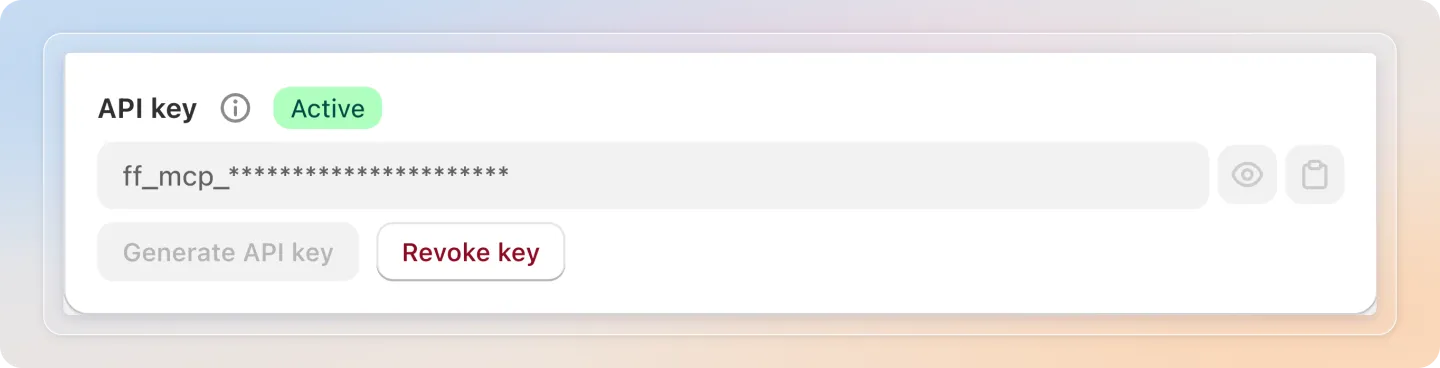
Treat the key like a password. Anyone who has it can reach the data groups you opened, at the access level you chose.
Step 6: Connect your assistant
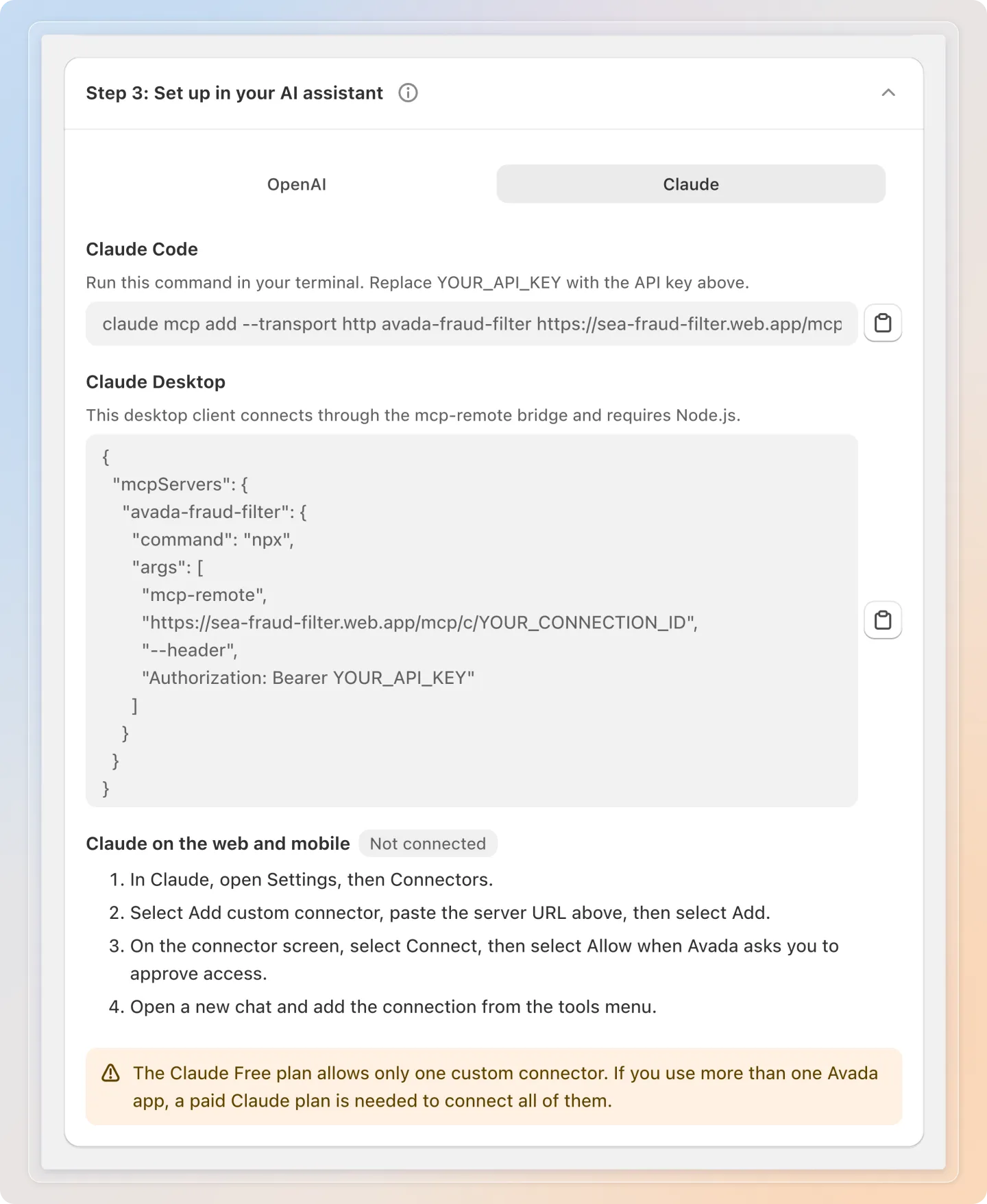
Open Step 3: Set up in your AI assistant and pick the tab for the assistant you use. Each tab has three ways to connect.
Claude on the web and mobile
- In Claude, open Settings, then Connectors.
- Select Add custom connector, paste the server URL, then select Add.
- On the connector screen, select Connect, then select Allow when Avada asks you to approve access.
- Open a new chat and add the connection from the tools menu.
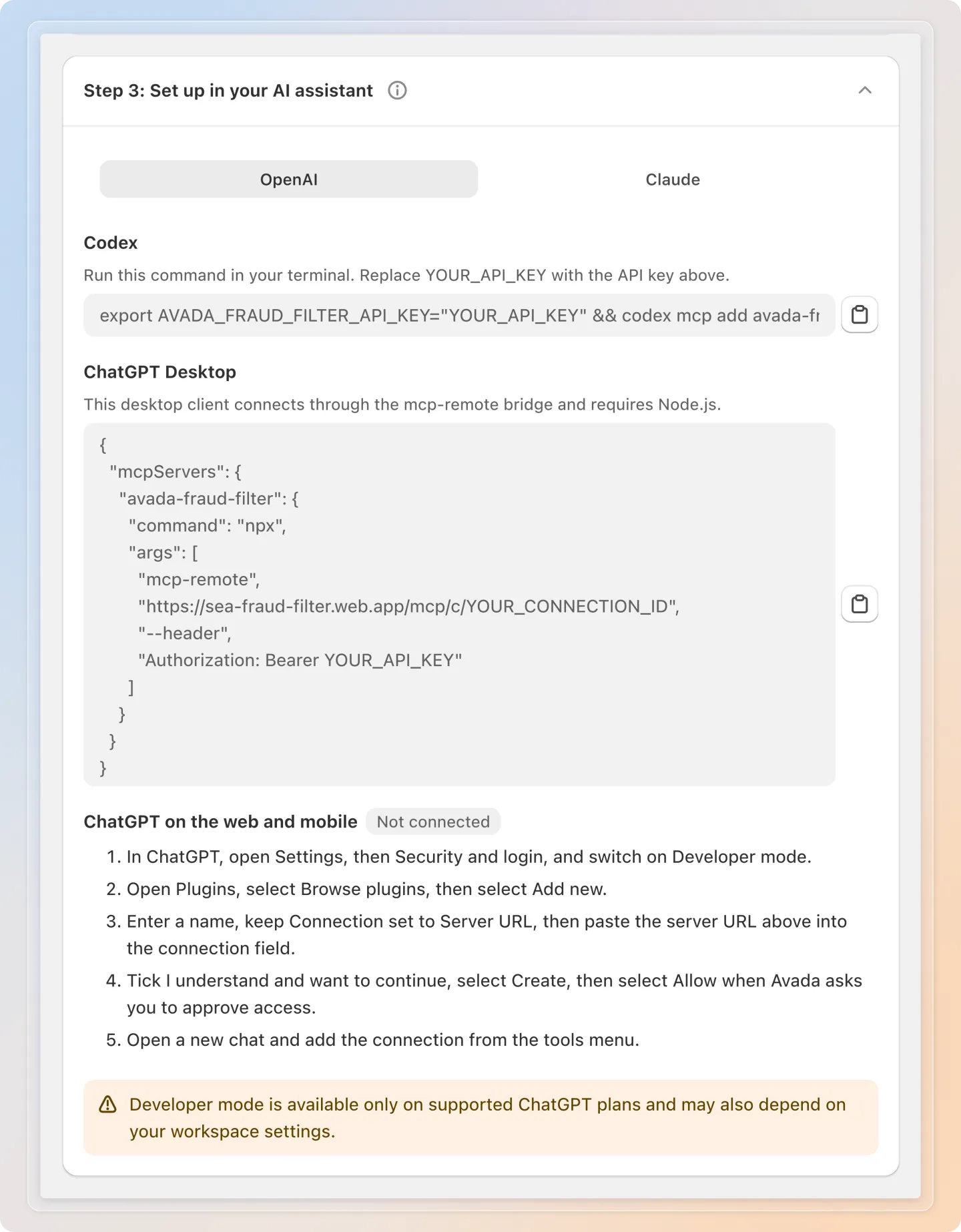
ChatGPT on the web and mobile
- In ChatGPT, open Settings, then Security and login, and switch on Developer mode.
- Open Plugins, select Browse plugins, then select Add new.
- Enter a name, keep Connection set to Server URL, then paste the server URL into the connection field.
- Tick I understand and want to continue, select Create, then select Allow when Avada asks you to approve access.
- Open a new chat and add the connection from the tools menu.
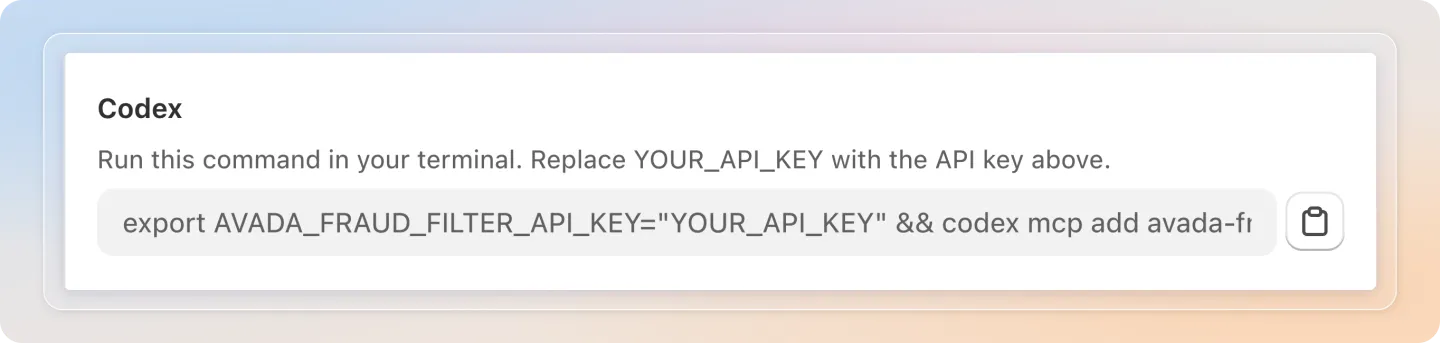
Claude Code, Claude Desktop, Codex and ChatGPT Desktop
These clients sign in with the API key instead of asking you to approve access in the browser. Each tab shows a ready-made command or configuration block with a copy button. Paste your own key where the command says YOUR_API_KEY.
Step 7: Ask your first question
Open a new chat with the connection enabled and try one of these.
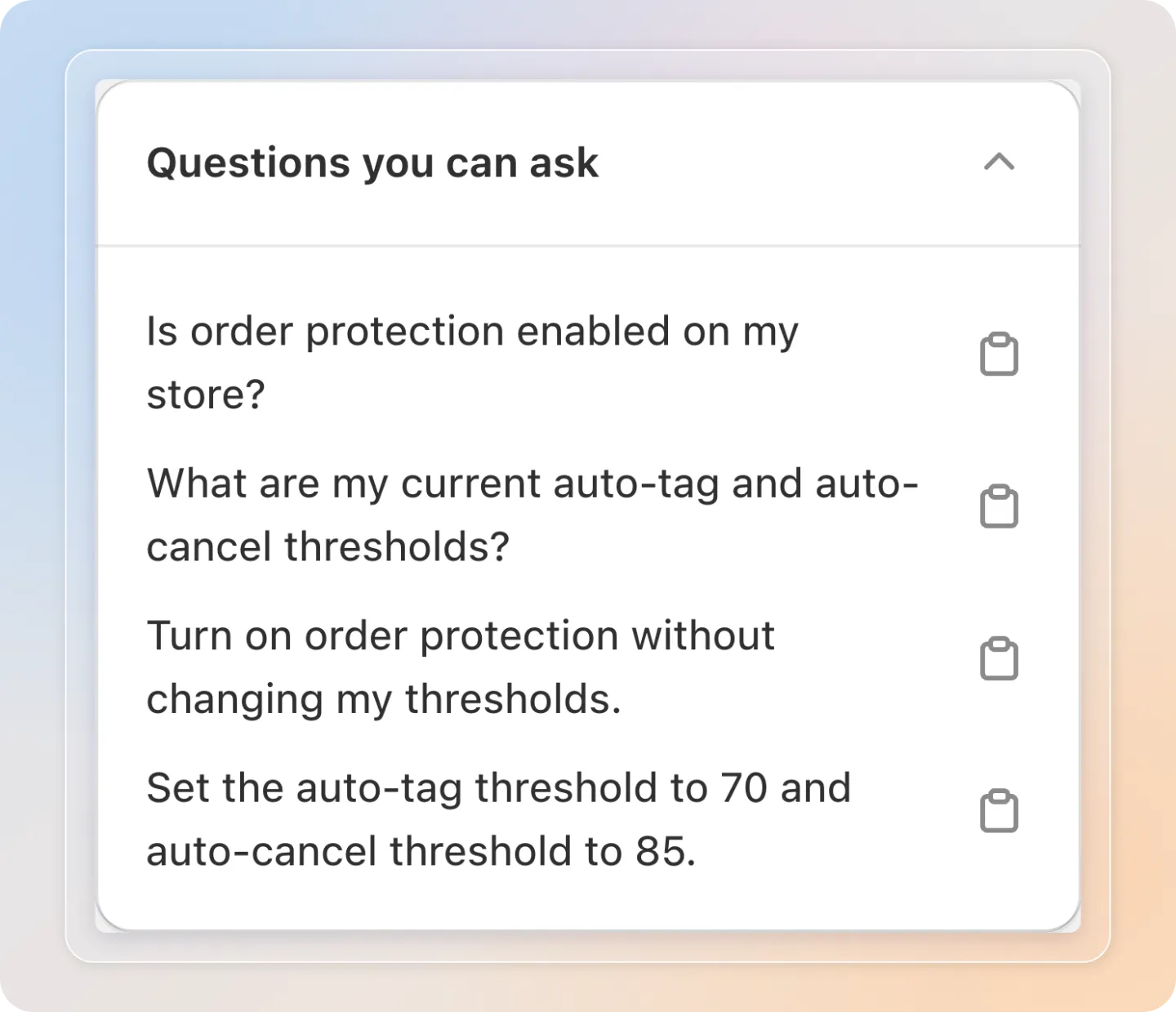
- Is order protection enabled on my store?
- What are my current auto-tag and auto-cancel thresholds?
If you gave the connection Full access, you can also tell it what to do:
- Turn on order protection without changing my thresholds.
- Set the auto-tag threshold to 70 and auto-cancel threshold to 85.
Those four are the ones listed in the Questions you can ask card, each with a copy button. The card fills up when Fraud filter status and thresholds is ticked, and it then shows all four whichever access level you chose. Untick that group and the card tells you that no sample questions are available for this data scope, even when the other two groups are ticked.
The other two groups have no ready-made questions in the card, so ask for them in your own words:
- With Blocking and risk statistics: how many visits were blocked over the last 30 days, and how many orders fell into each risk level. You can name a period from 1 to 90 days, and it uses the last 30 days when you do not name one.
- With App status: which plan you are on, when the app was installed, and whether Fraud Filter is running.
What your assistant can change
With Full access, and only inside the group below, the assistant can change:
| Group | What it can change |
|---|---|
| Fraud filter status and thresholds | Order protection on or off · auto-tag on or off and its threshold · auto-cancel on or off and its threshold · email notification on or off and its threshold |
Every change goes through the same checks the app applies when you edit these fields yourself:
- A threshold has to be a number between 0 and 100.
- The auto-cancel threshold has to be higher than the auto-tag threshold.
- Auto-cancel can only be switched on when a cancel reason is already saved in the app. The assistant cannot set that reason.
Anything outside this list is refused, including everything on the never-shared list. The other two data groups are read-only, so Full access adds nothing there.
The statistics group is worth being precise about. The assistant reads totals: how many visits the app blocked, broken down by day and by hour, and how many orders sit in each risk level over the period you name. It does not read an individual order, and it cannot act on one. It cannot cancel, tag, refund or edit an order, and these counts are not an assessment of a single order or of your store. They report what the app already recorded.
There is no undo. If a change is not what you wanted, open the app and set the value back yourself.
Check what your assistant has been doing
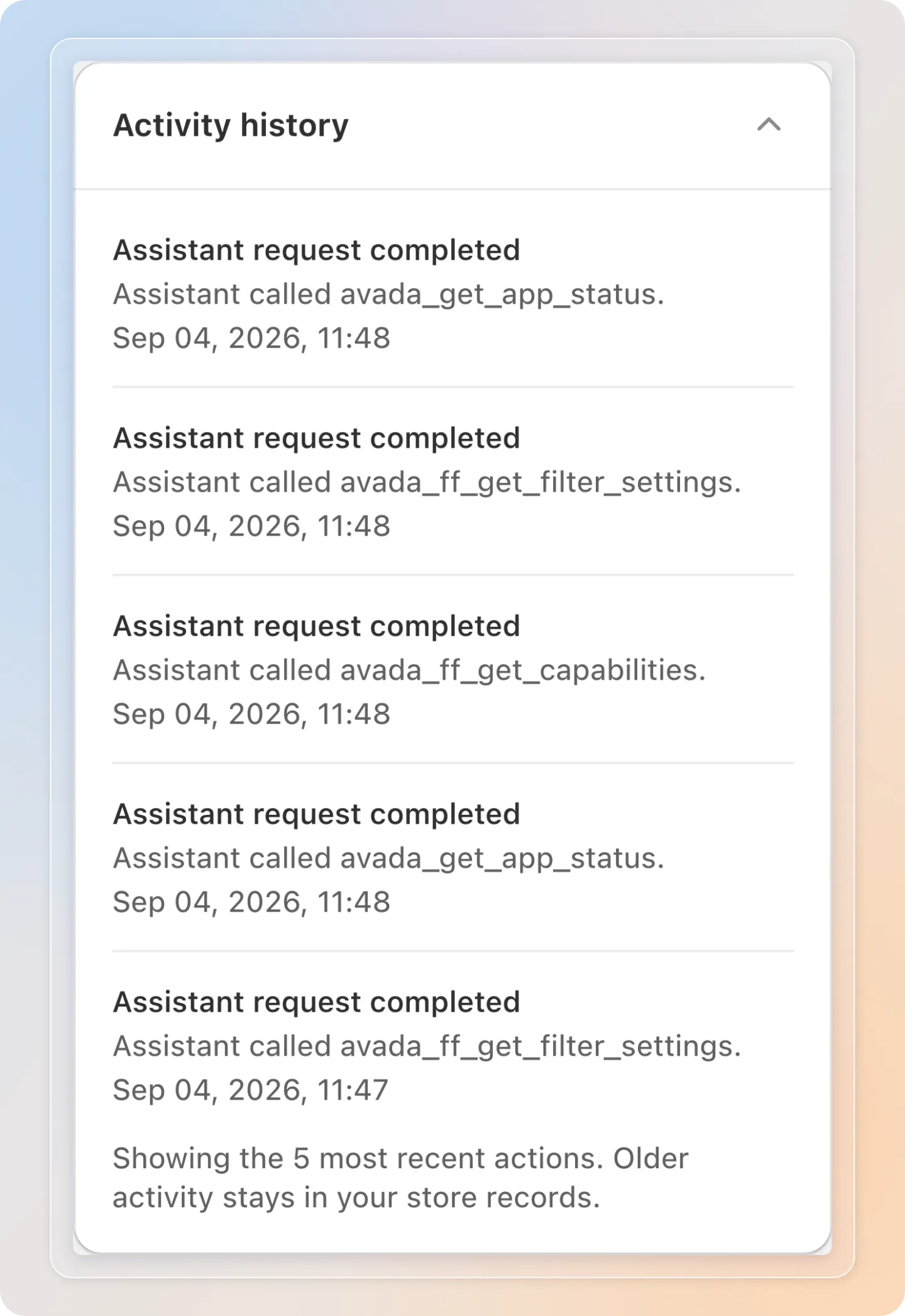
The Activity history card on the connection page lists the five most recent actions, with the tool that was called and when. It fills up after your assistant uses the connection for the first time.
Change what your assistant can do
Open your connection, change the Access level or tick and untick groups under Step 1: Data scope, then select Save in the bar that appears at the top of the page. The bar appears as soon as you change something, and it also offers Discard if you change your mind.
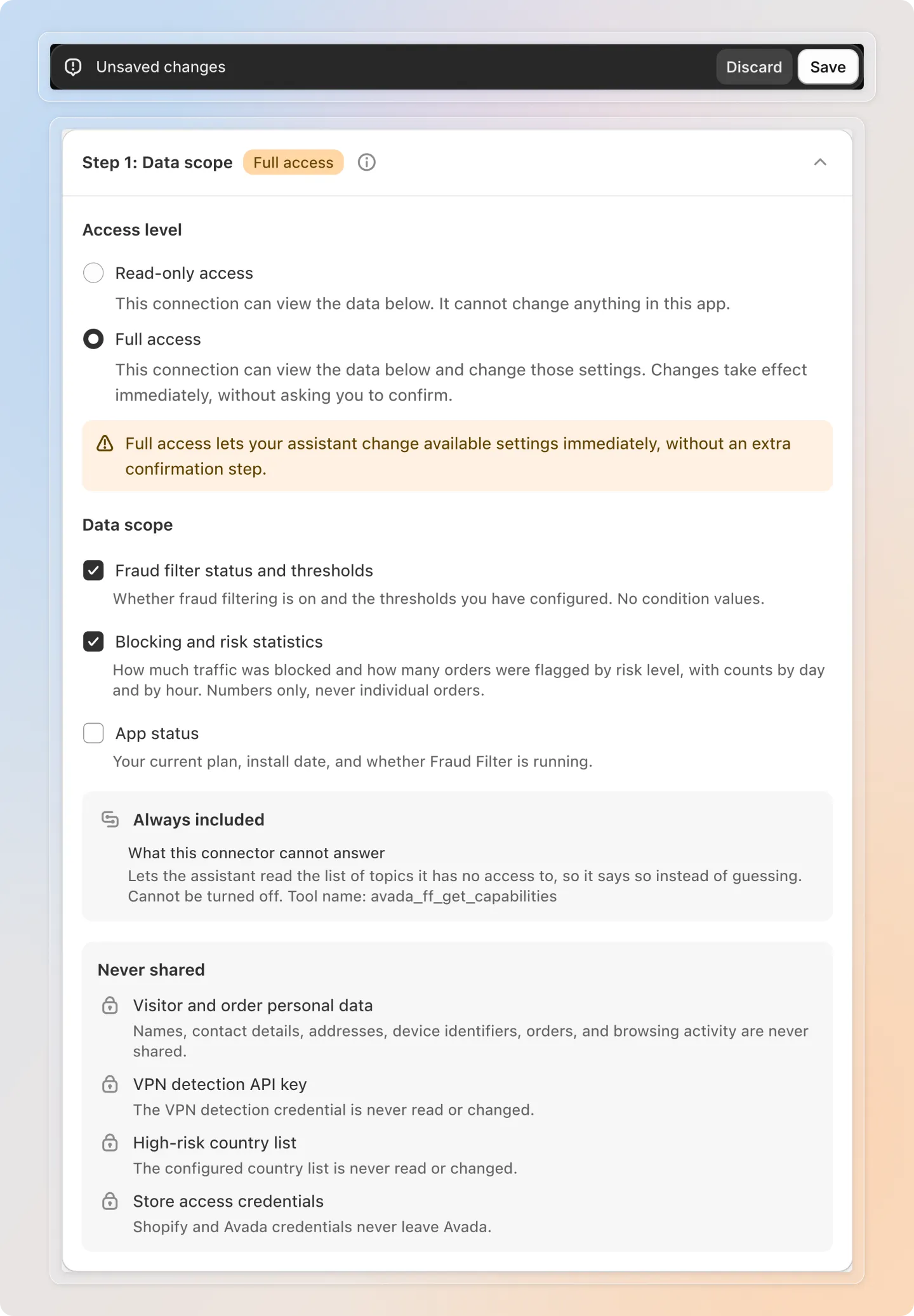
The change applies to the next request your assistant makes. You do not have to set the connection up again in Claude or ChatGPT.
Turn it off or revoke it
| Action | What happens | Reversible |
|---|---|---|
| Turn off in Step 2 | Your assistant stops getting answers immediately. Your server URL and API key stay in place. | Yes. When you turn it on again you confirm the access level and data scope once more. |
| Revoke connection on the connection page | The API key and every approval for this connection stop working immediately. AI Access is turned off as well. | No. You can turn AI Access on again later and confirm a new data scope. |
Neither one puts back a setting that was already changed. They stop what happens next.
Tips
- One connection per store. Each store has a single connection in this app, so there is one server URL and one API key to look after.
- One connection per app. Avada Fraud Filter cannot see your Cookie Consent or Order Limit data. Each app has its own URL, its own approval and its own connector.
- There is a limit on changes. A connection can make 5 changes per minute, and the store can take 30 changes per hour. Questions do not count towards it.
- Answers are settings and totals, not orders. What comes back is the configuration this app holds, the counts it has already recorded, and your plan and install status. It never includes an order, a customer record, or visitor details.
Troubleshooting
| Symptom | Likely cause | What to do |
|---|---|---|
| No place to add a connector in ChatGPT | Developer mode is off, or your plan does not have it | Switch it on under Settings then Security and login. It does not exist on the Free plan. |
| Claude will not add the connector | Claude Free allows one custom connector and you already have one | Remove the existing connector, or use a paid plan. |
| The connector exists but the assistant never uses it | The connection is not added to that chat | Open a new chat and add the connection from the tools menu. |
| The assistant says a tool is not available | The question needs a group this connection did not open | Open your connection, tick the group that covers your question under Step 1: Data scope, then select Save in the bar that appears at the top of the page. |
| The assistant says it cannot change a setting | The connection is Read-only access | Open your connection, switch the access level to Full access, then select Save in the bar that appears at the top of the page. |
| The assistant will not change a figure or your plan | Blocking and risk statistics and App status are read-only groups, whatever the access level | Nothing to fix. Open the app for anything you need to change there. |
| The Questions you can ask card is empty | Fraud filter status and thresholds is not ticked, and the sample questions belong to that group | Tick it under Step 1: Data scope and save, or type your question in your own words. |
| The assistant says the cancel threshold has to be higher than the tag threshold | The two thresholds were sent in a combination the app does not accept | Ask for an auto-cancel threshold above the auto-tag threshold, or change both in one request. |
| The assistant cannot switch auto-cancel on | No cancel reason is saved in the app yet | Open the app, set the cancel reason on your order protection settings, then ask again. |
| The assistant says Avada does not share that data | The question touches blocked data, such as an individual order, visitor details, the VPN detection key or your country list | Nothing to fix. Open the app to see it there. |
| Everything is refused | AI Access is off, or the connection was revoked | Check the badge next to AI Access on the page, then the badge on the connection. |
| You are asked to approve access again | The approval expired, or access was interrupted for a security reason | Approve again from your assistant. This is expected. |
You're all set. AI Access is ready whenever you want your assistant to help with this app.