Meta product issues
Fix what keeps your products out of Facebook and Instagram, so more of your catalog shows in shops and ads. This page explains each status the app shows for a Meta feed, where to find the problems, and how to fix them.
What each status means
Open a Meta feed. The product table sorts every product into one of these tabs:
| Status | What it means | What to do |
|---|---|---|
| Active | Meta accepted the product. It can show in your shops and ads | Nothing. If it also shows Needs attention, fix the warning to help it perform better |
| Hidden | The product is in your catalog, but set as not visible on Meta | Make it visible in Commerce Manager if you want it to show |
| Pending | Meta hasn't reviewed the product yet, or the app hasn't loaded its status | Wait. Then load the latest status (see below) |
| Rejected | Meta blocked the product. It can't show until you fix it | Fix these first |
| Excluded | The app held the product back, so Meta never received it | Fix the reason, or leave it out on purpose |
Two extra tags can sit next to a status:
- Needs attention: Meta accepted the product but found a smaller problem, like only some of its images loading.
- Image failed: Meta couldn't download the product image. The product is Rejected until the image loads.
When Meta's review and the product's errors disagree, the app shows the worse one. A product Meta approved but with a blocking error still shows as Rejected, so nothing slips through.
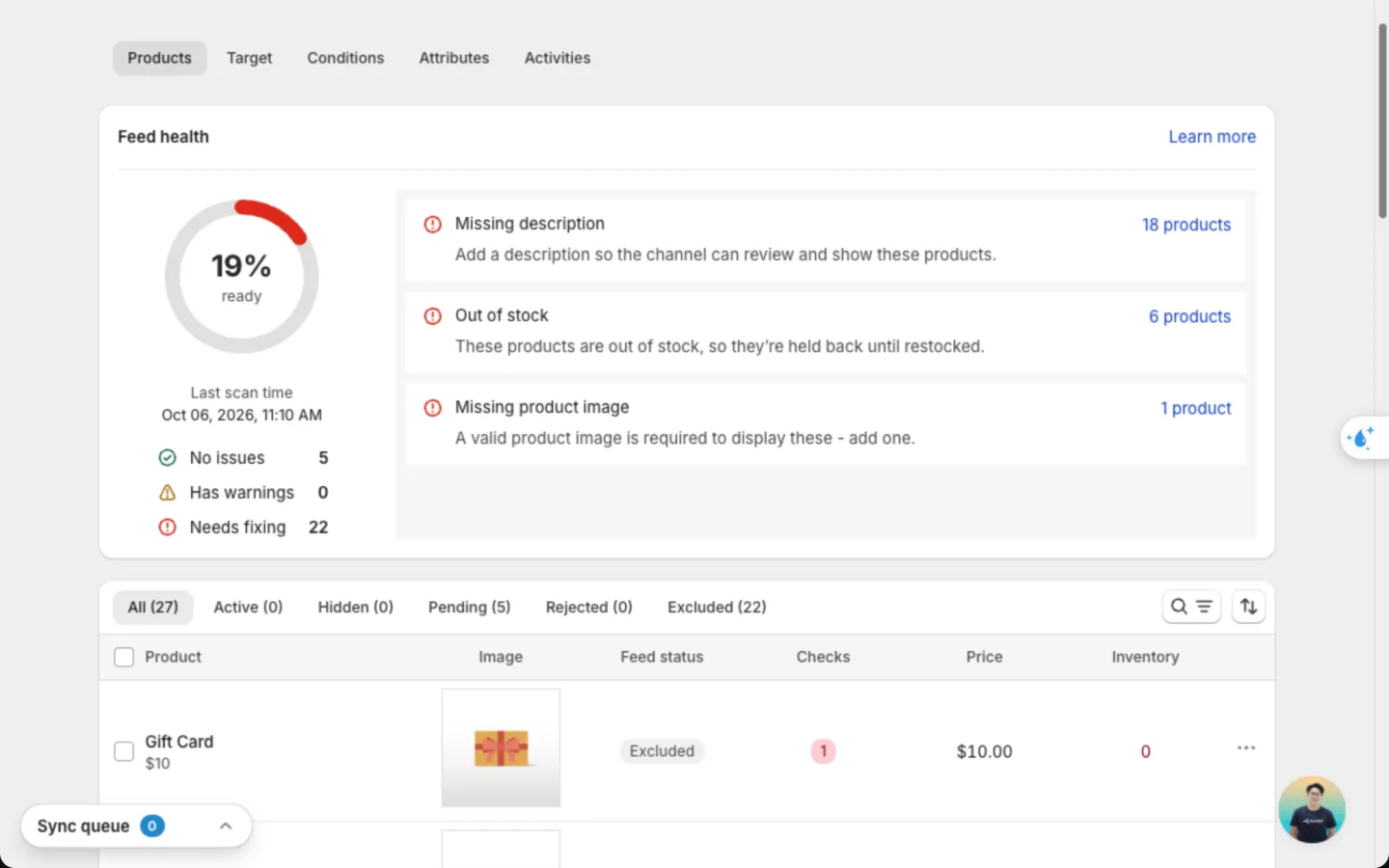
Get the latest status from Meta
The app loads approval results from Meta on a schedule. You can also load them yourself.
- On the feed page: hover over the Feed health ring and click Rescan. You'll see Loading status from Meta… this can take a moment, then Status updated from Meta.
- From the product table: select products, then choose Sync status from Meta. It refreshes the whole feed, not just the selected products.
- On a schedule: on the Catalog sync page, set Approval status to Every 4 hours, Every 8 hours, Every 12 hours, Once a day or Once a week. The default is every 12 hours. See Catalog sync.
Localize and supplement feeds don't get their own status. They only add to products in your main feed, so check the main feed instead. They show All, Included and Excluded only.
Where to find your issues
- Feed page → Feed health: the top problems in this feed. Click the product count on an issue to see only those products.
- Banner: when Meta rejects products, the feed page shows N products rejected in this feed with Fix the flagged attributes below to get them approved on Meta.
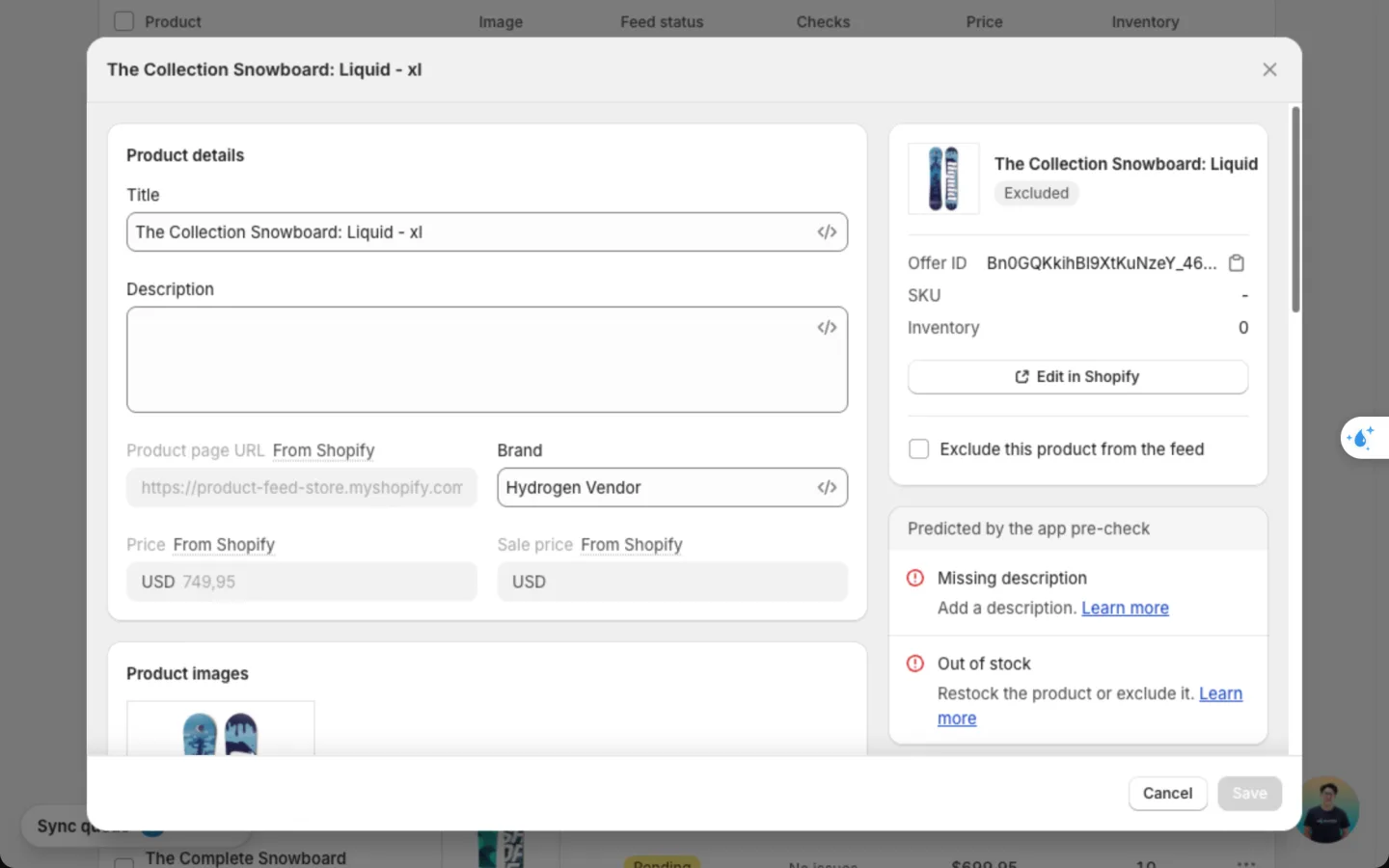
- Product window: click a product, or choose View & edit. The right column lists two kinds of issues:
- Errors from Meta Commerce Manager: what Meta reported, in Meta's own words. Critical blocks the product. Warning lets it show.
- Predicted by the app pre-check: problems the app found before sending. Fix them before Meta reviews the product. Click Learn more on an issue for help.
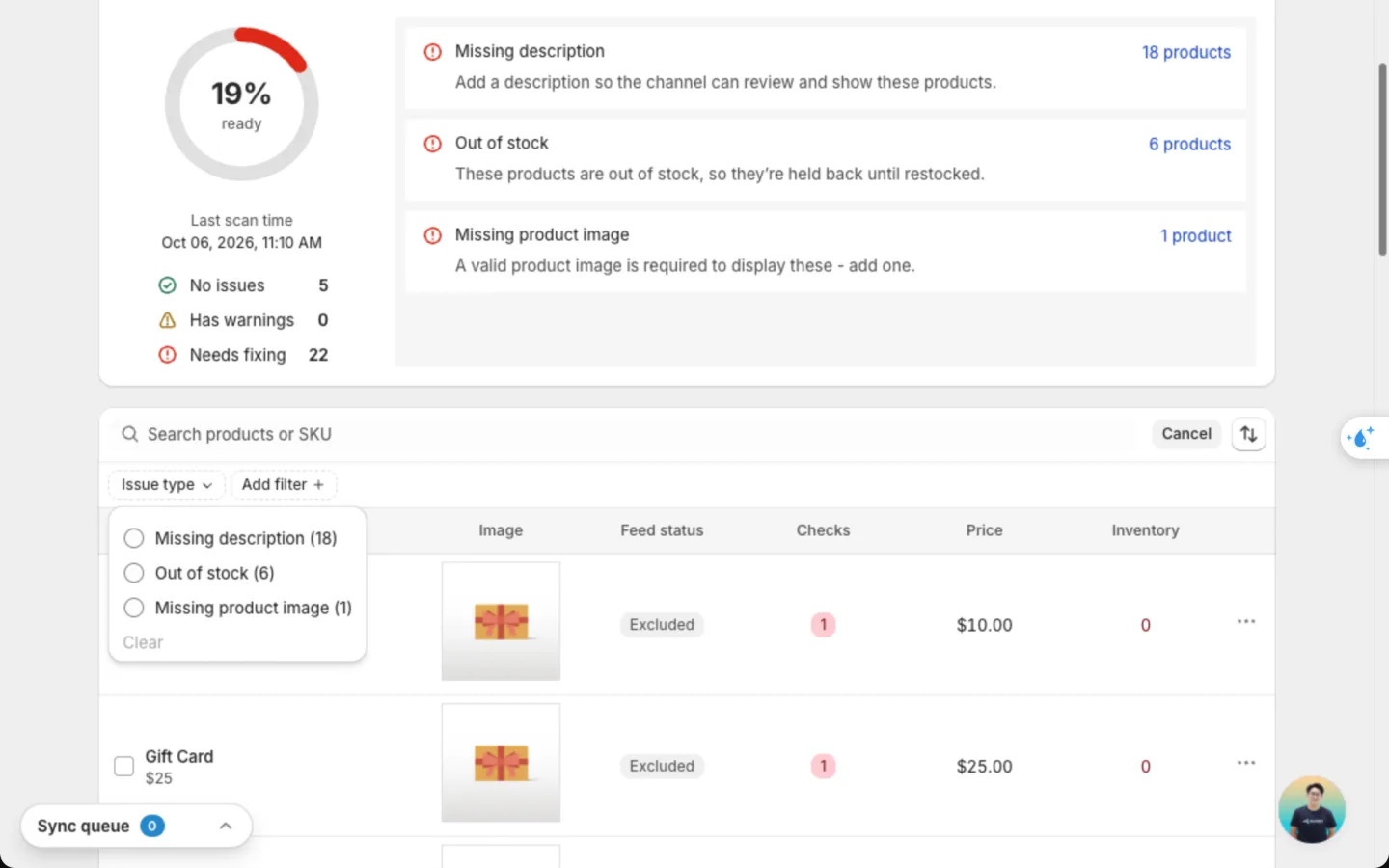
On the Products tab, the Issue type filter shows one problem at a time. The Fix type filter splits issues into Edit in Shopify and Manual fix.
Meta writes its own error text. Match an issue on this page by its meaning, not its exact words.
Where to fix an issue
| Where | Use it when | What changes |
|---|---|---|
| In Shopify | The product itself is wrong: description, image, price, stock | Your store and every feed |
| Attributes tab of the feed | Many products miss the same detail, like brand | That feed only |
| Product window (View & edit) | One product needs its own value | That product in that feed only |
| In Commerce Manager | The problem is in your Meta account: visibility, policy, catalog settings | Your Meta catalog |
In the product window, Edit in Shopify opens the product in your store. Tick Exclude this product from the feed to leave it out on purpose. For a product Meta already has, View in Meta opens your catalog's product list in Commerce Manager.
How to fix a rejected product
Find the reason
Open the feed, click the Rejected tab, then click a product. Read the issues in the right column.
Fix it in the right place
Use the table above. Fix it in Shopify when the product itself is wrong, or in the feed when only the feed should change.
Send the fix to Meta
Click Update feed at the top of the feed page. The app rebuilds your file, and Meta picks it up at its next fetch.
Check the result
After Meta's next fetch, hover over Feed health and click Rescan. The product moves to Active once Meta accepts it.
Edits in the app change the feed only. Your Shopify products stay the same.
Most common issues
Missing description
The product has no description. Meta needs one to review and show the product, so the app holds it back and it shows as Excluded.
Out of stock
The product has no stock. The app holds it back so your ads don't send shoppers to something they can't buy.
Image failed
Meta couldn't download the product image, so the product is Rejected. If only some images loaded, the product stays Active with Needs attention.
No brand, barcode or part number
The product has no brand, no GTIN (barcode) and no MPN (part number). Meta needs at least one of the three, so it blocks the product.
Description has code or is in capitals
Meta only accepts plain text. The description has leftover web code, like <p> or &, often from a page builder or an import. Or it's written all in capital letters, which Meta doesn't support.
All issues the app checks
These come from the app's own checks, so you see them before Meta does. Meta's own errors show under Errors from Meta Commerce Manager, in Meta's words.
| Issue | What it means | How to fix |
|---|---|---|
| Missing title | The product has no title | Add a title in Shopify |
| Missing description | The product has no description | Add a description in Shopify |
| Missing product image | The product has no image | Add an image in Shopify |
| Missing or zero price | The product has no price, or a price of 0 | Set a price above 0 in Shopify |
| Missing availability | The product has no stock status | Check the product's inventory in Shopify |
| Out of stock | The product has no stock, so it's held back | Restock it in Shopify |
| Missing product page URL | The product has no page on your store | Publish it to the Online Store channel in Shopify |
| Image link must be a full http(s):// URL | An image or product link isn't a full web address | Use a full address that starts with https:// |
| Title is over 200 characters | Meta cuts titles longer than this | Shorten it in Shopify, or in the product window |
| Description is over 9999 characters | Meta cuts descriptions longer than this | Shorten it in Shopify, or in the product window |
| No brand, GTIN or MPN | Meta blocks a product with none of the three | Set Brand in the Attributes tab |
Description has web code or symbols like & | Meta needs plain text | Remove the formatting in Shopify |
| Description in all capitals | Meta doesn't support it | Rewrite in sentence case |
| Description repeats the title (warning) | It adds nothing for the shopper | Write a description that says what the title doesn't |
| Price outside 0.50 to 10,000 | Meta doesn't support prices outside this range | Set a price in that range in Shopify |
Out-of-stock products and products with a blocking check can't be included by hand. Fix the reason first.
Tips to prevent issues
- Write a real description for every product. It's the most common reason products are held back.
- Keep text plain. Paste descriptions as plain text, not from a page builder.
- Always send a brand. Set Brand to your vendor or store name, so no product lacks all three identifiers.
- Use clear images, 500 x 500 pixels or larger. Meta shows them on phones, often at 4:5.
- Keep prices and stock right in Shopify. Meta reads both from your feed, and they always come from Shopify.
- Load status often. Set Approval status to Every 4 hours if you change your catalog a lot.
FAQs
Why is my product Active in Commerce Manager but Rejected in the app?
The app shows the worse result. If Meta approved the product but still reports a blocking error on it, the app shows Rejected so you fix it before it stops showing.
What does Hidden mean?
The product is in your catalog but set as not visible on Meta. It's a choice in Commerce Manager, not an error. Make it visible there if you want it to show.
I fixed the product. Why is it still Rejected?
Meta sees the fix only after its next fetch. Click Update feed, wait for the fetch time you picked, then click Rescan on Feed health.
Why don't I see a Limited tab like on Google?
Meta has no limited status. A product with a minor problem shows as Active with a Needs attention tag.
Can the app approve a product for me?
No. Meta decides. The app shows you what to fix and sends the fix at the next update.
Still have questions?
Chat with us from the app, any time.