Image templates
Instead of editing product photos one by one, design an image once and let the app create it for every product in a feed.
What is an image template?
An image template is a design you make once, such as a sale frame, a badge or a branded background. The app fills it with each product's own photo, title and price, then sends the finished images to your ads on Google or Meta. Eye-catching ads get more clicks, and you never open a design tool.
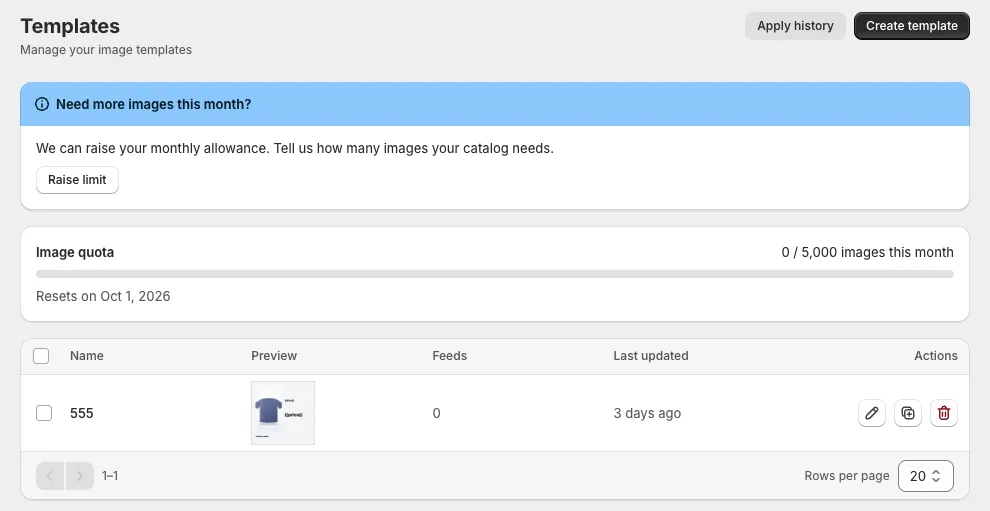
You'll find it in the app under Templates. The page shows:
- The Image quota card: images used this month and the date the count resets.
- The Need more images this month? banner. Click Raise limit to ask for more.
- Your templates, each with a preview and the number of feeds using it. Use Edit, Duplicate or Delete on the right.
Before you start
- Create at least one Primary feed. See Create a feed.
- Check your image quota. Every product image the app creates counts toward 5,000 images a month.
How to create a template
Start a new template
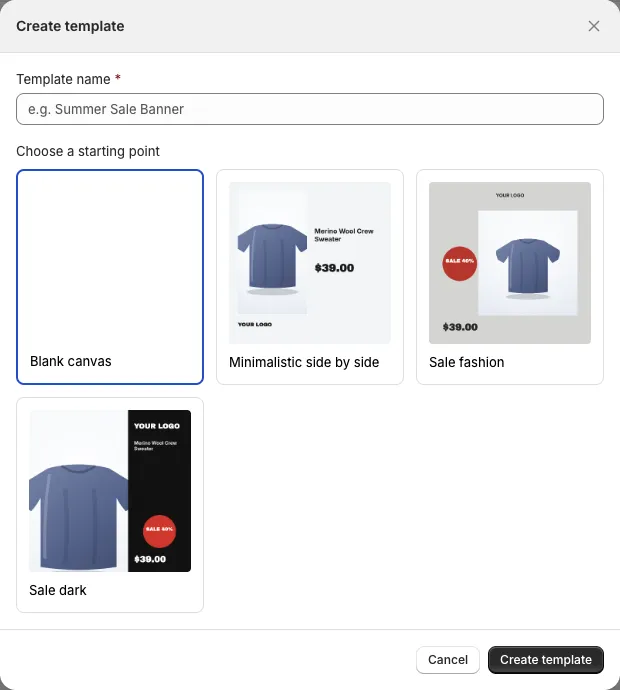
Go to Templates and click Create template. Enter a Template name.
Pick a starting point
Under Choose a starting point, pick Blank canvas, Minimalistic side by side, Sale fashion or Sale dark. Click Create template, and the editor opens.
Design your image
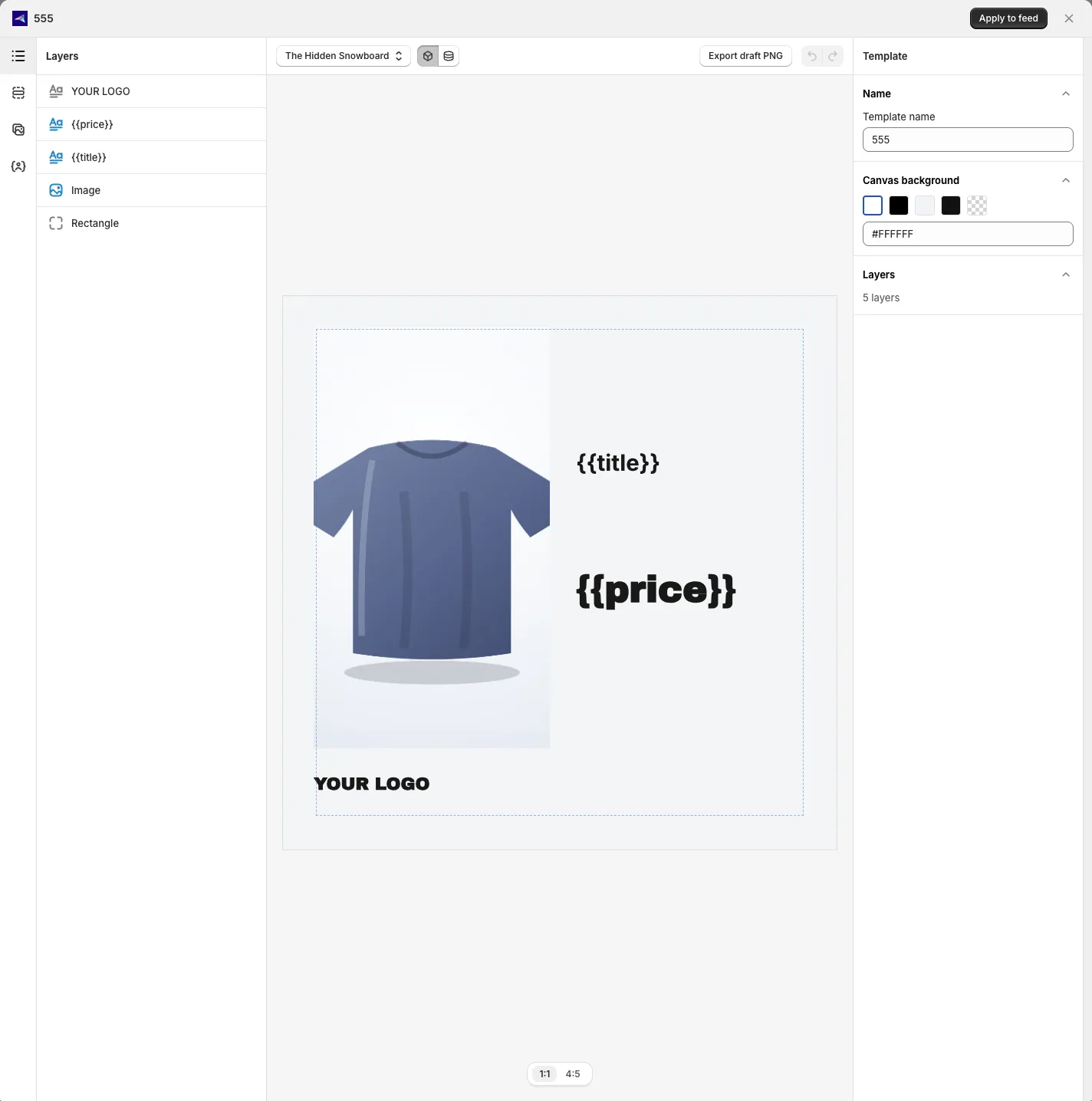
Use the four panels on the left:
- Content overview lists every layer. Drag a layer to change its order.
- Component adds a Text, Image or Shape layer. A Discount badge shows only on products that are on sale.
- Library media holds Your uploads and Built-in frames. Click Add image to upload a PNG or JPG of up to 10 MB.
- Data & tokens lists product details, like the title and price. Click one to add it to a text layer. Each product then shows its own value.
Preview with a real product
In the toolbar, pick a product. Switch between Placeholder and Real data to see sample text or that product's real details. Under the canvas, switch between 1:1 and 4:5. You design on 1:1, and 4:5 shows the same design, taller.
Need a quick look outside the app? Click Export draft PNG. Use Undo and Redo to step through changes.
Save
Click Save in the bar at the top.
Apply a template to a feed
Open Apply to feed
In the editor, click Apply to feed.
Choose the channel and feed
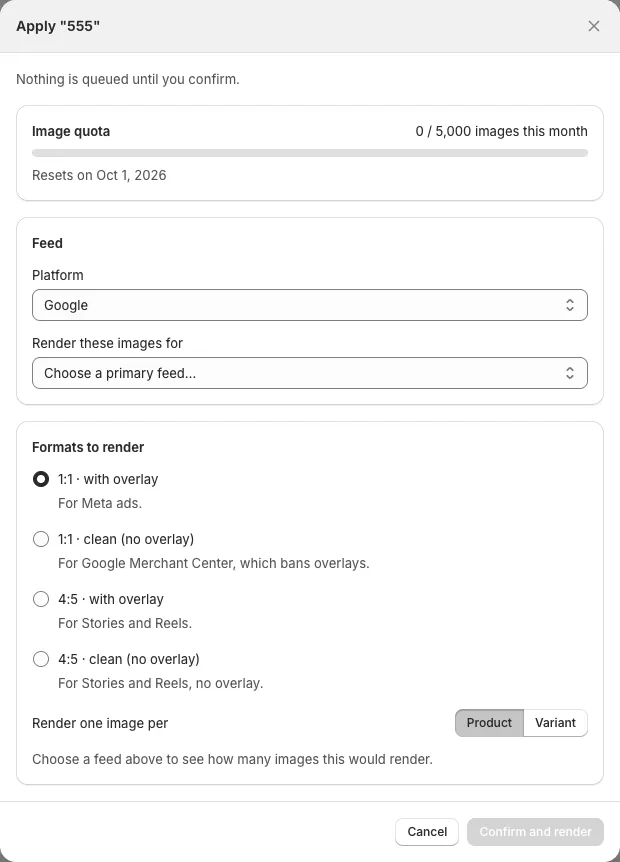
Pick the Platform: Google or Meta. In Render these images for, pick the feed. Only Primary feeds are listed.
Choose the image style
Under Formats to render, pick the size and style. Next to Render one image per, choose Product or Variant.
Confirm
Check Images to render, then click Confirm and render.
For Google Merchant Center (Google's store for your product listings), pick a clean image with no overlay. Google does not allow text or badges on top of the main product image, and may reject the product.
You can also add a template from the feed itself. Open the feed, go to the Attributes tab, and choose Design template in the image row. In Choose a design template, pick a template and an Image format, then click Save.
While the app creates your images, the feed shows Rendering images. It waits for them to finish before sending products to Google or Meta. Your product photos in Shopify stay the same.
Good to know
- 5 templates per store. Delete one to make room.
- 5,000 images a month. The count resets at the start of each month. Click Raise limit if you need more.
- Each design is created once. Regular syncs don't redraw your images or use your quota.
- Changed a design? Apply it to the feed again to refresh the images. Unchanged images are reused and don't count again.
- Deleting a template can't be undone. Feeds using it stop sending its images.
- If images could not be created, the feed shows Images weren't rendered. Click Apply template to try again.
FAQs
Does a template change my product photos in Shopify?
No. The images are used only in your feed. Your Shopify store stays the same.
Do regular syncs use my image quota?
No. Images are created once when you apply a template. Only new or changed images count.
Can I use a template on a Localize or Supplement feed?
No. Only Primary feeds are listed when you apply a template.
I ran out of images this month. What now?
Click Raise limit on the Templates page to ask our team for more. Otherwise, the count resets at the start of next month.
Still have questions?
Chat with us from the app, any time. Next, see Feed details to check your feed and its products.