Dashboard
Instead of opening Merchant Center and Commerce Manager to check on your products, see what is showing and what to fix first on one screen.
What is the Dashboard?
The Dashboard is the first page you see when you click the app name in your Shopify admin sidebar. It answers two questions: are my products showing, and what should I fix first?
It reads from top to bottom: the Setup guide, Account health, your feed totals, Approval status and Top issues, then suggestions for what to do next. The Notifications button sits at the top right.
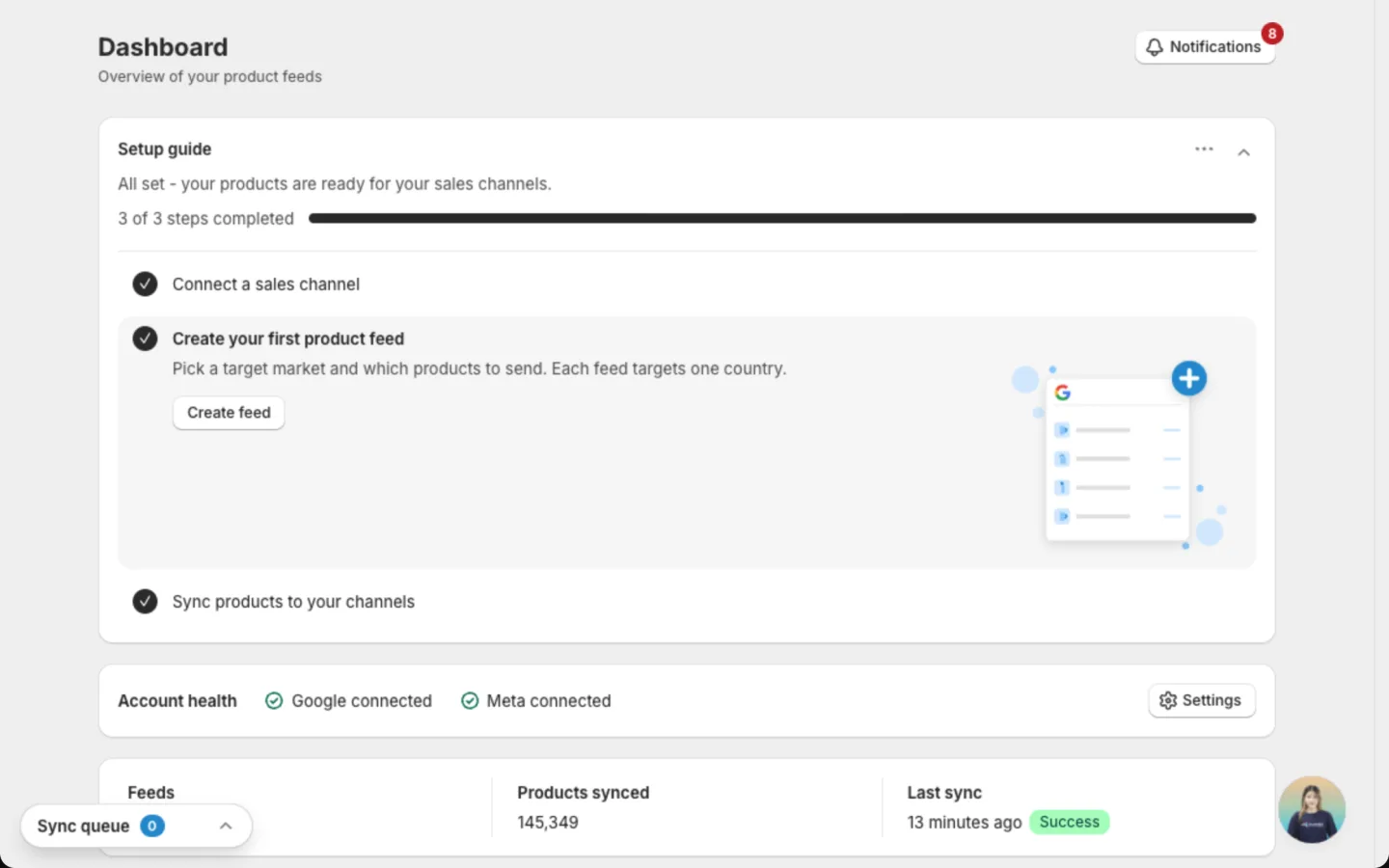
Setup guide
The Setup guide takes you from install to products on your channels in 3 steps:
- Connect a sales channel
- Create your first product feed
- Sync products to your channels
Each step is checked off when you finish it. Each one has a button that opens the right page, so you never have to hunt for the next step.
To hide the guide, click the menu button at its top right and choose Dismiss.
Check your accounts and totals
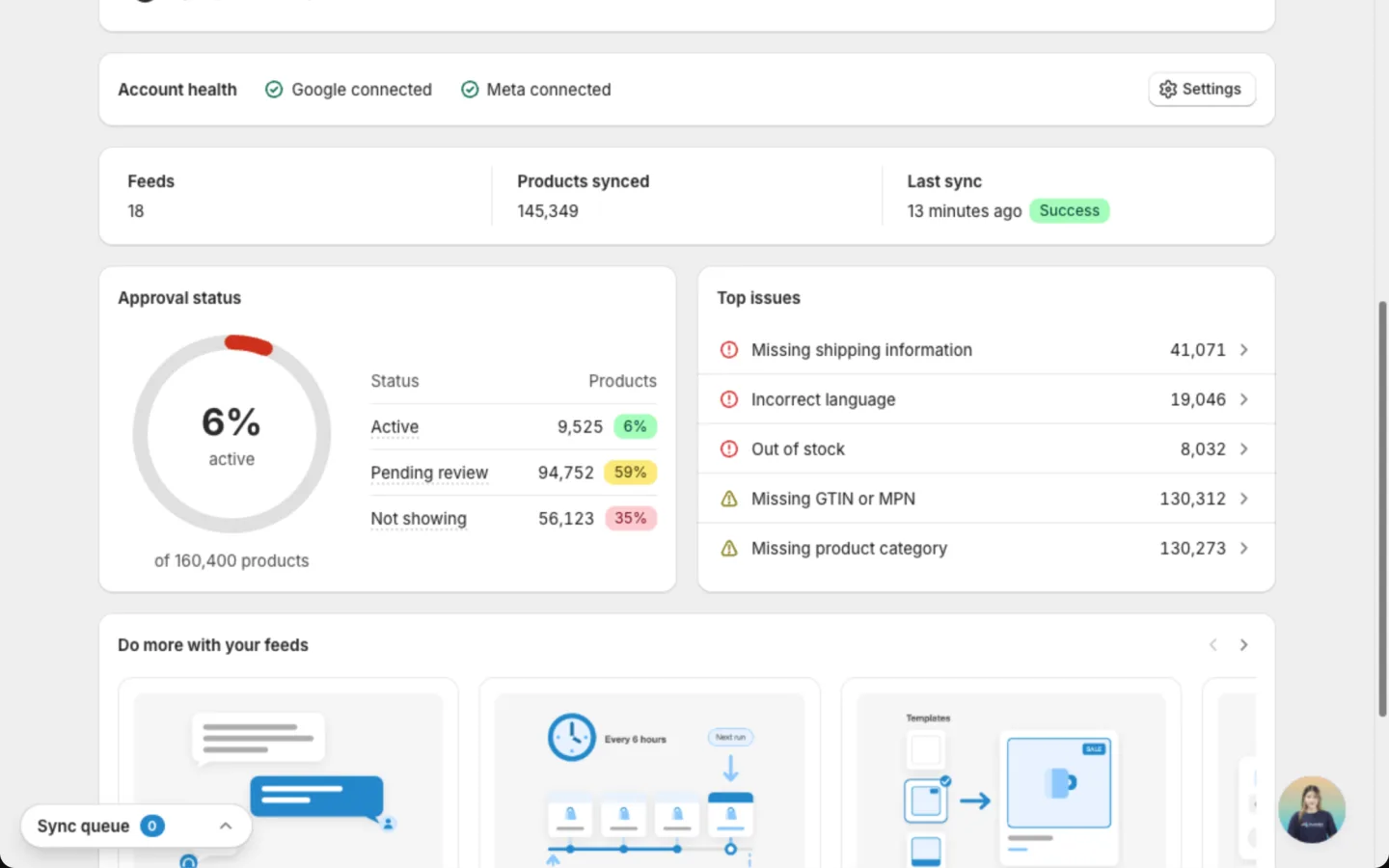
- Account health shows whether your Google and Meta accounts are connected. If one is not, your products can't reach that channel. Click Settings to connect or manage it.
- Feeds is how many feeds you have.
- Products synced is how many products the app has sent to your channels.
- Last sync is when your feeds last updated, with its result: Success, Syncing or Failed.
Click any of the three totals to open your feeds.
See which products are showing
Approval status shows where your products stand on Google and Meta, so you know how many can appear in ads right now.
| Status | What it means for you |
|---|---|
| Active | The product is live. Shoppers can see it. |
| Pending review | Google or Meta is still reviewing it. It is not showing yet. |
| Not showing | The product is not live. Check Top issues to find out why. |
Fix the top issues first
Top issues lists the most common product problems across your feeds, critical ones first:
- Critical issues (red icon) stop a product from showing. Fix these first.
- Warnings (yellow icon) let the product show, but can hurt how well it performs.
Each row shows how many products have the problem. Click an issue to open the feed where it affects the most products, then fix them there.
Nothing changes in your Shopify store when you fix an issue in the app. Edits only affect your feeds.
Do more with your feeds
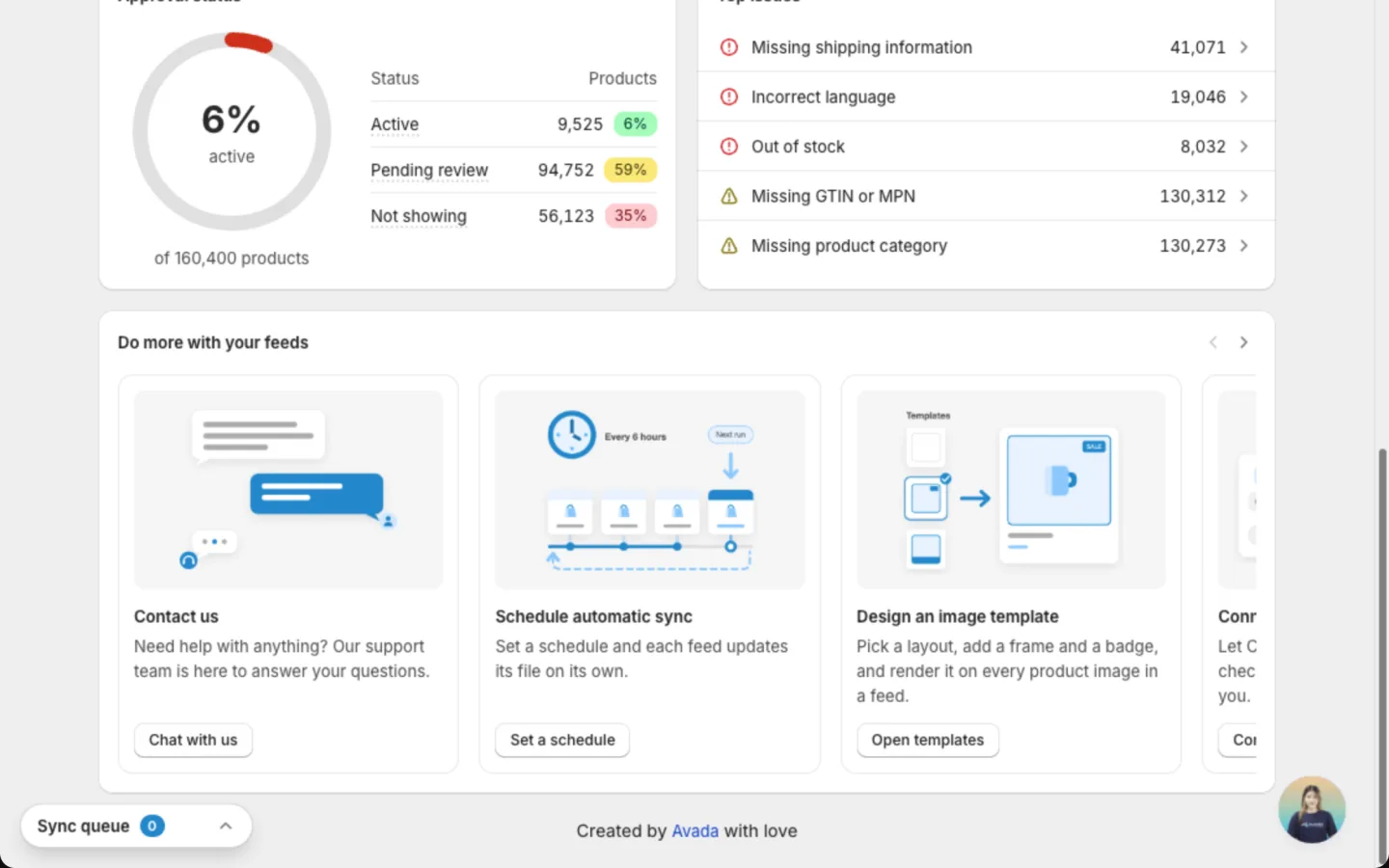
This carousel suggests what to do next:
- Chat with us: get help from our team.
- Set a schedule: keep your feeds up to date on their own. It opens Catalog sync.
- Open templates: design eye-catching images for your product photos.
- Connect an agent: let an AI assistant, such as ChatGPT or Claude, check your feeds for you.
See what's new in the app
Find out about new features without leaving the app. Click Notifications at the top right of the Dashboard. A red number on the button shows how many updates you haven't read.
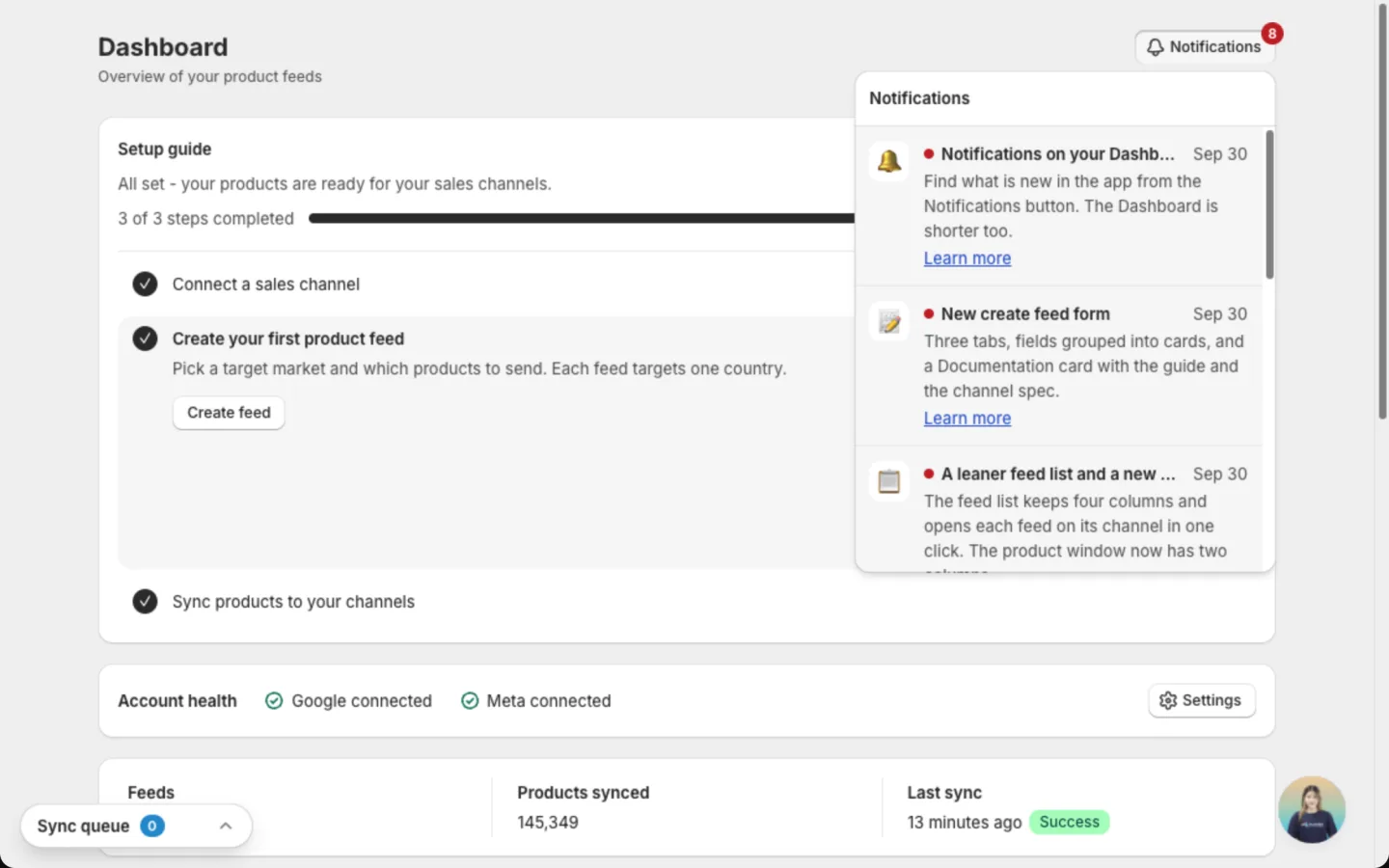
- The newest update is at the top. The list holds the latest 20.
- Click Learn more to open the guide for that feature in a new tab.
- Click an update, or its Learn more link, to mark it as read. Opening the list alone doesn't mark anything.
Read marks are saved in your browser. In another browser or a private window, the updates show as unread again.
FAQs
Why do most of my products show as Not showing?
Most often, the products have a critical issue. Open Top issues, click the biggest issue, and fix it in the feed. New products also need time for Google or Meta to review them.
Does the Dashboard update on its own?
Yes. It shows the latest results each time your feeds sync. Turn on automatic sync in Catalog sync so this happens on its own.
Where did Market coverage, Channel coverage and Recent sync activity go?
They were removed to keep the Dashboard short. See your feeds per channel in Manage feed, and sync results in Catalog sync.
Still have questions?
Chat with us from the app, any time.