Create a feed for any platform
Instead of uploading a spreadsheet to every platform you sell on, give each one a single link to your products. The app keeps that link up to date for you.
What is an Any platform feed?
An Any platform feed is a product file the app keeps online at a fixed link. You paste that link into any platform that accepts a product feed, like a TikTok catalog, Pinterest Catalogs or Microsoft Merchant Center. The platform comes back to the link on its own schedule and picks up your latest prices and stock.
The file uses the Google Shopping format. Most selling platforms read it as is.
| Google feed | Meta feed | Any platform feed | |
|---|---|---|---|
| Account connection | ✅ | ✅ | — |
| The app adds the feed for you | ✅ | ✅ | — (you paste the link) |
| Approval results in the app | ✅ | ✅ | — |
| Feed health from the app's own checks | ✅ | ✅ | ✅ |
| Several countries in one feed | ✅ | — | — |
| Localize and supplement feeds | ✅ | ✅ | — |
Selling on Google or Facebook and Instagram? Use a Google feed or a Meta feed instead. You get approval results right in the app.
Before you start
- Check that the platform accepts a feed link (also called a scheduled feed, data feed URL or catalog URL). Most do. Some only accept a file upload.
- Give each product a description, an image and stock. Products without them are held back from the file. See Optimize your feed.
Set it up
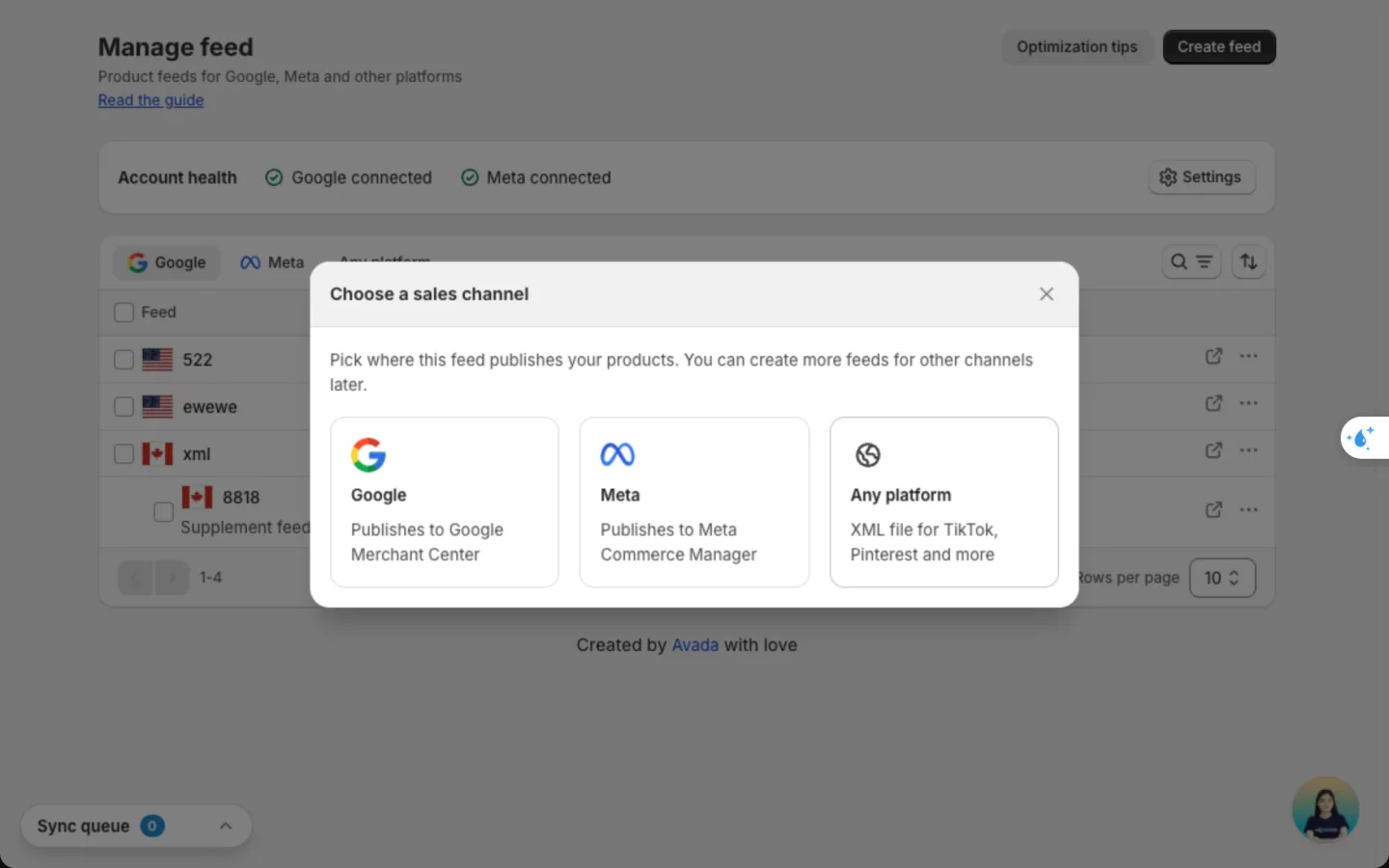
Choose Any platform
Go to Manage feed, click Create feed, then click Any platform.
Name the feed and pick its market
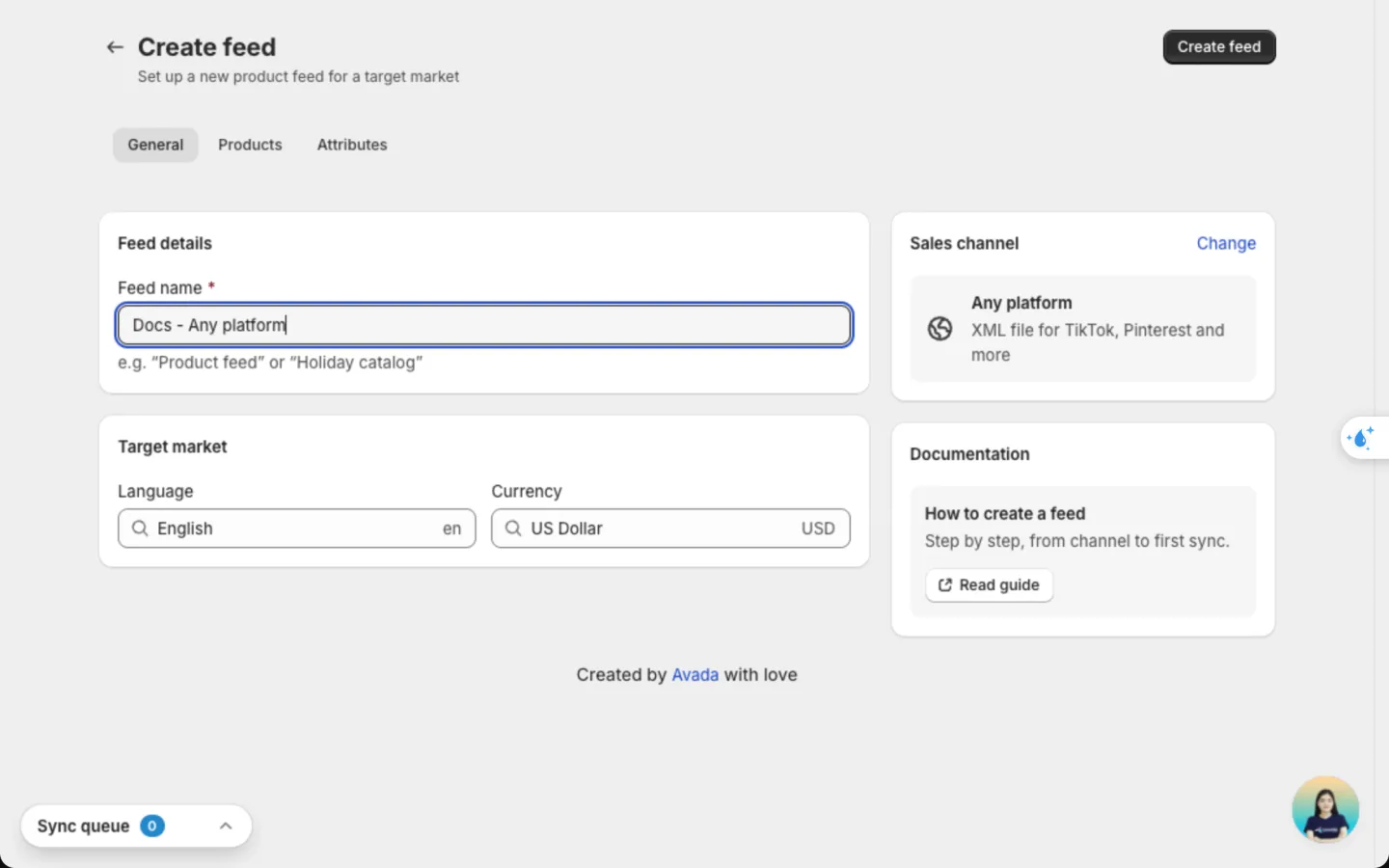
On the General tab, enter a Feed name you'll recognise, like "TikTok - US". Shoppers never see it.
Under Target market, pick a Language and a Currency. Your titles and prices are sent in these. There is no country to pick: the feed uses your store's main market.
Choose the products
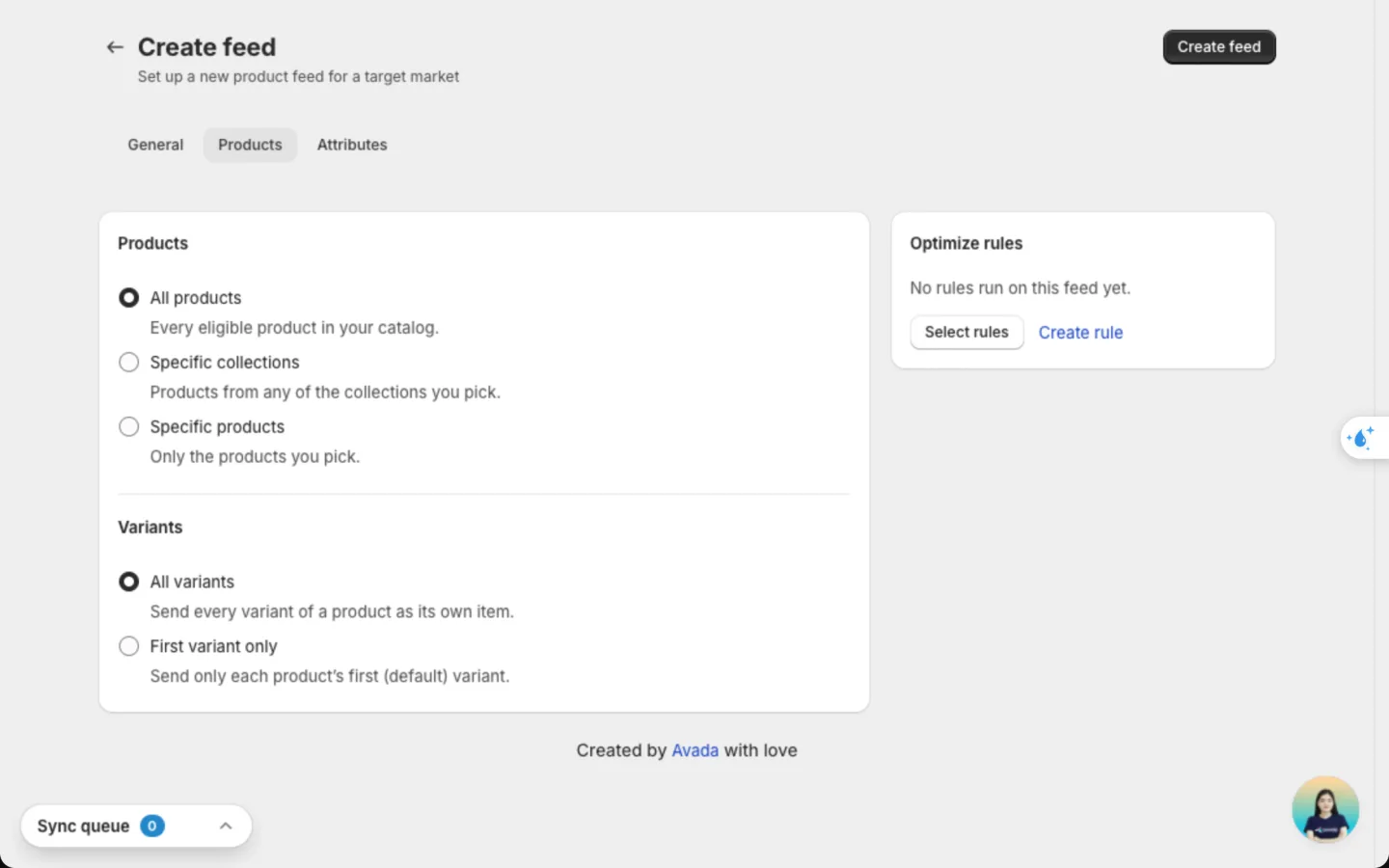
On the Products tab, choose All products, Specific collections or Specific products. Under Variants, choose All variants to list each size or colour on its own, or First variant only for one listing per product.
Check the product details
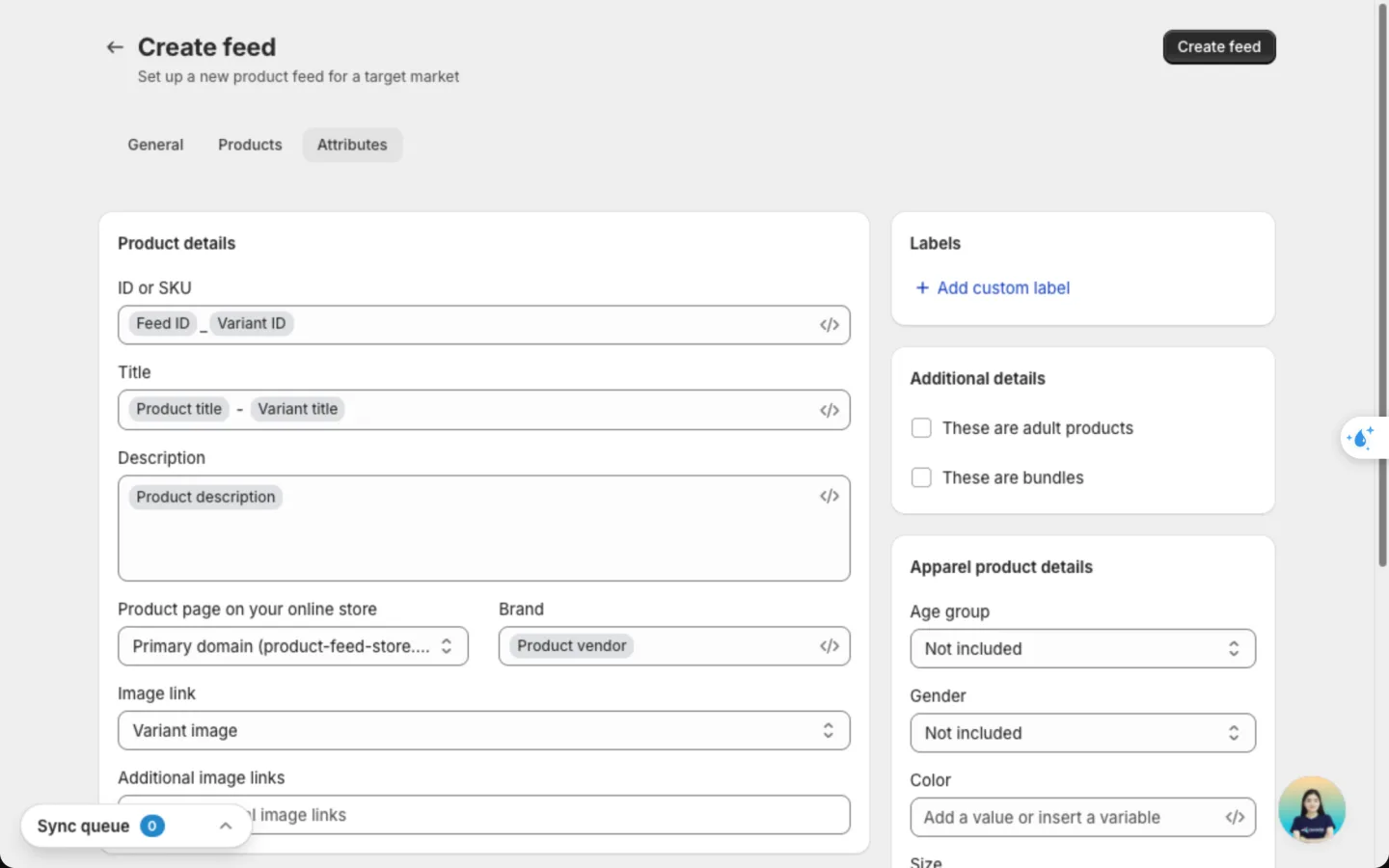
The Attributes tab decides which Shopify detail goes into each field of the file. The app fills the common ones for you. See Fields on each tab.
Save the feed
Click Create feed. The feed page opens and shows Building your feed from your catalog… with a progress bar. A new feed takes a few minutes.
Copy the feed link
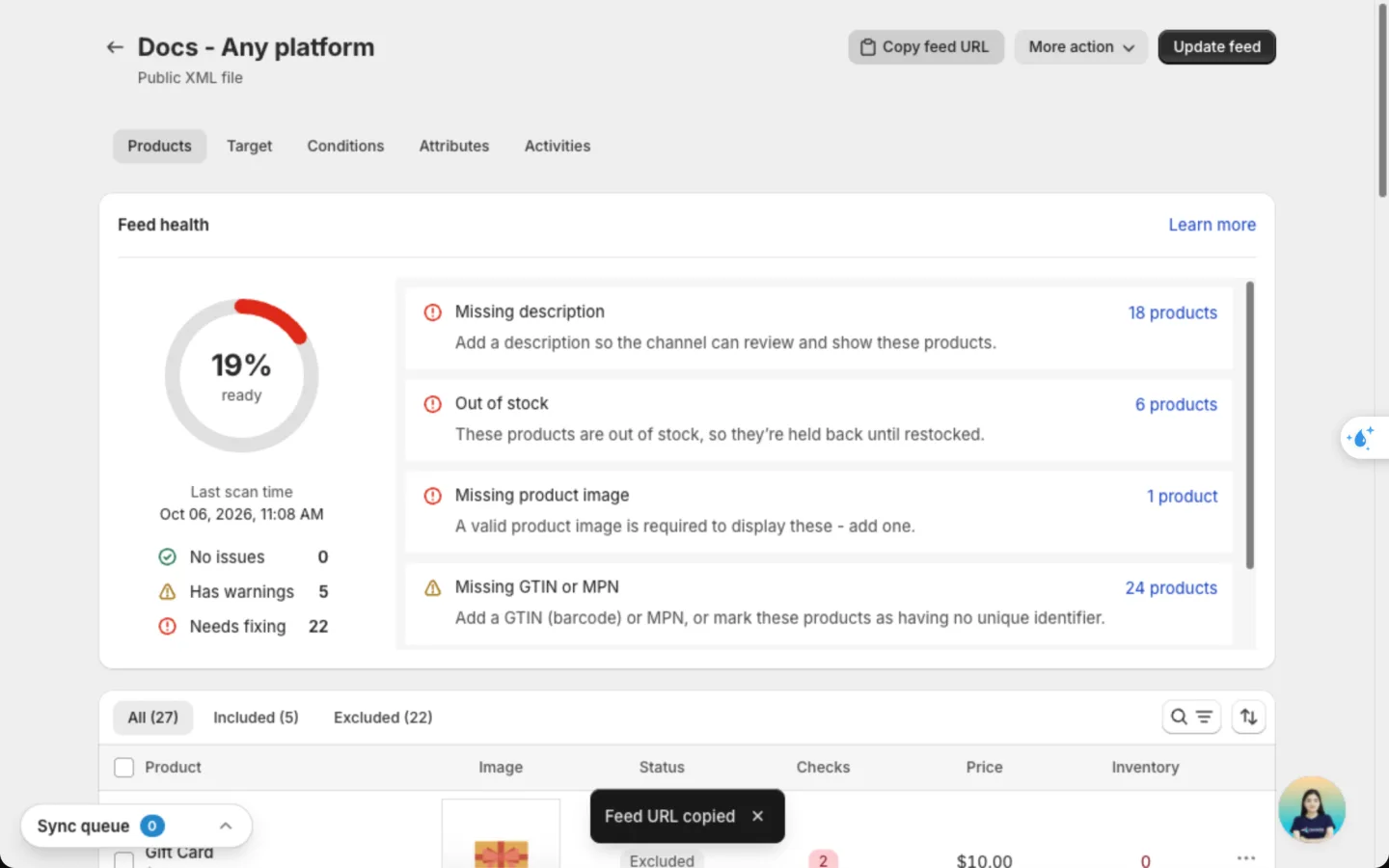
When the feed is ready, click Copy feed URL at the top of the feed page. You'll see Feed URL copied. The button stays grey while the feed is still building.
Paste it into your platform
Open your platform's catalog or product feed settings, choose to add products from a link (often called scheduled feed or data feed URL), and paste the link. Set the platform to fetch it daily.
Check it worked
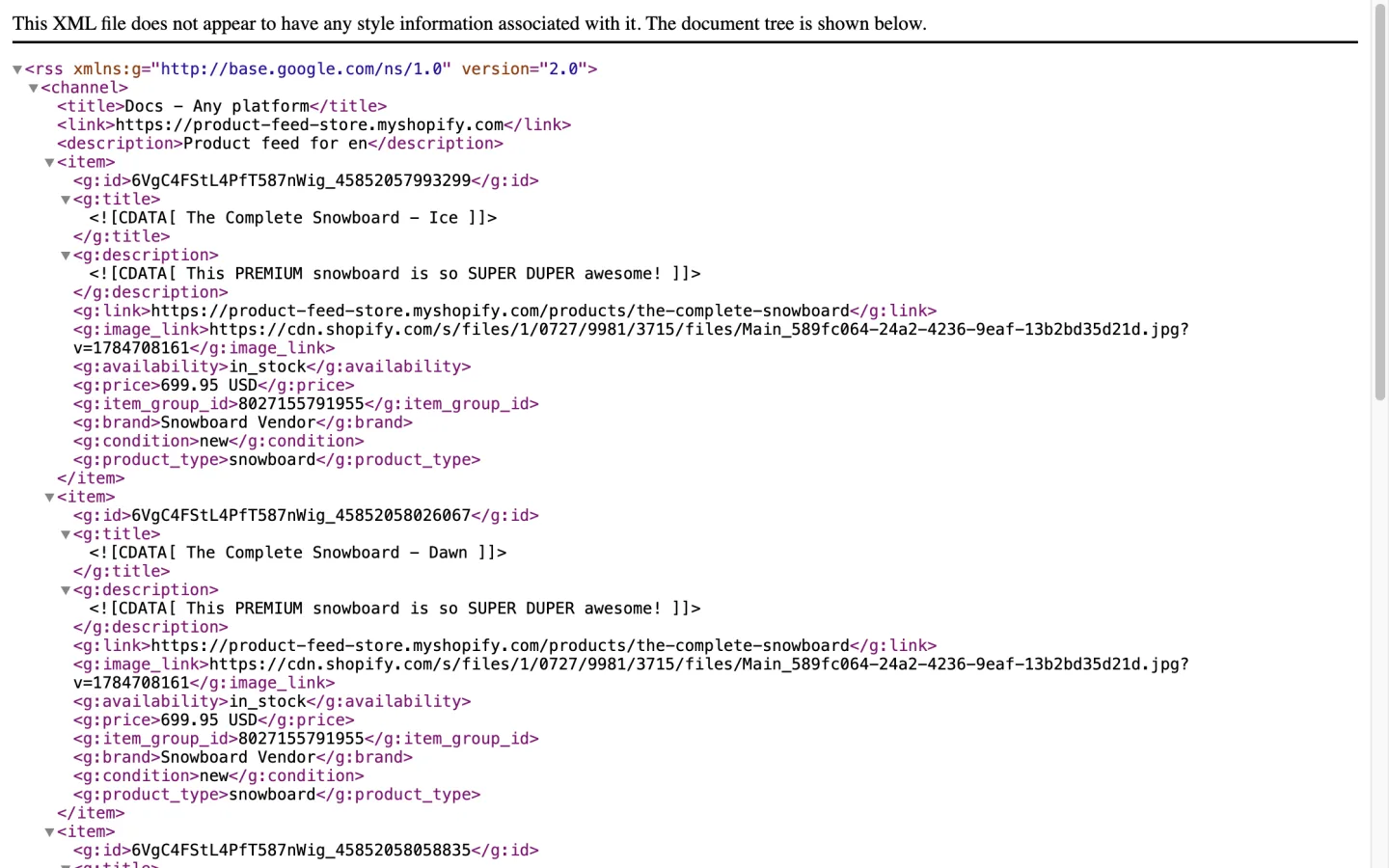
Paste the link in a new browser tab. You'll see your products as a list of items, each with its title, price, stock and image link.
The app can't see whether the other platform approved your products. Check approval results in that platform's own catalog page. Nothing changes in your Shopify store.
Fields on each tab
General
| Field | What it does |
|---|---|
| Feed name | Your own label for the feed. Shoppers never see it. |
| Language | The language of your titles and descriptions in the file. |
| Currency | The currency of your prices in the file. |
Products
| Field | Options |
|---|---|
| Products to list | All products, Specific collections, Specific products |
| Variants | All variants (each variant as its own item), First variant only |
| Optimize rules | Filter products or fill details by rule. See Optimize rules. |
Attributes
Each field shows a tag: Required, Recommended or Optional. In a text field, click Insert variable (</>) or type / to add a value that changes per product. You can insert details from these groups: Product (title, vendor, type, description, tags, category path, SEO title, meta description, URL handle), Variant (title, SKU, barcode, price, compare-at price), Shop (name, domain), and Metafield, Variant metafield or Collection metafield.
| Field | What you can use | How to optimize it |
|---|---|---|
| ID or SKU | Feed ID + variant ID by default. Can also use SKU, barcode, product ID, URL handle or a metafield. | Keep the default. It's unique and never clashes. You can't change it after the feed is created. |
| Title | Product title + variant name by default, or any mix of text and variables | Put what shoppers search first: brand + product type + key detail, like {Product vendor} {Product title} - {Variant title}. Don't use all caps or promo text like "Free shipping". |
| Description | Product description by default, or text and variables | Describe the product, not the store. Mention material, use and fit. Products with no description are held back. |
| Product page on your online store | Primary domain by default, or another domain of your store | Pick the domain shoppers buy on. |
| Brand | Product vendor by default, or text and variables | Use the real brand name, not your store name, unless you make the products yourself. |
| Image link | Variant image (default), Product image 1 to 10, or Design template | Use the photo that shows the exact variant. Turn to a design template for a branded image. |
| Additional image links | Up to 5 of Product image 1 to 10 | Add angles, close-ups and lifestyle shots. Shoppers see them when they open the product. |
| Google product category | Shopify category (mapped) by default, or Custom category | Pick the most specific category you can. "Shoes > Sneakers" beats "Apparel". |
| Product type | Your Shopify product type by default, or text and variables | Use your own category path, like "Women > Shoes > Sneakers". It helps you split ad campaigns. |
| Condition | New, Refurbished, Used, or a metafield | Leave New unless you sell second-hand or refurbished items. |
| GTIN, UPC, EAN, JAN or ISBN | Variant barcode by default, or a metafield | Fill it for every branded product. It's the strongest signal for approval and matching. |
| MPN | Variant SKU by default, or variant barcode, or a metafield | Use the maker's part number when there's no barcode. |
| These are one-of-a-kind or vintage products with no identifier | Tick box | Tick it for handmade, custom-made or vintage items. GTIN and MPN turn off. |
| Custom label | Up to 5 labels, text and variables | Group products for bidding: "bestseller", "on sale", "high margin", "season". Shoppers never see them. |
| These are adult products | Tick box | Tick only if the products are adult content. |
| These are bundles | Tick box | Tick when one price covers several different products grouped by you. |
| Age group | Newborn, Infant, Toddler, Kids, Adult, or Not included | Set Adult for most stores. |
| Gender | Male, Female, Unisex, or Not included | Most platforms ask for it on clothing. |
| Color | A fixed value or a metafield | Use a plain colour name shoppers type, like "Navy", not a code. |
| Size | A fixed value or a metafield | Match your size chart, like "M" or "42". |
| Material | A fixed value or a metafield | Name the main fabric, like "Cotton". It helps searches like "linen shirt". |
| Pattern | A fixed value or a metafield | Name it when it matters, like "Striped" or "Floral". |
Price, sale price and stock always come from Shopify, so they're not fields in the form. They stay correct on their own.
Optimize your feed for other platforms
TikTok, Pinterest and Microsoft review each product before showing it, with rules close to Google's. Fixes that pass there usually pass everywhere. Work in this order:
- Clear what blocks the file. Feed health on the feed page lists them, like Missing description, Out of stock or Missing product image. Only products marked Included go into the file.
- Add identifiers. Fill GTIN from your barcode, or tick the no-identifier box for handmade items.
- Use a vertical image on TikTok and Pinterest. Under Image link, choose Design template and 4:5. See Image templates.
- Write titles for the platform's search. On TikTok and Pinterest the title is often all a shopper reads. Lead with the brand and product type.
- Add custom labels. Most ad platforms let you bid by these labels.
Good to know
- Only products marked Included on the feed page go into the file. The feed page shows how many: Included and Excluded.
- The link never changes. Edits reach the file at the next update, and the platform picks them up at its next fetch.
- To rebuild the file right away, click Update feed on the feed page.
- One feed has one language and one currency. For another market, create another feed.
- More action on the feed page lets you Duplicate feed, Export CSV or Delete feed. Deleting the feed breaks the link on every platform that uses it.
FAQs
Which platforms can read this feed?
Any platform that accepts a Google Shopping feed link. That includes TikTok catalogs, Pinterest Catalogs and Microsoft Merchant Center. If your platform only takes a file upload, open the link, save the file and upload it, but then it won't update on its own.
Why does my file have fewer products than my store?
Products that are out of stock, or missing a description or image, are held back. Open the feed page, click Excluded and fix the reasons listed under Feed health.
Can I use one link on several platforms?
Yes. Paste the same link into each platform. Create a separate feed only when a platform needs a different language, currency or product set.
Does the link change when I edit the feed?
No. The link stays the same for the life of the feed. Only deleting the feed removes it.
Why do I see Google checks on an Any platform feed?
The file uses the Google Shopping format, and most platforms follow the same rules. Fixing those checks helps your products pass review everywhere.
Still have questions?
Chat with us from the app, any time.