CSV rules
A regular rule sets one value for every matching product. A CSV rule sets each product its own value, straight from your spreadsheet.
Use it to group products for ads. Fill Custom label 0 with Best seller, Clearance or High margin in one file, then split campaigns and bids by group in Google Ads.
Nothing changes in your Shopify store. Imported values only affect the feeds you pick.
Import a file or a sheet
Prepare the file
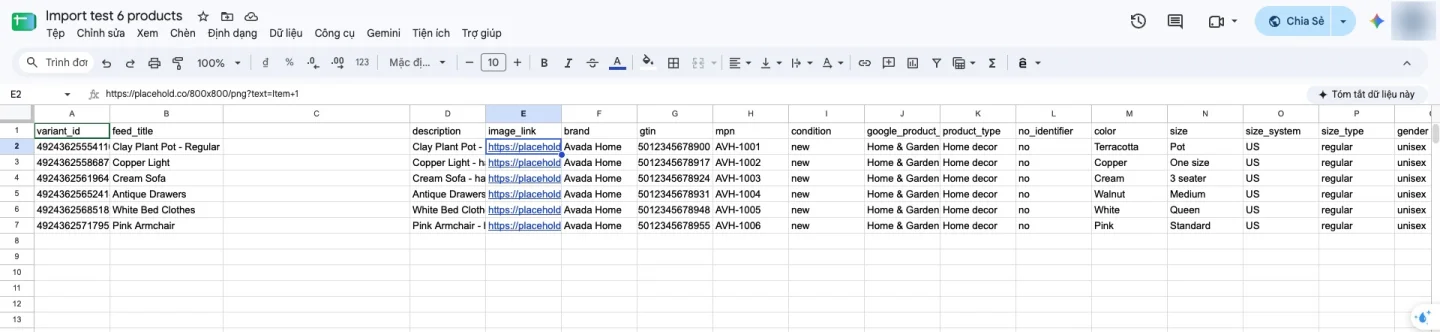
One row per product. One column identifies it: sku, variant_id, product_id or offer_id. Name the other columns after the field they fill, like brand, gtin or custom_label_0.
Need a starting point? In the import dialog, click Download template and pick Empty template or Current values of a feed.
Add your data
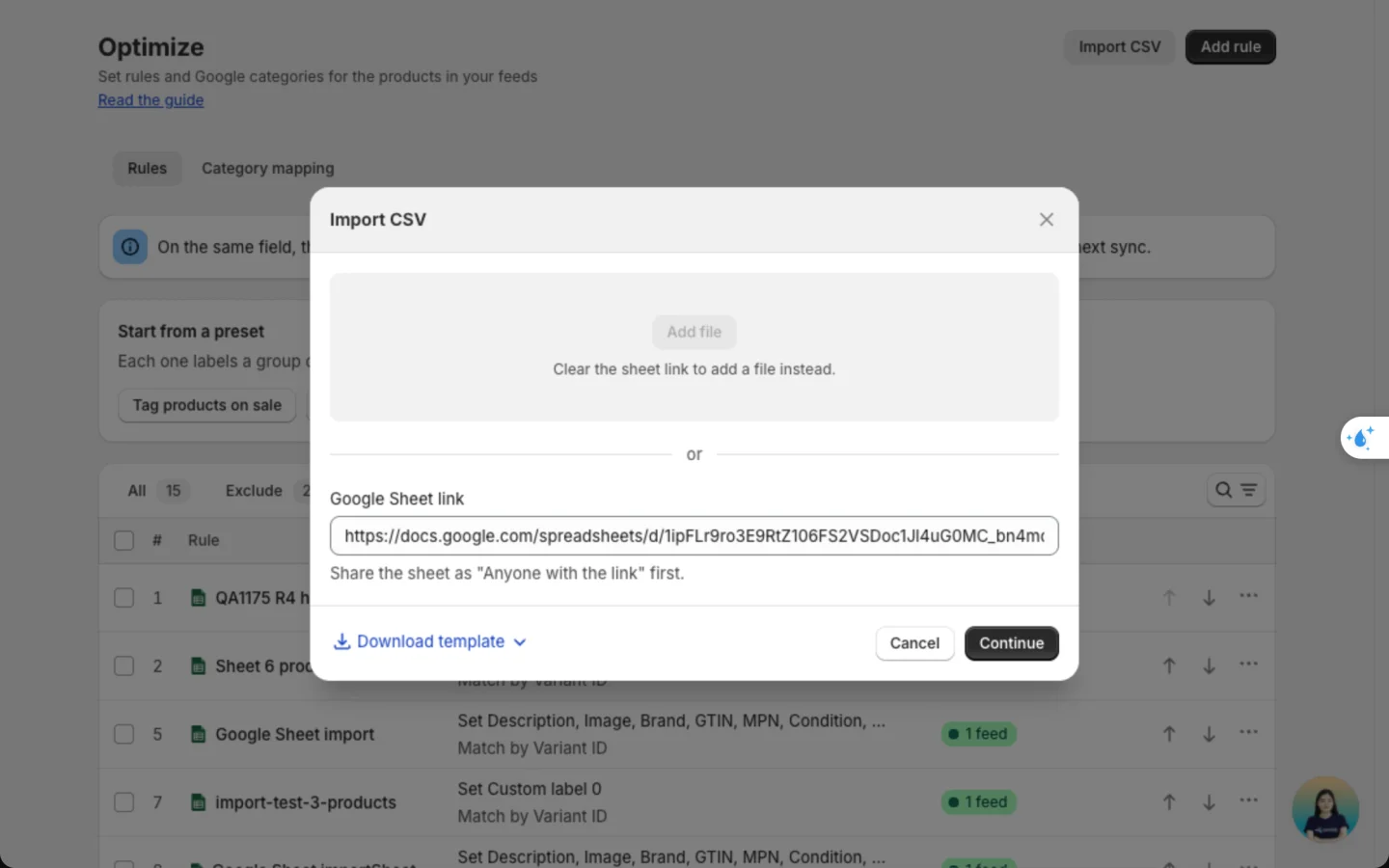
Go to Optimize and click Import CSV. Drop a .csv file, or paste a Google Sheet link shared as Anyone with the link. Other links are refused. Use one source at a time: remove the file to paste a link instead. Click Continue.
Check and import
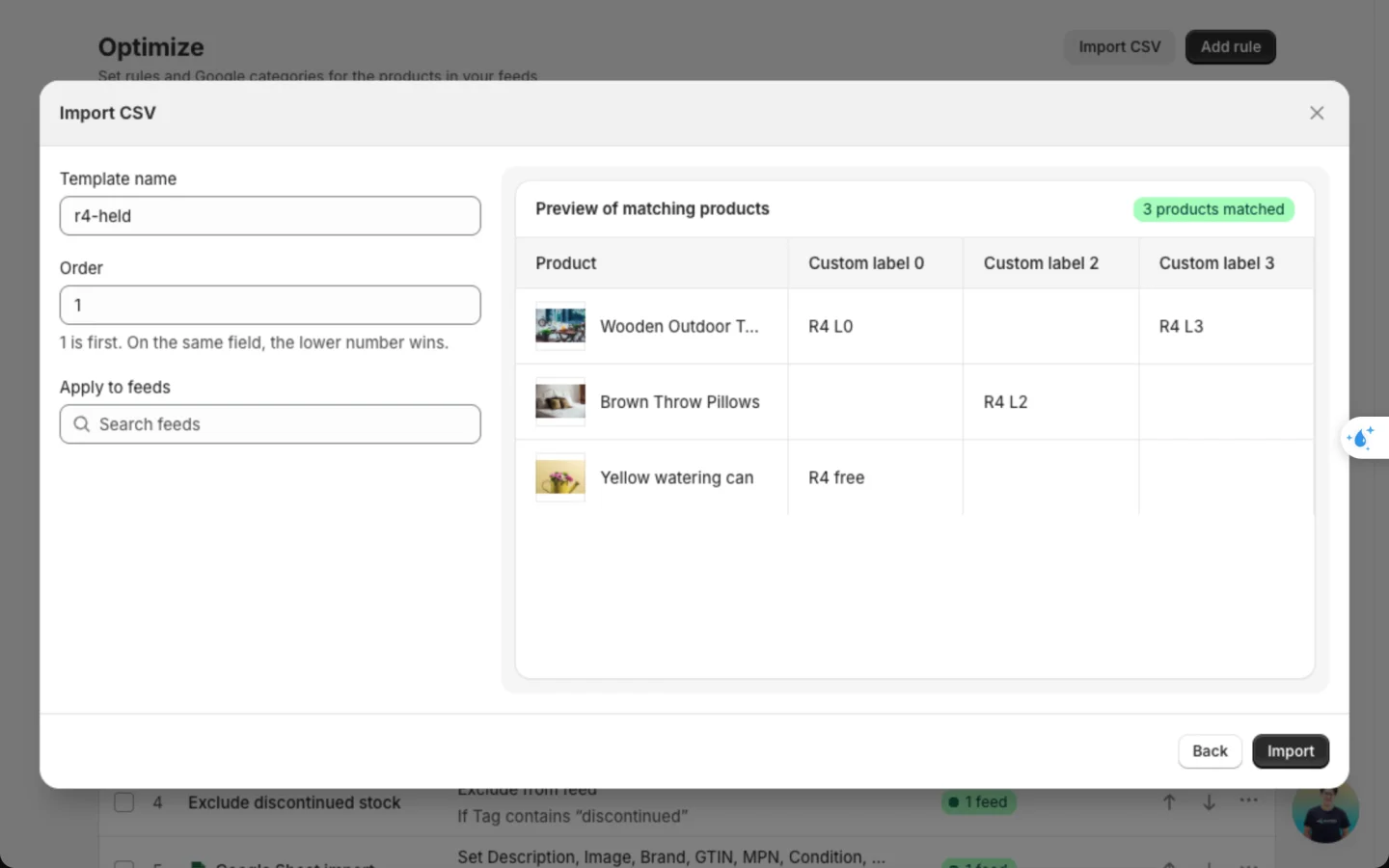
The preview shows how many products match, and the first 5 with the values they will get. You don't need to pick a feed to see it. A greyed-out value won't apply, and Held by names what keeps it: your own edit, or a rule or template higher in the list.
On the left:
- Template name: filled in from the file name.
- Order: where the template sits in your rules list. New templates start at 1, so their values apply. To let a rule win, move the template below it.
- Apply to feeds: pick one or more feeds. Leave it empty to save the template and add feeds later.
Click Import.
Your feeds get the new values on their next sync.
Fields you can import
Title, Description, Image, Brand, GTIN, MPN, Condition, Google product category, Product type, No identifier, Color, Size, Size system, Size type, Gender, Age group, Material, Pattern, Custom label 0-4, Adult and Is bundle.
Prices, shipping and returns can't be imported. Condition, Gender and Age group only take Google's own values, like new, unisex or adult.
Manage your templates
Each import is saved as a template in your rules list on Optimize. Click the Import CSV tab to see them.
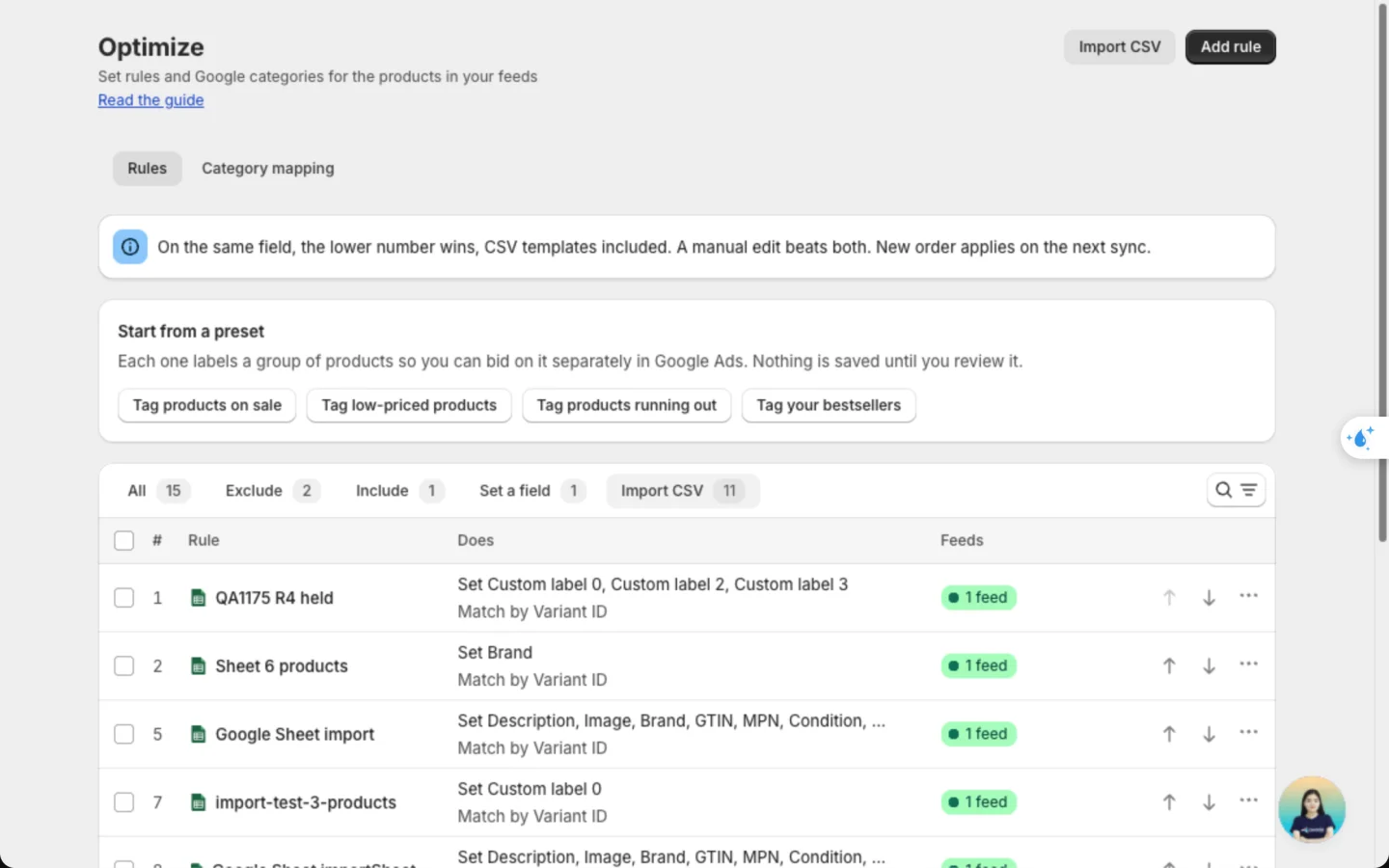
To add a template to a feed from the feed itself, open the feed's Conditions tab, click Select rules on the Optimize rules card and tick it under CSV templates. See Rules.
Click a template, or choose Edit from its menu, to open Edit template:
- Basic info: rename it, change its order or its feeds.
- Edit: paste a new link or upload a new file. Click Save to replace the template's values.
- Details: the source, last import, matched products, fields it sets, feeds and order. It shows Applied once every feed has synced since the import. Download CSV gets the data you imported. Templates from a Google Sheet also have View sheet.
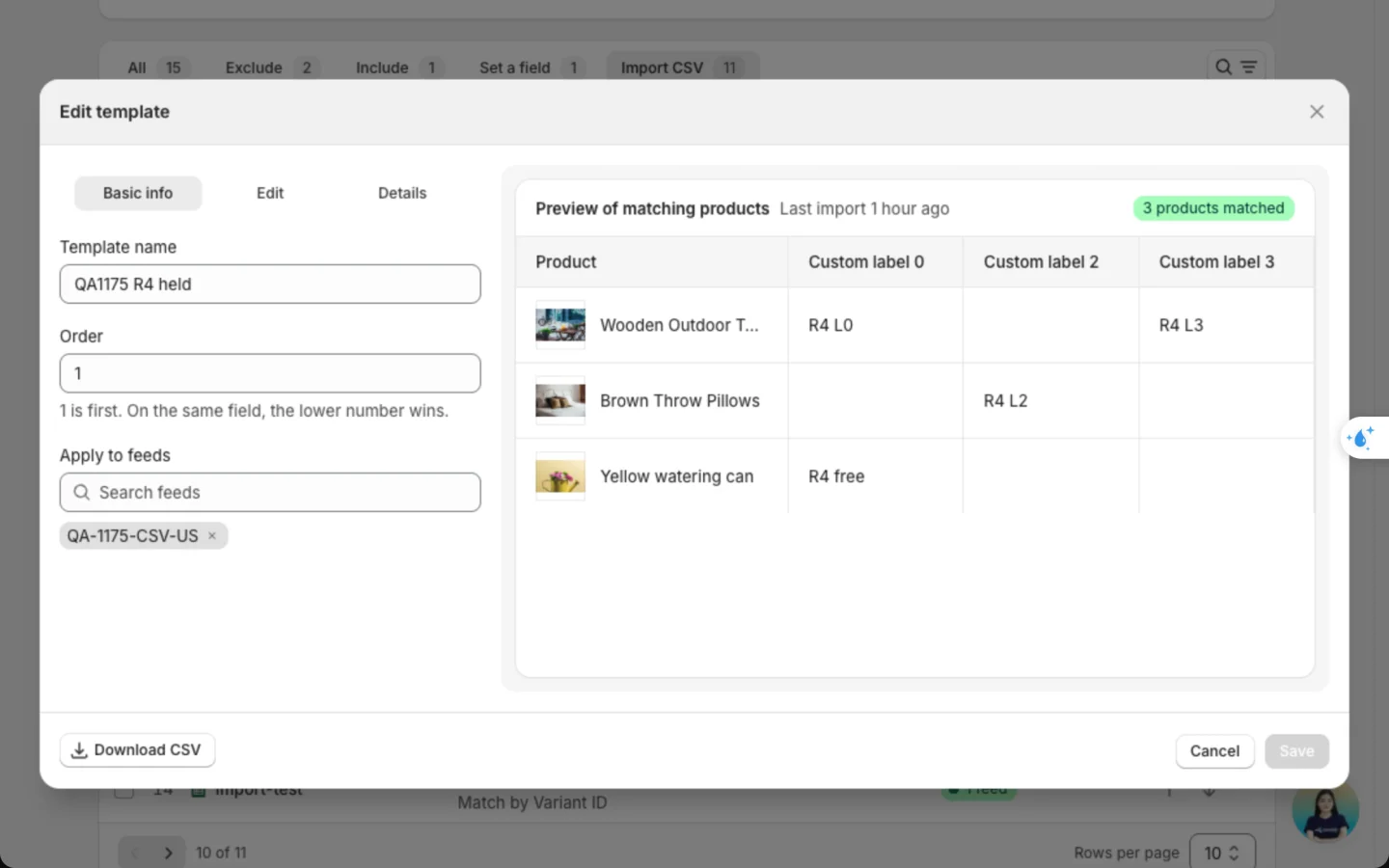
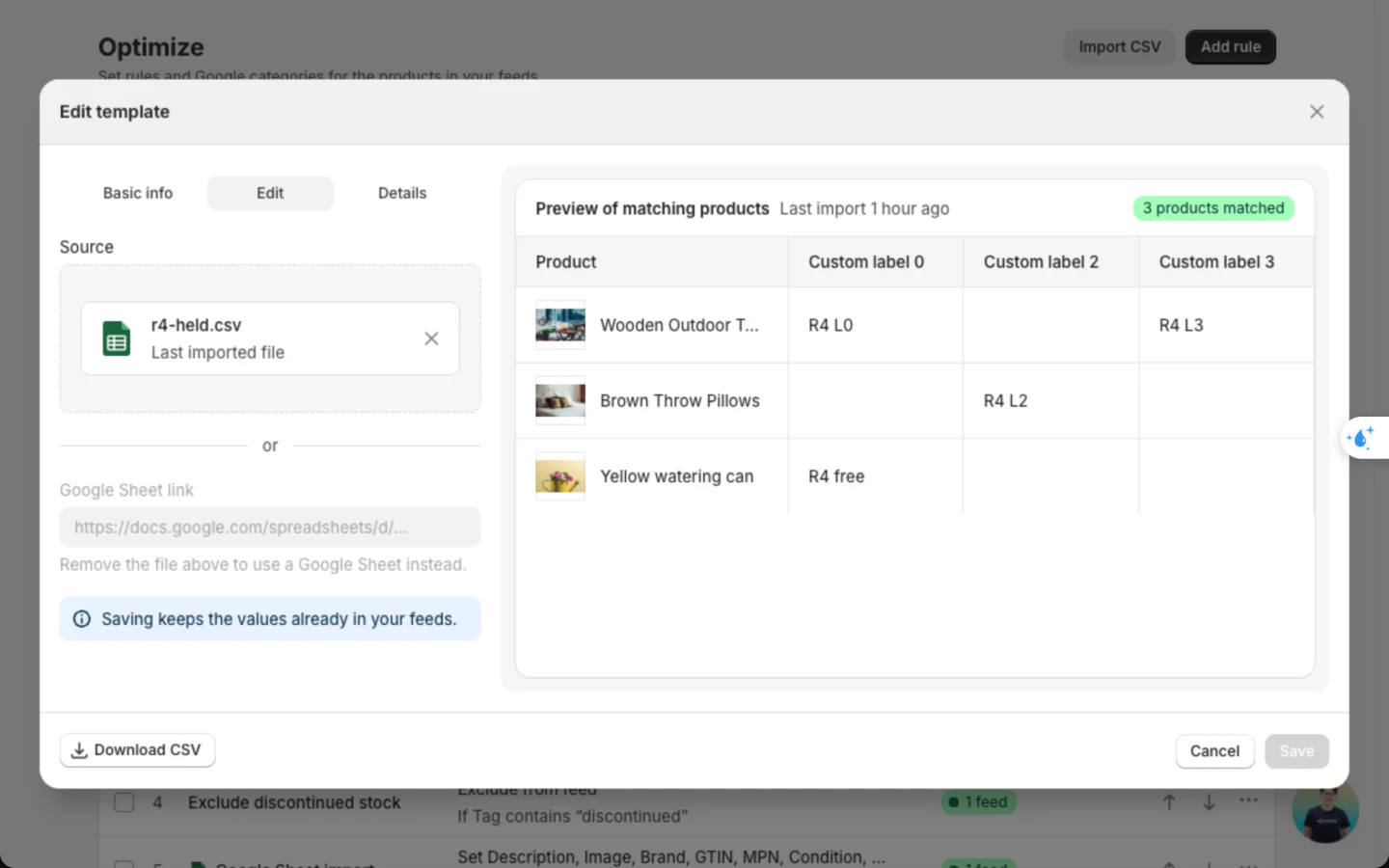
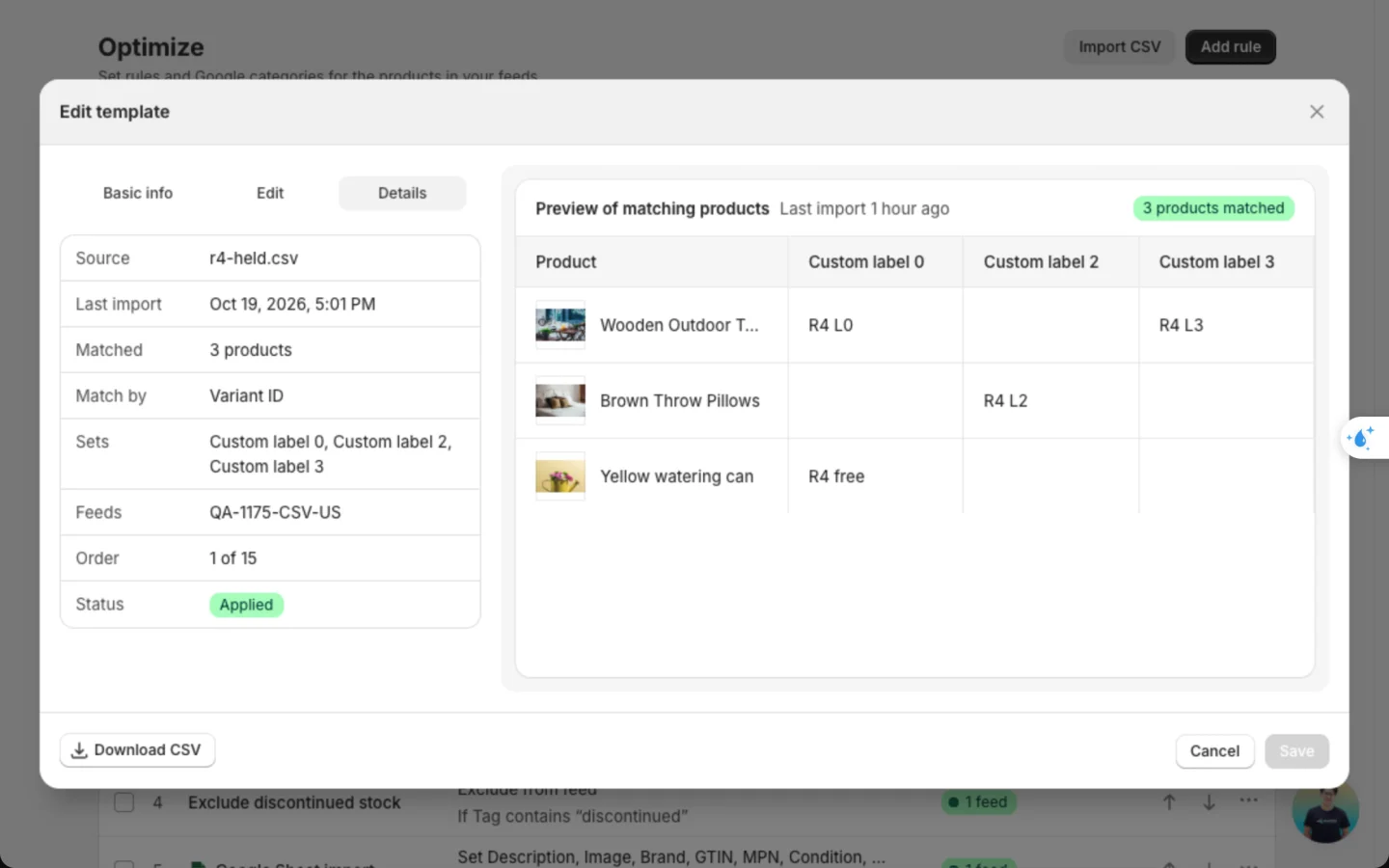
Deleting a template removes its values from your feeds and publishes them again right away.
Good to know
- The lower number wins. Templates and rules share one list. On the same field, the smaller Order number wins, template or rule. Your own edits on a product beat both.
- Add text on top of CSV values. A rule that adds text before or after a field, placed below the template, adds it to the value from your file.
- A new file replaces the old one. Columns and products missing from the new file are no longer set by the template.
- Exclude rules still apply. A CSV can't bring back a product a rule removed.
- Empty cells change nothing. The feed keeps its current value.
- Product ID covers every variant. Use SKU or Variant ID for one variant.
- Same title for every feed. Pick several feeds and each one gets the same title and description, whatever its language.
FAQs
My feed still shows the old values. Why?
Values reach a feed on its next sync. Check the template is added to that feed, and that no rule or template above it sets the same field.
It says no product matches my store.
Check the ID column. Its values must match your products exactly.
It says the Google Sheet is not public.
In the sheet, click Share and set access to Anyone with the link.
Still have questions?
Chat with us from the app, any time.