Category mapping
Google uses the product category to show your products in the right searches. Instead of setting it product by product, pick one Google category for a whole product type, collection or Shopify category. Every product in that group gets it.
Nothing changes in your Shopify store. Categories set here only affect feeds that use them.
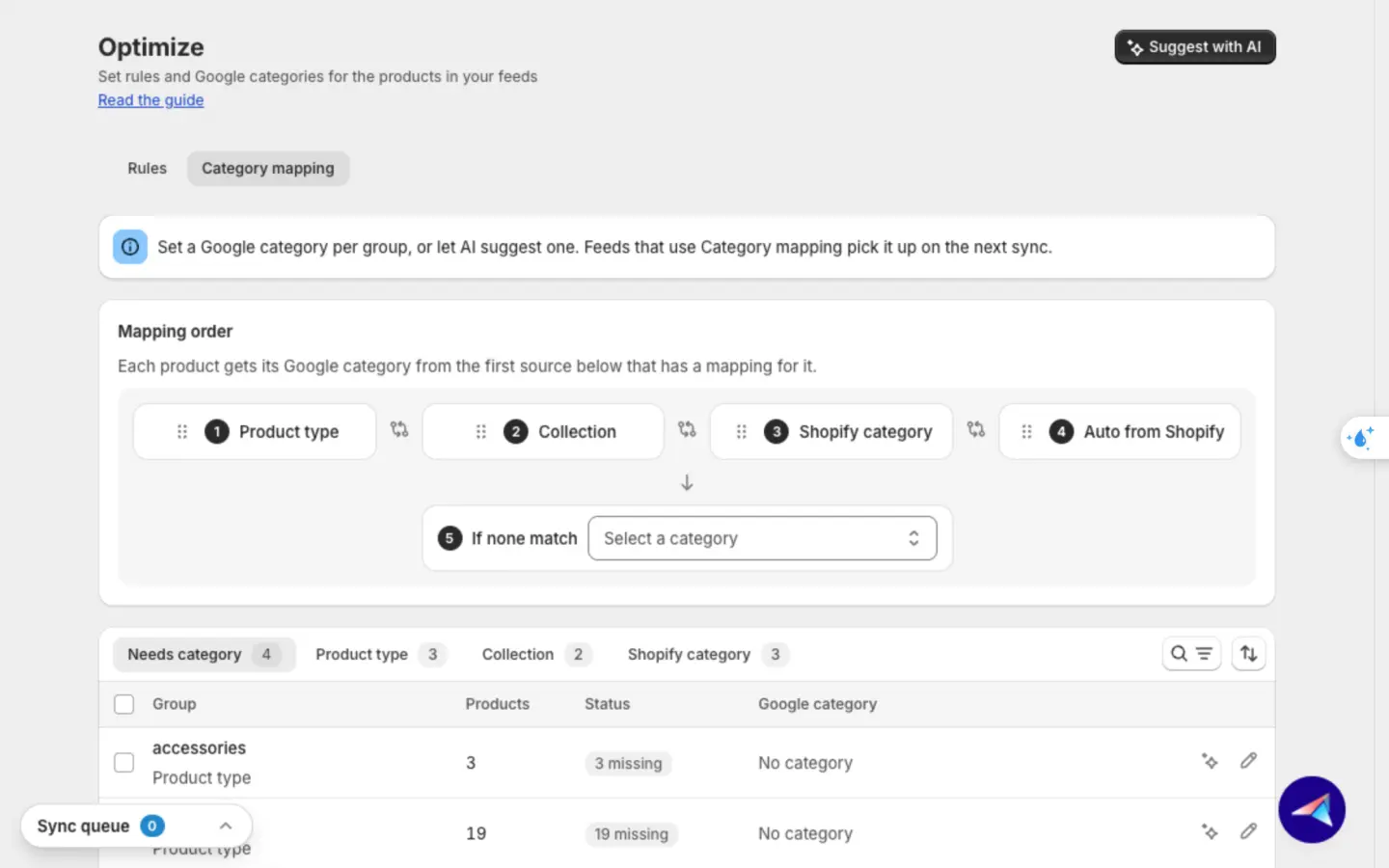
Set categories for your groups
Build your list of groups
Go to Catalog sync and click Sync all. When products finish syncing, the app lists every product type, collection and Shopify category in your store. Each group shows how many products it has and how many are missing a category.
Open Category mapping
Go to Optimize → Category mapping. The Needs category tab shows groups that still have products without a category. The Product type, Collection and Shopify category tabs list every group of that kind.
Choose the order
Under Mapping order, each product takes its category from the first step that has one for it. Drag a step, or click the swap arrows between two steps, to change the order. Auto from Shopify is the Google category Shopify already matched to the product's Shopify category.
Pick a category in If none match to cover every product the steps above miss. Click the bin next to it to clear it.
Fill the gaps with AI
Click Suggest with AI at the top of the page. AI reads each group's name and a few of its products, picks a Google category and saves it straight away. It only fills groups with no category, so the ones you picked stay as they are. Progress shows in the Sync queue at the bottom left.
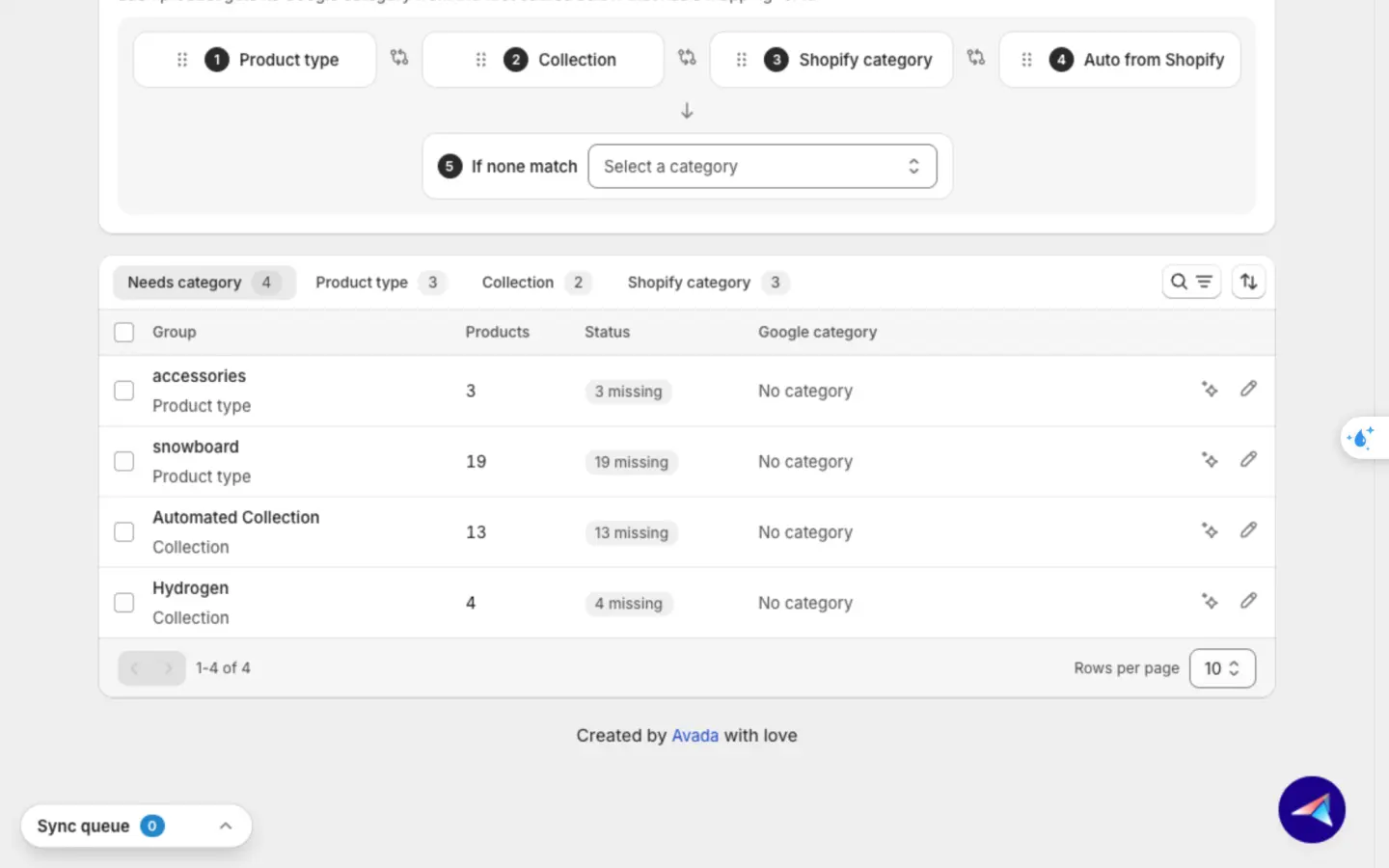
Check each group
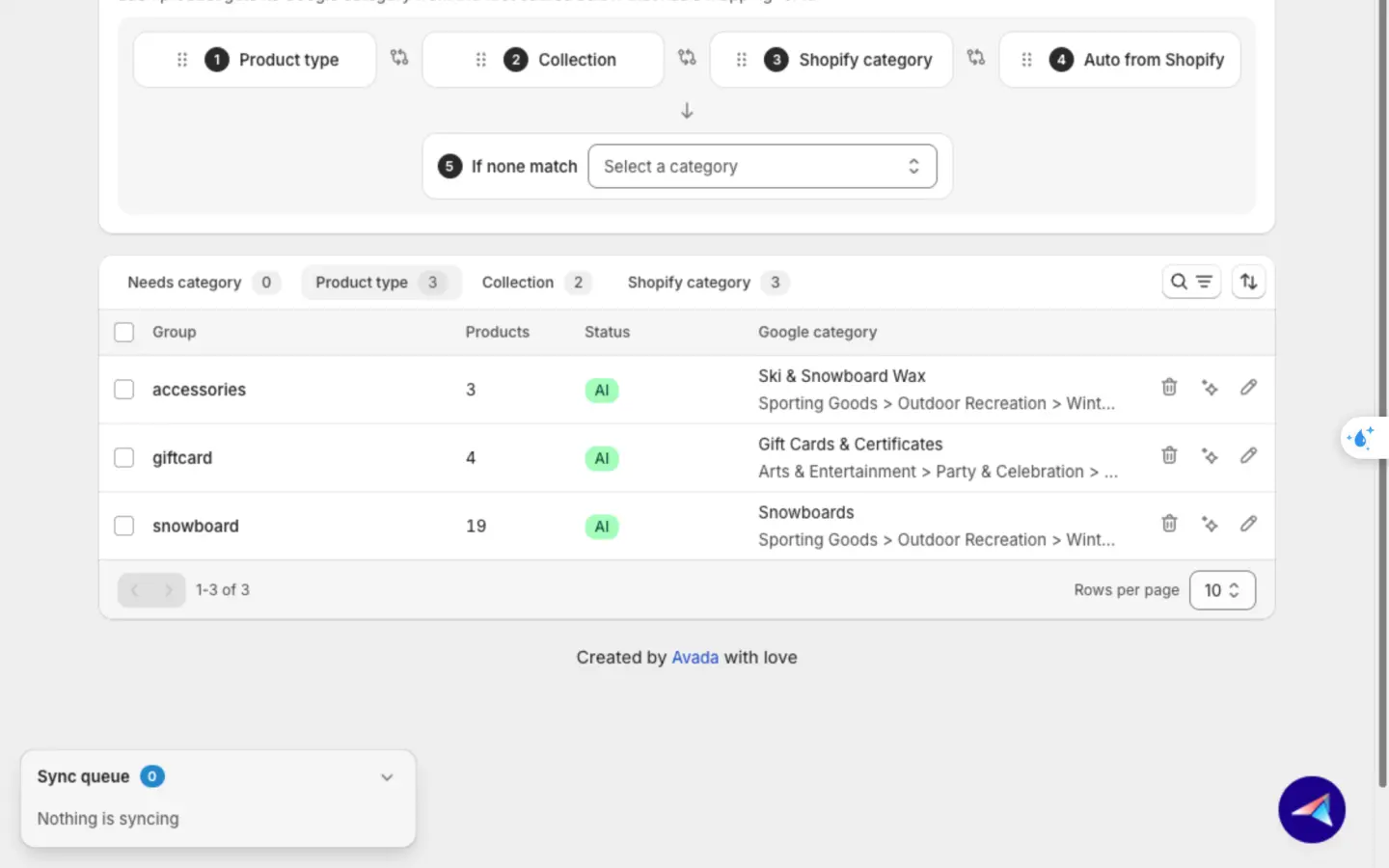
Each row has up to three buttons:
- Remove category (bin): clear the group's category.
- Suggest with AI: get a suggestion for this group only. It opens in the category picker, so you can keep it or choose another.
- Set category or Edit category (pencil): pick the category yourself.
To change many groups at once, tick them and choose Set category... or Remove category.
| Status | What it means |
|---|---|
| AI | AI filled this group during this visit |
| Mapped | The group has a category |
| Auto | A Shopify category that Shopify already matched to Google |
| N missing | N products in this group still have no category |
| Not set | No category yet, but no product is missing one |
Save
Changes you make by hand need a save. Click Save in the bar at the top. Feeds that use Category mapping get the new categories about a minute after you save. No extra step needed.
Turn it on for your feed
Categories set here only reach feeds whose Google product category is set to Category mapping. New feeds use it by default. Older feeds usually use Shopify category (mapped), so switch them yourself:
- Open the feed and go to the Attributes tab.
- Click the pencil on Category & identifiers.
- Set Google product category to Category mapping and click Save.
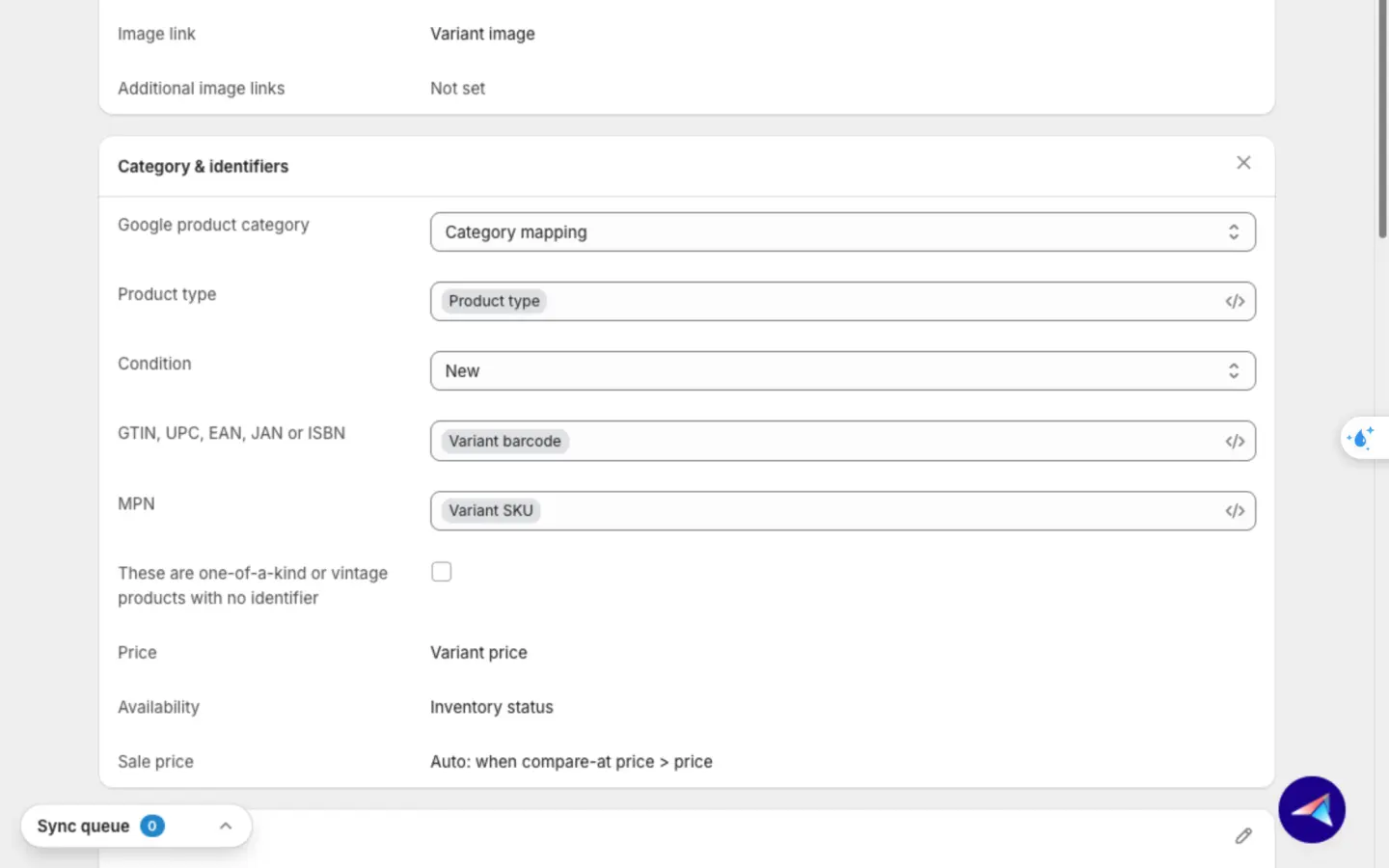
Google product category has four choices:
| Choice | What your feed sends |
|---|---|
| Category mapping | The category from Optimize → Category mapping. The default for new feeds. |
| Shopify category (mapped) | The Google category Shopify matched to each product's Shopify category |
| Custom category | One category you pick, for every product in the feed |
| Not included | No category. Google picks one itself, and Feed health stops flagging it as missing. |
Jump here from Feed health
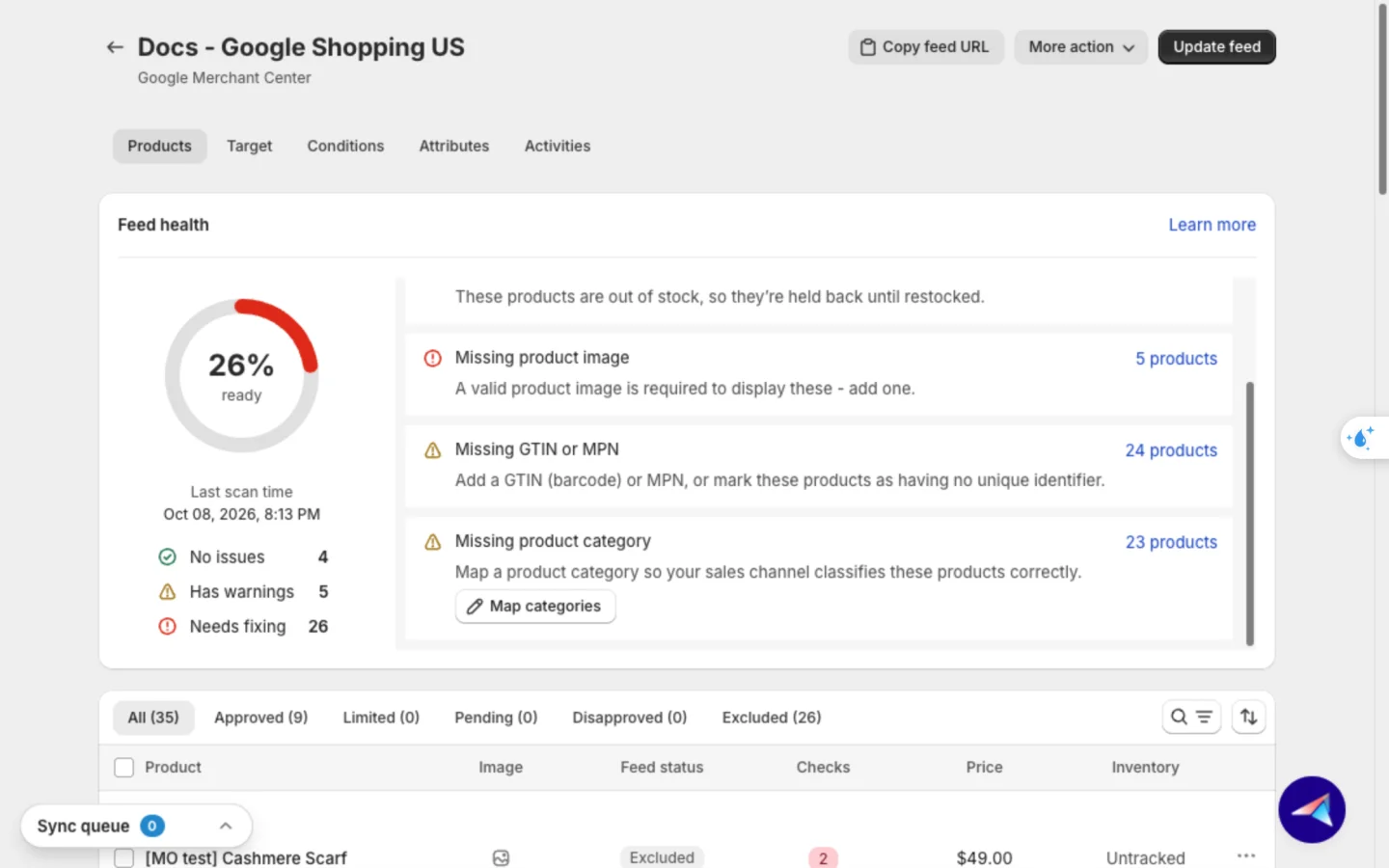
On a feed's Products tab, Feed health lists Missing product category with a Map categories button. Click it to go straight to Optimize → Category mapping.
Good to know
- Sync first. The table is empty until you run Sync all once. Products you change later move to their new groups on the next sync.
- A product's own category wins. A category you set on a single product beats the group's category.
- Products in several collections get the most detailed category, the one with the most levels. On a tie, the older collection wins.
- AI skips groups with no clue, like a "Home page" collection with no products, and Shopify categories under Services, since Google has no category for services. Set those yourself.
- "Uncategorized" isn't listed. Shopify's Uncategorized group mixes unrelated products, so it has no row. Its products still follow the Mapping order, then If none match.
- Rules read the original category. A rule condition on Google category checks the product's own category, not the one set here.
FAQs
Will Suggest with AI change categories I already picked?
No. It only fills groups that have no category. To get a new suggestion for a group you already set, use the AI button on that row and review it before you save.
I set categories, but my feed still shows Missing product category. Why?
Check that the feed's Google product category is set to Category mapping on its Attributes tab. The feed gets the new categories about a minute after you save.
Still have questions?
Chat with us from the app, any time.