Create a ChatGPT Ads feed
Instead of building a product spreadsheet in OpenAI's format and uploading it by hand, create a ChatGPT Ads feed. The app builds the file for you and sends it to Ads Manager after every sync.
What is a ChatGPT Ads feed?
A ChatGPT Ads feed is your product list for ads in ChatGPT. Ads Manager is OpenAI's tool for running those ads. Your feed gives it the titles, prices, stock and images it shows to shoppers.
You choose how the feed reaches ChatGPT:
| API key connected | No API key | |
|---|---|---|
| How the feed gets to ChatGPT | The app uploads it after every sync | You paste the feed link into Ads Manager |
| Upload results in the app (Get status) | ✅ | — |
| Setup in Ads Manager | None | Add the feed link once |
We recommend connecting the API key. Your price and stock changes reach ChatGPT faster, and you can check each upload from the app.
Your ads only run once OpenAI approves your ChatGPT Ads Manager account. You can still upload the feed while the account is waiting for review.
Before you start
- Sign in to ChatGPT Ads Manager (opens in a new tab) with the account you'll advertise from.
- Give each product a price above 0. Products priced at 0 are left out of the file, because OpenAI rejects them.
- Check your feed count. At 10 feeds, the Create feed button is greyed out.
Connect your ChatGPT Ads account
Do this once per store. Every ChatGPT Ads feed you create then uploads on its own.
Create an API key in Ads Manager
An API key is a private code that lets the app upload your feed to your ad account.
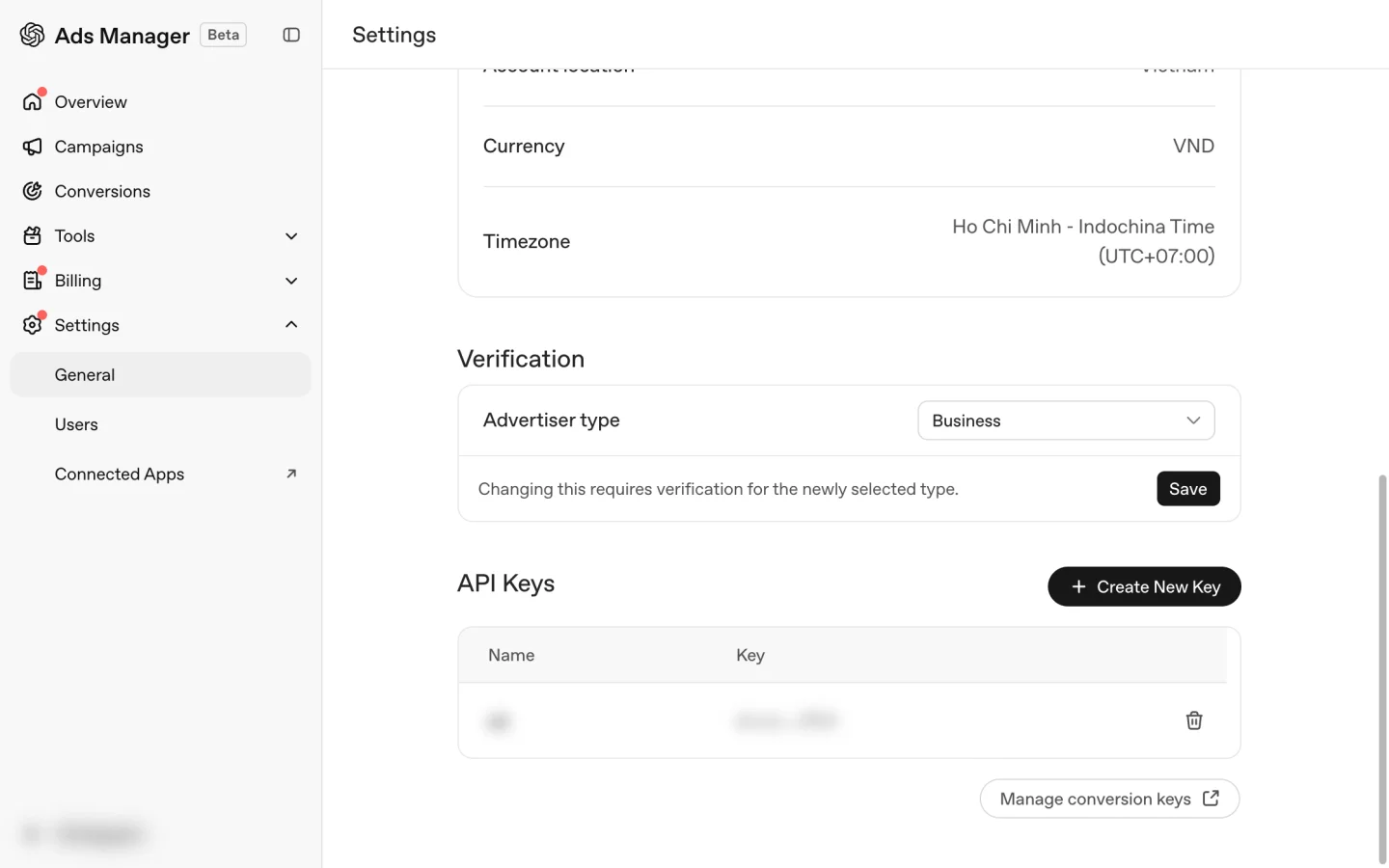
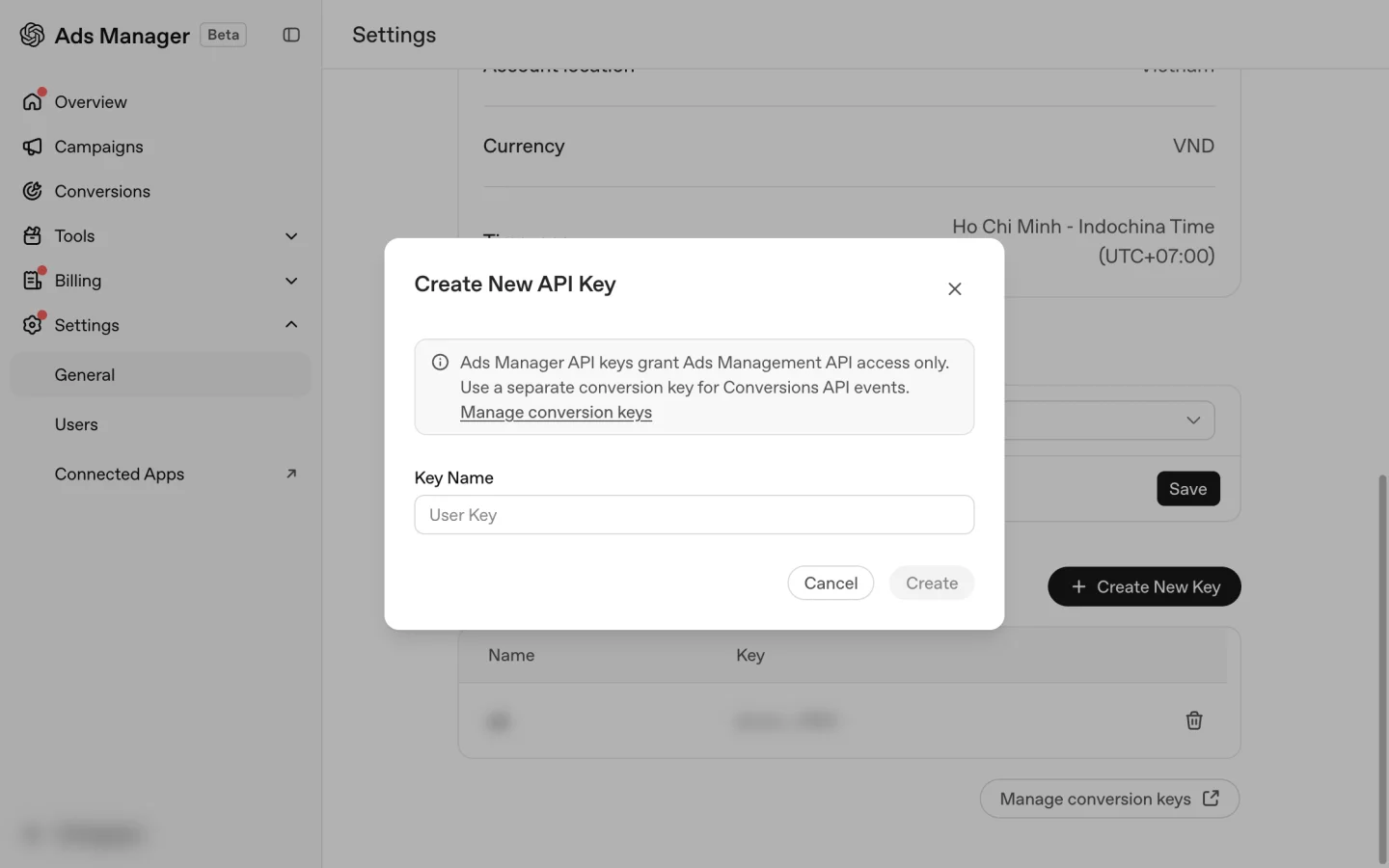
Open ChatGPT Ads Manager settings (opens in a new tab). Go to Settings → General. Under API Keys, click Create New Key, enter a Key Name, like "Product feed", and click Create. Copy the key.
Paste the key in the app
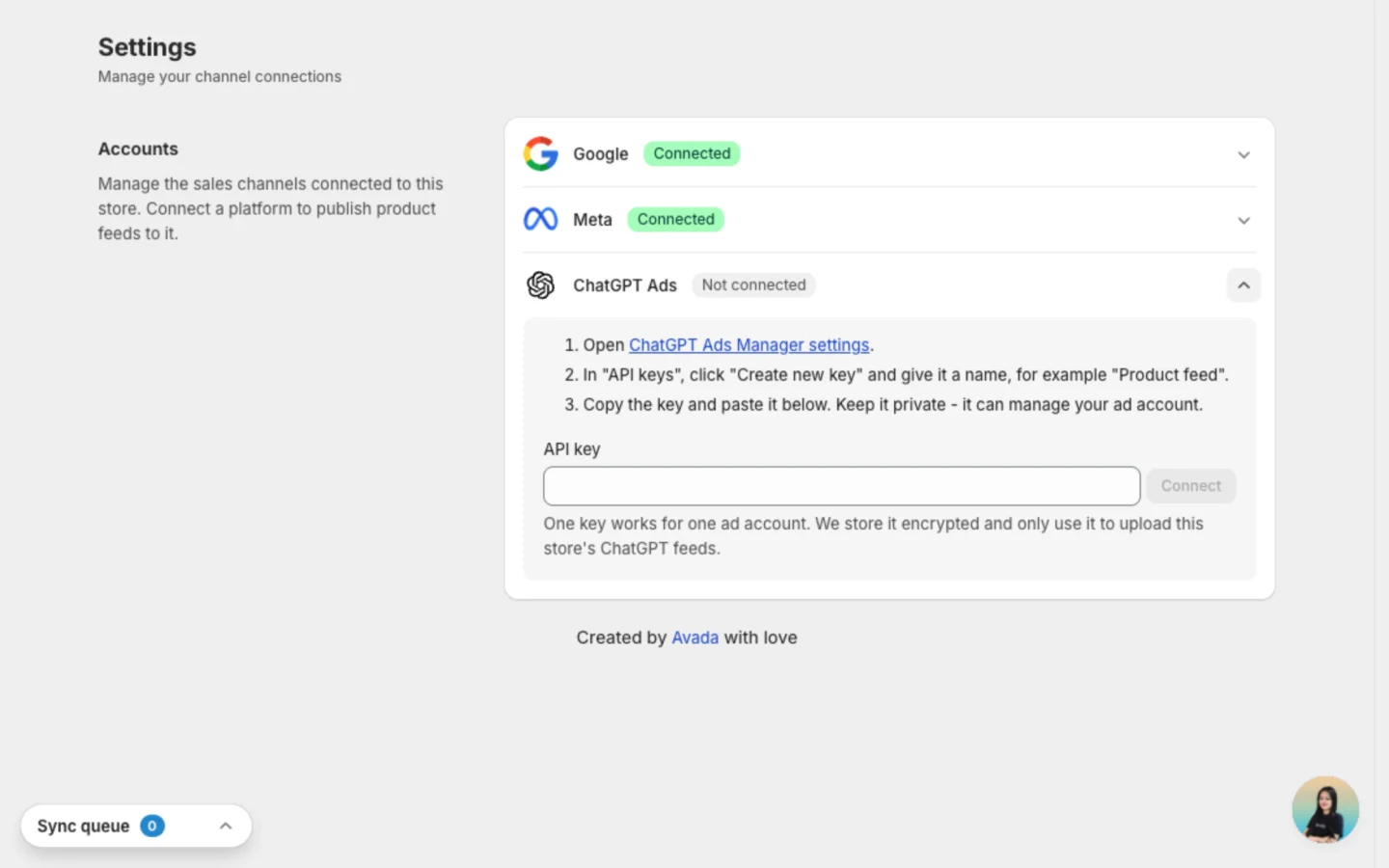
In the app, go to Settings → Accounts and open ChatGPT Ads. Paste the key into API key and click Connect.
Check it worked
The row now shows Connected to and your ad account name.
One key works for one ad account. We store it encrypted and only use it to upload this store's ChatGPT feeds. Keep the key private: it can manage your ad account.
Create the feed
Open the ChatGPT Ads tab
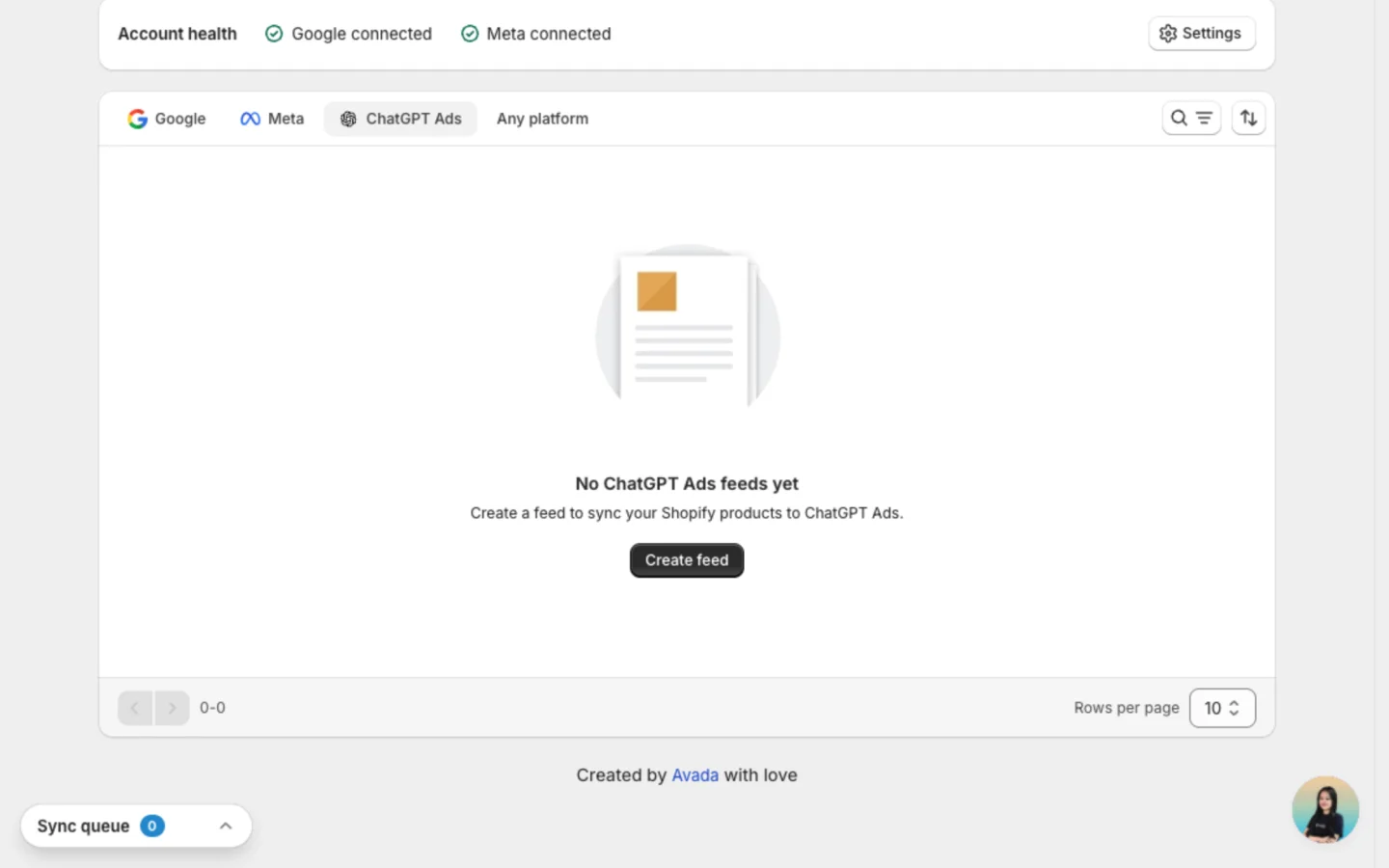
Go to Manage feed and click the ChatGPT Ads tab. No feed yet? Click Create feed.
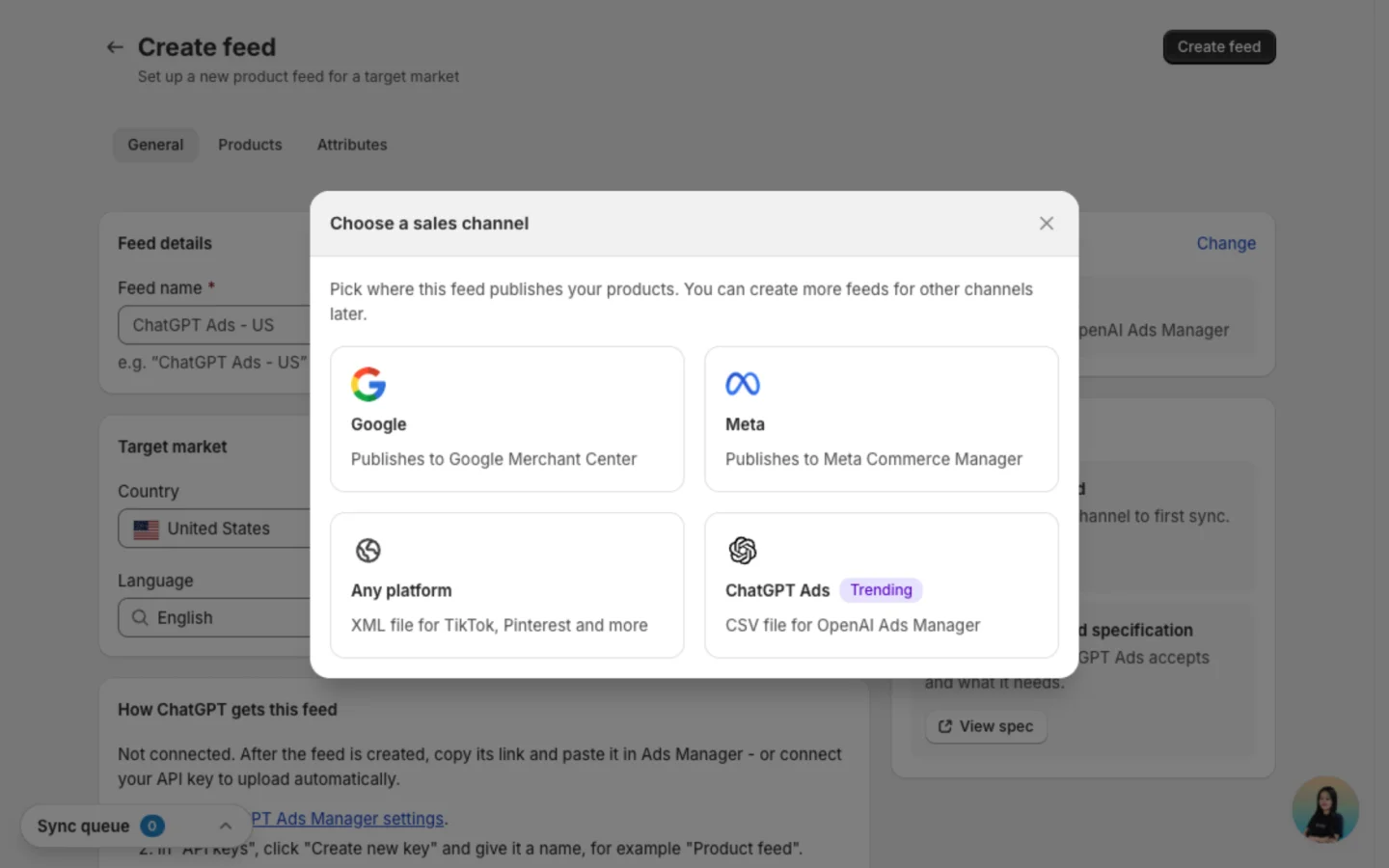
Choose ChatGPT Ads
In the create screen, click Change next to Sales channel, then click ChatGPT Ads.
Name the feed and pick its market
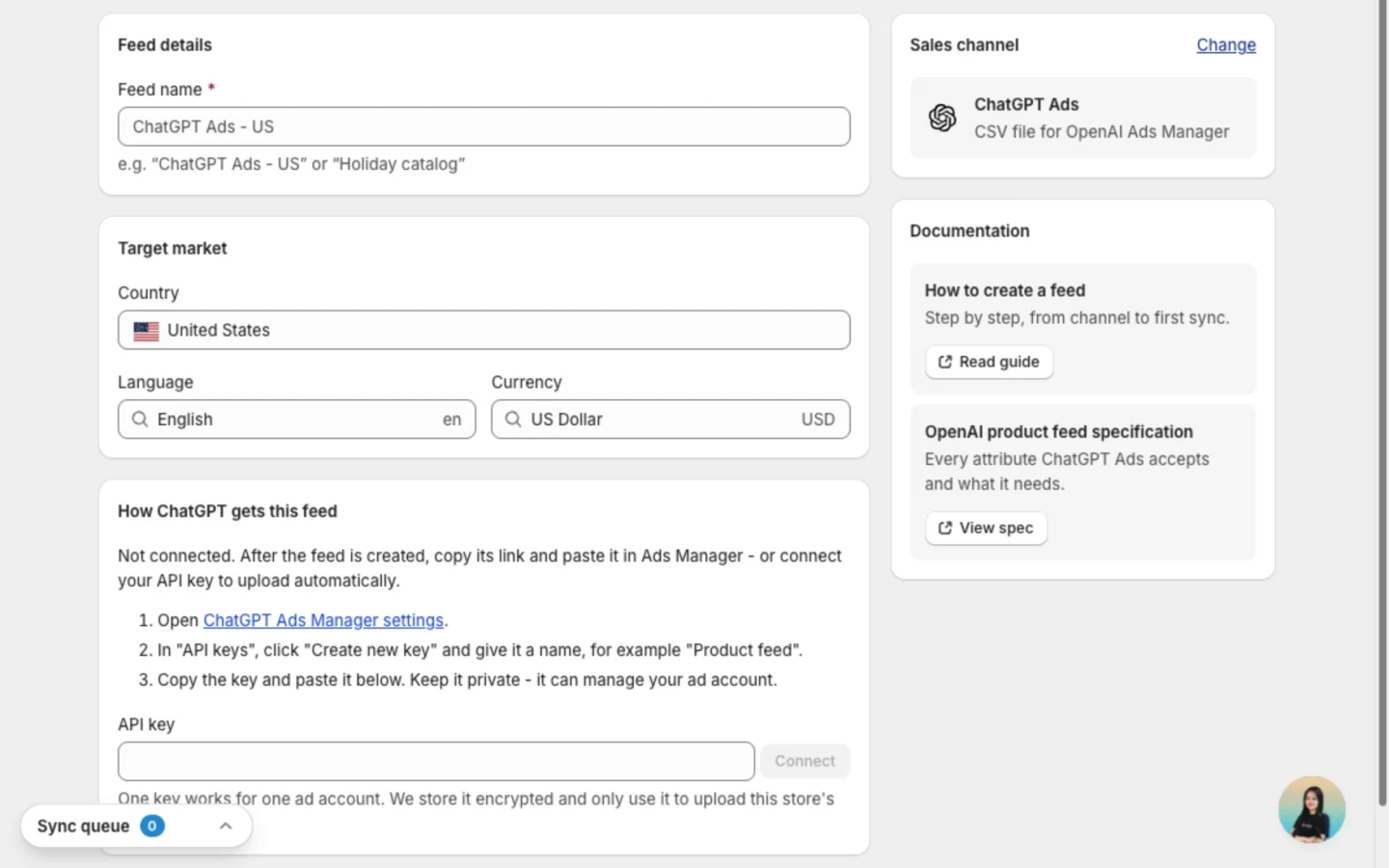
On the General tab, enter a Feed name you'll recognise, like "ChatGPT Ads - US". Shoppers never see it.
Under Target market, pick one Country, plus a Language and Currency. You can't change the country after the feed is created.
The How ChatGPT gets this feed card shows how the file will reach ChatGPT:
- Connected: the app uploads the feed after every sync.
- Not connected: after the feed is created, copy its link and paste it into Ads Manager. You can also connect your API key right in this card.
Choose the products
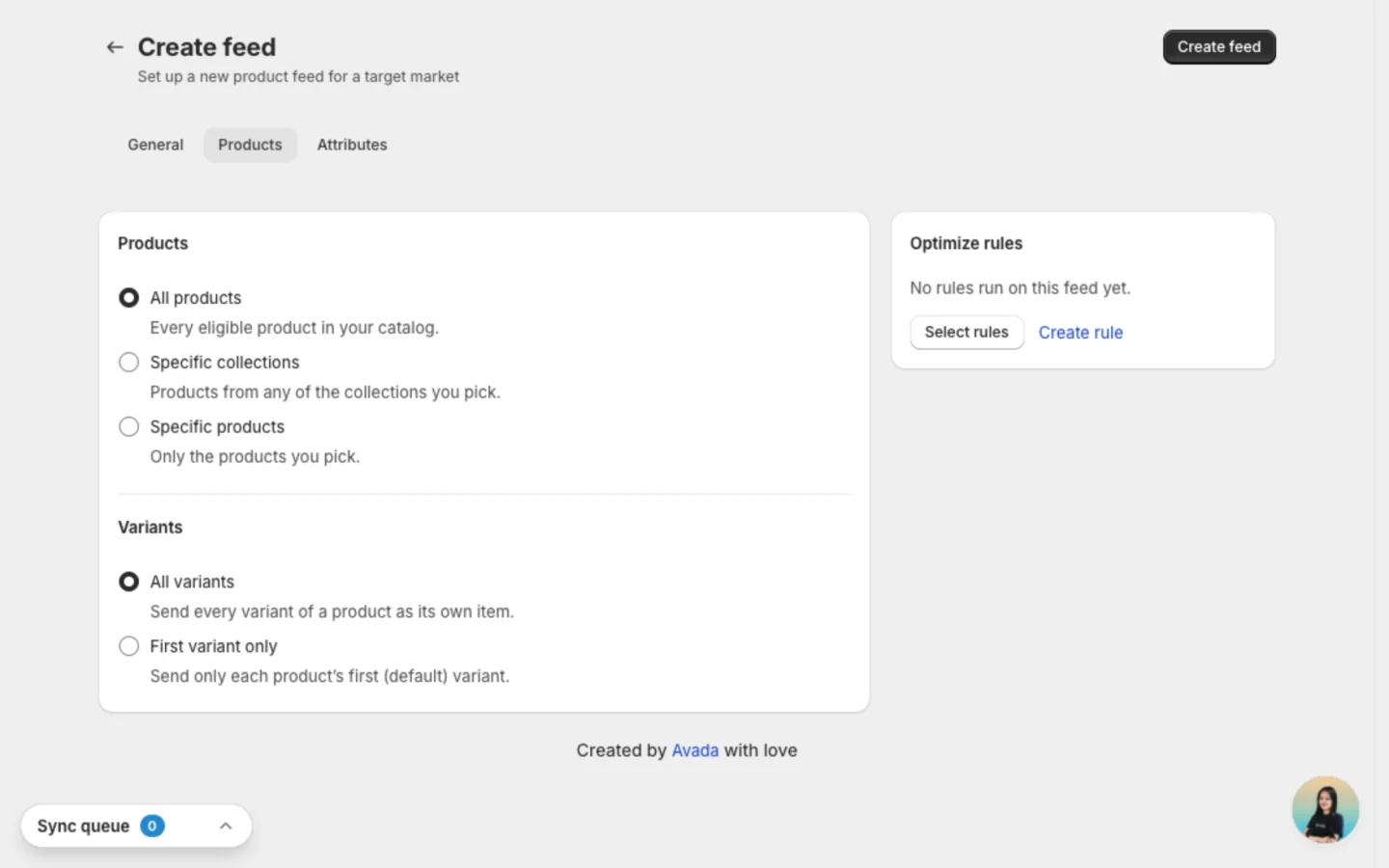
On the Products tab, choose All products, Specific collections or Specific products. Under Variants, choose All variants or First variant only.
Check the product details
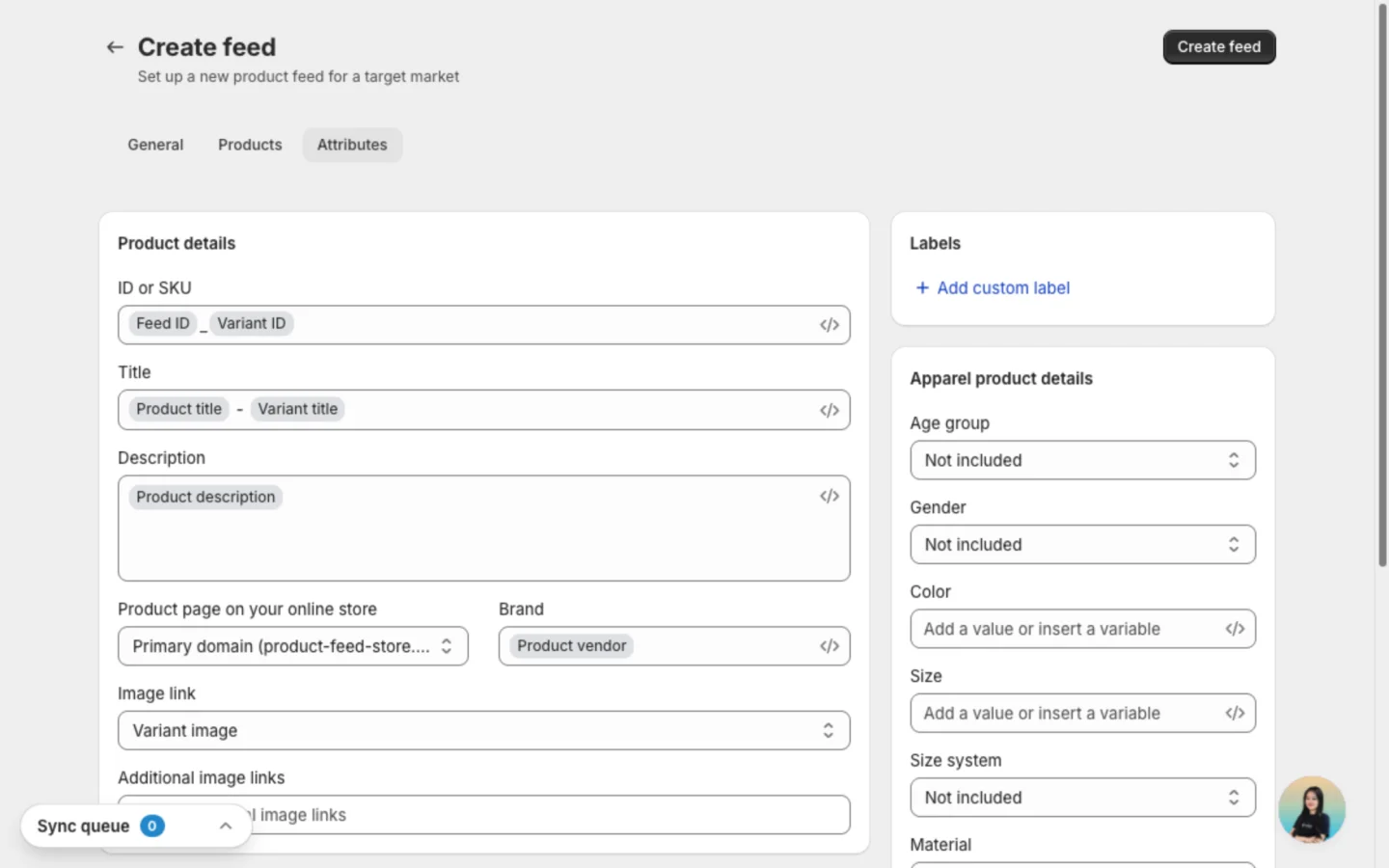
The Attributes tab only shows the fields ChatGPT Ads uses. The app fills the common ones for you. See Fields on the Attributes tab.
Save the feed
Click Create feed. The feed page opens and starts building your file. A new feed takes a few minutes.
Send it to ChatGPT
- API key connected: nothing to do. The app uploads the file when it's ready.
- No API key: click Copy feed URL at the top of the feed page. In Ads Manager, go to Tools → Feeds, click Create Feed and paste the link.
Check it worked
On the feed page, click Get status to see the last upload: how many products were accepted and rejected. To open the feed in Ads Manager, click More action → View in ChatGPT Ads.
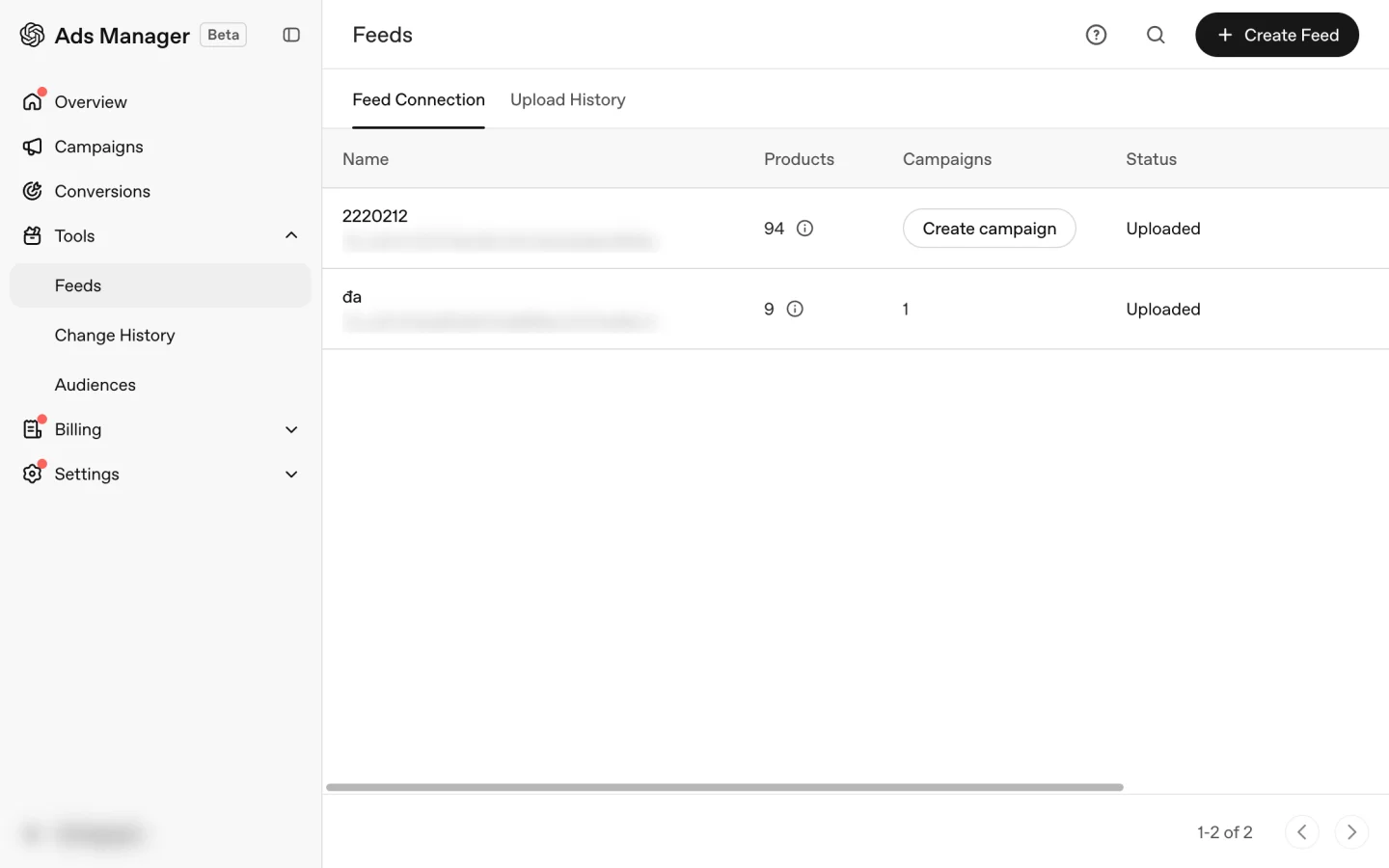
In Ads Manager, your feed shows under Tools → Feeds, with its product count and status. The Upload History tab lists each upload.
Nothing changes in your Shopify store. Edits in the feed only affect what ChatGPT Ads shows.
Fields on the Attributes tab
The fields work like the ones on a Google feed. Fields OpenAI doesn't accept, like These are adult products, These are bundles, Size type and Pattern, are hidden so you don't fill them for nothing.
| Field | Tag | How to optimize it |
|---|---|---|
| Title | Required | Lead with what shoppers ask ChatGPT for: brand + product type + key detail. |
| Description | Required | Describe material, use and fit in plain words. ChatGPT reads it to match questions. |
| Brand | Required | Use the real brand name, not your store name, unless you make the products. |
| Condition | Recommended | Leave New unless you sell second-hand or refurbished items. |
| GTIN, UPC, EAN, JAN or ISBN | Recommended | Use the barcode you store in Shopify. It helps match your product to shopper searches. |
| MPN | Recommended | Use the maker's part number when there's no barcode. |
| Material | Recommended | Name the main fabric, like "Cotton". |
| Size system | Recommended | Set the country your sizes follow, like US or EU. |
| Custom label | Optional | Group products for your own reporting. Shoppers never see them. |
Price and stock always come from Shopify, so they're not fields in the form.
Good to know
- One feed covers one country. For another market, create another feed.
- Products priced at 0 are left out of the file. Out-of-stock products are still sent, marked as out of stock.
- Get status shows totals for each upload. OpenAI doesn't share which products were rejected or why, so the app can't list them yet.
- Without an API key, ChatGPT collects the file from the link on its own schedule. Changes can take longer to show.
- Ads Manager limits how many feeds one ad account holds. If creating a feed fails, archive the feeds you no longer use in Ads Manager.
- Deleting the feed in the app also archives it in Ads Manager.
- Not supported yet: checkout inside ChatGPT, and your return policy and store country in the feed.
FAQs
Do I have to connect an API key?
No. You can copy the feed link and add it in Ads Manager yourself. Connecting the key is faster, and it lets you check each upload with Get status.
Can one API key cover several stores?
One key works for one ad account. Connect the key in each store that advertises from that account.
Why don't I see Get status on my feed?
Get status shows only on feeds the app uploads with your API key. Connect your key in Settings → Accounts.
My key stopped working. What now?
Create a new key in Ads Manager, then go to Settings → Accounts → ChatGPT Ads, click Disconnect and connect the new key. The next sync uploads the feed again.
Still have questions?
Chat with us from the app, any time.