📊 Analytics
Who can use this feature?
Analytics is available on all plans. The Optimization activity section is available on the Expert plan only.
What is Analytics?
This isn't a simulation or a one-time test. Analytics pulls real visitor data from Shopify Analytics, so the numbers reflect what your customers actually experience over the last 30 days.
It works by:
- Showing your real speed score, broken down by Core Web Vitals.
- Reporting performance by page, so you can see which pages are dragging the rest down.
- Logging optimization activity (Expert plan) — a full record of every change your speed specialist has made to your theme.
This ensures you always know whether your store is getting faster — and exactly what's been done to make it that way.
Why use Analytics?
- Reflects real-world performance — uses live visitor data, not lab simulations.
- Pinpoints problem pages — breaks Core Web Vitals down by page type so you know where to focus.
- Proves the impact of optimization work — see the measured before/after for every change (Expert plan).
- Adds zero overhead — no scripts are added to your store, so it stays as fast as ever.
⚙️ How to use Analytics
Step 1: Open Analytics
Go to Analytics in the Avada Speed menu.
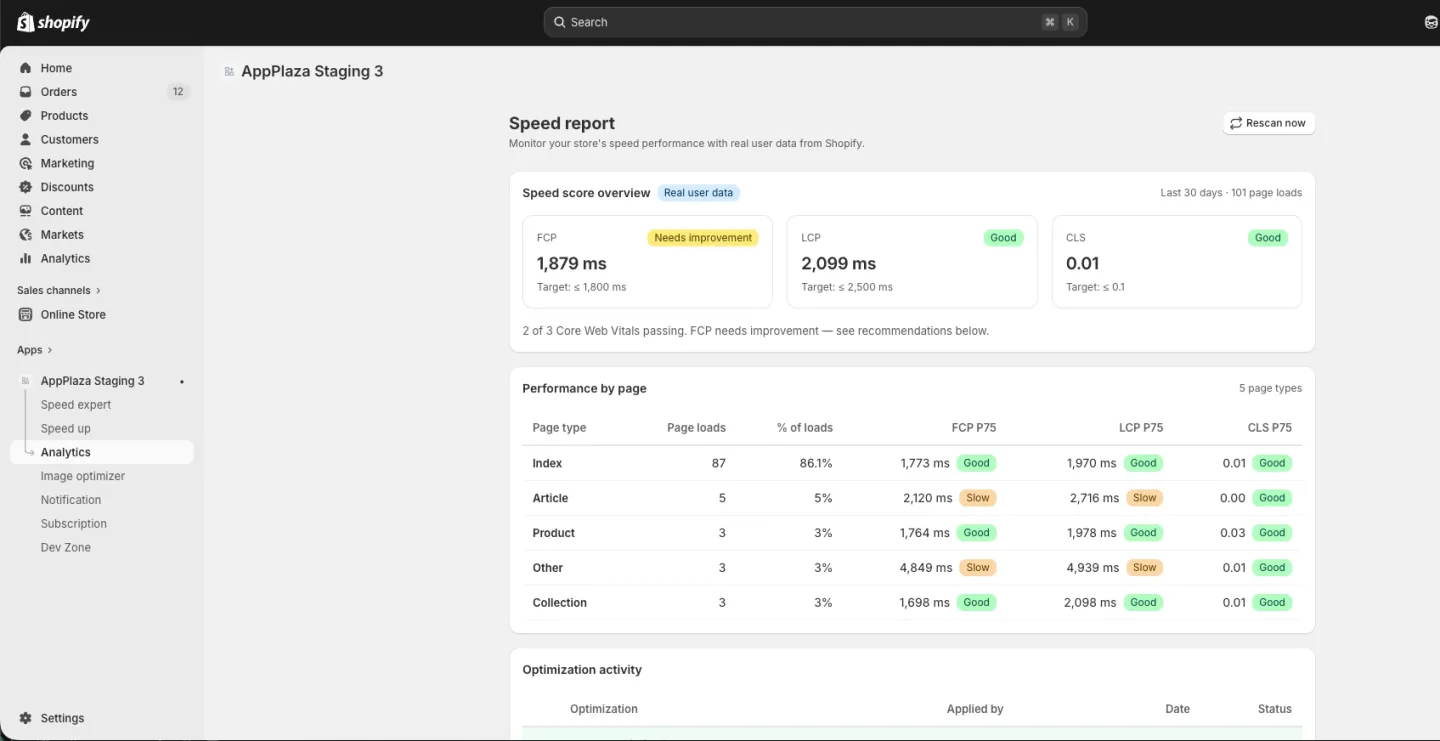
Step 2: Check your Speed score overview
At the top of the page you'll see:
- FCP (First Contentful Paint) — how fast the first content appears.
- LCP (Largest Contentful Paint) — how fast the main content loads.
- CLS (Cumulative Layout Shift) — how stable your layout is while loading.
Each metric shows your p75 value (what 75% of your visitors experience) and a status badge: Good, Needs improvement, or Slow. The page also tells you how many Core Web Vitals are passing right now.
Step 3: Review Performance by page
Scroll down to Performance by page. This breaks the same numbers down by page type — Home, Product, Collection, and so on. Use it to spot which page type needs the most attention.
Step 4: Review Optimization activity (Expert plan)
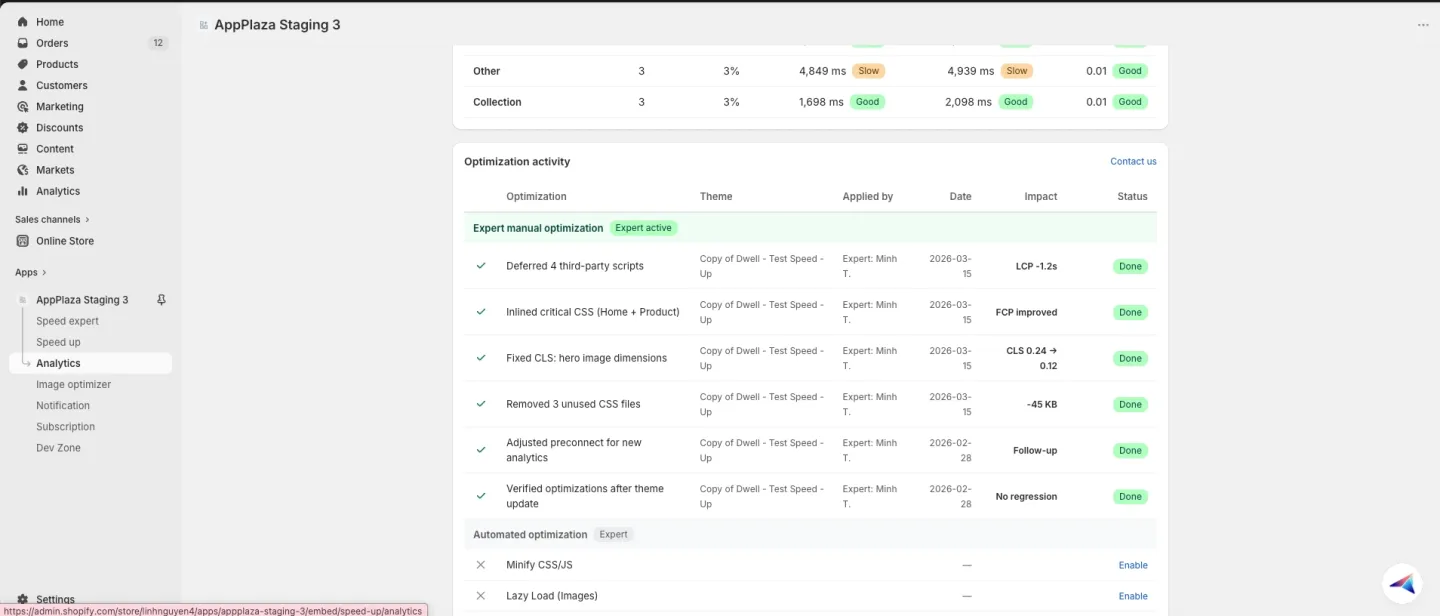
If you're on the Expert plan, scroll down to Optimization activity — a full log of every change your speed specialist has made to your theme. Each row shows:
- What was changed (e.g. "Deferred 4 third-party scripts")
- Who made the change (your specialist's name)
- When it was applied
- The measured impact (e.g. "LCP −1.2s")
- Status — Done or In progress
Click Contact your expert at the top right to reach out about any item directly.
Step 5: Refresh your data
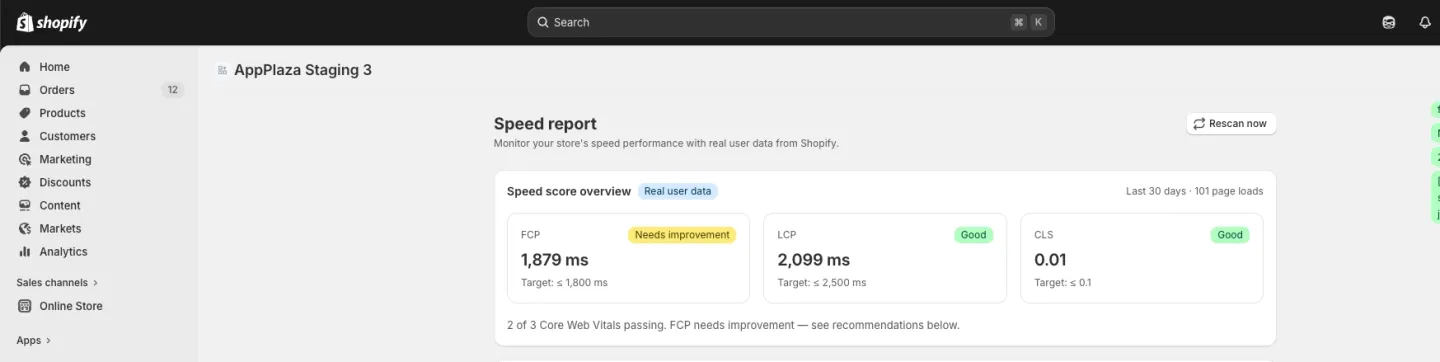
Click Rescan now at the top right to refresh the data with the latest from Shopify.
📌 Merchant Notes
- Analytics doesn't add any scripts to your store — all data comes from Shopify's built-in analytics, so your store stays as fast as ever.
- Data reflects the last 30 days of real visitor activity, not a one-time lab test.
- p75 is the 75th percentile — 75% of your visitors experience this speed or better. Google uses it for Core Web Vitals so a few slow sessions don't distort the score.
- Optimization activity is Expert plan only; other plans won't see this section.
- Click Rescan now if your numbers look out of date or after a major theme change.
Contact us in live chat if you have any problems.