🚀 Speed up
What is Speed up?
Speed up turns on the optimizations your store needs — like faster images, smarter loading, and lighter code — without you touching any code.
You have two ways to do it:
- Do it yourself — flip on the optimizations you want. Available on Pro and Expert.
- Speed up expert — let our specialist do it for you. Available on Expert only. See Speed up expert.
Why use Speed up?
- Faster load times — quicker pages mean lower bounce rates and better conversions.
- No code required — turn optimizations on with a toggle; the app handles the rest.
- Pick what you need — enable individual optimizations à la carte, mobile and desktop.
- Safe to apply — work on a theme duplicate and publish only when you're happy.
- Two ways to optimize — do it yourself, or hand it to a specialist on the Expert plan.
⚙️ How to use Speed up
Step 1: Open Speed up
Go to Speed up.
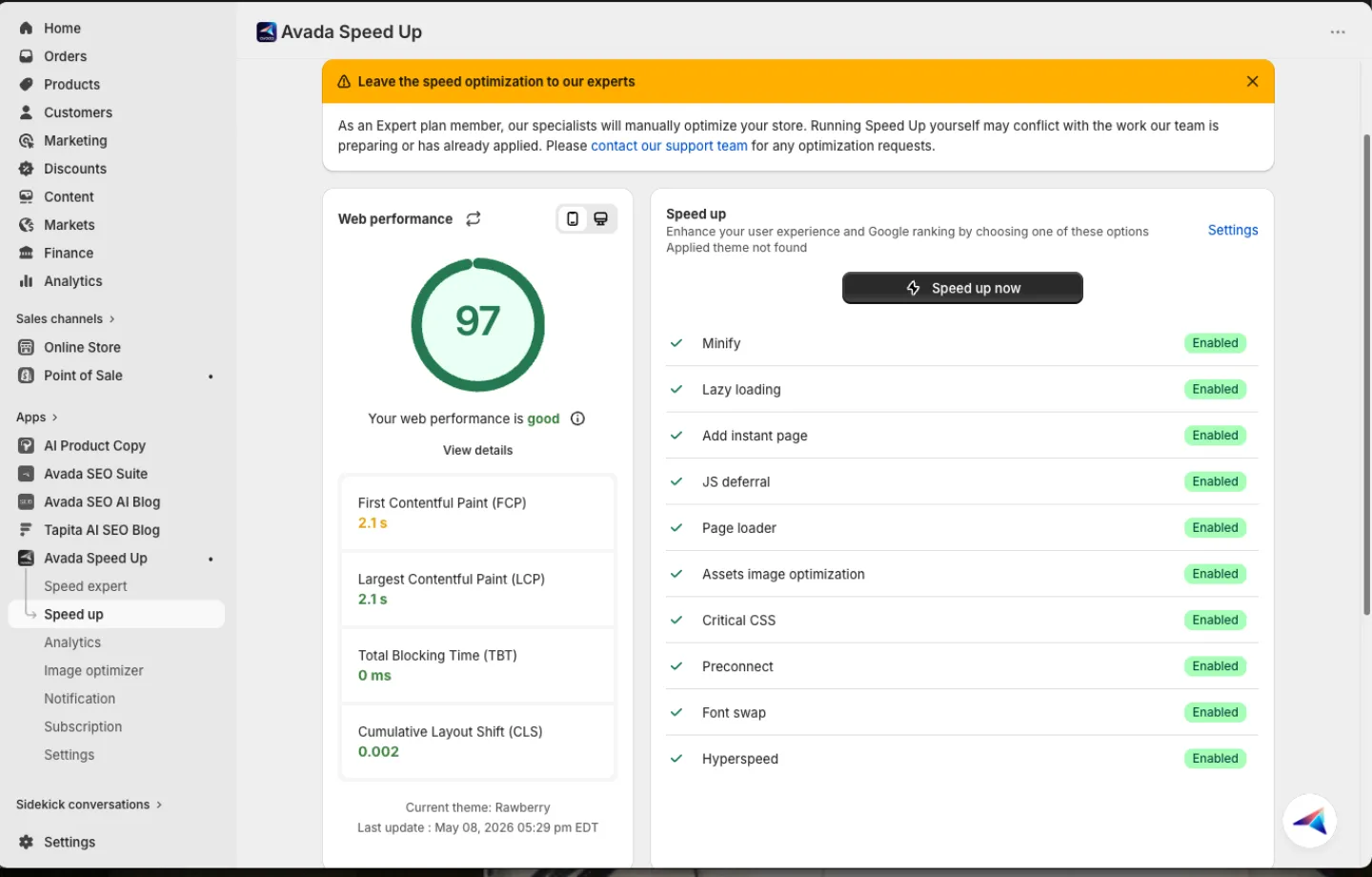
Step 2: Check your speed score
Check your current speed score on the left. Switch between Mobile and Desktop to see how your store performs on each.
Step 3: Choose the optimizations to enable
Turn on the features you want. Locked features show an Upgrade link.
Available on Pro and Expert:
- Lazy load — loads images, videos, and embeds only when customers scroll to them, deferring heavy elements like YouTube and Maps.
- Instant page — pre-loads pages the moment someone hovers a link.
- Asset image optimization — shrinks the images in your theme.
- Preconnect — gets a head start on external resources.
- Font swap — shows text right away instead of waiting for fonts to load.
- Page loader — keeps your layout steady while the page loads.
Available on Expert only:
- Minify CSS and JS — strips junk from your code.
- JS deferral — holds back non-essential scripts until customers interact.
- Critical CSS — loads only what's needed to show your page first.
- Script Offloading — pushes hidden scripts to the back of the line.
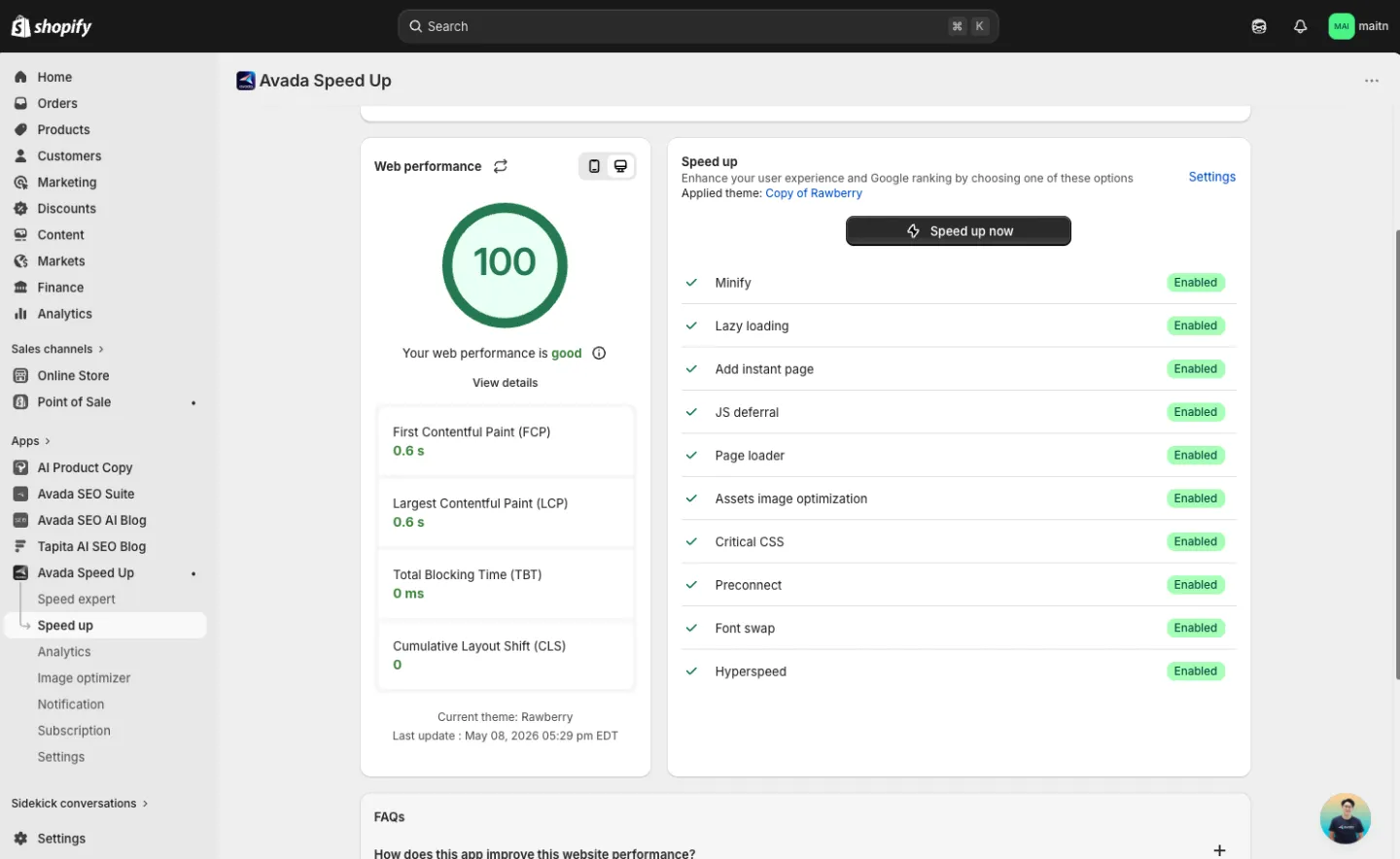
Step 4: Apply to your theme
Click Speed up now and pick how to apply the optimizations:
- Duplicate current theme (recommended) — works on a copy. Your live store stays safe.
- Select theme from library — applies straight to a chosen theme.
Step 5: Let it run
Wait while the app works through each task. If anything fails, click Refresh to try again.
Step 6: Preview and publish
Preview the duplicate to make sure it looks right. When you're happy, publish it.
📌 Merchant Notes
- Edited your theme later (new pages, templates, or apps)? Just click Speed up now again to re-apply.
- Duplicate current theme is the recommended option — it keeps your live store safe until you publish.
- Locked features show an Upgrade link; some optimizations are Expert-only (Minify CSS/JS, JS deferral, Critical CSS, Script Offloading).
- If a task fails during processing, click Refresh to retry it.
- Prefer hands-off? See Speed up expert to have a specialist do the work for you.
Contact us in live chat if you have any problems.