Get your first video live with Quickstart
The Get your first video live card on the Shopvid home page walks you through four steps.
The card counts how many of the four steps you have finished. Open the ... menu to Dismiss it. Undo brings the card back.
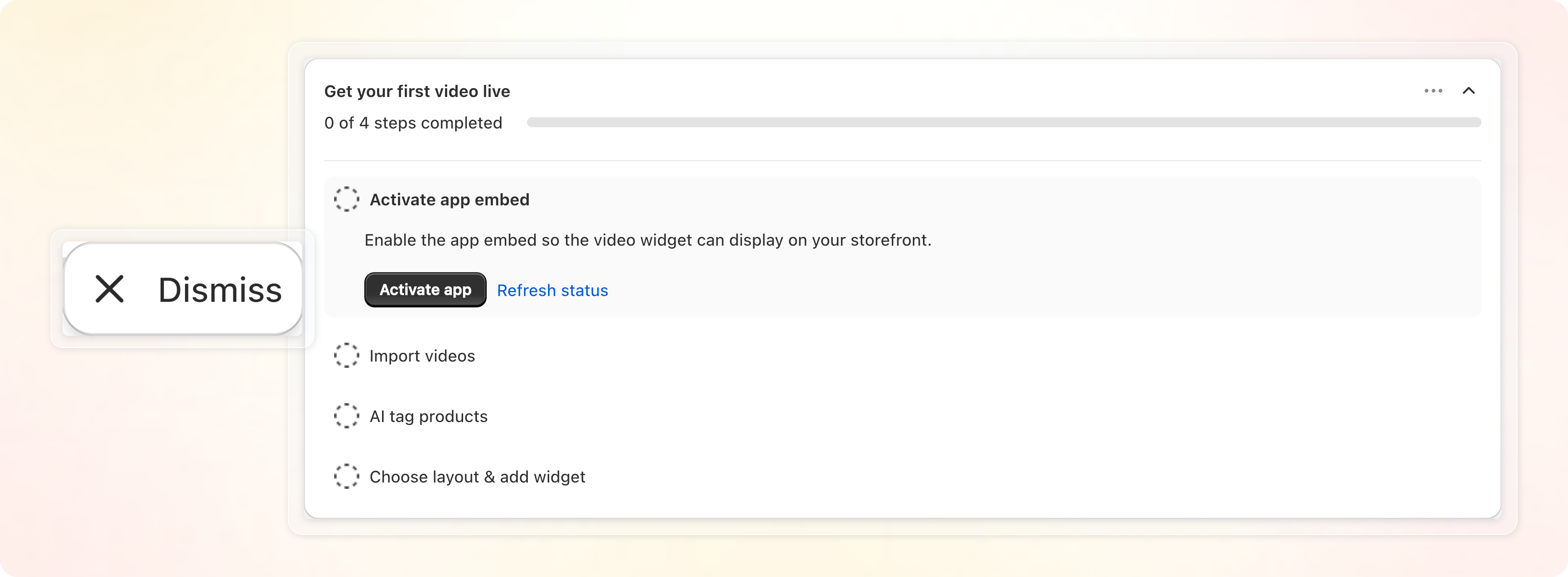
Step 1: Activate app embed
The app embed lets your videos show on your storefront.
- Click Activate app. Your theme editor opens on the Shopvid app embed.
- Turn the embed on.
- Save your theme.
- Go back to Shopvid and click Refresh status.
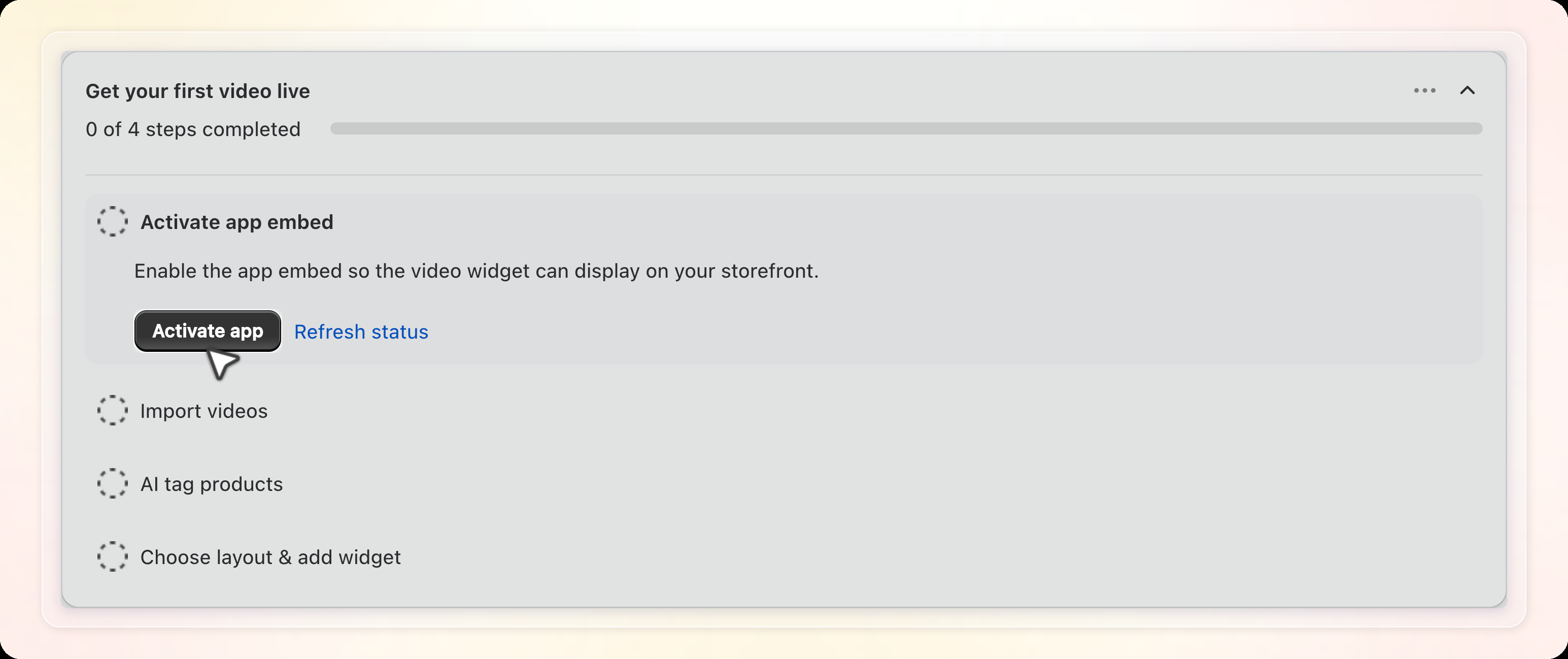
The button reads Deactivate app once the embed is live. The step then completes on its own.
This is a one time setup. Your videos stay hidden on your store while the embed is off.
Step 2: Import videos
Pick a source: TikTok, Instagram, or Upload from device.
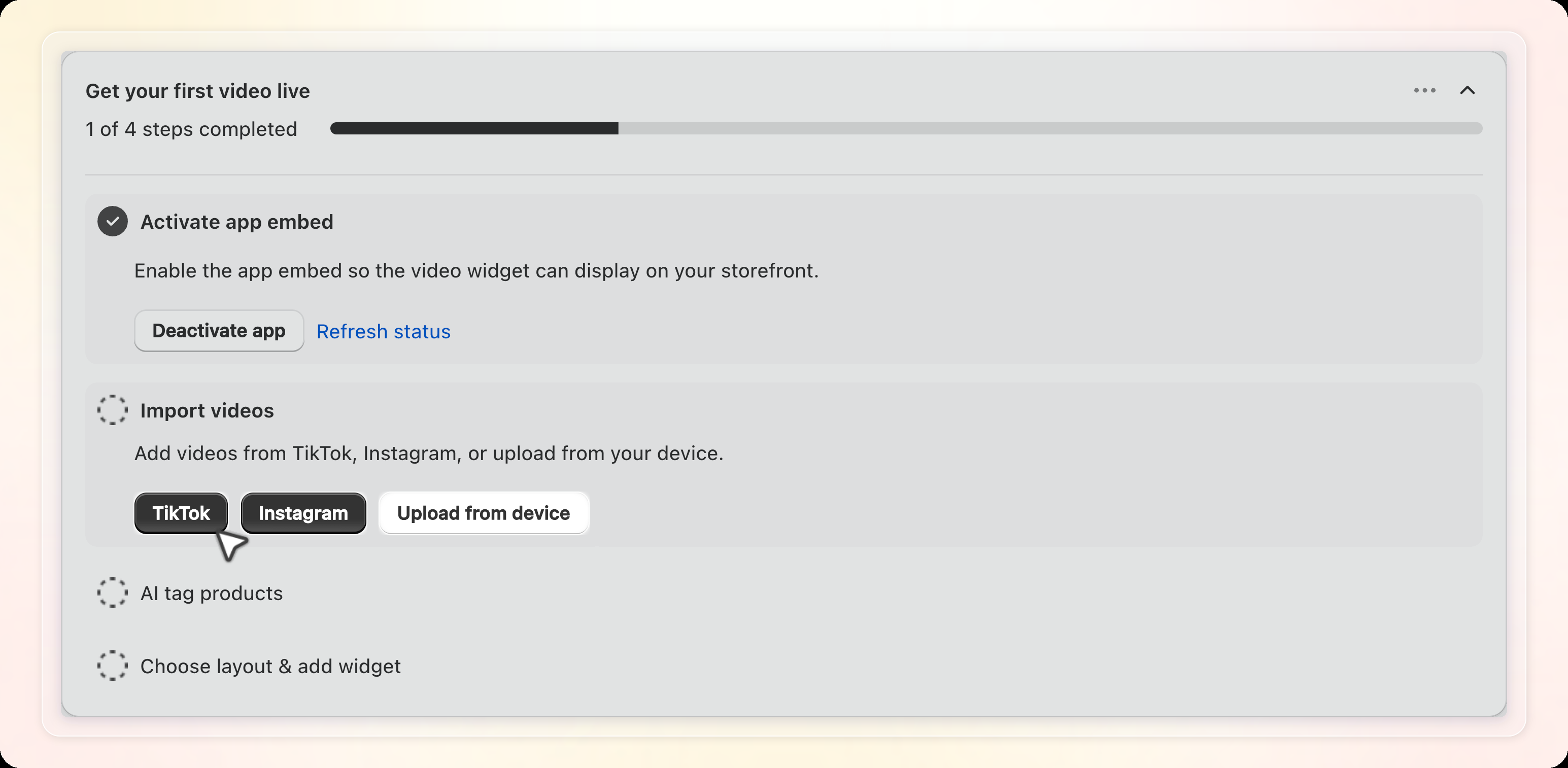
To import from TikTok or Instagram:
- Click TikTok or Instagram.
- Enter the account username in the TikTok username or Instagram username field.
- Tick the box confirming you have the rights to use the videos.
- Click Import.
- In the Select video window, tick the videos you want.
- Click Done.
For more on social imports, read Sync video from TikTok / Instagram.
Uploads accept .mp4 files, up to 20 MB each and 5 files per upload.
Your library also has a cap on active videos. Free holds 30, and Pro holds as many as you want.
After a TikTok or Instagram import, the Imported videos list opens on its own. Each row carries a Tag product button if you want to tag by hand right away.
Two buttons sit under the step:
- Continue moves you to step 3.
- Tag products reopens the Imported videos list.
Upload from device behaves differently. The window closes on its own once the upload starts, and you move to step 3. You get no video list and no AI scan there. Step 3 reads No matching products found yet. You can tag products manually anytime. Click Continue to reach step 4. In step 4, Create widget stays disabled, so use More layouts instead.
Step 3: AI tag products
AI reads the videos you imported from TikTok or Instagram. It suggests matching products from your Shopify catalog.
- After your import, reload the Shopvid home page. The scan starts when the page loads.
- Wait while the step reads AI is tagging your videos… with a progress bar.
- When the scan finishes, the step lists every video that has matches.
- The first video opens on its own, in a Review products for [video name] window.
- Click the check icon to keep a suggestion, or the X icon to drop it.
- To keep every suggestion at once, click Confirm all N. With one suggestion, that button reads Confirm.
- Click Save.
- Click Review on any other video to check its matches.
- Click Confirm all & continue to accept every match, or Continue to skip review.
Reload the page before you click Continue. If step 3 shows No matching products found yet right after an import, the scan has not run yet. Clicking Continue at that point closes the step without a scan.
When AI finds nothing, the step reads No matching products found yet. You can tag products manually anytime. Click Continue to carry on.
Each video scanned here uses 1 AI tag. The scan runs once, so reopening the step costs nothing. For tags, plans, and add-on packs, read Tag products on your videos with AI.
Step 4: Choose layout & add widget
- Pick Grid or Carousel. More layouts opens the full widget editor instead.
- Click Create widget.
- The Publish widget window opens. Under For OS 2.0 themes, find Step 1: Copy Widget ID and click Copy.
- Under Step 2: Add Block in Theme settings, click Go to theme editor.
- Add the Shopvid widget block where you want it.
- Paste the widget ID into the block.
- Save your theme.
- Close the Publish widget window to finish the step.
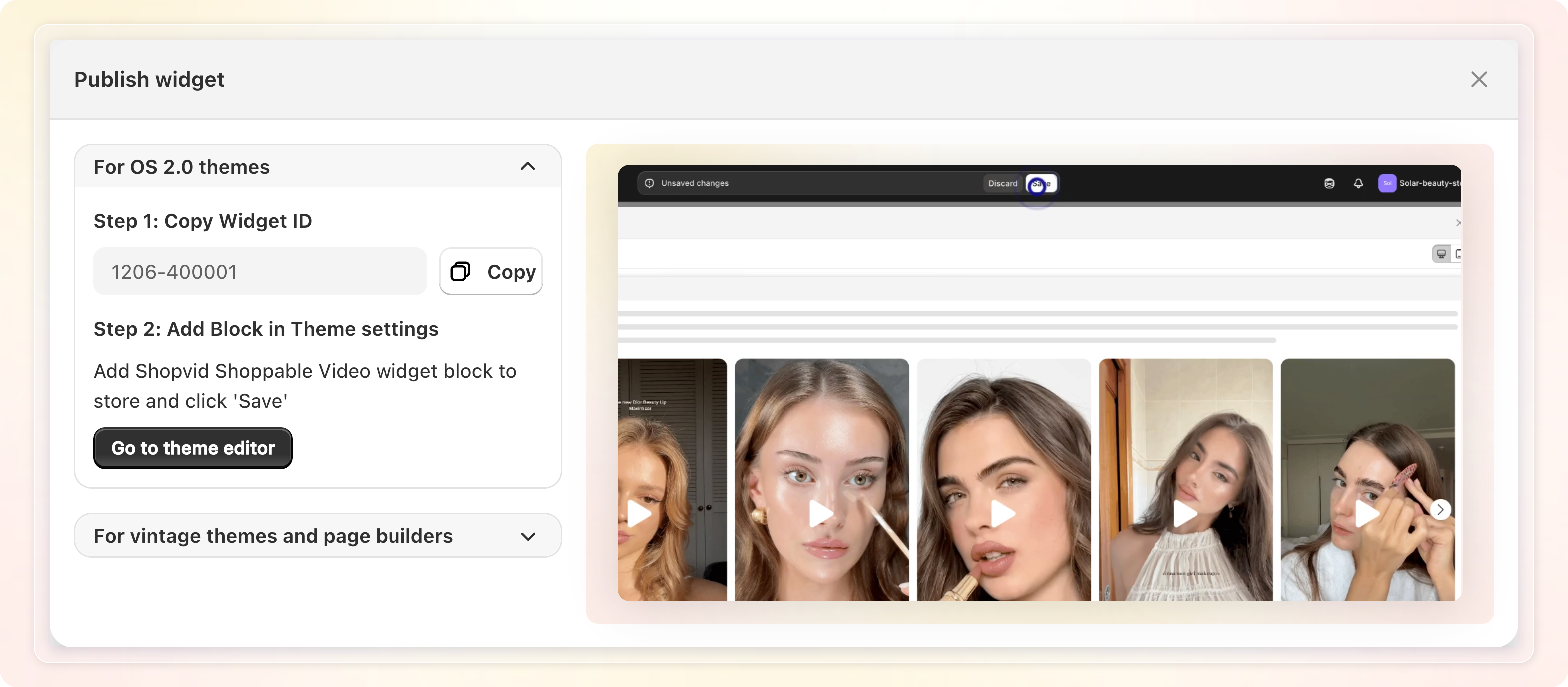
On a vintage theme or a page builder, open For vintage themes and page builders in the same window. Copy the Widget snippet there, then paste it into your page, blog, product, or collection description. Go to theme editor in this section opens your theme code at layout/theme.liquid.
While the window is still open, Shopvid checks your theme each time you return to the tab. Once it finds the widget block, the step completes on its own.
Once the widget exists, the step reads Widget created! Add it to your theme to start showing videos. Click Add to theme to open your theme editor again.
Tips
- Start with your best videos. Clear product shots give AI more to match against.
- Keep videos short. 15 to 60 seconds holds attention best.
- Check the result on a phone. Most shoppers browse on mobile.
- Open analytics a few days after launch to see which placement performs.