Show discount codes on your product cards
Show a discount badge right on the product card in your video widget. Shoppers can see and copy an eligible coupon code without leaving the video.
Discount voucher works on all plans. It needs permission to read discounts from your store. If you see a banner asking you to reopen the app, that's what grants it.
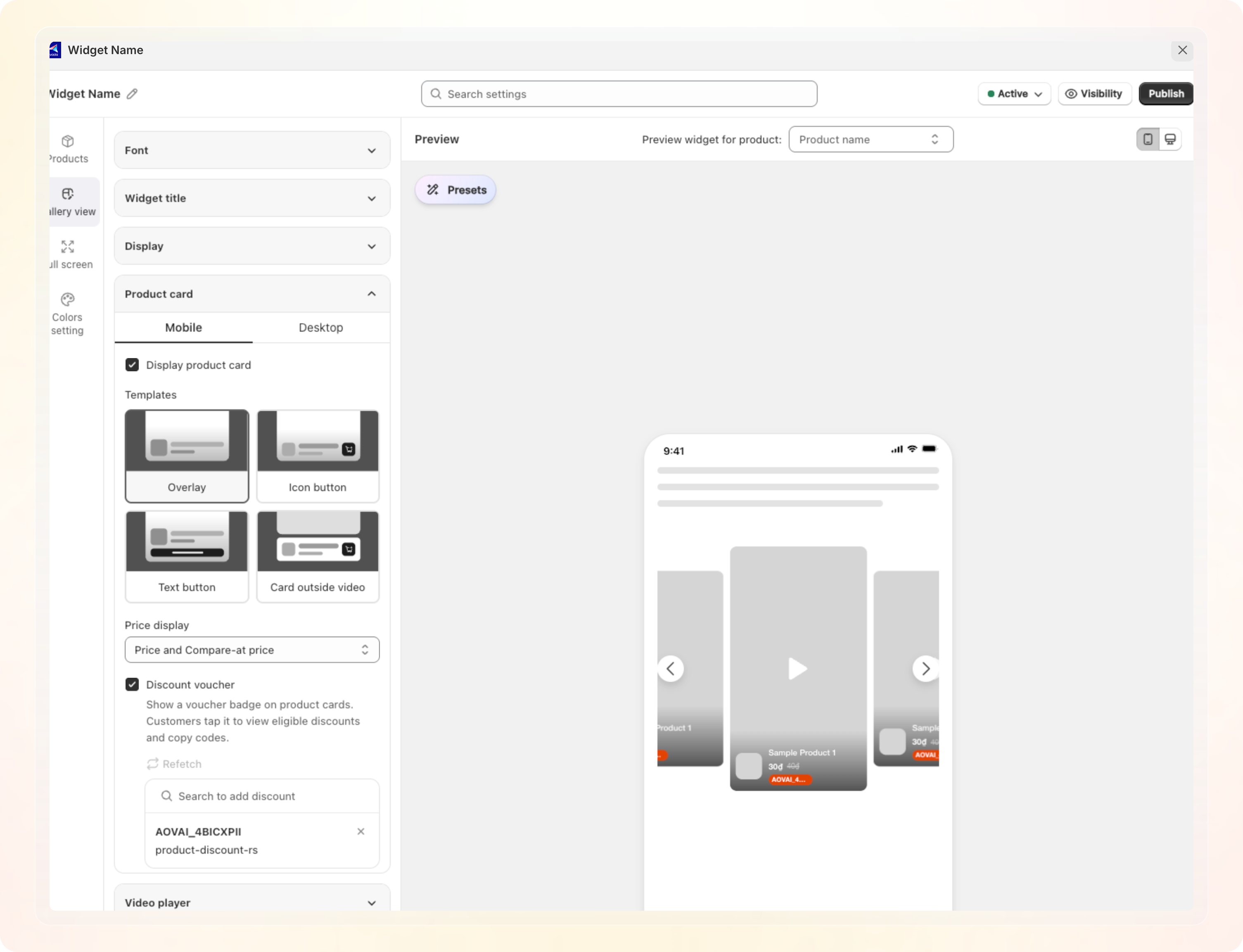
Add a coupon to a widget's product card
- Go to Manage widget, open the widget you want to edit.
- Click the Gallery view tab, then expand Product card.
- Turn on Display product card if it isn't already.
- Turn on Discount voucher. This automatically fetches and fills in any Shopify discount already targeting this product.
- Use Search to add discount to attach a different discount beyond what was auto-matched. Search for the Shopify discount code, then select it. It appears listed below the search field (e.g.
AOVAI_4BICXPII). - Click Publish to save.
Which discounts qualify
Discount voucher covers every active discount in your store, code or automatic. That includes basic discounts, free shipping, Buy X Get Y, and app discounts. For a Buy X Get Y discount, a product counts on either the buy side or the get side.
A discount qualifies for a product in one of three ways. It applies to all items in your store, or it targets that product directly. It can also target a collection containing that product. Shopvid only displays the discount and its conditions. Whether it actually applies is Shopify checkout's call.
A discount you attach through Search to add discount may not target any product in the widget. It still shows, on every product, tagged with a Shows on all products badge.
Discount status badges
Each row in the discount list shows a short summary and an expiry date. If the discount has a usage limit, the row also shows how many uses are left. A row can carry a badge next to its name too:
- Auto: an automatic discount. Shopify applies it at checkout, no code needed.
- Expiring soon: the discount expires within 7 days.
- No eligible products: this discount was matched automatically, but its Shopify targeting no longer matches a product here.
- Shows on all products: a discount you added by hand that doesn't target a specific product in this widget.
What shoppers see
A discount pill appears on the product card for each eligible discount. It shows the discount code, or the discount's title for an automatic discount. A card shows at most 2 pills. Extra discounts collapse into a +N pill.
Tapping any pill opens the Discounts for this product modal. It's a dialog on desktop and a bottom sheet on mobile.
- A code discount shows a Copy code button. The shopper copies the code and pastes it at checkout. The button switches to Copied once clicked.
- An automatic discount shows an Apply button instead. Shopify applies automatic discounts at checkout on its own. The button only confirms the shopper's choice and switches to Applied.
- Clicking View eligibility requirements on a discount opens its full conditions on a separate screen. This includes minimum purchase, usage limit, and active dates.
- A discount can expire or run out of uses right as the shopper opens the modal. That row then shows No longer available instead of a button.
Coupons stay up to date
The coupon list shown on your storefront is computed on the server and shipped together with the widget. Shoppers don't trigger any extra request to see it.
Shopvid recomputes the list when:
- You save the widget.
- Auto Playlist runs and changes which products are in the widget.
- A shopper opens the discount modal and Shopvid finds a published discount is out of date. This happens when you edit or delete it in Shopify.
Translate coupon text
Go to Translation > Coupon to translate a discount's requirement text and its Eligibility requirements heading into each store language.
If you edit a discount's summary in Shopify after translating it, Shopvid marks that translation Outdated. This tells you to translate it again.
Tips
- Refetch refreshes the status of discounts already attached and adds any newly eligible discount it finds. You don't have to remove and re-add a discount to pick up changes made in Shopify Discounts.
- A discount you remove stays off the list even after Refetch. A discount you add by hand stays on the list too, since Refetch never removes it on its own.
- Remove a discount by clicking the X next to its name. This only unlinks it from the widget. It doesn't delete the discount code in Shopify.
- The discount must already exist in Shopify Discounts before you can search for it here. Create it there first if it doesn't.
- Shopvid rechecks your selected discounts against Shopify every time you save the widget. If one was deleted, expired, deactivated, or ran out of uses, you'll see a warning message. The save itself still goes through.