Show product reviews on your videos with Air Reviews
Connect Air Reviews to Shopvid and show star ratings and customer reviews inside your video widgets. Shoppers read real feedback without leaving the video.
The Air Reviews integration works on all plans. It reads reviews from Air Reviews and never changes them.
Before you start
- You need the Air Reviews app on your store. If you don't have it yet, Shopvid links you to it in step 1 below.
- Reviews only show for products that already have reviews in Air Reviews.
Open the Air Product Reviews page
- In the Shopvid sidebar, click Integrations. If you don't see it, click View more first.
- On the Air Product Reviews card, click Manage.
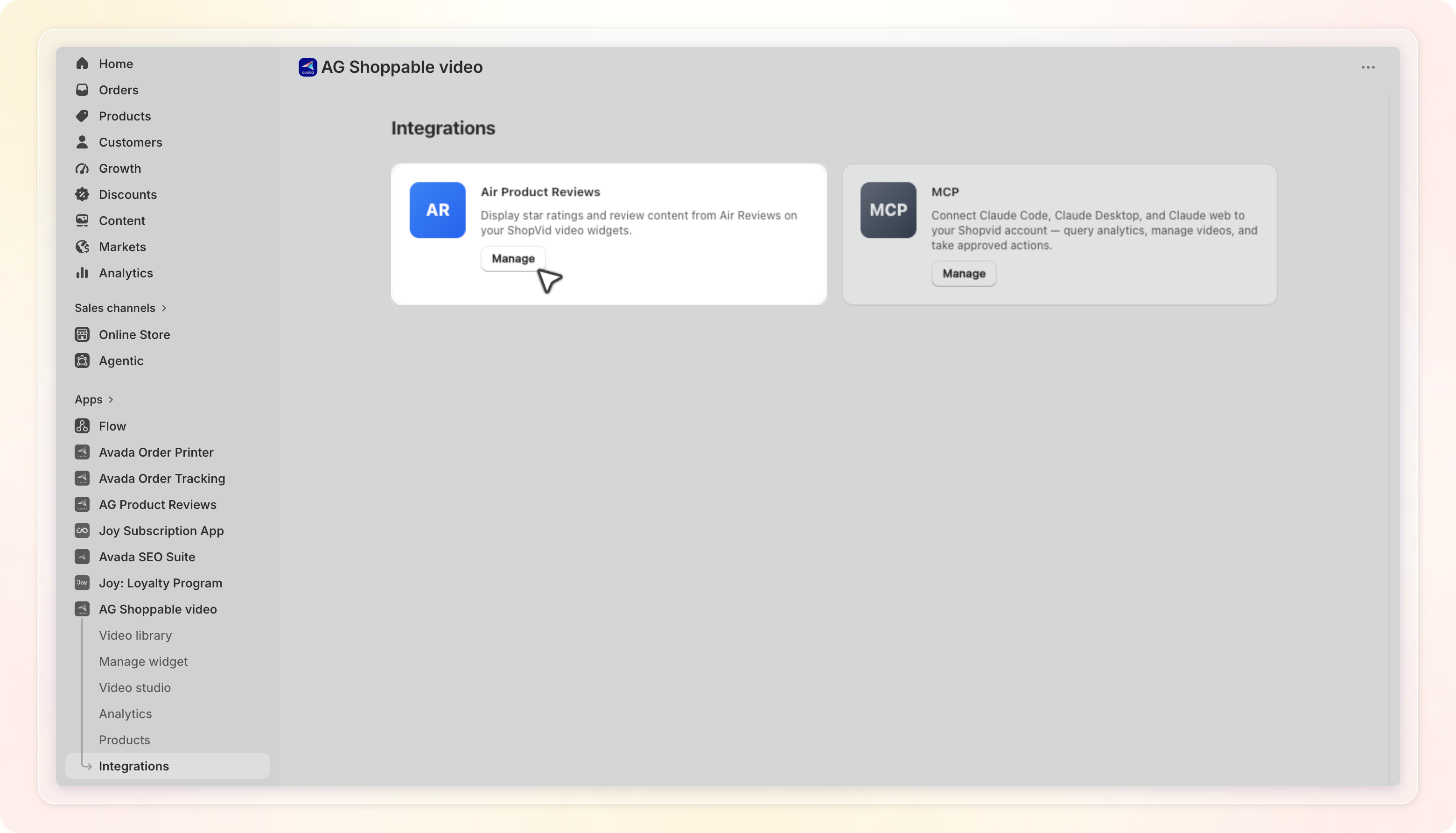
Connect Air Reviews
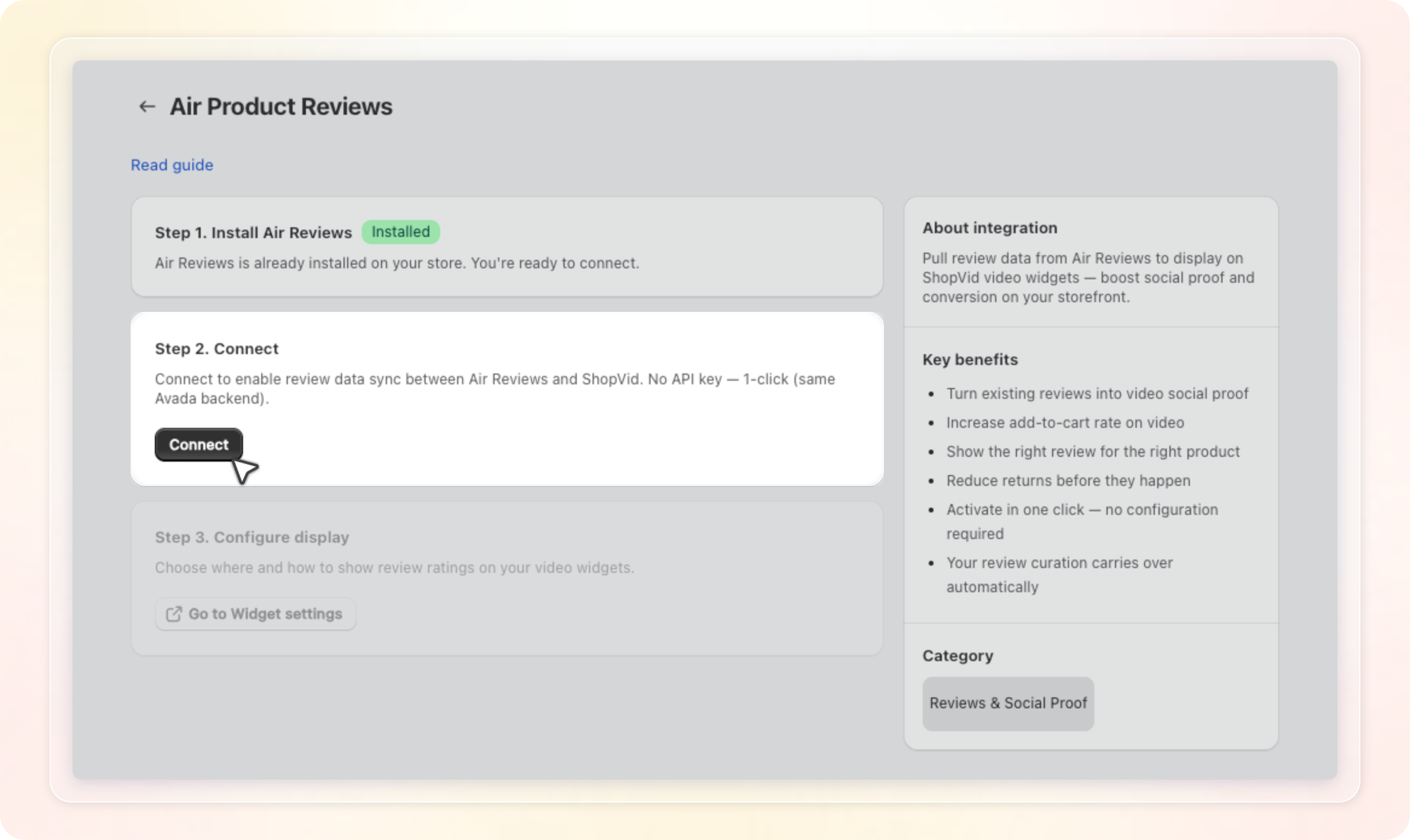
The page walks you through three steps. Each step unlocks after the one before it is done.
- Step 1. Install Air Reviews: if Air Reviews is not on your store yet, click Install Air Reviews. The Air Reviews listing opens in the Shopify App Store. Install it, then come back to Shopvid. When Air Reviews is already on your store, this step shows an Installed badge.
- Step 2. Connect: click Connect. There is no API key to enter.
- Step 3. Configure display: click Go to Widget settings to choose how reviews appear.
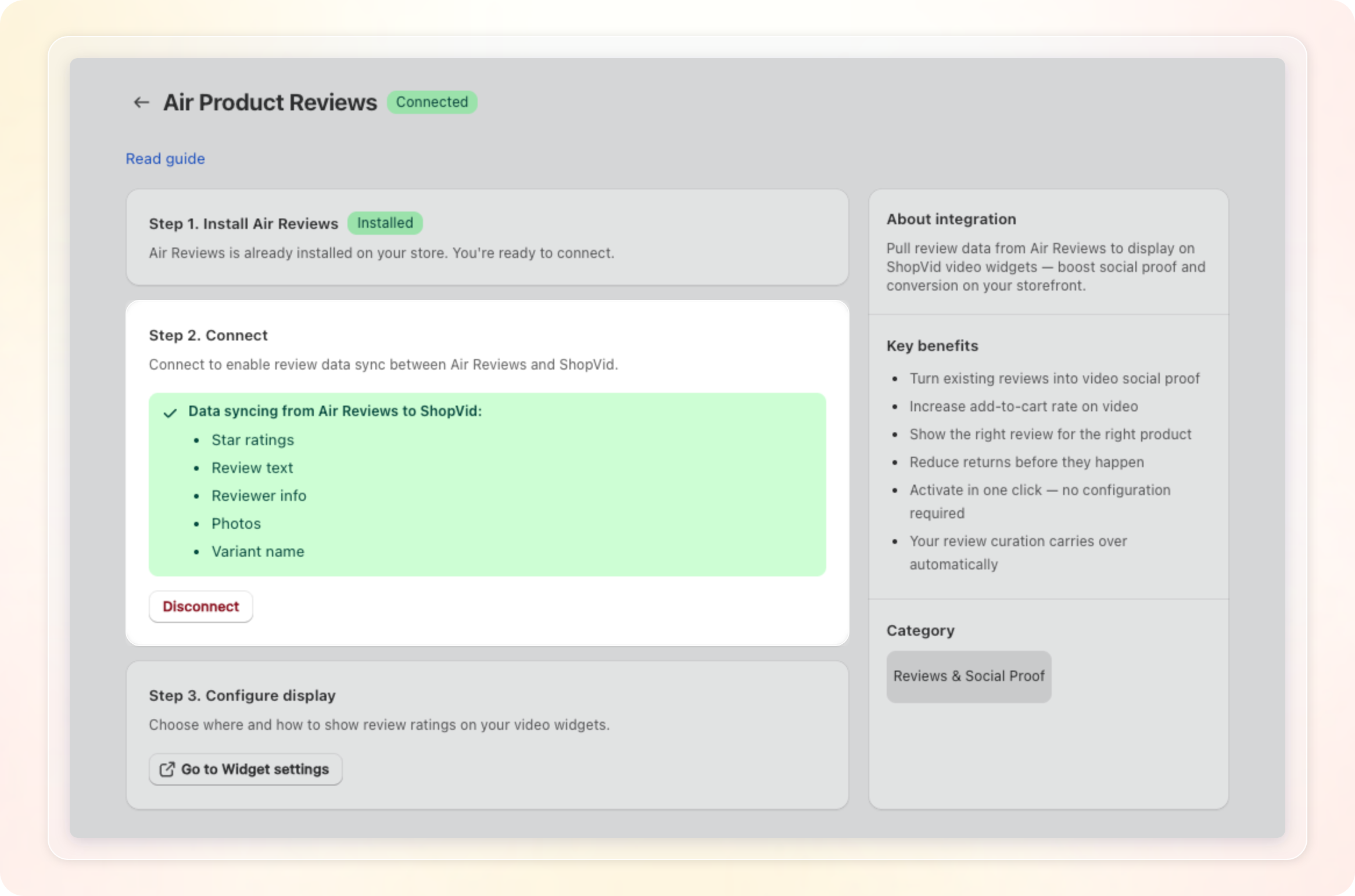
Once connected, a Connected badge appears next to the page title and on the Air Product Reviews card in Integrations. Step 2. Connect now shows a green box that lists the data syncing from Air Reviews to Shopvid:
- Star ratings
- Review text
- Reviewer info
- Photos
- Variant name
A Disconnect button sits under the list, and Step 3. Configure display unlocks.
Set up reviews in a widget
Review settings live in each widget, so you can set them differently per widget.
- Go to Manage widget and open the widget you want to edit.
- Click the Integration tab in the left rail. The Air Review section opens.
- Make sure the toggle on the Air Review section header is on. It appears after you connect and is on by default.
- Choose your settings under Review display and Review selection. Each one is explained below.
- Click Save.

Not connected yet? The Air Review section shows a Connect required badge with a Connect button. If Air Reviews is not installed, you see Install required and an Install app button instead. The settings below stay greyed out until you connect, and while the Air Review toggle is off.

Click Manage in Integrations at the bottom of the section to go back to the Air Product Reviews page.
Review display
- Display below product list: adds a review block under the product list of a video. It is off by default.
- Display style: pick Featured review to show one review at a time, or Review list to show several. Featured review is the default.
- Show variant name: shows the variant the reviewer bought, such as a color or size, on each review card. It is on by default.
Review selection
- Review rated: sets the lowest star rating to show. Choose All ratings, 3★ & up, 4★ & up, or 5★ only. The default is 4★ & up.
- Sort by: sets the review order. Choose Best first, Highest rating, Most recent, or With media first. The default is Best first.
What shoppers see
After you connect and save, reviews show up in your widget on the storefront.
- Rating chip: a star with the average rating, such as ★ 4.8, sits under the product price. It shows on product cards in your widget and on the product overlay in full screen video.
- Product detail: when a shopper opens a product inside the widget, the average stars and review count appear. A review block shows the rating summary and reviews.
- Review block below the product list: shows when Display below product list is on. A dropdown lets shoppers switch between the products in that video.
Each review block includes the average rating, a breakdown of ratings by star, and review cards with photos.
- With Featured review, shoppers see one review first. A button such as See all 5 reviews expands the rest.
- With Review list, shoppers see three reviews at a time. A Load more reviews button shows the next three.
The block below the product list works with every layout, including carousel, grid, story, and float. It first shows the first product in the list that has reviews. If no product in that video has reviews, the block stays hidden.
Translate the review text
The review block text can follow your store languages. Go to Setting, open the Translation tab, then click Edit next to the language you want to translate. On the Widget tab, the General section lists Review block title, Review count, Load more reviews, and See all reviews.
Disconnect Air Reviews
- Open the Air Product Reviews page from Integrations.
- In Step 2. Connect, click Disconnect.
Disconnecting takes effect straight away, with no confirmation step. Ratings and reviews stop showing in all your widgets.
Tips
- In the widget editor preview, sample products show a 4.8 rating as a placeholder. Real ratings appear on your storefront.
- Pick 4★ & up or 5★ only with With media first to lead with your strongest reviews.
- Shopvid shows up to 20 reviews per product.
- To hide reviews on one widget only, turn off the Air Review toggle in that widget. Other widgets keep showing them.