Connect Shopvid to Claude with MCP
Connect Shopvid to Claude and work with your videos, widgets, and analytics from your AI assistant. Ask Claude a question, or let it make changes you approve.
MCP works on all plans. The Claude (web & mobile) connector carries a Beta badge.
Before you start
- You need a Claude account. Claude Code, Claude Desktop, and Claude on web and mobile all work.
- Claude Desktop also needs Node.js installed on your computer.
Open the MCP page
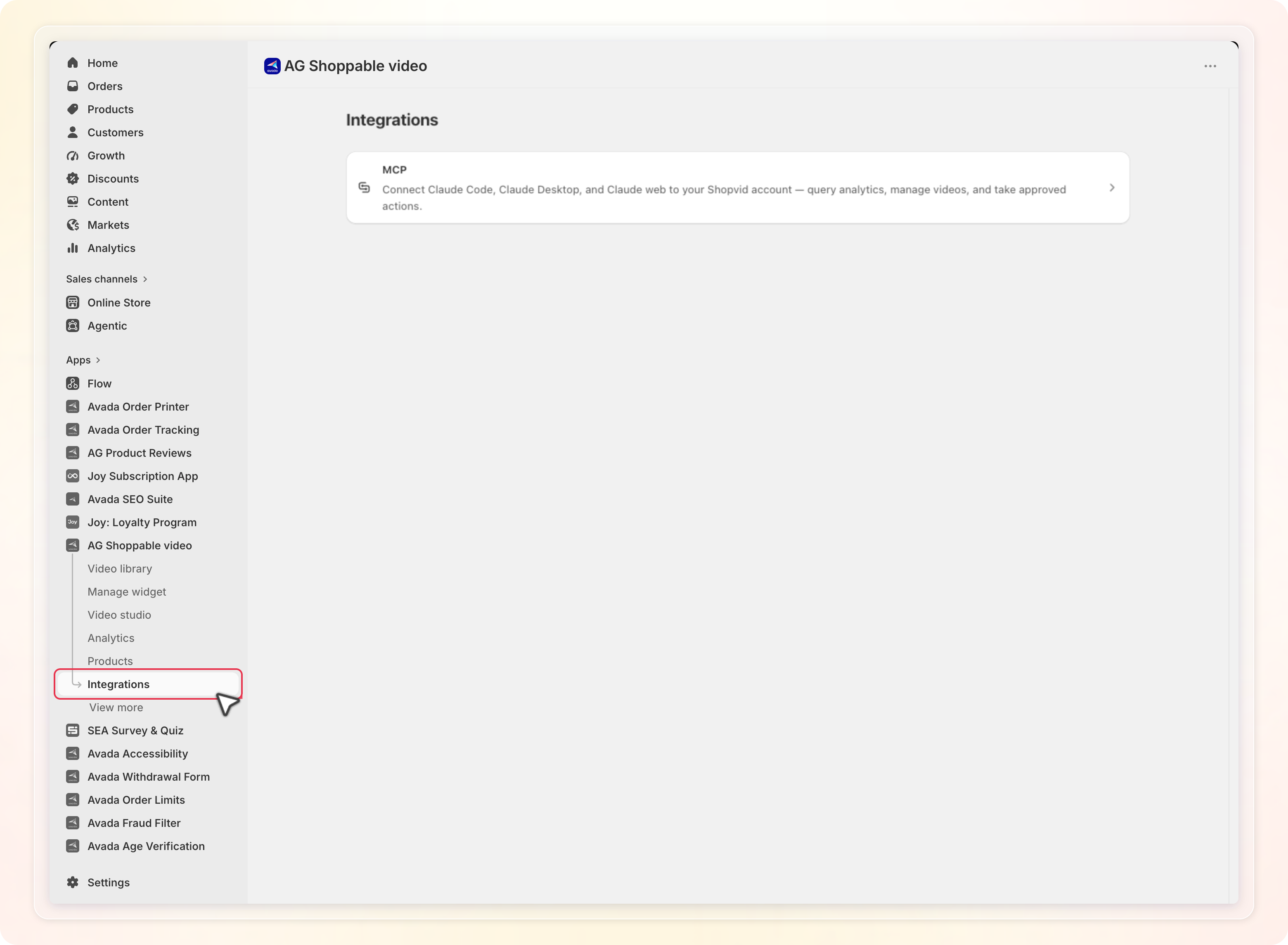
- In the Shopvid sidebar, click Integrations.
- Click the MCP card.
Generate an API key
Claude Code and Claude Desktop sign in with an API key. Claude on web and mobile does not need one.
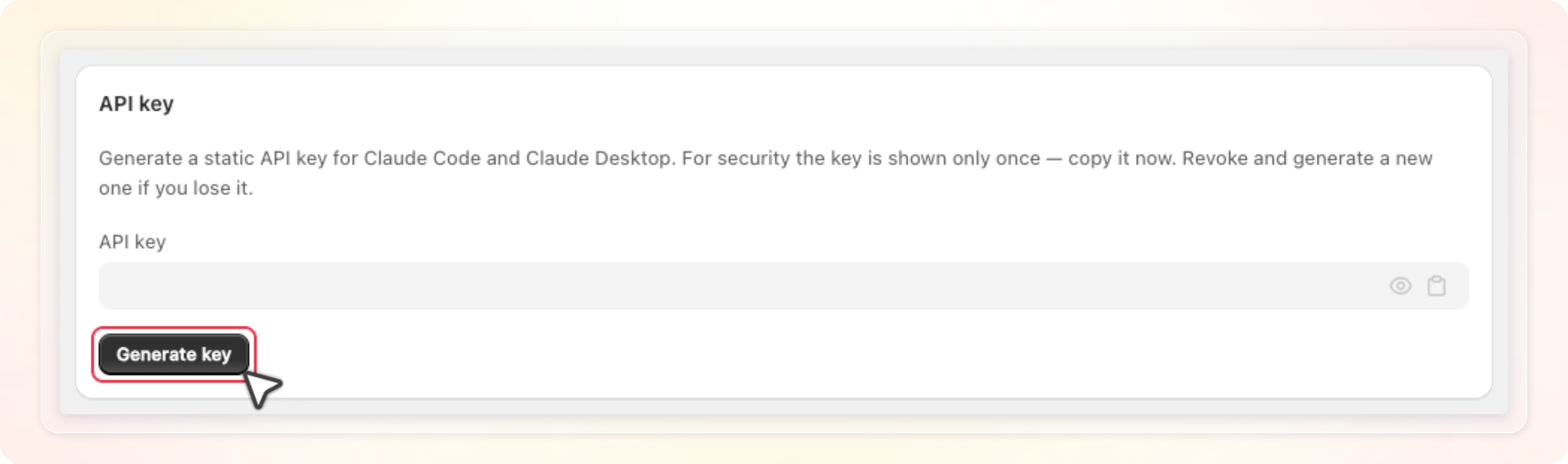
- In the API key card, click Generate key.
- Click the clipboard icon to copy the key, then store it somewhere safe.
The key appears in full as soon as you generate it. Use the eye icon to hide or show it again.
You see the full key only on this visit. After you leave the page, only a masked version remains.
Each shop holds one key at a time. Generate key stays disabled until you revoke the current key.
Revoke takes effect straight away and asks for no confirmation. Every Claude client using that key loses access at once.
Connect from Claude
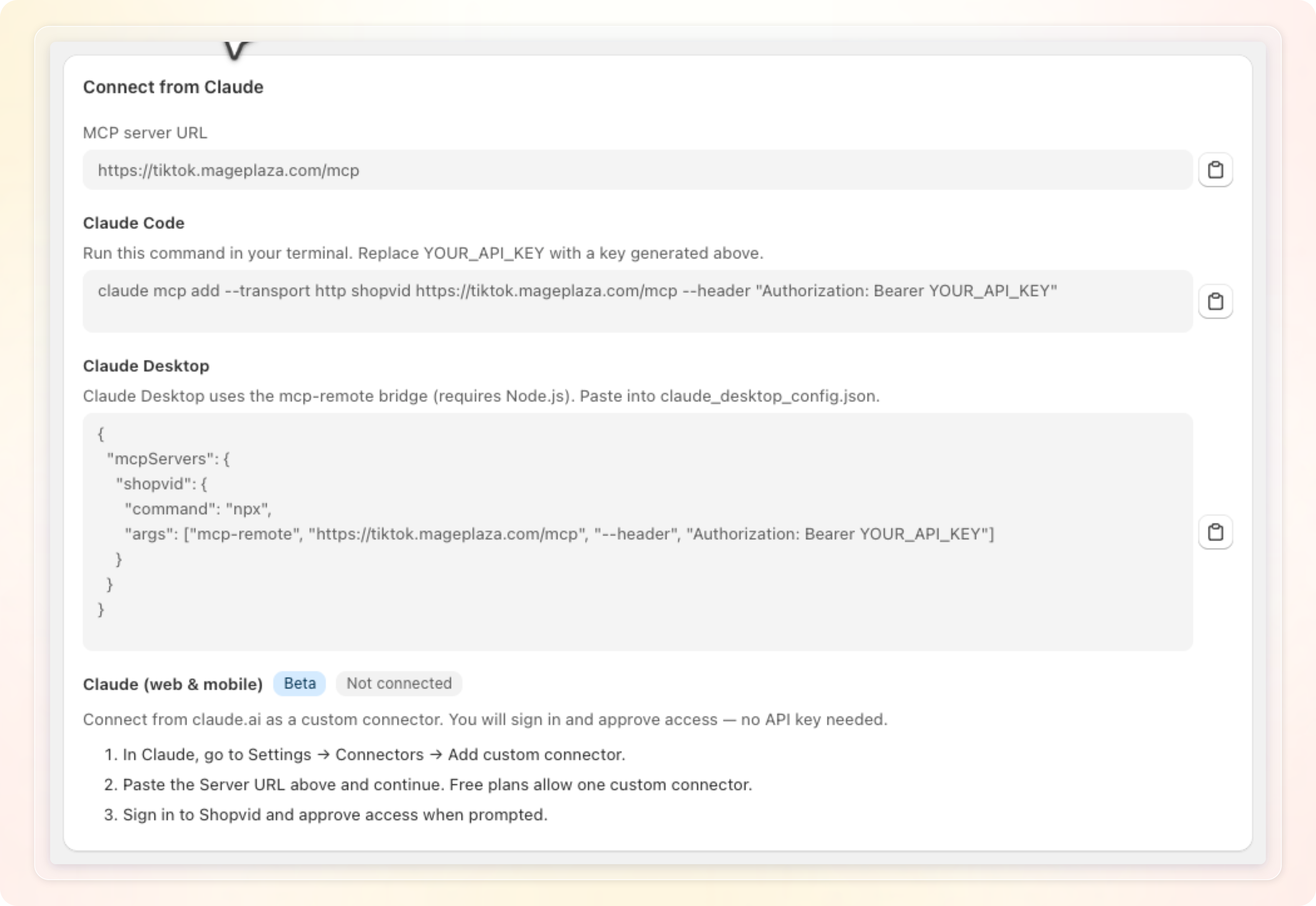
The Connect from Claude card holds your MCP server URL and a ready made snippet for each client. Copy the one that matches how you use Claude.
Claude Code
Copy the command shown under Claude Code and run it in your terminal. Replace YOUR_API_KEY with the key you generated.
Claude Desktop
Copy the snippet under Claude Desktop into your claude_desktop_config.json file. It connects through the mcp-remote bridge, which needs Node.js.
Claude (web & mobile)
This option needs no API key.
- In Claude, open Settings, then Connectors, then Add custom connector.
- Paste the MCP server URL and continue.
- Sign in to Shopvid and approve access when Claude asks.
A free Claude plan allows one custom connector. Once connected, the section shows a Connected badge. A Disconnect Claude web button appears next to it.
Choose an access level
Connecting through Claude (web & mobile) opens a Shopvid approval screen. It shows the app asking for access, and an Access level choice:
- Read-only: Claude can view your videos, widgets, and analytics. It cannot create or change anything.
- Full access: Claude can view your data, and create or change videos and widgets for you.
Read-only is selected for you. Click Allow access to approve, or Deny to cancel.
On Read-only, Shopvid leaves every write tool out of the list it gives Claude. If a write tool is called anyway, Shopvid rejects it.
Claude Code and Claude Desktop use your API key instead, and always get full access.
What Claude can do
Claude works with 19 tools, split into two groups.
- View (11 tools): test the connection, check shop status, and run a diagnostic. List and open your widgets and videos. Read widget setting options, and pull shop, video, and revenue attribution analytics.
- Manage (8 tools): create, edit, and delete widgets. Turn a widget on or off. Add or remove videos, and tag or untag products on a video.
Claude calls a widget a feed in some replies, because that is its internal name.
Analytics tools follow the same plan rules as the Analytics page in Shopvid. If your plan cannot open that page, Claude cannot read analytics either.
How Shopvid keeps this safe
- New widgets stay off. A widget Claude creates is always inactive, even if Claude asks for it to be active. You turn it on yourself, so nothing reaches your storefront without your review.
- Plan limits still apply. If a new widget would pass your plan's widget limit, Shopvid blocks it. Claude gets a message explaining the limit and how to upgrade.
- Custom CSS is cleaned. Any custom CSS Claude sends is filtered before Shopvid saves it.
- Every change is logged. Shopvid records every write action Claude makes through MCP.
Tips
- Treat your API key like a password. Anyone holding it has full access to your Shopvid data.
- Lost your key? Click Revoke, then Generate key for a fresh one. Update your Claude config with the new key.
- Claude on web and mobile is the quickest option. It skips API keys completely.
- To change the access level later, click Disconnect Claude web. Connect again and pick the other level.