Tag products on your videos with AI
Let AI read a video, suggest the products in it, and tag the ones you confirm.
AI tagging is not available on the Earlybird plan. Manual tagging still works on every plan.
Tag one video
- Go to Video library and open a video.
- In the Tag Products card, click AI Tag Products.
- Wait for the scan to finish. AI returns up to 5 matching products, each with a confidence score.
- On each suggestion, click the check icon to tag the product, or the X icon to drop it.
The button reads AI Scan video instead when a video has no caption. The same happens when the caption is shorter than 5 characters. Only the label changes. AI reads the caption and the video frames, whichever are available, then merges what it finds.
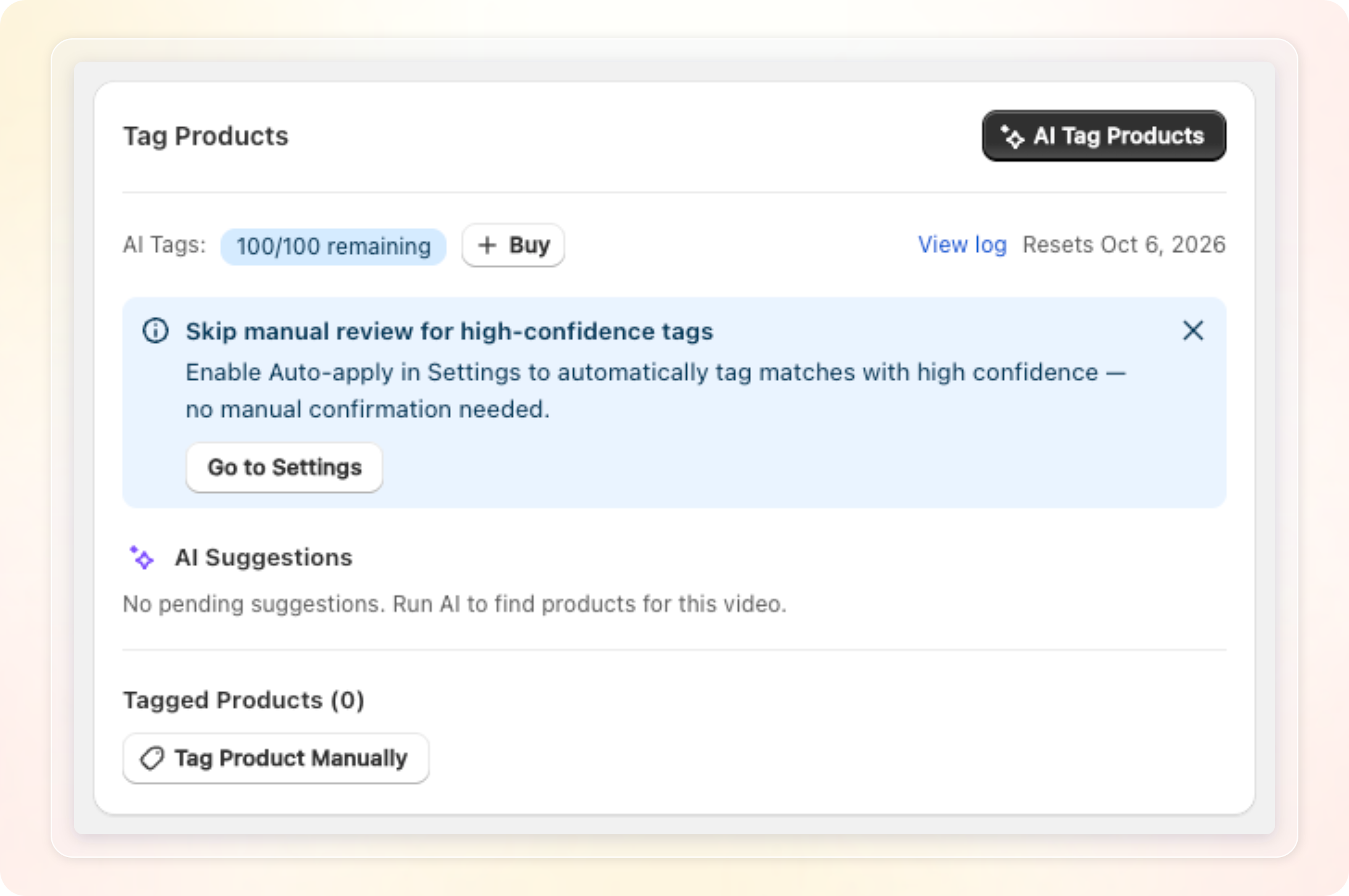
Confirmed products join the Tagged Products list. The list marks each product as AI tagged or manually tagged.
Tag Product Manually still works alongside AI, and a scan never removes your manual tags.
Once a scan returns at least one suggestion, the same button changes to Re-run AI. A scan with no match keeps the AI Tag Products label. Click it to scan the video again. A video with no caption, or a caption under 5 characters, keeps the AI Scan video label instead.
Tag many videos at once
- Go to Video library and tick the videos you want to scan.
- In the bulk actions, click AI Tag. You can scan up to 100 videos in one run.
- Check the modal. It tells you how many tags the run uses, and how many you have left.
- Click Start.
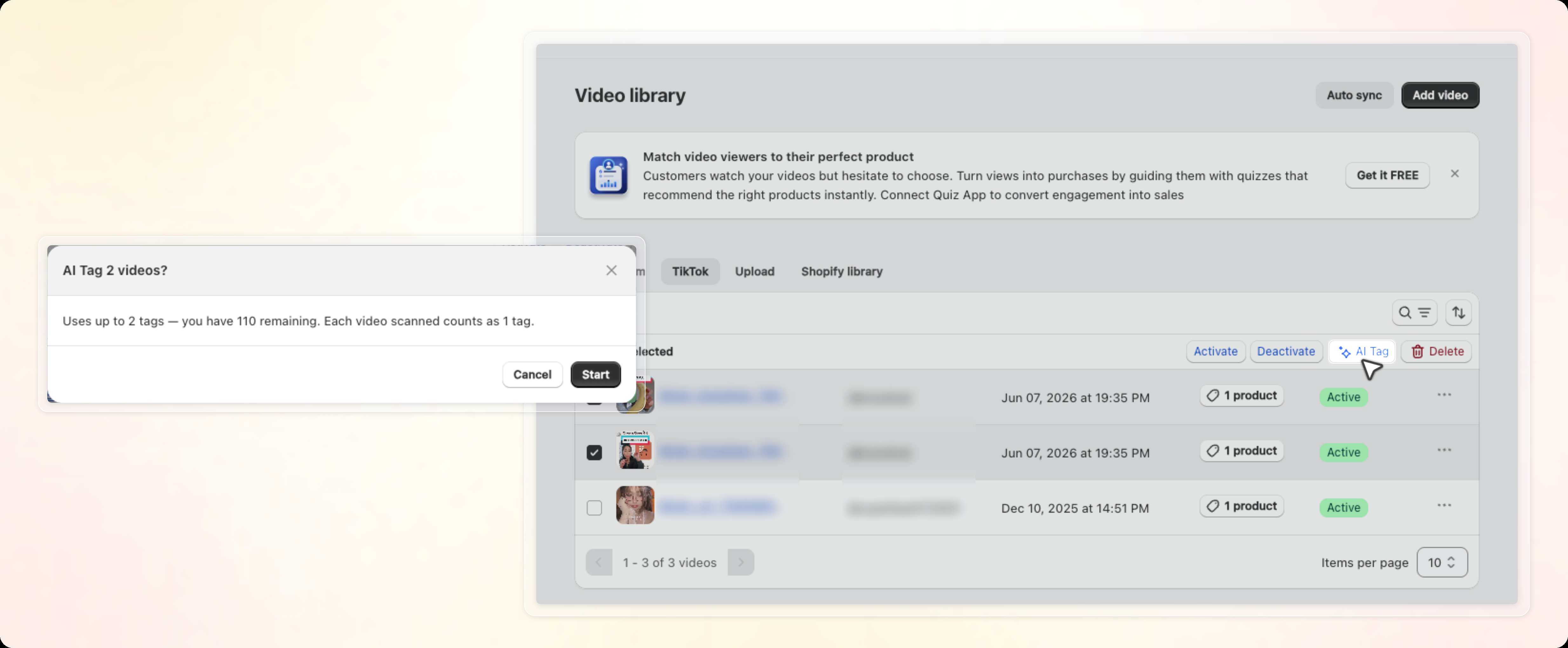
If your balance is short, the modal is titled Not enough AI tags. It offers to scan the first videos your balance covers, in the order you selected them. It also offers an add-on pack. The confirm button then reads Continue with N, where N is the number your balance covers.
With no tags left at all, the modal is titled Out of AI tags. Its main action is Buy add-on.
The run works in the background, so you can keep using the app. A banner shows progress as Processing X/Y videos.
When the run finishes, the banner shows how many videos were scanned and how many matches were found. Click Review to open AI Tag Results, or Confirm all to apply every match. A run that finds no match closes on its own, so no result banner shows. Confirm all also runs in the background.
Tag products from Quickstart
A new shop meets AI tagging on the home page, in the Get your first video live card. The third step is AI tag products.
- Finish Import videos first. AI tags the videos you imported there.
- Reload the Shopvid home page. The scan starts when the page loads.
- Wait while the step reads AI is tagging your videos… with a progress bar.
- When the scan finishes, the step lists every video that has matches.
- The first video opens on its own, in a Review products for [video name] window.
- Click the check icon or the X icon on each suggestion.
- To keep them all, click Confirm all N. With one suggestion, that button reads Confirm.
- Click Save.
- Click Review on any other video to check its matches.
- Click Confirm all & continue to accept every match, or Continue to skip review.
When AI finds nothing, the step reads No matching products found yet. You can tag products manually anytime. Continue takes you to the next step.
A scan here costs the same as any other scan: 1 tag per video. It runs once, so reopening the step costs nothing. To scan a video again, use Re-run AI in the Video library, which charges another tag.
Set up auto-apply
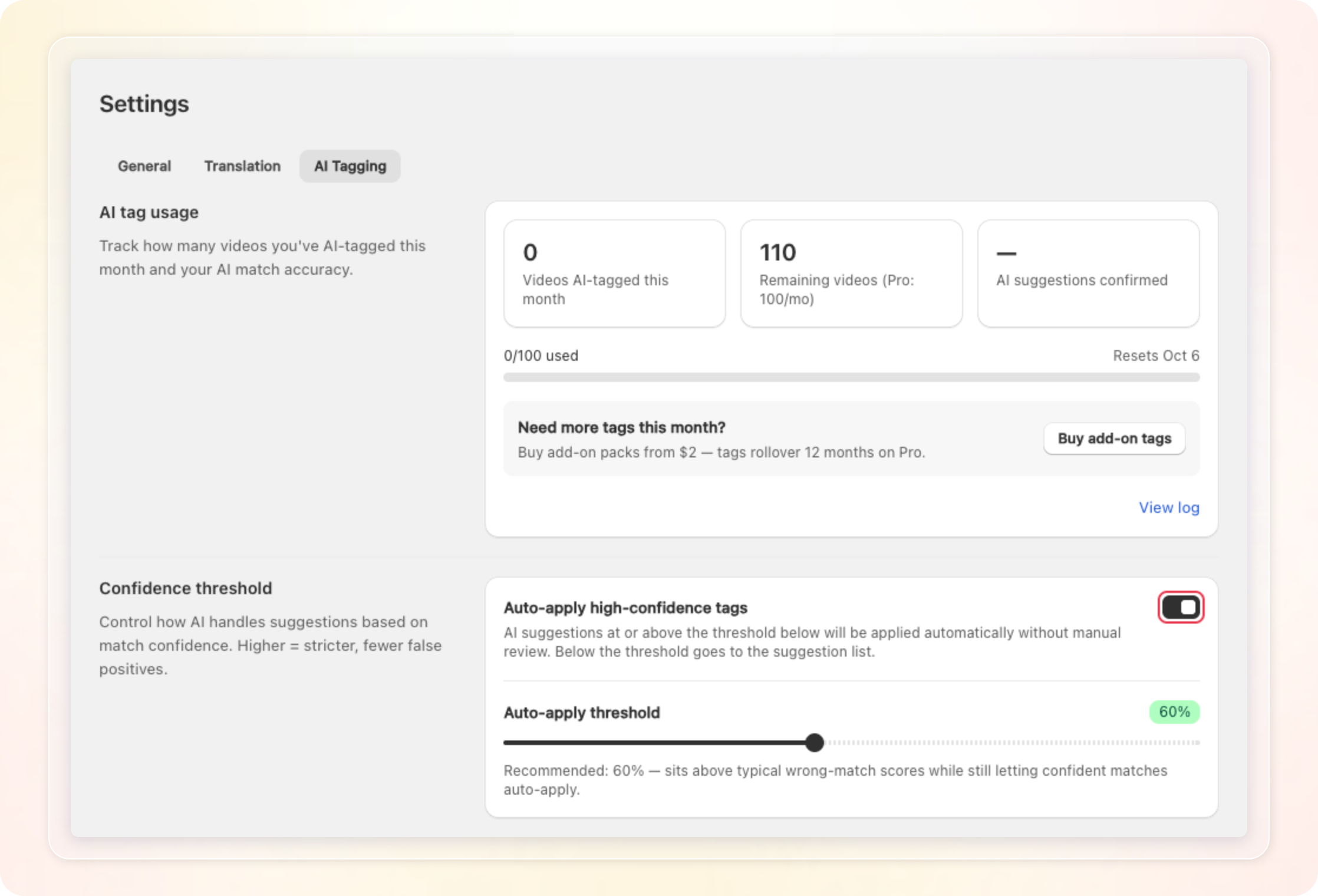
- Go to Settings, then the AI Tagging tab.
- Turn on Auto-apply high-confidence tags.
- Drag Auto-apply threshold anywhere from 40% to 85%. The slider stays locked until the toggle is on.
- Click Save.
AI then tags matches at or above your threshold without review. Matches below the threshold still wait for you. The default threshold is 60%, which the app also recommends.
Auto-apply is off by default, so every suggestion waits for your confirmation.
This tab also shows your usage: tags used, tags left, and your confirm rate. View log opens your AI tag usage log. It lists every tag granted, used, bought, or expired.
How tags are counted
- 1 tag is 1 successful scan of 1 video. The number of products found does not change the cost.
- A scan that never runs costs nothing. That covers a video with no caption and no downloadable file. It also covers a video AI reads no keyword from.
- A failed download alone is not free. AI still reads the caption, and a caption that yields keywords means the scan runs and costs 1 tag.
- A scan that runs but matches no product still costs 1 tag. You pay for the scan, not for the result.
- Confirm, Reject, and auto-apply are all free. You paid for the scan itself.
- Re-run AI on the same video is a new scan, so it costs another tag.
Your AI tag balance
Every shop on Free or Pro gets 10 free AI tags once, as a welcome allowance. Older shops receive them automatically.
| Plan | Monthly tags | Add-on validity |
|---|---|---|
| Free | None | 6 months |
| Pro | 100, resetting every 30 days | 12 months |
On a Pro trial, you can use up to 25 tags before the trial ends. Reaching that cap shows a Trial cap reached banner with a Contact us button. The scan button then reads AI Tag Products (X/Y used) and is disabled. Manual tagging keeps working.
AI uses your tags in this order: monthly allowance, then free tags, then add-on packs.
Add-on packs
| Pack | Price |
|---|---|
| 20 tags | $2 |
| 75 tags | $5 |
| 200 tags | $12 |
Buy a pack from the Tag Products card, from Settings then AI Tagging, or from the Plans page.
Banners you may see
- A banner tells you when 5 or fewer tags are left. It does not show during a Pro trial.
- You're out of AI tags. On Free, the banner offers Upgrade to Pro. On Pro, it offers Buy AI tags.
- Trial cap reached. You hit the Pro trial cap. Contact us to carry on.
Tips
- Add a caption before scanning. Caption text gives AI more to work with than frames alone.
- Start with auto-apply off. Watch your confirm rate for a while, then decide on a threshold.
- Bulk scan in small batches at first. That way a poor result costs few tags.
- For a TikTok or Instagram video that cannot be downloaded, try Resync video and scan again.