Let shoppers request a quote from your videos
Add a Request a quote button to video products, so shoppers ask for a price without leaving the video.
The button comes from SP Request a Quote (RFQ), a separate Shopify app. Shopvid shows the button inside your widget. RFQ collects the quote requests, and you answer them in RFQ.
The Request a Quote integration works on all Shopvid plans. Shopvid does not store quote requests or shopper details. They stay in RFQ.
Before you start
- You need the SP Request a Quote (RFQ) app on your store. If you don't have it yet, Shopvid links you to it below.
- RFQ decides which products can get a quote. Set up those rules in the RFQ app.
- The RFQ app embed must be on in your live theme. Without it, the button doesn't show on your store.
- For carousel and grid widgets, keep Fullscreen player on in the Full screen tab. When it is off, shoppers can't open the full screen player, so the button never shows.
Check your RFQ setup on the Integrations page
The Integrations page shows where your RFQ setup stands, without opening each widget. In Shopvid, RFQ shows there as Shopplaza Request a Quote.
- In the Shopvid sidebar, click Integrations. If you don't see it, click View more first.
- On the Shopplaza Request a Quote card, click Manage.
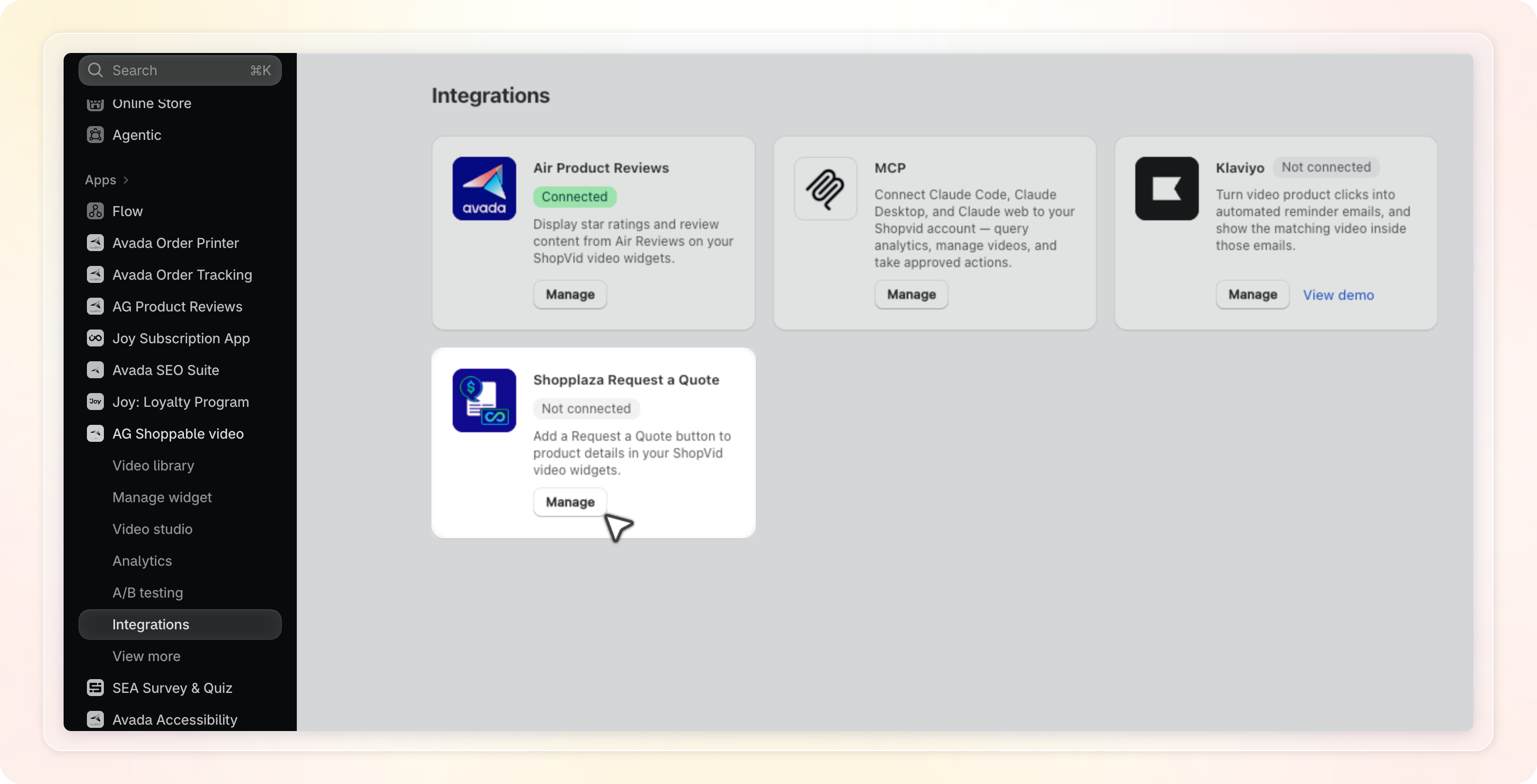
The card shows Connected when RFQ is installed and its app embed is on. It shows Not connected when RFQ is not installed or its app embed is off.
The Shopplaza Request a Quote page walks you through 3 steps:
- Step 1. Install Request a Quote: click Install Request a Quote to open the RFQ listing in the Shopify App Store. Once RFQ is installed, the step shows an Installed badge.
- Step 2. Connect: there is no connect button. Shopvid connects once RFQ is installed and its app embed is on. If the app embed is off, click Enable app embed to open the theme editor.
- Step 3. Configure display: click Go to Widget settings to open your widget list. Then turn on the button in each widget, as shown in Turn on the Request a quote button.
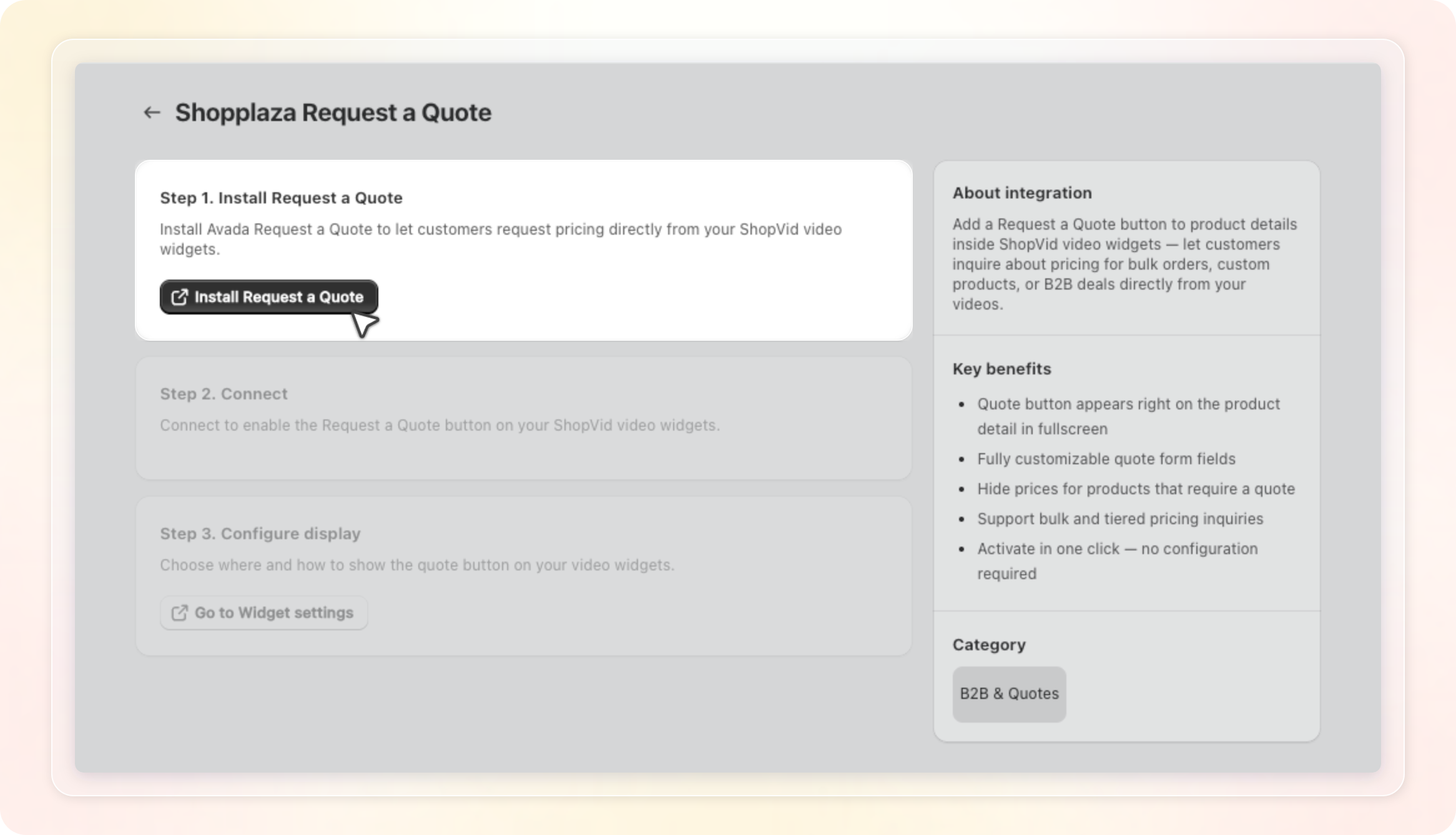
Steps 2 and 3 stay greyed out until RFQ is installed. Shopvid checks RFQ again when you come back to the tab. When everything is ready, Step 2 and the page title show a Connected badge.
If Shopvid can't reach RFQ, Step 2 shows a warning with a Try again button. You can still set up the button in your widgets.
Open the Request a Quote settings
The button settings live in each widget, so you can turn the button on for some widgets only.
- In Manage widget, open the widget you want to edit.
- Click the Integration tab in the left rail. The Air Review section opens first.
- Click the Add Request a Quote button section header to expand it.

Install SP Request a Quote (RFQ)
If RFQ is not on your store yet, the section shows an Install required badge. The button settings below stay greyed out.
- In the Add Request a Quote button section, click Install app. The RFQ listing opens in the Shopify App Store in a new tab.
- Install RFQ, then come back to the Shopvid tab.

You don't need to reload the page. Shopvid checks again when you return to the tab, and the settings unlock. There is no API key to enter.
You can also start the install from the Full screen tab of the widget editor. While RFQ is not installed, an Avada Request a Quote card sits near the top of that tab. It shows when Fullscreen player is on. Click the install icon on the card to open the same listing. The card hides once RFQ is installed.

Turn on the Request a quote button
After RFQ is installed, a toggle appears on the Add Request a Quote button section header.
- Turn on the toggle. It is off by default for every widget, including widgets you made before.
- Under Button, set Button text, Text size, Font weight, and Border radius.
- Under Color, pick the Text and Background colors.
- Click Save.
To see the button in the preview, click a video there to open the full screen player. On the mobile preview, also tap the product card to open the product list. Clicking the button in the preview does nothing. One set of settings covers both desktop and mobile.
Button settings
- Button text: the words on the button, up to 40 characters. The default is Request a quote.
- Text size: from 10 to 18 px. The default is 14 px.
- Font weight: choose Regular, Medium, or Bold. The default is Medium.
- Border radius: from 0 to 20 px. The default is 8 px.
- Text and Background: the button colors. The default is dark grey text (
#303030) on white (#FFFFFF).
Turn on the RFQ app embed
When RFQ is installed but its app embed is off, the section shows a warning. The button won't show on your store yet. It still shows in the preview, so you can finish your setup.
- In the warning, click Enable app embed. The theme editor opens in a new tab.
- Turn on the RFQ app embed, then save your theme.
Step 2 on the Shopplaza Request a Quote page has the same Enable app embed button.
What shoppers see
Once the button is on and saved, shoppers see it in the full screen video player.
- Product list: each product card shows the button under the price. The Add to cart button stays in place.
- Product details: if your widget opens product details inside the player, the button shows below the variant options.
The button works with carousel, grid, story, and float widgets.
On mobile, a product card sits on top of the video. Shoppers tap it to open the product list, where the button shows.
With the Video only layout, there is no product list. The button only shows in product details. See Show the button with the Video only layout.
The button only shows on products that RFQ allows quotes for. Other products show no button and no empty space. Product cards on top of the video don't show the button.
When a shopper clicks Request a quote:
- The product goes into the RFQ quote cart. For a product with several variants, RFQ asks the shopper to pick one first.
- The shopper sends the quote request in RFQ.
- The request reaches the RFQ app, where you reply.
The video player stays open behind the RFQ window. The click never adds the product to the Shopify cart.
In the Shopify theme editor, the button always shows, so you can check where it sits.
Show the button with the Video only layout
With the Video only layout, product cards sit on top of the video and there is no product list. This always applies on desktop. If your Product card section has no Mobile and Desktop tabs, it applies on mobile too.
By default, clicking a card opens the product page in a new tab. Shoppers never see the button in the player.
To fix this, let shoppers open product details inside the player:
- In the widget editor, click the Full screen tab.
- Expand the Product card section. If it shows Mobile and Desktop tabs, click Desktop.
- Set Product card click action or Button action to Show product detail within the modal.
- Click Save.
To check it in the preview, open a video, then click a product card. If you changed Button action, click the button on the card instead. Product details open with the button.
On the Pro plan, you can pick this option right away. On the Free plan, it shows an Unlock badge. Click it to chat with our support team about unlocking it.
Translate the button text
Go to Setting, open the Translation tab, then click Edit next to the language you want to translate. On the Widget tab, select your widget. The General section lists Request a quote button text.
This row only shows once the widget has saved button text. New widgets have it from the start. For a widget made before this update, type your text in Button text, then click Save.
Tips
- Turn on the button only in widgets that show products you sell by quote, such as bulk or wholesale items.
- Button not showing on your store? Check the widget toggle, Fullscreen player, the RFQ app embed, and your RFQ product rules. With the Video only layout, also check Product card click action.
- The Shopplaza Request a Quote card in Integrations shows Not connected while the RFQ app embed is off.
- Shop the look widgets don't have an Integration tab, so they can't show the button.
- Match the button colors to your Add to cart button, so both buttons look like one set.