Let shoppers save products to a wishlist from your videos
Add a wishlist icon to video products, so shoppers save items while they watch and buy later.
The icon comes from MP Wishlist & Favorites (MP Wishlist), a free Shopify app. Shopvid places the icon inside your widget. MP Wishlist draws the icon, saves the products, and keeps each shopper's list.
The MP Wishlist integration works on all Shopvid plans. Shopvid does not store wishlists or shopper details. They stay in MP Wishlist.
Before you start
The icon shows on your store only when all 4 of these are done:
- MP Wishlist is installed on your store. If you don't have it yet, Shopvid links you to it below.
- The MP Wishlist app embed is on in your live theme.
- In MP Wishlist settings, the wishlist button for product cards is on.
- The wishlist icon is on in your Shopvid widget.
If one is missing, your videos look the same as with the icon off.
Check your setup on the Integrations page
The Integrations page shows where your MP Wishlist setup stands. It also walks you through each step.
- In the Shopvid sidebar, click Integrations. If you don't see it, click View more first.
- On the MP Wishlist card, click Manage.
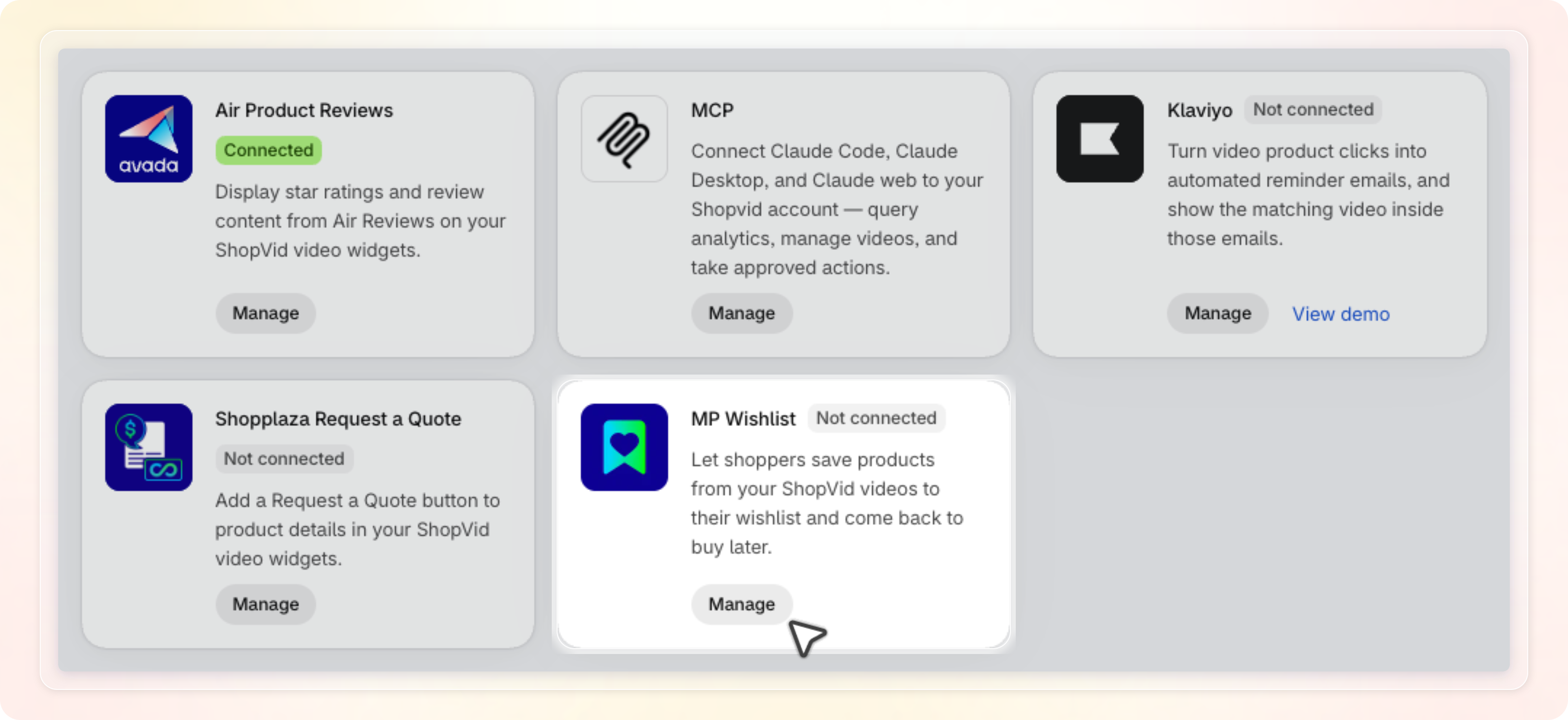
The card shows Connected when Steps 1 to 3 below are done. It shows Not connected while one of them is missing.
The MP Wishlist page walks you through 4 steps. It reads your setup and sends you to the right place. There is no connect button and no on or off switch on this page.
- Step 1. Install MP Wishlist: Click Install MP Wishlist. The MP Wishlist listing opens in the Shopify App Store in a new tab. Once the app is installed, the step shows an Installed badge.
- Step 2. Turn on the app embed: If the app embed is off, click Enable app embed. The theme editor opens in a new tab. Turn on the MP Wishlist app embed, then save your theme. The step then shows Turned on.
- Step 3. Let MP Wishlist show its icon on ShopVid: If this is off, click Open MP Wishlist settings. Turn on the wishlist button for product cards there. The step then shows Turned on.
- Step 4. Add the icon to your widgets: Click Go to Widget settings to open your widget list. Then turn on the icon in each widget, as shown in Turn on the wishlist icon in a widget.
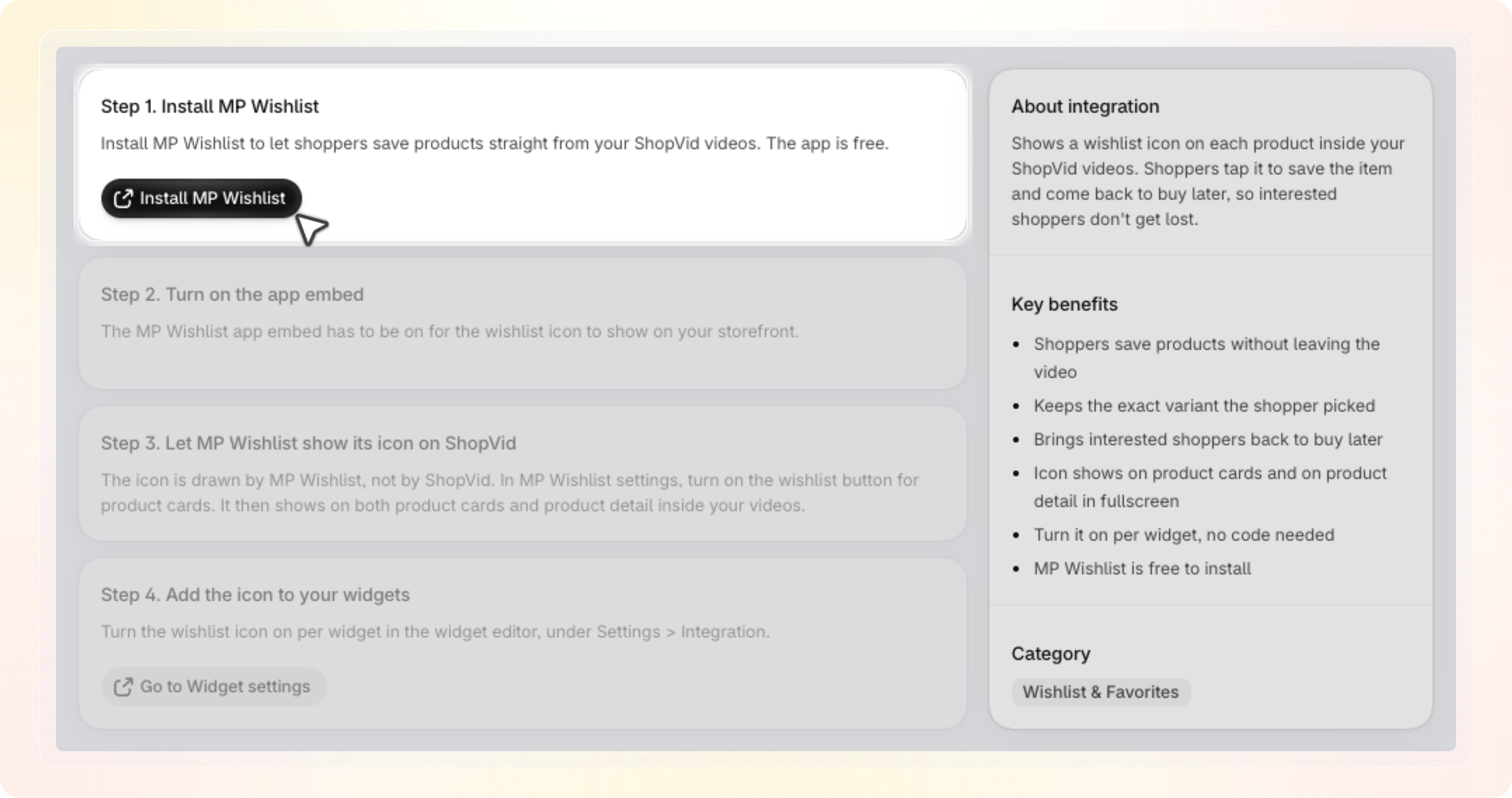
Steps 2, 3, and 4 stay greyed out until MP Wishlist is installed. Shopvid checks MP Wishlist again when you come back to the tab. When everything is ready, a Connected badge shows at the top of the page.
If Shopvid can't check MP Wishlist, Step 2 shows a warning with a Try again button. You can still set up the icon in your widgets.
This page never turns the icon on for you. You turn it on in each widget.
Turn on the wishlist icon in a widget
The icon setting lives in each widget, so you can show the icon in some widgets only.
- In Manage widget, open the widget you want to edit.
- Click the Integration tab in the left rail.
- In the Add a wishlist icon section, turn on the toggle. It is off by default for every widget, including widgets you made before.
- Click Save.

When you turn on the toggle, the preview opens the full screen player on your first video with products. Each product under Product seen in the video shows the icon on its image. The preview also opens this way when you go to the Integration tab with the toggle already on.
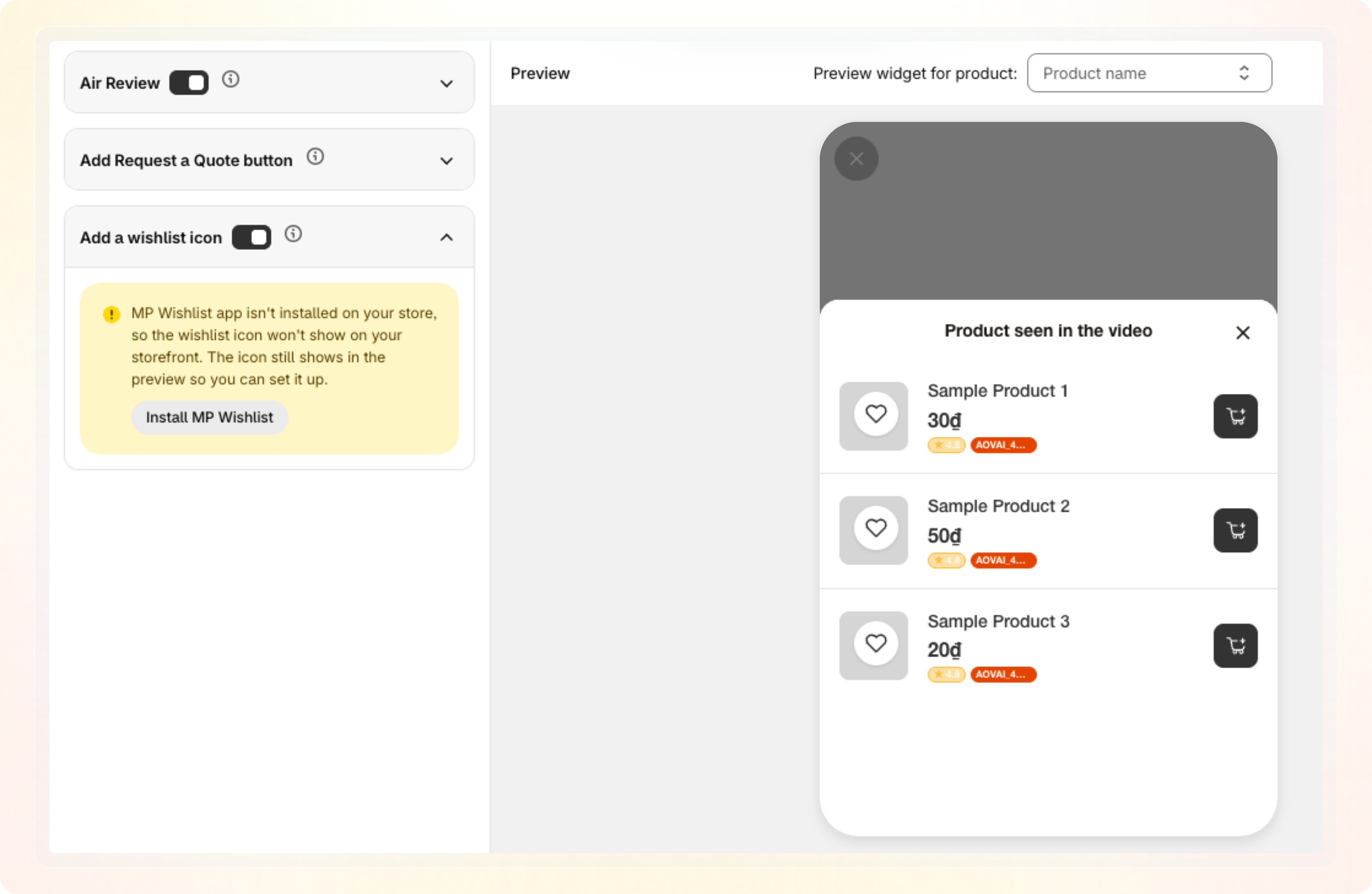
The icon in the preview is a sample that Shopvid draws. It shows even before MP Wishlist is installed, so you can plan your layout. Click it to see how a saved product looks. Click it again to undo. The saved look stays while that browser tab is open.
One toggle covers both desktop and mobile. Shopvid has no style settings for the icon. To change its style, color, corners, or position, go to MP Wishlist settings. Once your setup is complete, the section links to MP Wishlist settings.
Fix a setup warning in the widget
When the toggle is on but a setup step is missing, the section shows a warning. The icon won't show on your store yet. It still shows in the preview, so you can finish your setup.
| Warning | Button | What to do |
|---|---|---|
| MP Wishlist app isn't installed on your store | Install MP Wishlist | Install MP Wishlist from the Shopify App Store. |
| MP Wishlist app embed is turned off on your live theme | Enable app embed | Turn on the app embed in the theme editor, then save your theme. |
| The wishlist button on product cards is turned off in MP Wishlist | Open MP Wishlist settings | Turn on the wishlist button for product cards. |
Each button opens a new tab. Finish the step there, then come back to Shopvid. The warning updates on its own, so you don't need to reload the page.
What shoppers see
Once your setup is complete and the widget is saved, shoppers see the icon in the full screen video player.
- Product list: Each product under Product seen in the video shows the icon on its image. This works with list and grid layouts, on desktop and mobile.
- Product details: The icon sits in a corner of the product image. It is at the top right when shoppers open details from the product list. It is at the top left when they open details from a product card on top of the video. Shopvid sets these corners, so the position you pick in MP Wishlist doesn't apply in product details.
In MP Wishlist, you can pick Text button at the bottom instead of an icon. Shopvid then moves that button below Add to cart in product details. This keeps it off the product image.
The icon doesn't show on product cards on top of the video. On desktop, these cards show in the Video only layout. On mobile, a product card sits on top of the video in every layout. Outside the Video only layout, a tap on the mobile card opens the product list by default. The icon shows there. The icon also doesn't show in the variant picker or in Shop the look widgets.
In the Video only layout, a tap on a card opens the product page by default. Shoppers then never see the icon in the player. To fix this, follow Show the button with the Video only layout. The same setting shows the wishlist icon.
When a shopper taps the icon:
- MP Wishlist saves the product with the variant the shopper picked. The icon fills in.
- Tapping the icon again removes the product from the wishlist.
Tapping the icon keeps the player open and the video playing. It doesn't open product details or add the product to the cart. Tapping anywhere else on the card works as before.
Shoppers can save products without logging in. MP Wishlist handles that part.
Tips
- Icon not showing on your store? Check all 4 items in Before you start. Then make sure you saved the widget. With the Video only layout, also check Product card click action.
- The MP Wishlist card in Integrations gives you a quick check. It shows Not connected until Steps 1 to 3 are done.
- Turn on the icon in widgets with products shoppers like to compare first, such as gifts or bigger buys.
- You can also find MP Wishlist & Favorites under Recommended apps on the Shopvid Dashboard.