Setting up widgets
Editor header
At the top of every widget editor:

- Click the pencil icon next to the widget name to rename it inline.
- The status dropdown (colored dot + label) switches the widget between Active and Inactive.
- Search settings finds any setting by name and jumps straight to it, across most tabs.
- Visibility and Publish open their own flows, covered below.
Visibility
Click Visibility to open Visibility settings, then choose a mode under Visibility by region:
- All visitors: widget is shown to all visitors regardless of location.
- Selected countries: widget shows only to visitors from the countries you pick.
- Shopify market: widget shows only to visitors in the Shopify markets you pick.
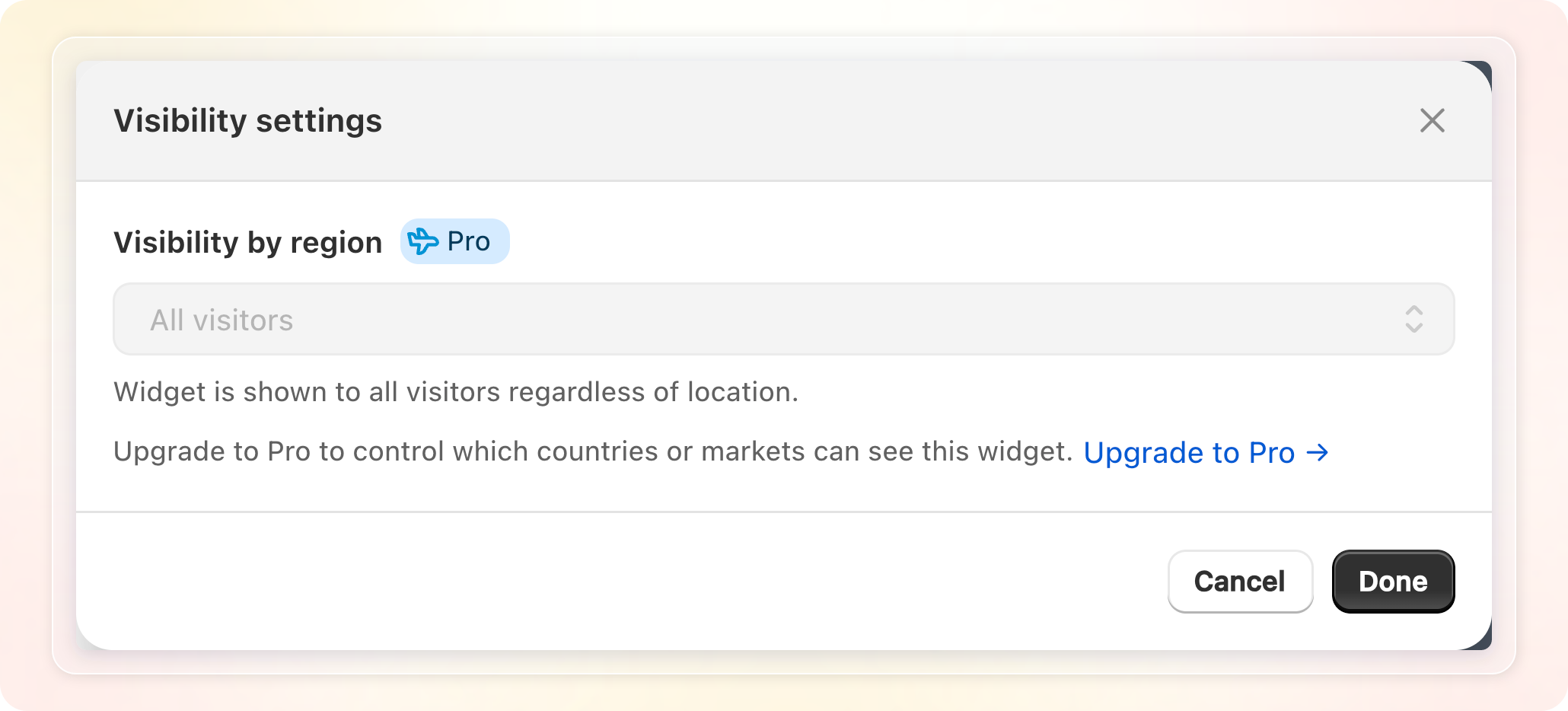
Visibility by region is a Pro feature. On the Free plan, the picker still shows but is disabled, with an Upgrade to Pro link below it. Any region settings you configured before downgrading stay active on your storefront until you upgrade again to change them.
Publish a widget
Click Publish to open the Publish widget modal, which covers both theme types:
- For OS 2.0 themes:
- Step 1: Copy Widget ID — click Copy next to the Widget ID.
- Step 2: Add Block in Theme settings — click Go to theme editor. Add the Shopvid Shoppable Video widget block to your store, then click Save.
- For vintage themes and page builders, copy the Widget snippet. Paste it into your page, blog, product, or collection description to embed your Shopvid videos in that spot. Click Go to theme editor if you need to open the editor first.
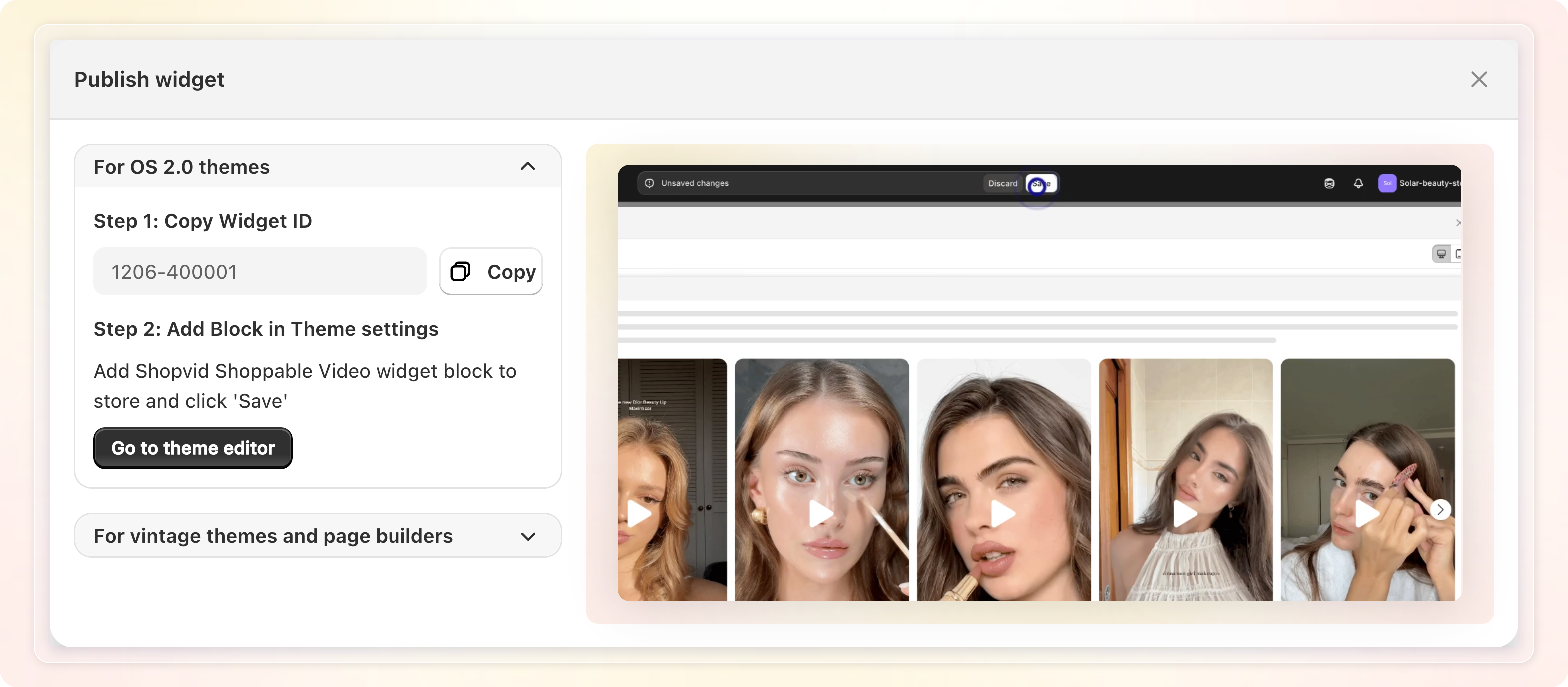
The first time you set up a widget, this modal pops up automatically and guides you through the theme editing.
Videos / Products
The first tab is called Products for product-page widgets, and Videos for every other placement. What you see here depends on whether Auto playlist is on.
Manual selection (Auto playlist off)
- Based on your selected display page, the video setting differs:
-
For Product pages:
- Shuffle videos: randomize the video order each time the page loads.
- Widget apply to: choose All products to select every product automatically, or Specific products to pick products yourself.
- With Specific products, click Select products, then search or browse the list and check the products you want. Click Done.
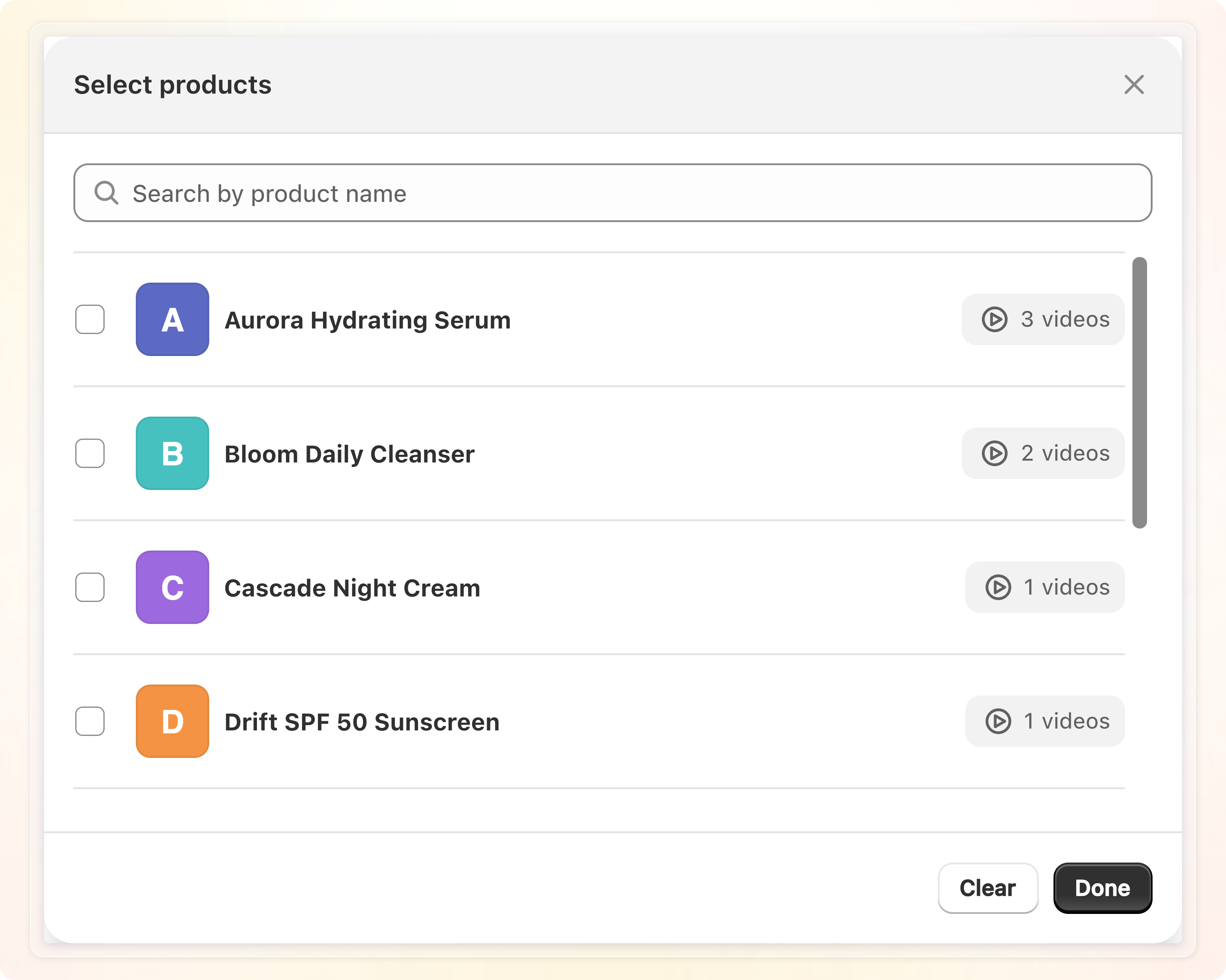
- Once products are selected, the panel shows how many are selected, with an Edit selection button to reopen the picker. It also lists the selected products and their attached video counts.
- Click the ... menu on a product row for Deselect product or Edit attached videos.
- Edit attached videos lists the videos already attached to that product, with Hide and Unattach options for each one. It also has an Attach video button to search for and attach more videos to that product.
Product pages don't show Loop Video or Edit video title here. Videos are managed per product through Edit attached videos instead.
-
For other pages:
- Loop Video: videos restart automatically after finishing. Only shown for the Basic carousel and Highlighted carousel layouts.
- Click Video or Browse
- Browse your video library or use search to find specific videos
- Select videos by clicking the checkbox on each thumbnail
- Click Done and view the added videos on the left side of the editor
- Or click Select 30 newest videos to add your 30 most recently uploaded videos in one click. This saves you from picking them one by one.
- Once videos are added, a Shuffle videos option appears to randomize the video order each time the page loads.
- Once videos are added, click Edit video title to rename any video as shown in the widget.
-
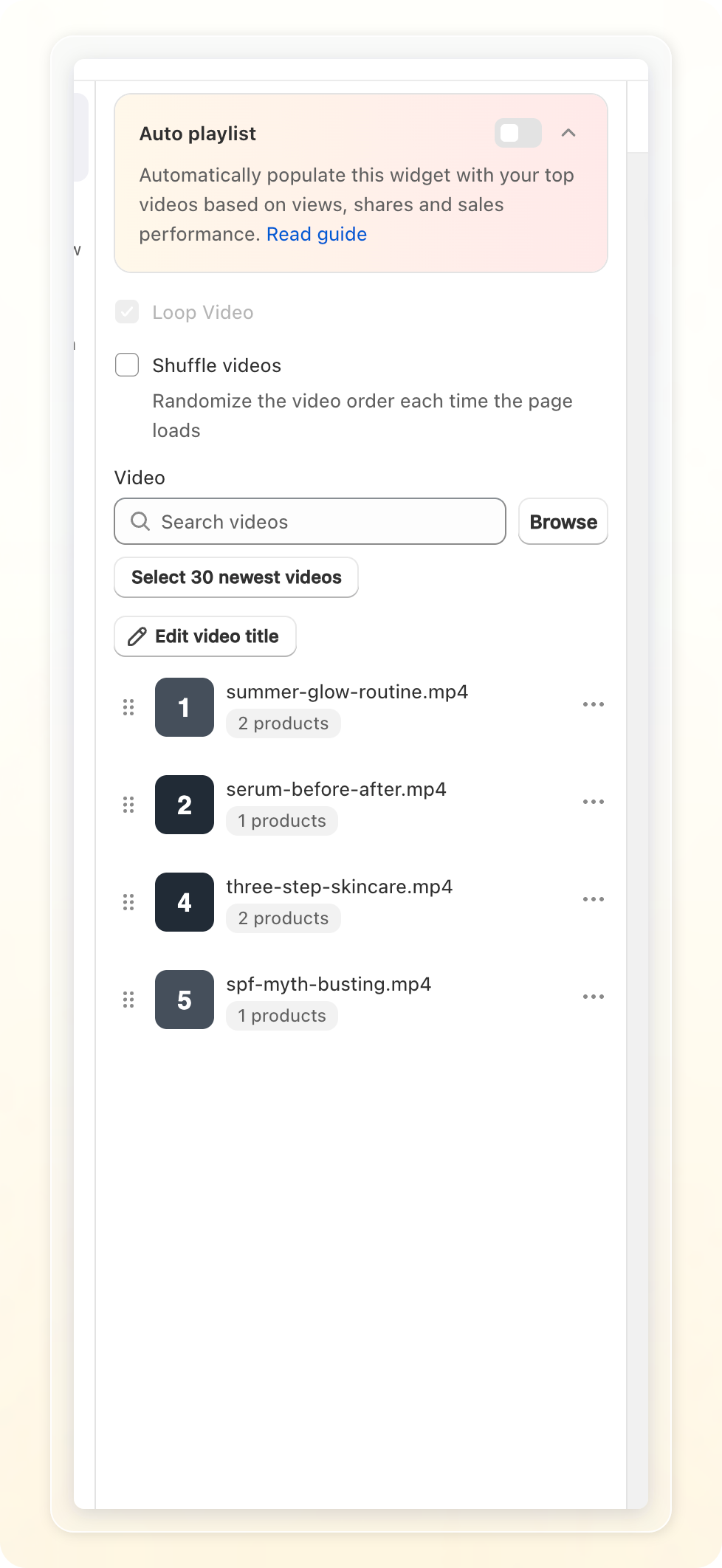
Auto playlist (on)
Turn on Auto playlist to automatically populate the widget with your top videos, based on views, shares, and sales performance. This saves you from picking videos by hand.
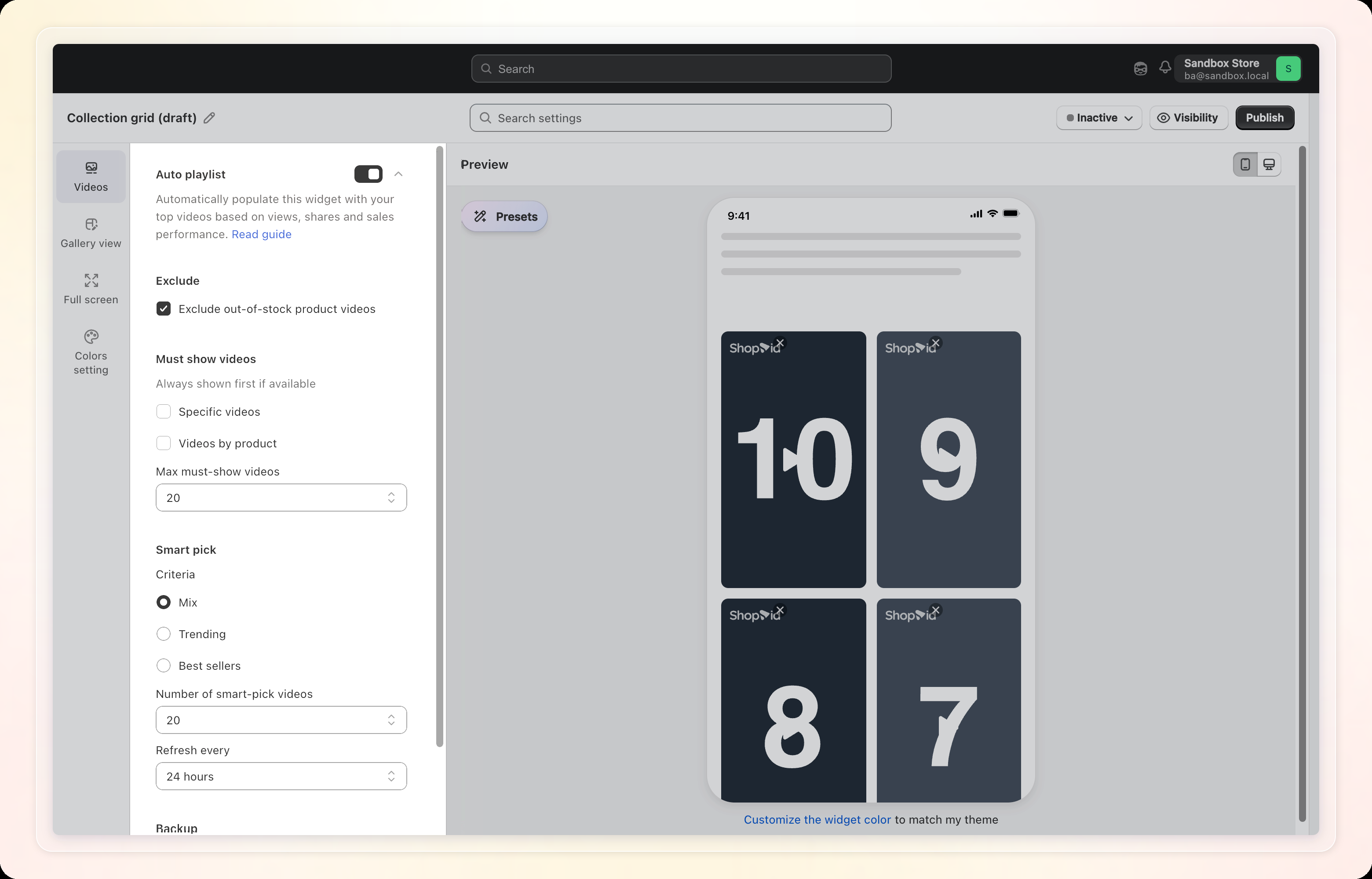
- Exclude — turn on Exclude out-of-stock product videos to skip videos whose tagged product is out of stock.
- Must show videos — videos that always appear first when available:
- Specific videos: pick exact videos to pin
- Videos by product: pin every video tagged to chosen products
- Max must-show videos: cap how many pinned videos can show at once
- Smart pick — fills the remaining slots automatically:
- Criteria: Mix, Trending, or Best sellers
- Number of smart-pick videos: how many videos Smart pick selects
- Refresh every: how often the smart pick refreshes (for example every 24 hours)
- Backup — a fallback video shown only when no video matches the rules above.
Placement (Float widgets only)
Float widgets show a leading Placement tab for page targeting, instead of mixing it into another tab:
- Page types available: Product pages, Tagged product pages, Home page, Cart page, Collection pages, and Blog pages. Turn on each page type you want the floating widget to appear on.
Stores on the Free plan see an upgrade prompt here for page types that require a paid plan.
Gallery View
Float widgets show this tab as Preview instead, with a trimmed version of the sections below. It also includes the Float-specific Display and Video player sections, covered under "Preview settings (Float)" further down.
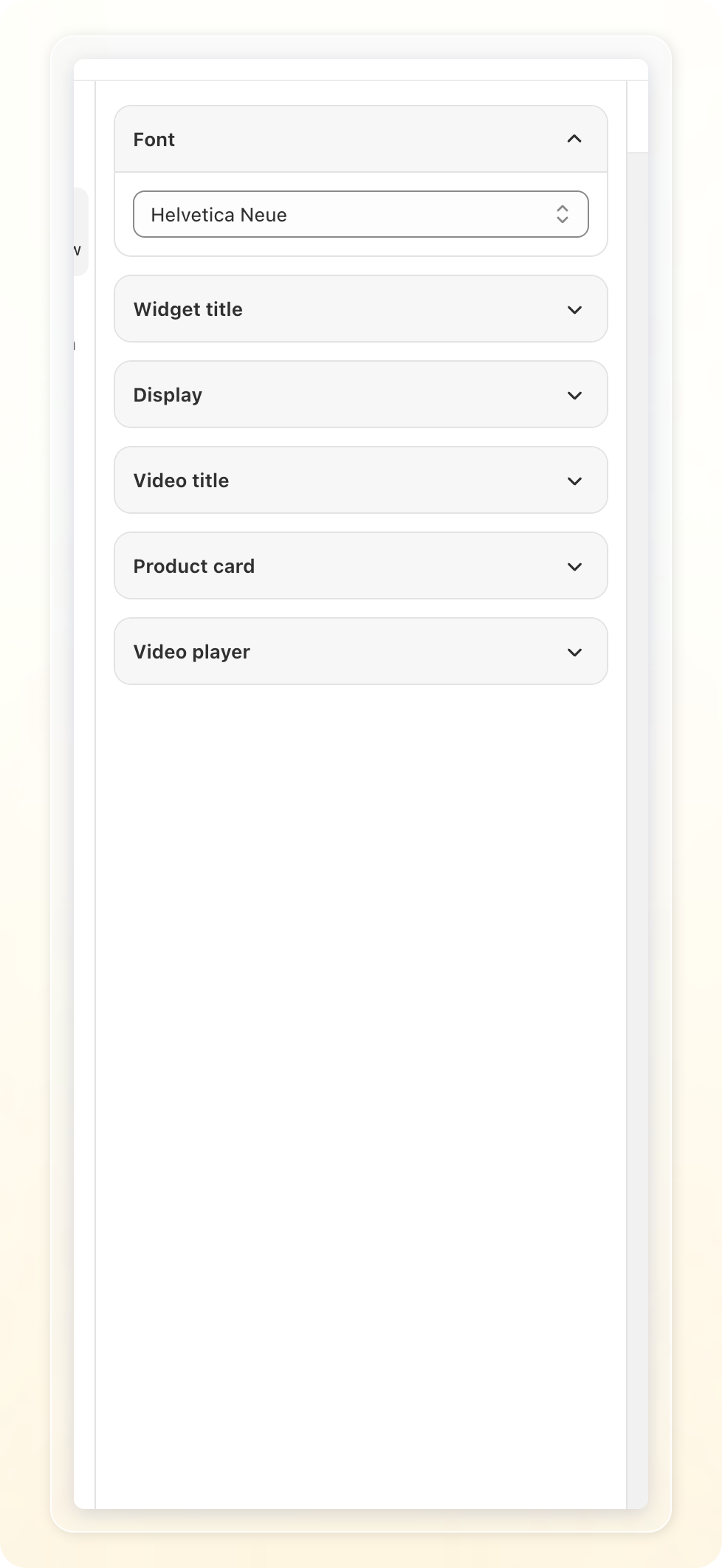
Font
- Choose a font for all text within the widget.
Widget title
- Block title: the heading shown above the videos
- Title size: adjust with the slider
- Title color: set in the Colors setting tab (Advanced color mode only)
Display
What shows here depends on the widget's layout:
- Grid, Basic carousel, and Highlighted carousel layouts share the same fields:
-
Column number: number of columns shown
Click Increase column range to contact support and raise the column limit for your store.
-
Border radius: rounds the corners of each video frame
-
Column spacing: Xsmall, Small, Medium, or Large
-
Video ratio: Square (1:1) or Portrait (9:16). Grid layout only.
-
- Story layout (the circular thumbnail row) replaces the fields above with:
-
Size and Gap: adjust with the sliders (separate ranges for desktop and mobile)
-
Widget alignment: Left, Center, or Right
The story circle's Border color is set in the Colors setting tab, not here.
-
Video title
Not shown for widgets placed on Product pages, regardless of layout.
- Display video title: turn on to show the video's title on the card
- Title size: adjust with the slider
- Max line: how many lines the title can wrap to before it gets cut off
- Title alignment: Left, Center, or Right
"See more" button
Only shown for the Grid layout.
- Rows per "See more" click: how many extra rows load each time a shopper clicks the button
Infinite slider
Only shown for the Basic carousel layout.
- Turn on to make videos scroll continuously across the screen like a ticker.
- Slide speed: Slow, Medium, or Fast
Product card
- Turn on Display product card, then choose a Template:
- Overlay: product card is displayed over the video
- Icon button: same as Overlay, plus a clickable icon button
- Text button: same as Overlay, plus a clickable, customizable text button
- Card outside video: product card with an icon button, displayed under the video frame
- For templates with a button, also customize:
- Button background color
- Button text and button text color (Text button template)
- Button icon color (Icon button template)
- Price display: whether the card shows price info
Video player
-
Play video:
- None: videos play only when clicked
- Autoplay: videos start playing when customers scroll to them
- Autoplay on hover: videos start playing on hover (not available on mobile)
- Auto play the center video: for carousel layouts, automatically plays whichever video is centered
-
Autoplay options (when Autoplay is on): choose Autoplay full video or Autoplay first few seconds. The latter shows an Autoplay duration field, in seconds.
-
Autoplay next video: automatically moves to the next video when the current one ends. Disabled automatically when Infinite slider is active.
-
Enable sound while playing
On iOS, sound cannot play on the initial load in Preview mode. The video plays silently, and audio starts when navigating to the next video.
Colors setting
Auto match theme
Auto match theme aligns your widget's colors with your live Shopify theme, no manual color picking needed. Found under Manage widget, open a widget, then the Colors setting tab.
Click Sync theme to apply your live theme's color scheme to the widget. Click it multiple times to cycle through different color schemes pulled from your live theme. Save when you find the right one.
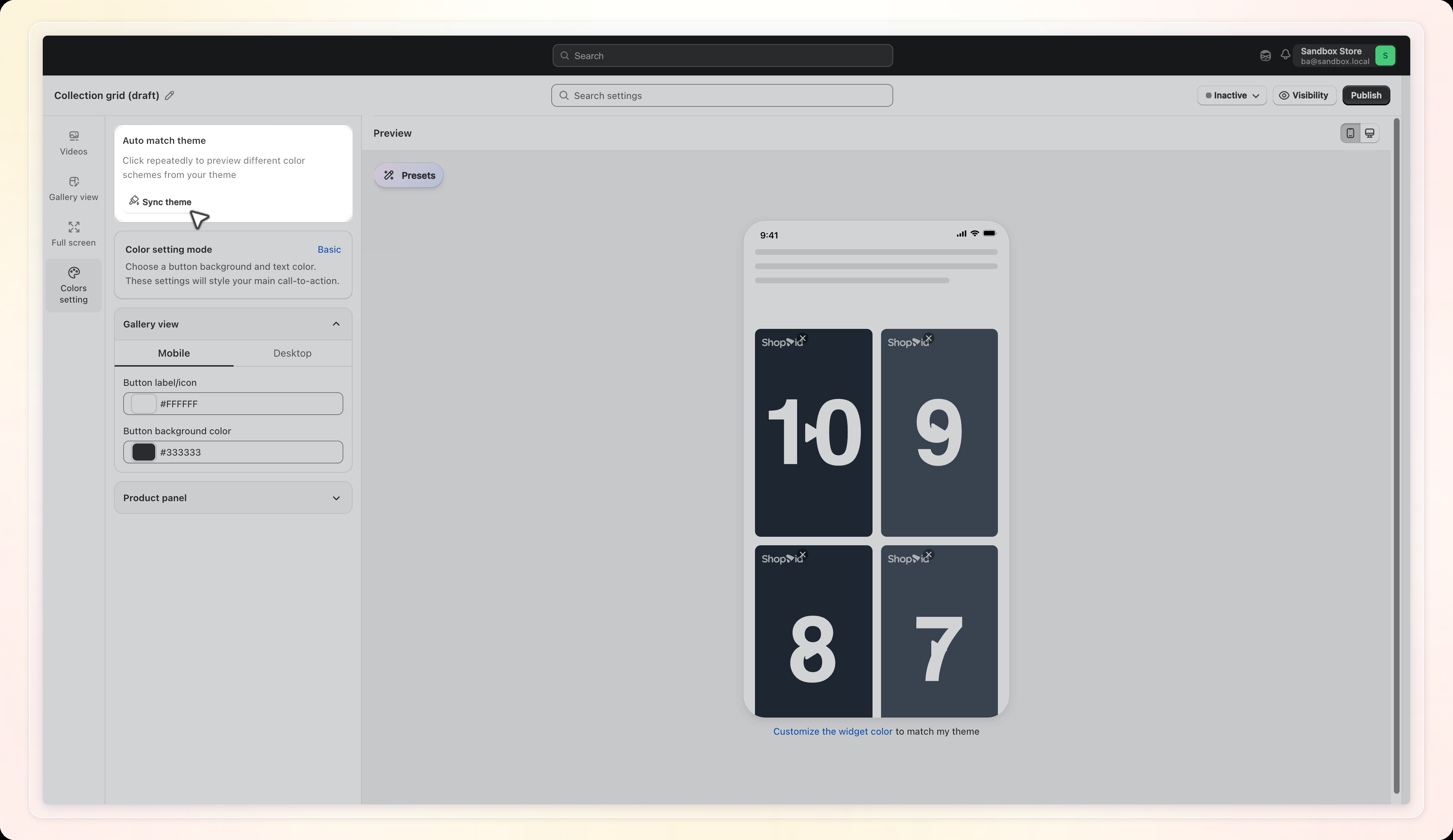
If your store hasn't unlocked this feature yet, Sync theme shows disabled with a note that the feature is locked. A Check my theme link appears below it. Click Check my theme to send a message to support and unlock the feature for your store.
Color setting mode
- Switch between Basic (button background and text color only) and Advanced (every color field below, including Widget title color).
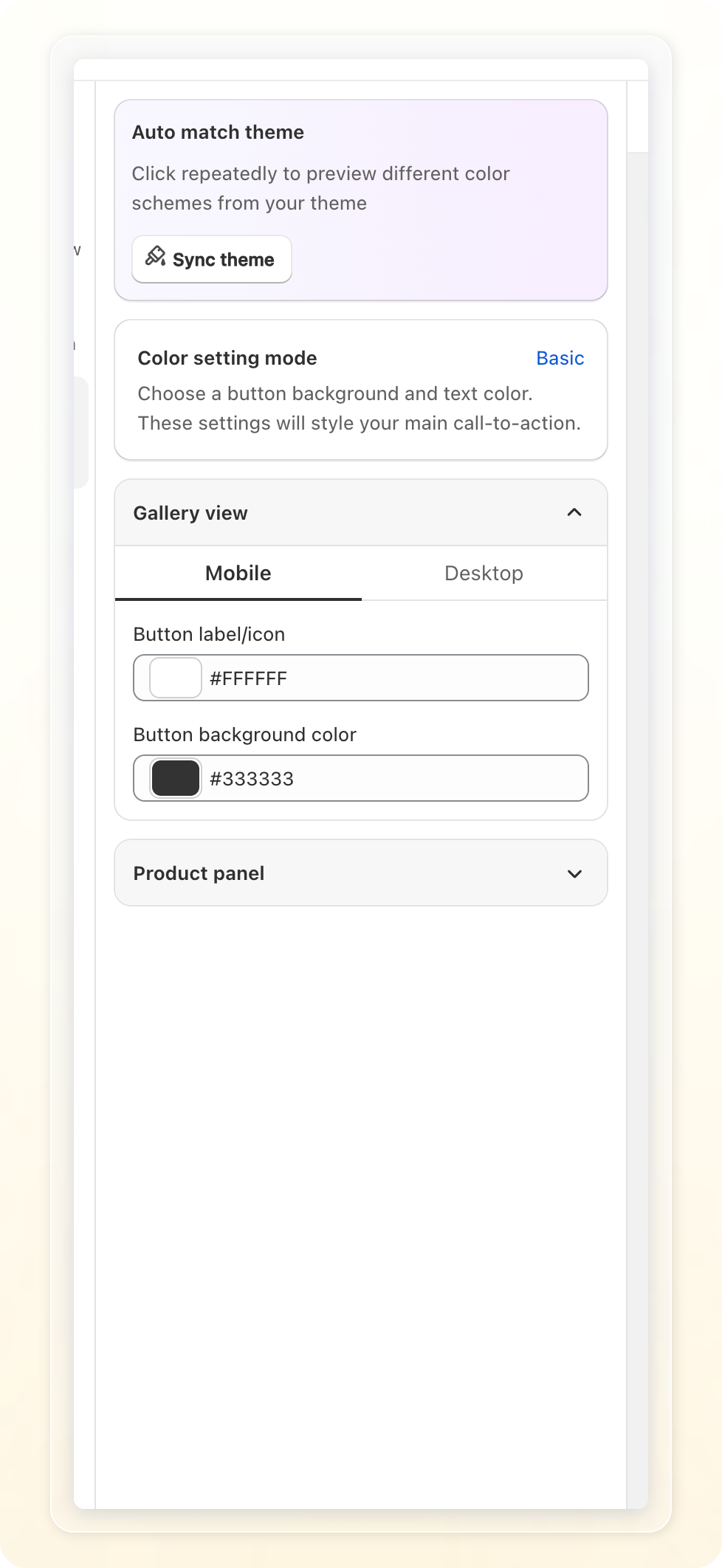
Gallery view colors
Not shown for Float widgets.
- Basic and Advanced modes both show Button label/icon color and Button background color (the two just swap order between modes).
- Advanced mode additionally shows Widget title color.
- Story layout replaces both button colors with a single Border color for the story circle.
Product panel
One accordion covers the whole product panel; Product card and Product detail below are sub-headings inside it, not separate tabs.
- Background color for the panel itself — Advanced mode only.
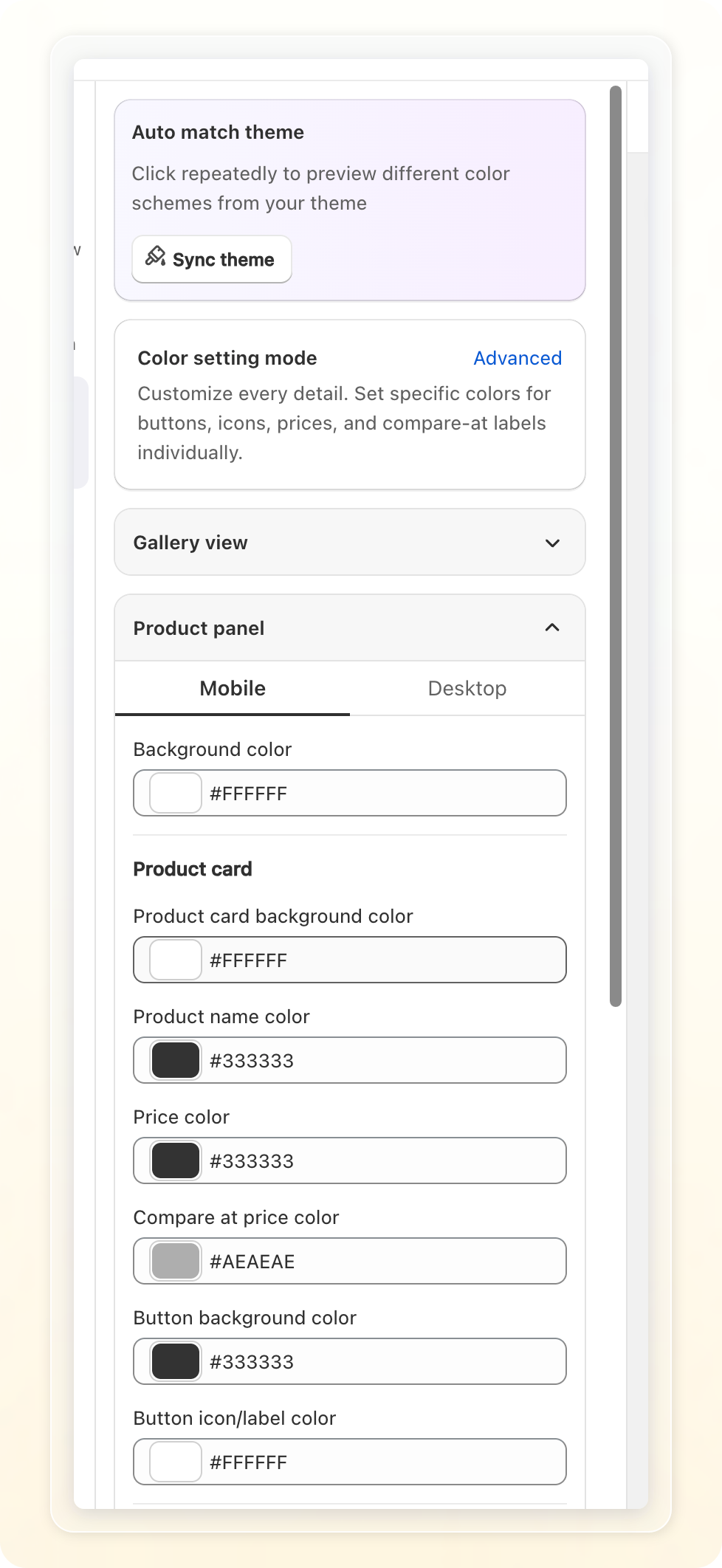
Product card:
- Button background color and Button icon/label color — shown in both modes.
- Advanced mode adds: Product card background color, Product name color, Price color, Compare at price color.
Product detail:
- Button background color and Button icon/label color — shown in both modes.
- Advanced mode adds: Text color (the product name in the product detail view), Price color, Compare at price color.
- "More info" button border color and "More info" button label color. These only show when Advanced mode is on. They also need the More info button toggle enabled (under Full Screen, then Product detail).
Full Screen
Settings are grouped under Desktop and Mobile sub-tabs so you can fine-tune each device size independently. This tab also contains the Product list, Product card, and Product detail sections further down. These are grouped here because the full-screen player and the product panel it opens are configured together.
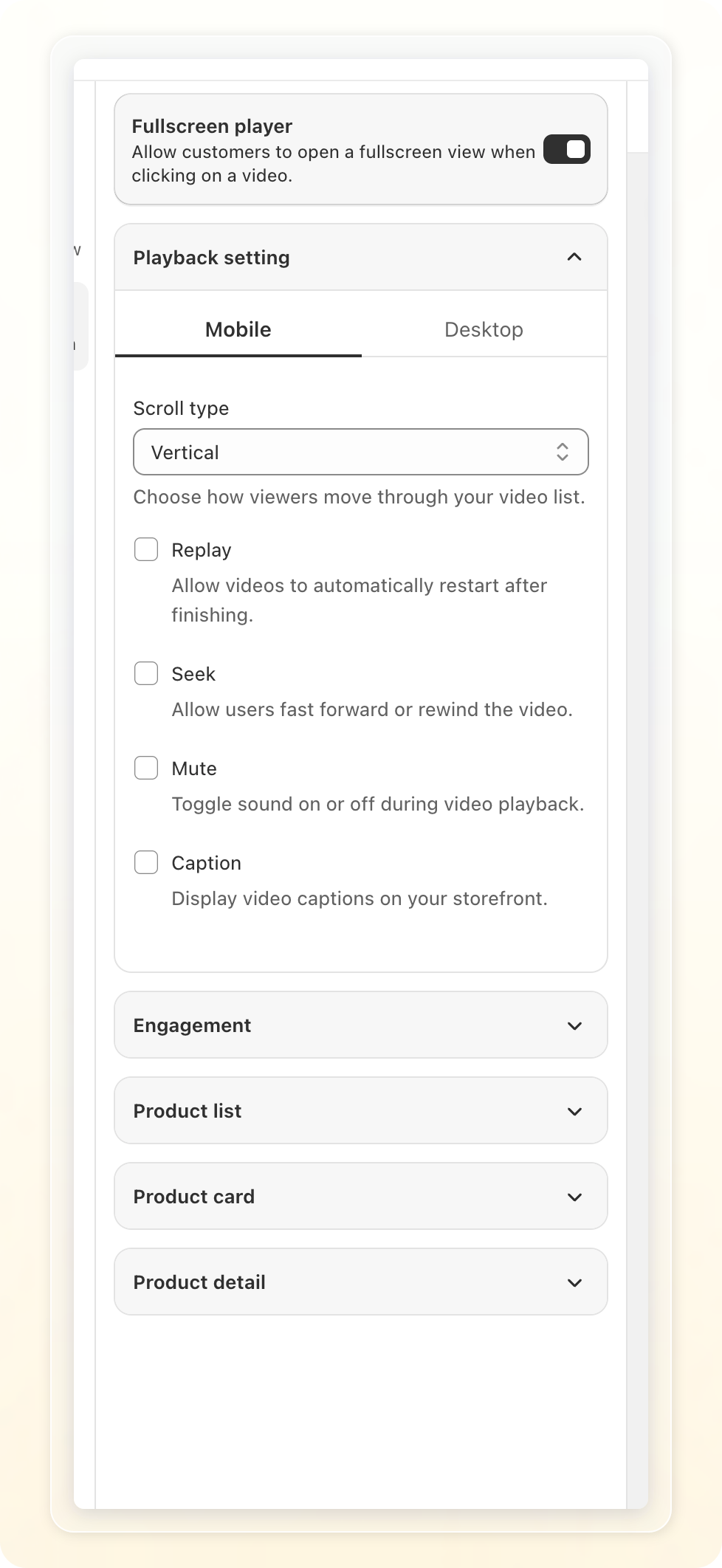
Playback setting
-
Fullscreen player: allow customers to open a fullscreen view when clicking a video
When Fullscreen player is off, the Product list, Product card, and Product detail sections below are hidden. They only apply to the fullscreen product panel. Float widgets always show them.
-
Scroll type: Horizontal (scroll left/right) or Vertical (scroll up/down)
-
Layout (desktop): choose Video with product panel (default) or Video only. Video with product panel shows the product panel alongside the video. Video only shows a full-screen video without a product panel. Clicking Add to cart then opens a product detail sidebar on the right instead.
-
Replay: automatically restarts videos after finishing
-
Seek: lets customers fast forward or rewind
-
Mute: shows a mute/unmute control
-
Caption: displays video captions, with a Caption size option
-
Navigation arrows: shows forward/backward arrows to move between videos
Engagement
-
Like: shoppers can like the video
-
Share: shoppers can share the video to other platforms, with a choice of Icon
-
Enable destination links: lets customers open a destination URL from a link shown on the video
To set a link, go to Video Library, open a video, then Destination URL and paste a URL. Videos without a link won't show a pill.
Product list
Configures the product list panel a shopper sees when a product card opens the list. See Product card click behavior below.
- Heading text: customize the title shown above your products (for example "Product seen in the video")
- Layout: Grid (2 products per row) or List (1 product per row)
- Border radius: rounds the corners of the product list panel
Product card
Configures the card shown for each product, and what happens when a shopper interacts with it.
-
Product card click action: Open product detail page or Show product detail within the modal
-
Product card click behavior: what happens when a customer clicks a product card:
-
Open product list
-
Open product detail page
-
Open product detail page within the modal
For videos with 2+ products, the card always opens the product list.
-
-
Button action: what the button does when clicked:
-
Open product detail page
-
Show product detail within the modal
-
Add to cart (no page change)
-
Add to cart and open cart page
Click contact us in the field if you need compatibility with a customized cart drawer.
-
-
Icon: choose the button's icon
-
Price display: whether the card shows price info
Click contact us in the field if you need to adjust the price text size. Price color is set in the Colors setting tab (Product panel, then Product card), not here.
Product detail
Configures the modal a shopper sees after opening a single product's details.
- Primary button label: the text on the main Add to cart button (up to 24 characters)
- More info button: turn on to show a button that opens the product page for more details
Preview settings (Float)
Float widgets show these under the Preview tab, alongside the trimmed Gallery View sections above:
-
Default position: Bottom right or Bottom left
-
Border radius
-
Popup close behavior: Minimize to circle or Close completely
To change the popup close behavior beyond these defaults, click Contact us in the field.
-
Video player: Auto start video, and what happens when playlist ends — Stop playing or Replay from start